2OM-1751-003w_G5S.pdf - 第66页
2OM-1751 1-14 [4] T ape T ype Displayed are the following Tape data. T ape Width Pitch [5] [T rash box ll up] Button Pressing this button displays the following window and the condition of tape cuttings can be checked. …
2OM-1751
1-131303-001
[1] Select block
The feeder block image is displayed.
When each block button is pressed, the "[2] List of Feeders" pane shows the
feeder information of the corresponding block.
[2] "List of Feeders" Pane
Fdr No.
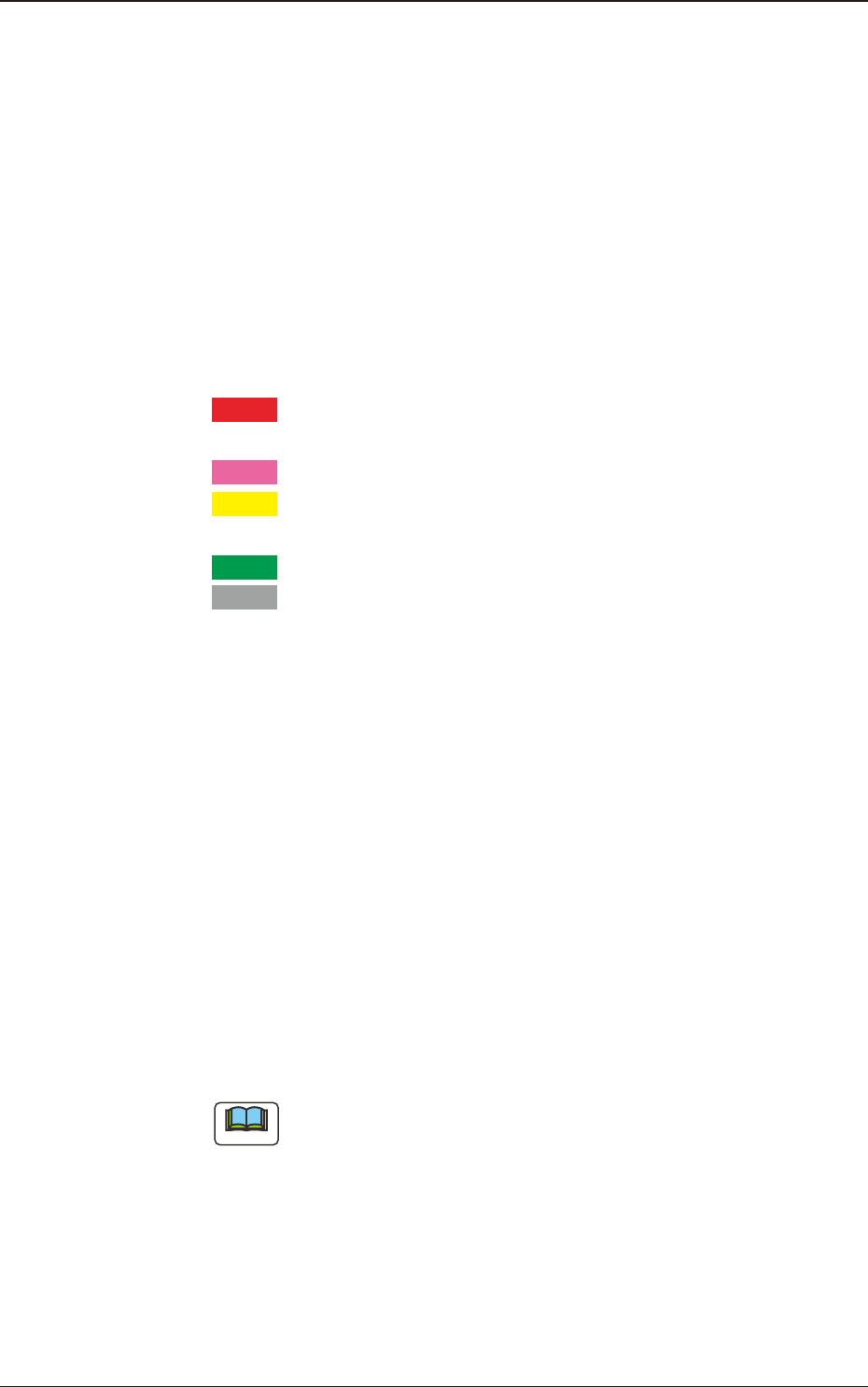
The condition of each feeder is color-coded. When a component shortage
error has occurred in a feeder, the background color of the feeder No. turns
red.
According to your judgment based on the color codes, components can also
be supplied to the other feeders together with the error-caused feeder.
Red
: Feeder Unavailable (Component Shortage Error, Feeder
Not Installed, etc.)
Pink
: Splicing Stop Generated at Feeder
Yellow
: Attention Required Feeder (Warning of Component
Shortage, etc.)
Green
: The feeders are normal.
Gray
: Not selected feeder (specied as "Not Used") in the pat-
tern program
Component ID
Displayed are the component IDs.
Splicing
When the splicing function in each feeder has been enabled, it is displayed in
blue, and when the function has been disabled, it is displayed in red.
Cmp.Bal
Displayed is the number of components remaining in the feeder.
PCB.Bal
The No. of PCBs where the components can be placed before a component
shortage occurs, is displayed in these data boxes.
Note
Each button-shaped item has a button function.
When each button is pressed, the corresponding items are re-arranged in
the ascending order.
[3] Component type
Displayed are the following component data.
Comp Type
Comp Size (X, Y)
3. "Comp.Reload" Window
2OM-1751
1-14
[4] Tape Type
Displayed are the following Tape data.
Tape Width
Pitch
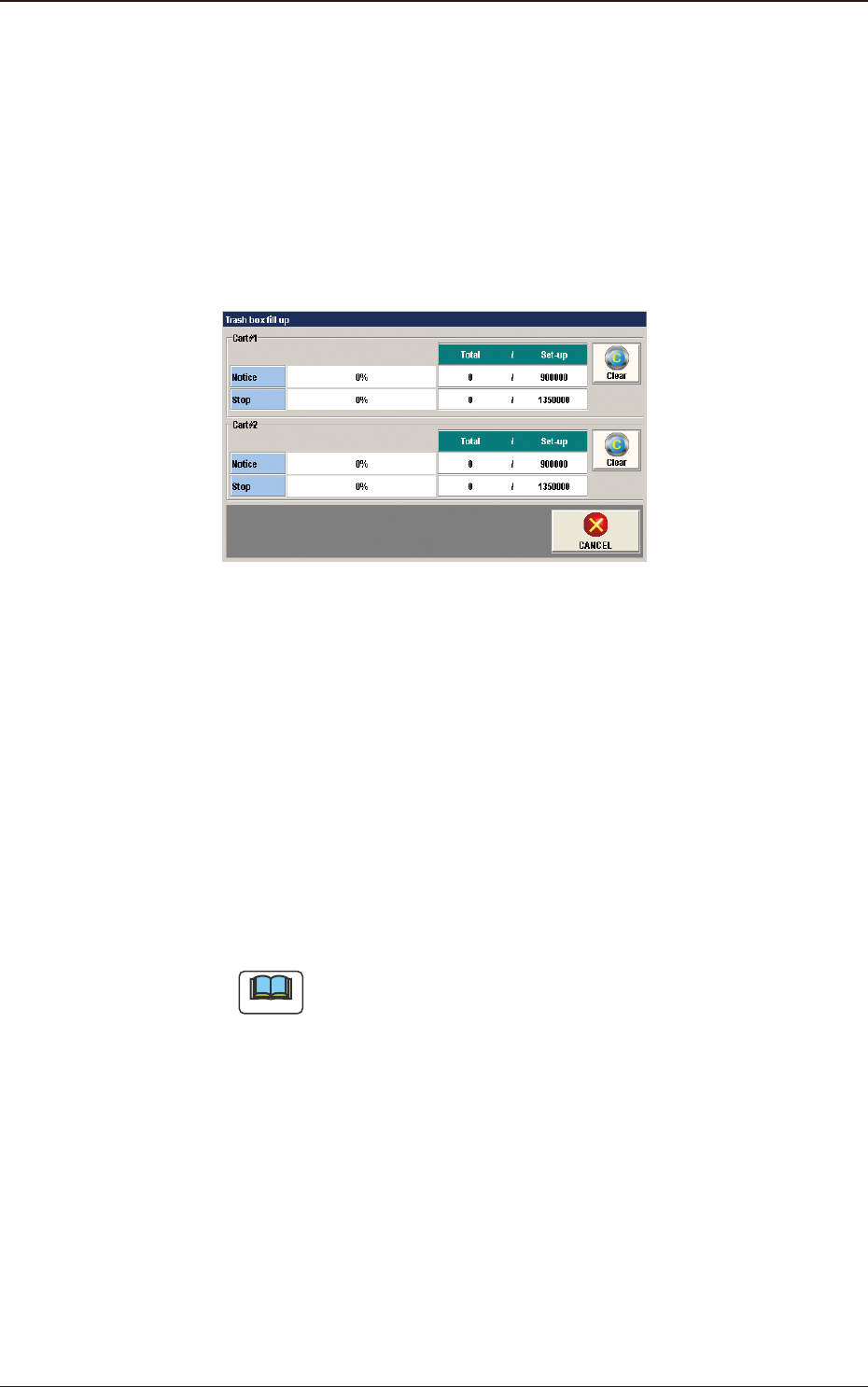
[5] [Trash box ll up] Button
Pressing this button displays the following window and the condition of tape
cuttings can be checked.
F2A12
Cart #1, #2
Notice
When the totaled amount value reaches the set value, it is announced in
this section.
Stop
When the totaled amount value reaches the set value, it is announced in
this section and the machine is stopped.
[Clear] Button
When this button is pressed, the totaled amount value is returned to "0".
Note
Refer to "3. Auto Operation" in Chapter 2, Volume 3, for the set values.
1303-001
3. "Comp.Reload" Window

2OM-1751
1-151303-001
[6] Sorts when reld
[OFF] Button
When pressed, the sorting operation is not performed in the component
reload operation.
[ON] Button
When this button is pressed, the component reloaded feeders are
automatically sorted and moved down to facilitate the component reload
operation.
[7] [Cmp Reload] Button
,
[SPL Reload] Button
Pressing these buttons enters the corresponding numbers of components in
the component library data in the above text boxes.
[8] [Cmp Rem] Button,
[Spl Comp Bal] Button
Pressing either one of these buttons opens a data entry window - "Cmp Rem"
or "SPL Cmp Rem" window.
Each data entry window enables the operator to enter and specify the number
of components being used currently or subsequently (for splicing).
These buttons can be used when the number of components differs from the
specied value (number of components) in the component library data.
[9] [Canc.Stp.SP] Button
When this button is pressed, it can be canceled to stop the tape feeding for
splicing the tape ends together.
As a result, the tape feeder equipped with the tape splicing function will not
be stopped, making it possible to use up the tape.
[10] Total
The total of the "Current Component Remained (Cmp Rem)" and "Splicing
Component Balance (Spl Comp Bal)" is displayed.
[11] Local/Line Change Button
Each pressing of this button toggles between the local window and the line
window.
3. "Comp.Reload" Window