2OM-1751-003w_G5S.pdf - 第74页
2OM-1751 1-22 [2] Step Display Section The No. of total steps in the pattern program set in the machine, is displayed in this section. Setting the cursor on the step can also designate the step. Note In normal cases, the…
2OM-1751
1-21
4.1.1 With the start of step described
This function is used when the step is designated in the component reload,
recovery or test PCB placement operation, etc.
There are two types of start with the step designated: Semi-Auto Step and Semi-
Auto Step Any Desig (free designation).
The display window and start procedure are described as follows.
•
Description of Semi-Auto Step
A single step operation (1 component/point) can be designated.
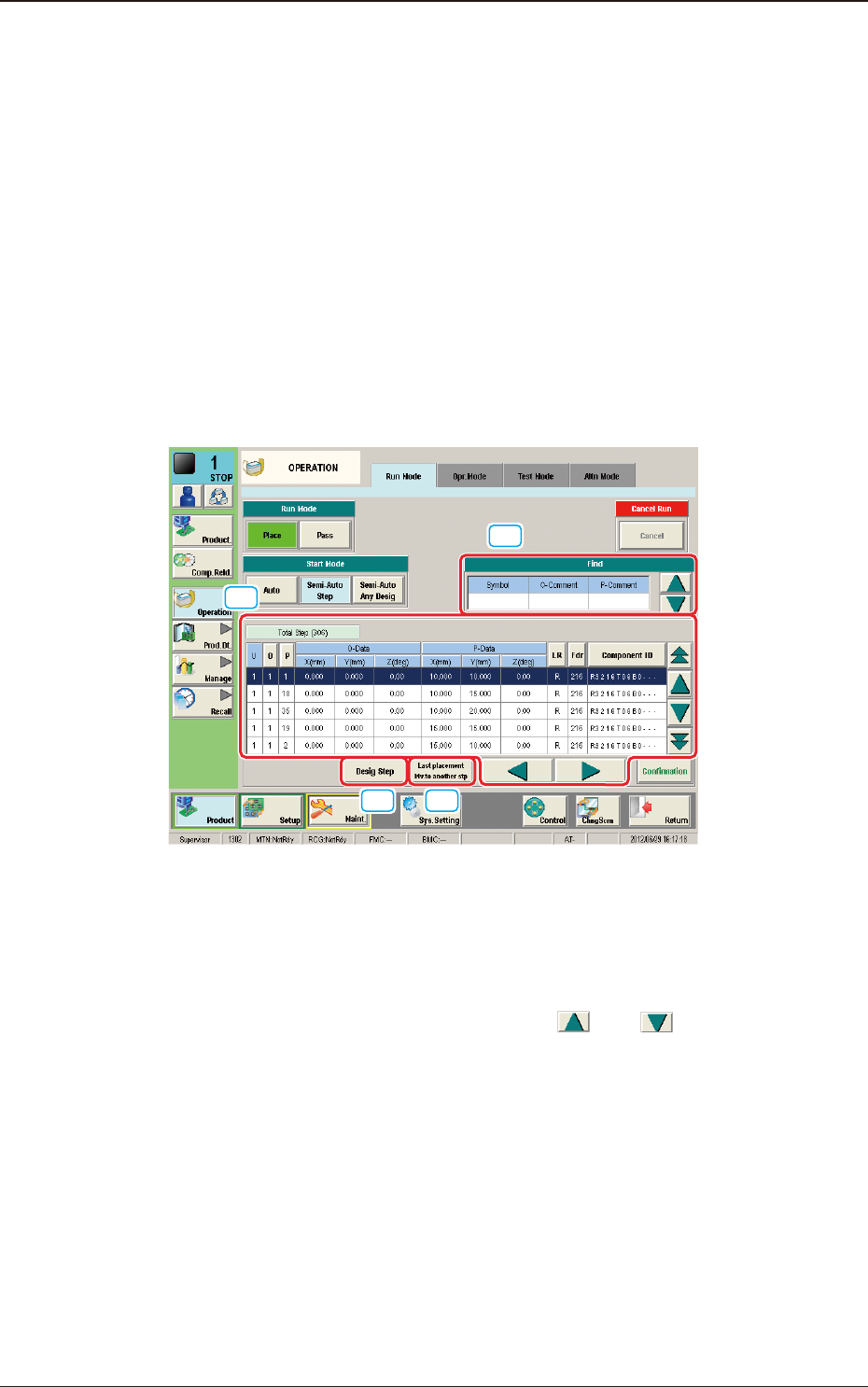
Description of "Semi-Auto Step" Window
When the [Semi-Auto Step] button is pressed in the "Start Mode" group box,
the following window appears.
[1]
[2]
[3] [4]
F2A18
[1] "Find" (Search) Section
The search can be performed with "Symbol", "O Comment" and "P
Comment" data. Entering the set parameters in "Symbol", "O Comment" and
"P Comment" data box and pressing the [
] or [ ] button designate
the entered step.
1303-001
4.1 "Run Mode" Tab Sheet
2OM-1751
1-22
[2] Step Display Section
The No. of total steps in the pattern program set in the machine, is displayed
in this section.
Setting the cursor on the step can also designate the step.
Note
In normal cases, the starting step Nos. are displayed in the order of actual
component placement.
By pressing the [O] or the [P] button, the steps can be re-arranged in the
ascending order.
Even when the step Nos. are rearranged, the component placement order is
not changed.
[3] [Desig Step] Button
The step No. can be entered and designate in the entry window displayed by
pressing the [Desig Step] button.
Enter the step No. in the order of "U", "O" and "P".
[4] [Last placement Mv.to another stp] Button
When this button is pressed, the step is moved to the "Last placement Mv. to
another stp" (nal placement step) position.
Starting Procedure for the Semi-Auto Step Designation
Procedure
(1) Place the PCB on the position of the step operation to be
designated.
Note
Transfer and place the PCB manually onto the aimed position.
(2) Designate the step to be started using either of the above
procedures.
Note
The background of the designated step is turned in blue.
(3) When the [START] button on the operation panel is pressed, the
designated step operation is started.
1303-001
4.1 "Run Mode" Tab Sheet
2OM-1751
1-231303-001
•
Description of Semi-Auto Step Any Desig (free designation)
Two or more steps can be designated.
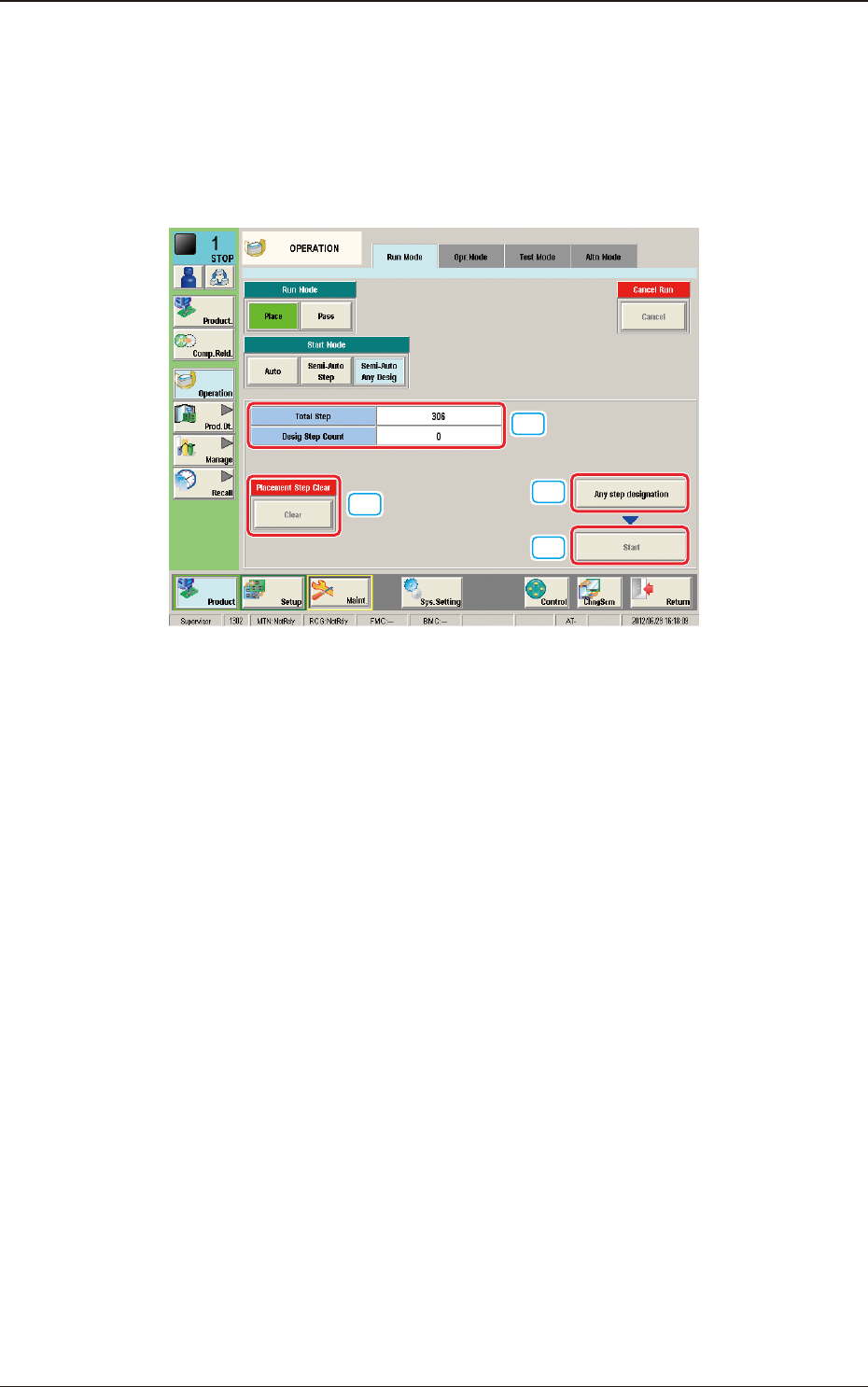
Description of "Semi-Auto Step Any Desig" Window
When the [Semi-Auto Step Any Desig] button is pressed in the "Start Mode"
group box, the following window appears.
[1]
[2]
[3]
[4]
F2A19
[1] No. of Total Steps and Designated Step Count Display Section
The No. of total steps and No. of designated steps are displayed in this
section.
[2] [Any step designation] Button
When this button is pressed, the "Any Step Designation" Window appears.
[3] [Start] Button
When this button is pressed, the designated step operation is started.
[4] [Placement Step Clear] Button
When this button is pressed, the placement step operation designated in the
"Any Step Designation" mode, is cleared.
4.1 "Run Mode" Tab Sheet