YRM20_Mainte_E.pdf - 第57页
1. Checking the nozzle 2-6 Chapter 2 Daily maintenance items 1. Checking the nozzle Solder sticking to the nozzle tip or a clogged nozzle hole can cause component pickup error and recognition err or . Moreover , poor spr…
Before maintenance work
2-5
Chapter 2 Daily maintenance items
█
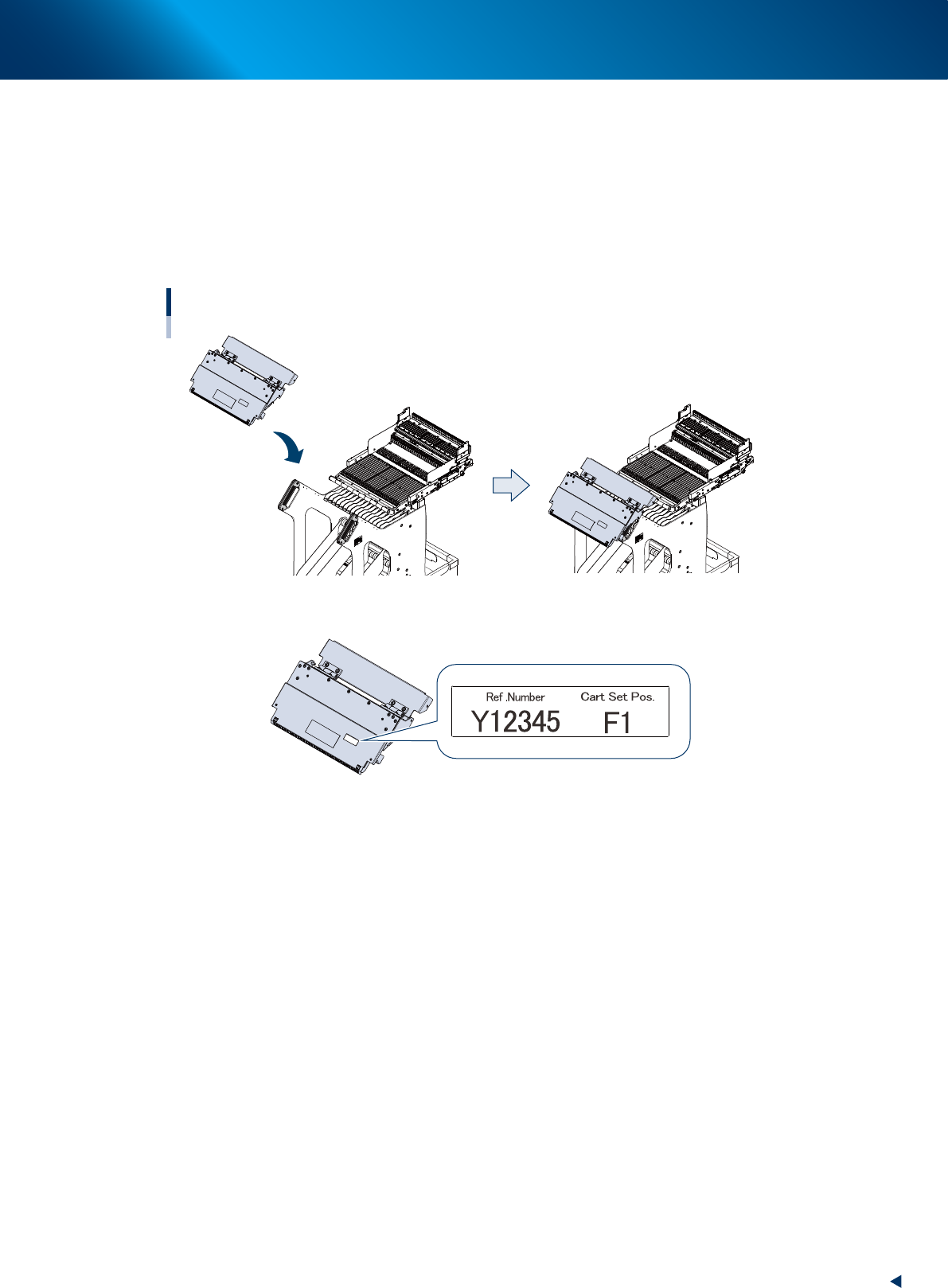
Temporary placing of upper cover and precautions
The upper cover can be placed temporarily upon handles of feeder exchange carriage.
Also, a cover identification label attached to upper cover carries machine serial number and number of
carriage set position.
The upper cover is not compatible for other carriage set position or other machine, as the guide position
is adjusted for the correspond machine upon assembling and then the carriage is shipped. Use with the
machine/carriage set position written on cover identification label.
Temporary placing of upper cover
■ Cover identification label
53210-KMX-00
1. Checking the nozzle
2-6
Chapter 2 Daily maintenance items
1. Checking the nozzle
Solder sticking to the nozzle tip or a clogged nozzle hole can cause component pickup error and
recognition error. Moreover, poor spring action of nozzles may cause pickup errors. Inspect each nozzle
on a daily basis to prevent the errors.
1.1 Checking with software
█
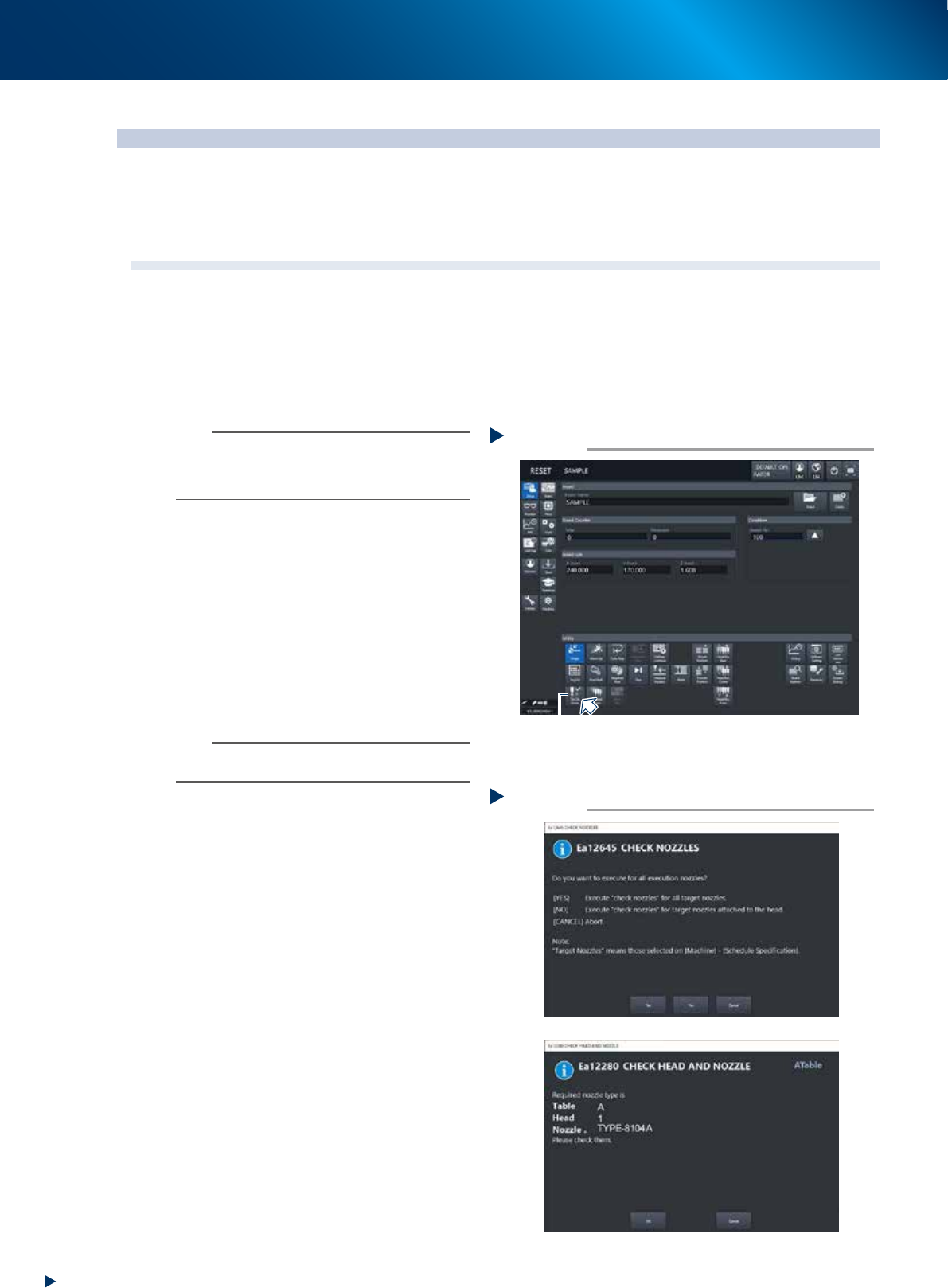
How to check for a dirty nozzle (with the [Nozzle Cln Check] button)
The term "Nozzle Clean" as used here indicates shiny material such as solder adhering to the nozzle tip.
This shiny portion might be mistaken for a component and cause recognition errors. [Nozzle Cln Check] is a
tool that judges the nozzle contamination status by recognizing the nozzle tip in the non-component status
with the camera.
n
NOTE
The [Nozzle Cln Check] is a function that recognizes the
reflection of the light around the nozzle center. Therefore,
applicable nozzles are those with a small tip, such as
Type 8104A and 8105A.
1
(When the nozzle station is not
equipped) Replace the nozzle.
1. Press the [Required Nozzles] button on the
"Setup" screen to check the nozzles to be
used for production.
e
2. Press the emergency stop button and then
open the machine safety cover.
3. Attach nozzles to be used for production to
head.
4. Close the machine safety cover and then
cancel the emergency stop.
n
NOTE
Step 1 can be skipped if the machine is equipped with
the nozzle station.
2
Press the [Nozzle Cln Check] button on
the "Setup" screen.
3
Select item to be executed.
After checking the displayed message, select
the desired button.
►
When selected [Yes]
Performs auto nozzle change and checks all
relevant nozzles.
►
When selected [No]
Checks relevant nozzles of all nozzles currently
attached to the head.
4
Check the message.
If the result is Not OK, clean the nozzle
referring to "1.2 Nozzle cleaning"" in Chapter
3.
Selecting item to be executed
Step 3
When [No] was selected
54201-KMX-00
Press the [Nozzle Cln Check] button
Step 2
[Nozzle Cln Check] button
54200-KMX-00
1. Checking the nozzle
2-7
Chapter 2 Daily maintenance items
█
How to check for clogged nozzles (on the [Unit]-[Head] tab screen)
The term "clogged nozzle" used here indicates that material such as solder is adhering to the nozzle hole,
causing a rise in negative pressure even if no component is being picked up by the nozzle. This state might
cause problems such as component mounting errors. Check for clogged nozzles with the following
procedures. The checking procedures for HM head are described individually, as it varies from that of RM
head.
►
HM head
Here describes the procedure of Type 8104A as example.
n
NOTE
The "Vacuum level upon opening nozzle" which is judgment standard of clogged nozzle differs per each nozzle type. See
the next section "1.1.1 Vacuum level when nozzle is open" for the vacuum level upon opening other than Type 8104A.
1
Attach the nozzle.
e
►
Without nozzle station
1. Press the emergency stop button and open
the machine safety cover.
2. Attach Type 8104A nozzles to all head.
►
Nozzle station equipped
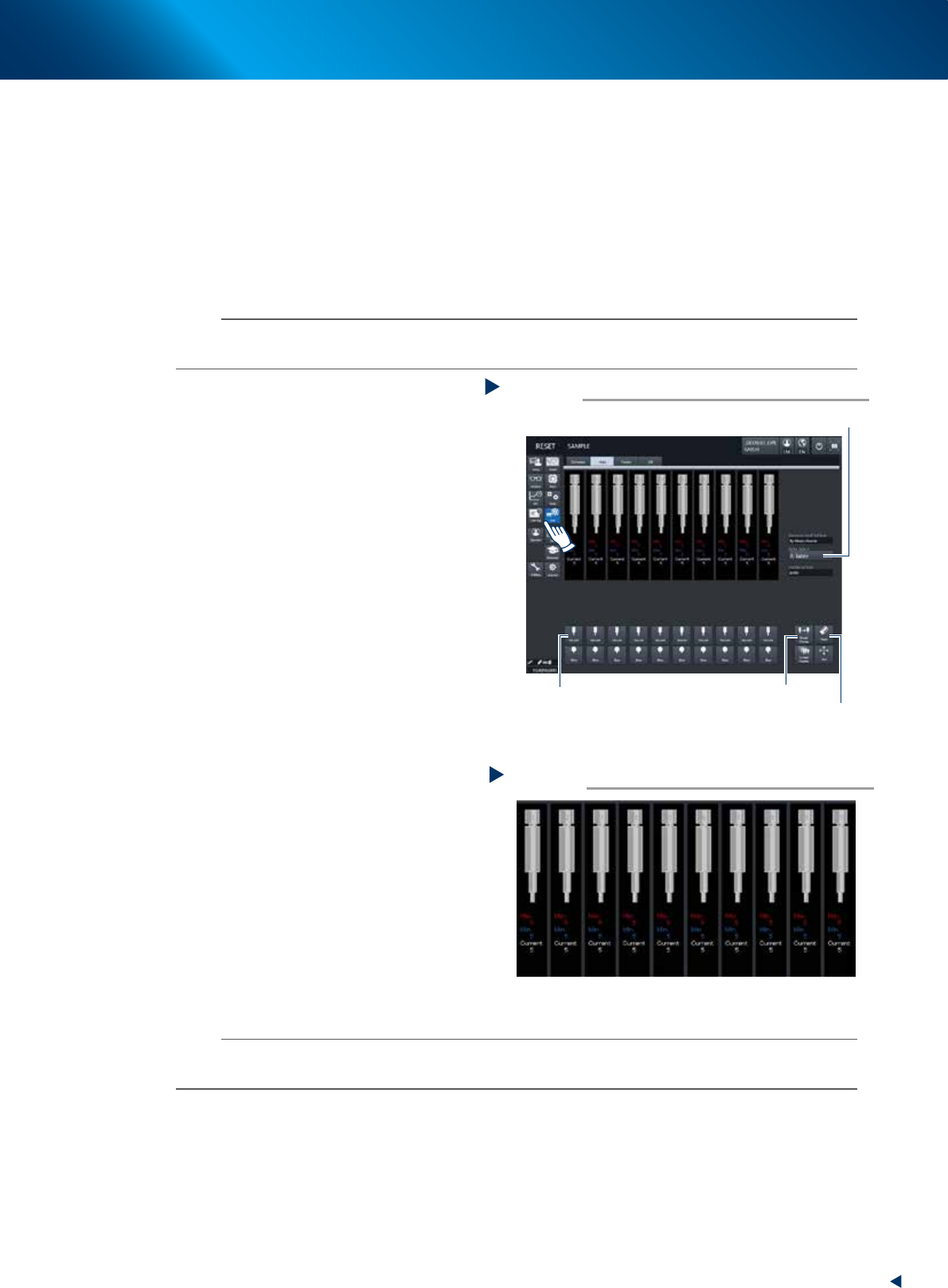
1. Press the [Nozzle Change] button on [Unit]
- [Head] screen and attach the Type8104A
nozzle to all head.
2. Perform "Table select" and attach the
nozzles to both A and B heads.
2
Reset the numerical figure.
Open the [Unit] - [Head] screen to reset the
vacuum level value by pressing the [Reset]
button at lower right of screen. Perform table
selection and reset all the values.
3
Generate negative pressure.
Press the [Vacuum] buttons of all head on the
[Unit] - [Head] screen. When the value starts
rising, wait 5 to 10 seconds and set to OFF.
Perform table selection and execute this task to
all tables.
4
Check the vacuum levels.
Check all "Max" values shown in red on
the vacuum pressure result, by changing-over
tables. If this value is 150 to 190 then it is in
normal range.
If higher than 190, then the nozzle hole might
be dirty. See "1.2 Nozzle cleaning" of Chapter
3 to Clean the nozzle.
n
NOTE
If a correct value cannot be obtained from steps 1 to 4 even after cleaning nozzle, the interior of the spline shaft might be
dirty. See "5.1 HM head: Cleaning the spline shaft interior" for cleaning procedure of spline shaft interior.
Checking negative pressure
Step 4
54203-KMX-00
Generating negative pressure
Step 1~3
[Nozzle Change] button
“Table Select” Drop-down box
[Reset] button
[Vacuum] button
54202-KMX-00