Printer 710-810 v9 ProFlow ATX.pdf - 第14页
PROFLOW ATX ADJUSTMENTS & SETTINGS 12.14 Technical Reference Manual Chapter Issue 6, Jan 16 ADJUSTMENTS & SETTINGS Adjusting the T ransfer Head Mount The transfer head mount brackets can be adjusted to accommodat…
PROFLOW ATX
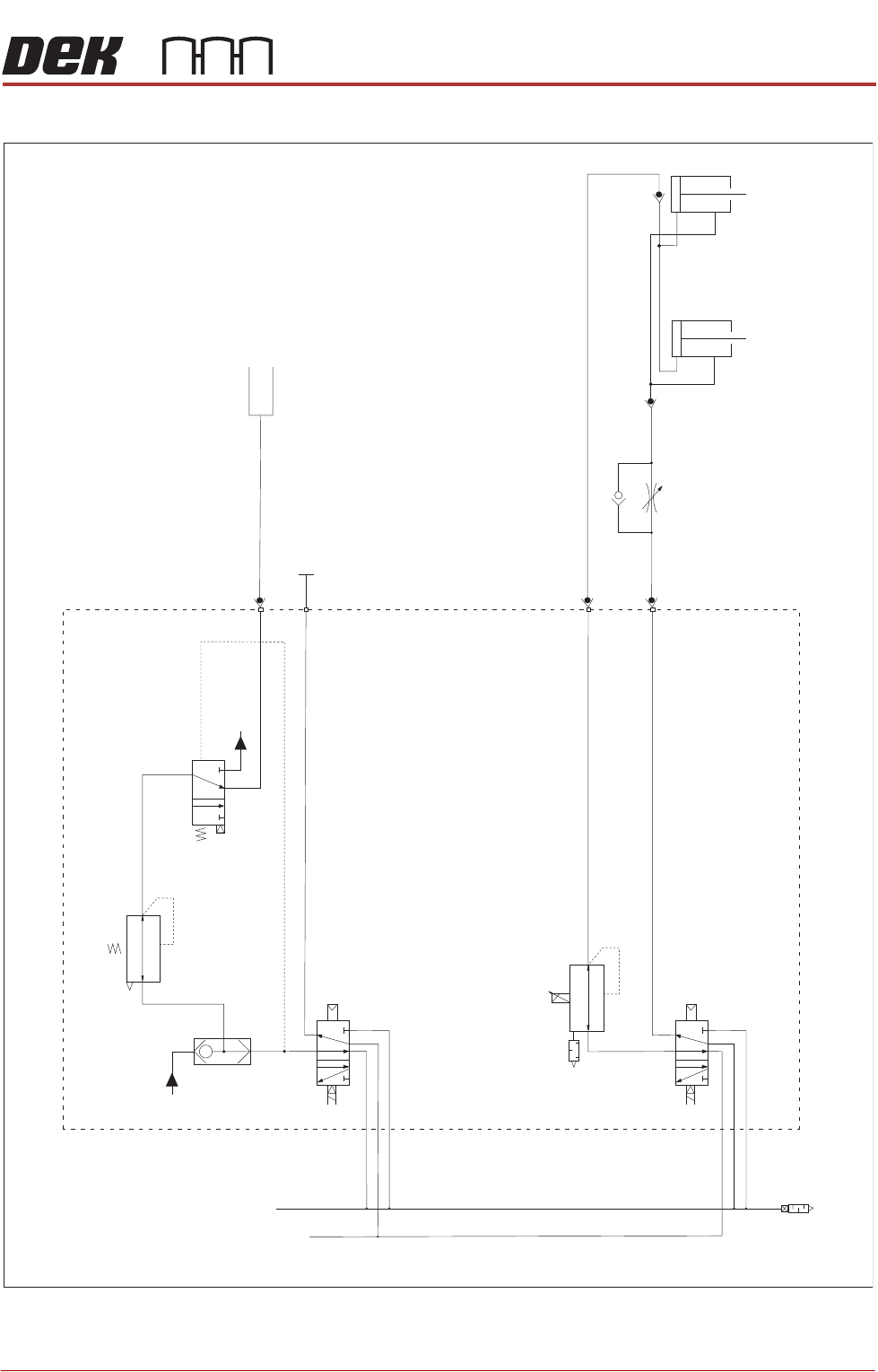
PNEUMATIC SCHEMATIC
Chapter Issue 6, Jan 16 Technical Reference Manual 12.13
PNEUMATIC SCHEMATIC
Print Carriage
9SOL30
9SOL26-29
Air In
9SOL25
5/2
5/2
Cartridge
A
A
B
B
ProFlow Paste
Pressure Regulator
Paste Pressure ON/OFF
Paste Refill
Paste
Dispense
To Paste
Dispenser
Flow Controller
Transfer Head Pistons
PROFLOW ATX
ADJUSTMENTS & SETTINGS
12.14 Technical Reference Manual Chapter Issue 6, Jan 16
ADJUSTMENTS & SETTINGS
Adjusting the
Transfer Head
Mount
The transfer head mount brackets can be adjusted to accommodate the differ-
ent widths of transfer head available (300mm and 400mm).
For more information on setting the transfer head size on the mount, refer to the
Replacement Procedures - Fitting the Transfer Head section of this manual.
Adjusting the
Stencil Support
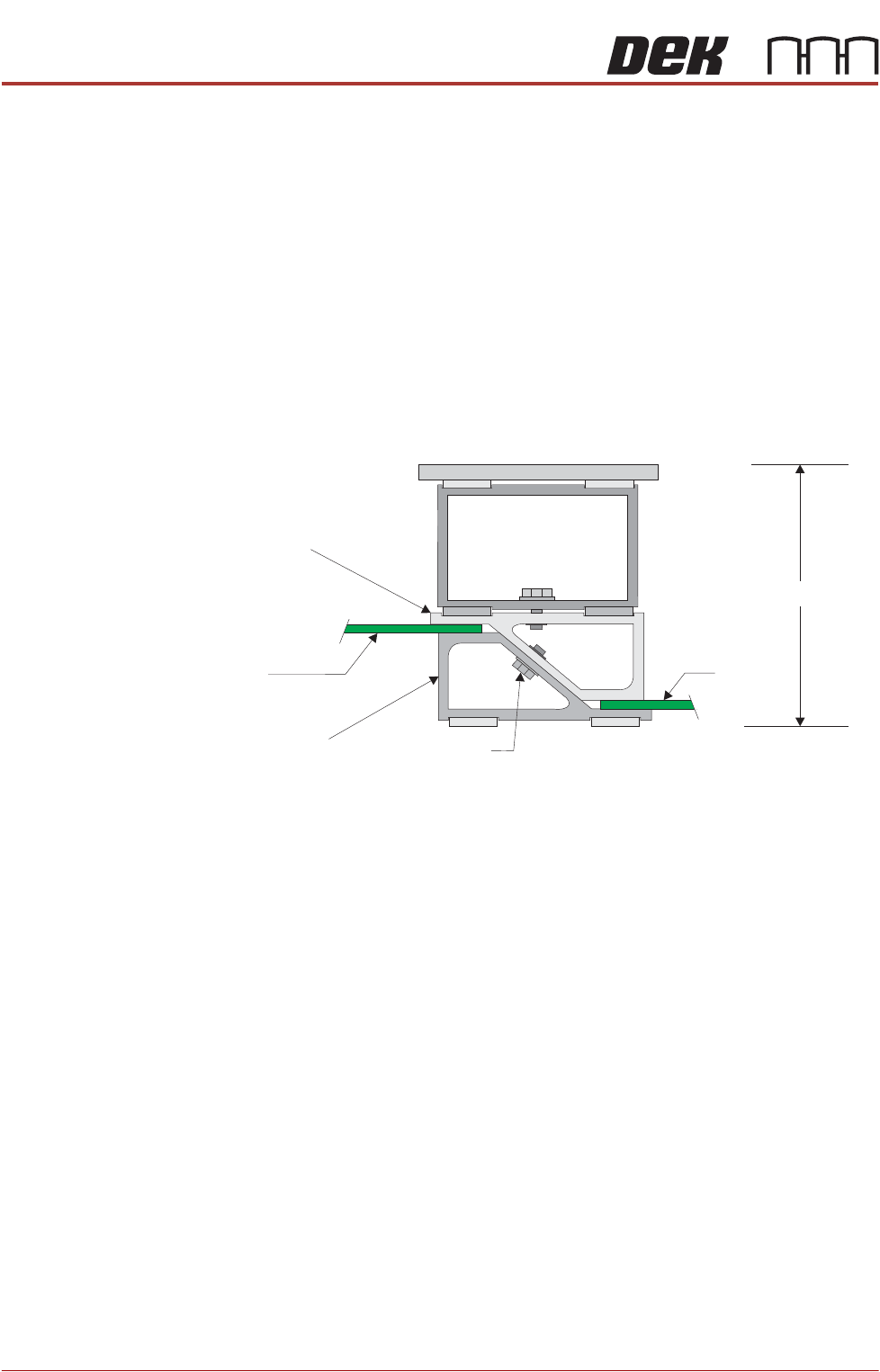
When the adjustable stencil support is in the closed position it is set to 81mm;
this dimension matches the height of the magnetic tooling pins. To provide
support for the stencil, the stencil support height must be increased by the
thickness of the circuit board.
To set the stencil support to the correct height, carry out the following:
1. Loosen the 7mm hexagonal securing nut.
2. Slide the adjustable tooling top upwards to separate the tooling top from the
tooling bottom.
3. Position two of the circuit boards to be printed between the top and bottom
faces of the stencil support.
4. Readjust the tooling stencil support.
5. Tighten the 7mm nut to secure the tooling top and bottom in position.
6. Remove the two circuit boards.
The support is now set to 81mm, plus the thickness of circuit board.
NOTE
For further information, refer to the Board Support Tooling chapter of the
printer’s Technical Reference Manual.
81mm + Board
Adjustable
Tooling Top
Adjustable
Tooling Bottom
Board
Board
7mm Securing Nut
View on Front of Stencil Support
PROFLOW ATX
ADJUSTMENTS & SETTINGS
Chapter Issue 6, Jan 16 Technical Reference Manual 12.15
Configuring the
Print Medium Low
Sensor
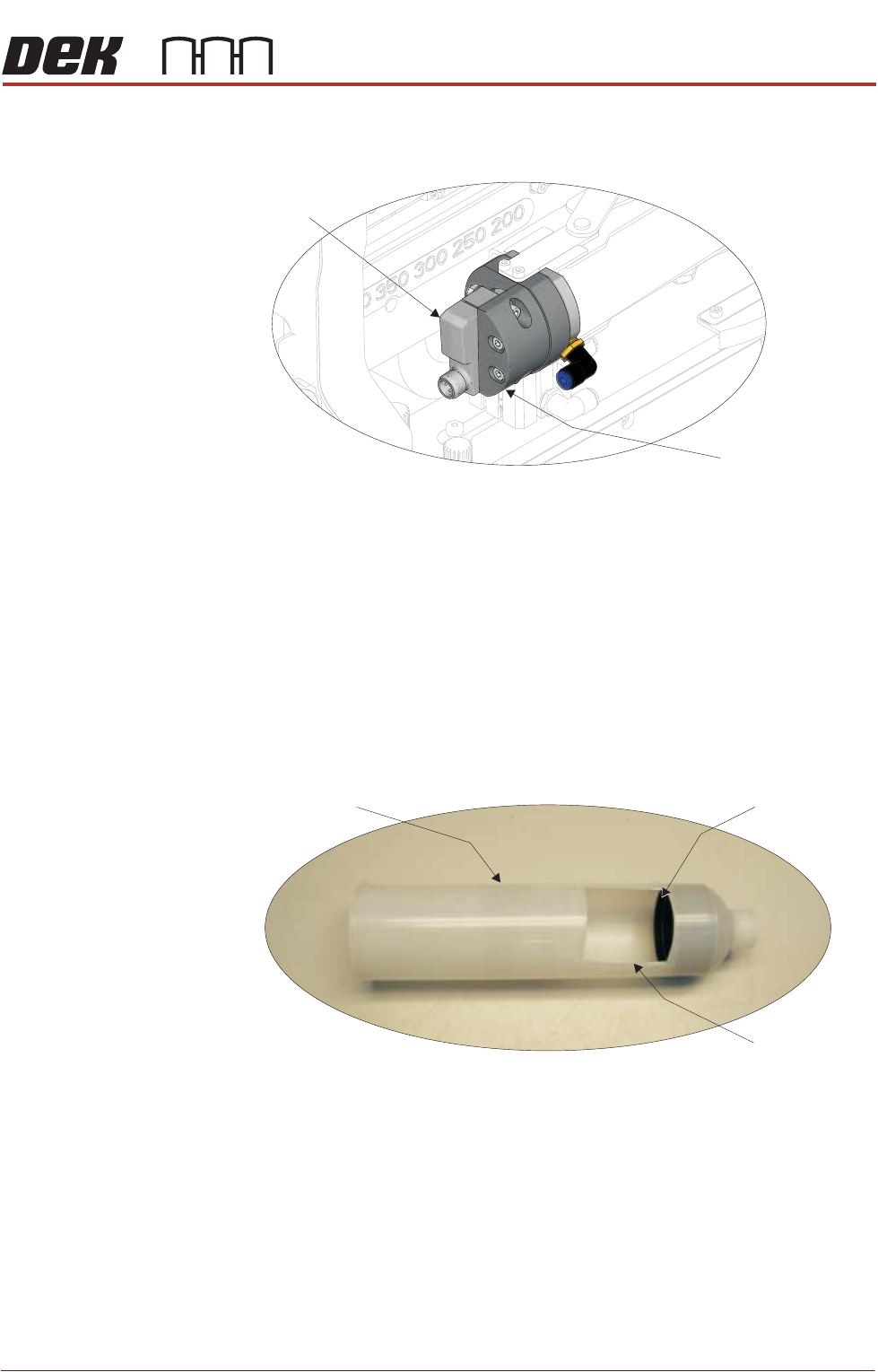
The print medium low sensor is mounted at the left hand end of the print medium
cartridge housing on the ProFlow ATx mount.
The sensor sends an LED beam toward the rear plate of the print medium
cartridge, registering the amount of print medium remaining in the cartridge. An
accurate reading can only be obtained after the LED beam has been configured
to hit the centre of the print medium cartridge’s rear plate.
NOTE
The sensor configuration procedure involves aligning the LED beam using an
empty print medium cartridge.
To configure the print medium low sensor beam, carry out the following:
1. Cut a view port into an empty print medium cartridge.
2. Fit the empty print medium cartridge into the ProFlow ATx mount. For more
information on fitting a print medium cartridge, see Fitting the Print Medium
Cartridge section of this manual.
View on Front of ProFlow ATx Mount
Print Medium
Low Sensor
Sensor Mount
Empty Print Medium Cartridge with View Port
Empty Cartridge
Rear Plate
View Port