Printer 710-810 v9 ProFlow ATX.pdf - 第53页
PROFLOW ATX CALIBRATIONS Chapter Issue 6, Jan 16 Technical Reference Manual 12.53 This PFLOW CONT ACT POS . parameter set s the height of the ProFlow transfer head. 16. Selec t Incr . or Dec . until the cont act height r…
PROFLOW ATX
CALIBRATIONS
12.52 Technical Reference Manual Chapter Issue 6, Jan 16
16. To move, and test, the printhead at the new setting, repeat Steps 9 to 12.
17. Select Set.
18. The status message ‘This Will Over-write the Value in the Configuration File,
Proceed?’ is displayed.
19. Remove the measuring equipment and close the machine cover.
20. Select Yes.
21. Select Exit.
22. Select Exit.
Proflow ATx
Contact Position
Before printing with the ProFlow ATx system, it is necessary to calibrate the print
contact height.
If the print contact height is set too high, the transfer head may not contact the
stencil. If the print contact height is set too low, the transfer head may contact
the stencil with too much force, resulting in damage to the board clamps, stencil,
or transfer head wiper blades.
NOTE
The ProFlow ATx system hangs lower on its left hand side due to the weight of
the conditioning grid drive motor assembly. The left hand side must be manually
supported to keep the assembly level when checking the contact position.
To configure the print contact height position, carry out the following:
1. Select Open Cover Commands.
2. Select Carriage to Front.
3. Open the machine cover.
4. Ensure a transfer head is fitted to the mechanism.
5. Load a calibration screen into the chase.
6. Place a 0.1mm calibration shim on the calibration screen; position the shim
so that it will be below the ProFlow ATx system when the print carriage is in
the Ready position.
7. Close the machine cover.
8. Press the System button.
9. Select Load Screen.
10. Select Continue.
11. Select Continue; the calibration stencil loads, and the print carriage stops
in the Ready position.
12. Select Maintenance.
13. Select Calibrations.
14. Select ProFlow.
15. Select ProFlow Heights.
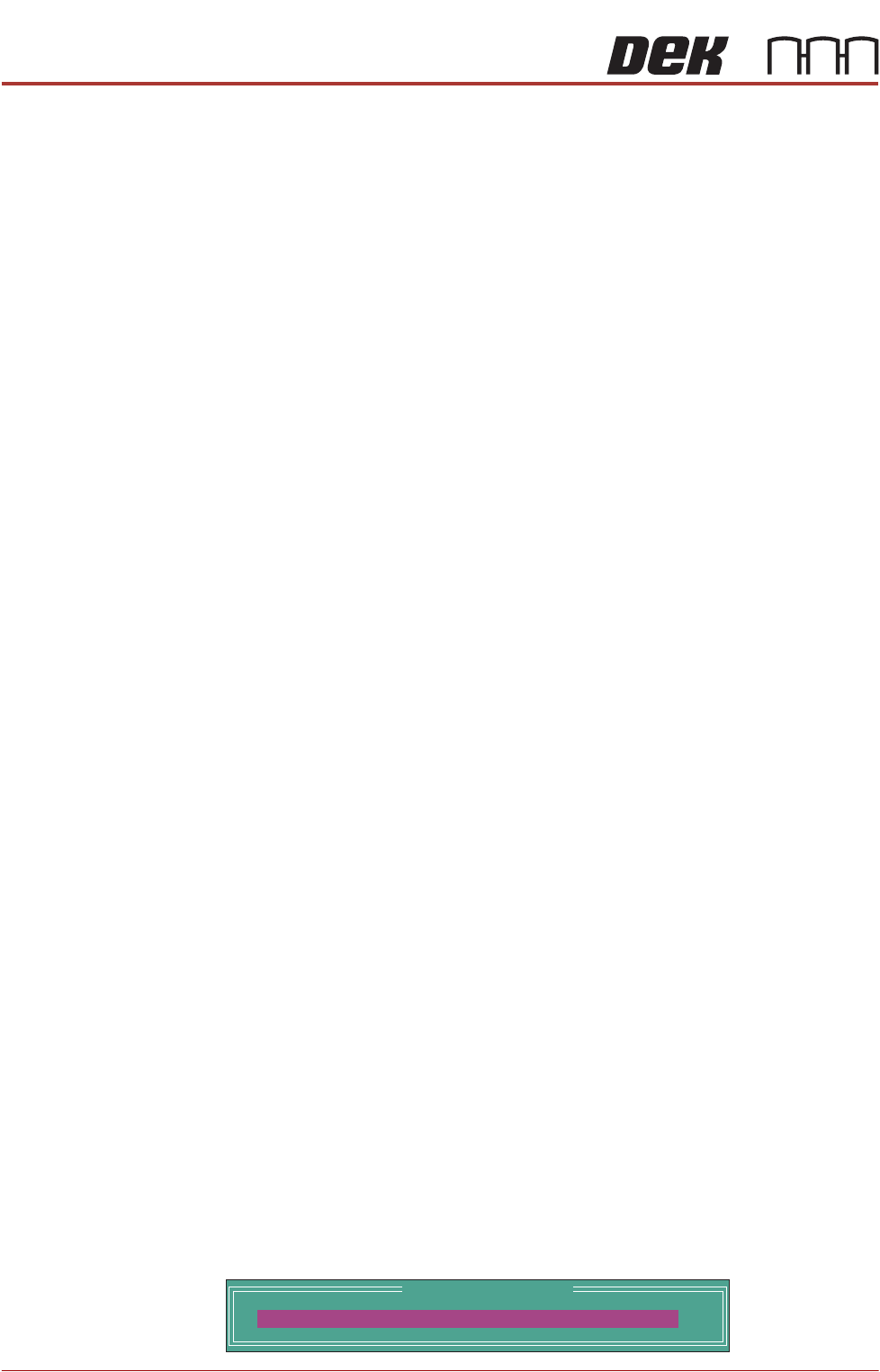
The following window and menu bar is displayed:
ProFlow Calibrations
PFLOW CONTACT POS.
0.0
mm
PROFLOW ATX
CALIBRATIONS
Chapter Issue 6, Jan 16 Technical Reference Manual 12.53
This PFLOW CONTACT POS. parameter sets the height of the ProFlow
transfer head.
16. Select Incr. or Dec. until the contact height reads 0.5mm.
17. Select Move to Position. The ProFlow ATx system is driven to the position
set by the contact height parameter.
18. Open the machine cover.
19. Check the shim to see if it is evenly held in place by the setting tool.
20. If the contact height is correct, go to Step 26.
21. Close the machine cover.
22. Press the System button.
23. Repeat Steps 18 to 24.
24. Close the machine cover.
25. Press the System button.
26. Select Exit.
27. Select Exit.
28. Select Exit.
29. From the Maintenance screen, select Back.
30. Select Unload Screen; the ProFlow ATx system performs a shake-off and
the print carriage returns to the Home position.
31. Select Continue.
32. Select Open Cover Commands.
33. Select Carriage to Front.
34. Select Continue.
35. Select Back.
36. Open the machine cover.
37. Remove the calibration shim.
38. Remove the calibration screen.
39. Remove the setting tool from the ProFlow ATx mount.
40. Close the machine cover.
41. Press the System button.
Print Medium Low
Sensor
On machines that do not have the Time-To-Go (TTG) feature, the Print Medium
Low state is triggered when the sensor reads a zero percent status (the print
medium cartridge is completely empty).
On machines fitted with the TTG feature, the machine triggers a Print Medium
Low state when the volume of remaining print medium in the cartridge reaches
10%.
For the machine to gauge the 0% or 10% levels, it must be calibrated using a
full cartridge (100%) and an empty cartridge (0%).
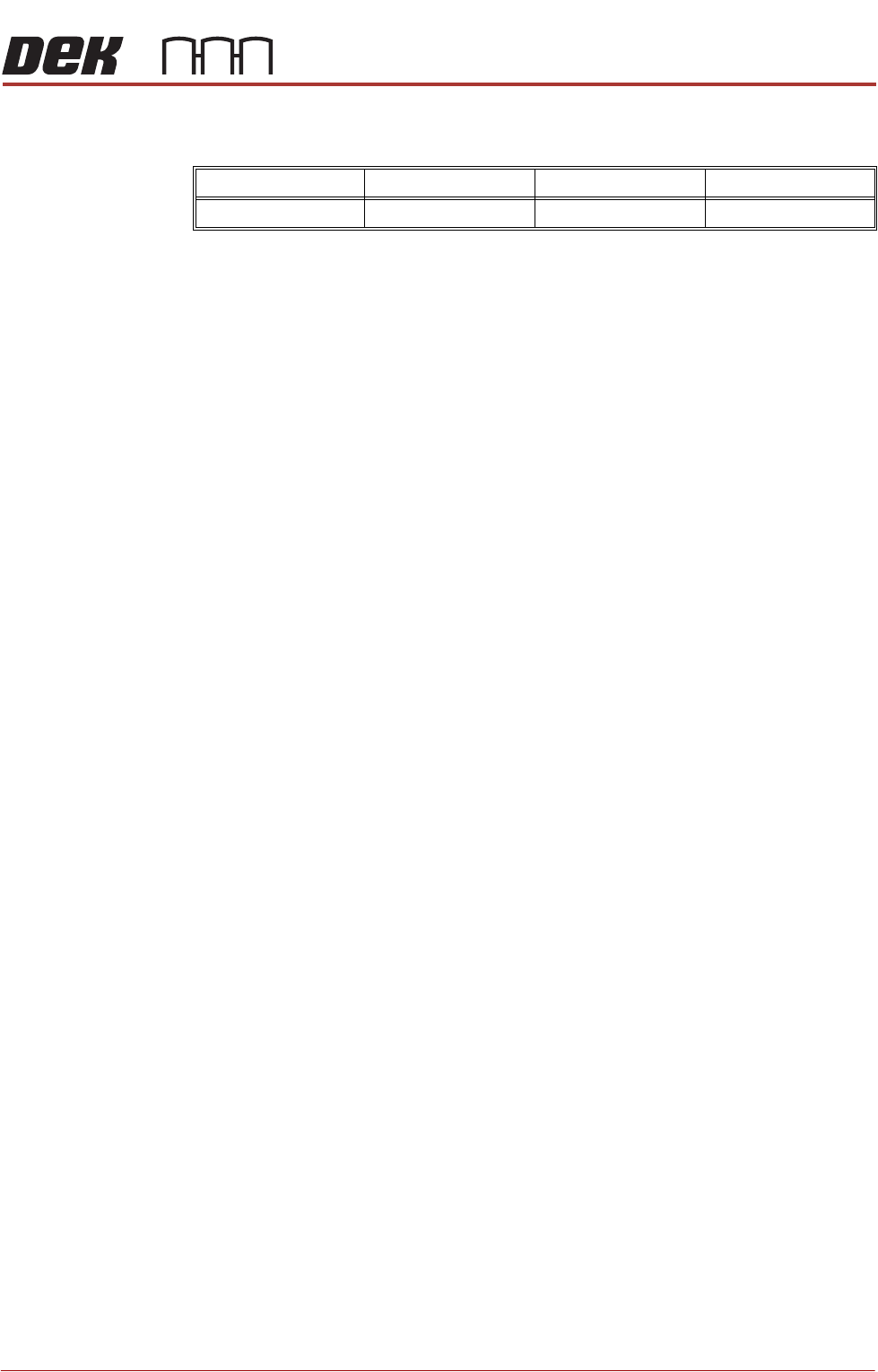
Minimum Maximum Increment Default
-10mm +10mm 0.1mm 0.0mm

PROFLOW ATX
CALIBRATIONS
12.54 Technical Reference Manual Chapter Issue 6, Jan 16
To configure the print medium cartridge levels, carry out the following:
1. Open the machine cover.
2. Load a calibration screen onto the chase.
3. Close the machine cover.
4. Press the System button.
5. Select Load Screen.
6. Select Continue.
7. Select Continue; the calibration stencil loads, and the print carriage stops
in the Ready position.
8. Select Open Cover Commands.
9. Select Carriage to Front.
10. Select Back.
11. Load a full print medium cartridge into the ProFlow ATx system.
12. Select Maintenance.
13. Select Calibrations.
14. Select ProFlow.
15. Select Transfer Material.
16. Select Set Full. The message Confirm: Transfer head is fitted and full? is
displayed.
17. Select Confirm. The message ProFlow Transfer Material Level set to full:
100% is displayed.
18. Remove the full print medium cartridge from the ProFlow ATx system.
19. Fit an empty print medium cartridge to the ProFlow ATx system.
20. Select Set Empty. The message Confirm: Transfer head is fitted and
empty? is displayed.
21. Select Confirm. The message ProFlow Transfer Material Level set to
empty: 0% is displayed.
22. Select Exit.
23. Select Exit.
24. Select Exit.
25. Select Back.
26. Remove the empty print medium cartridge from the ProFlow ATx mount.
27. Install a new print medium cartridge into the ProFlow ATx mount.