Printer 710-810 v9 ProFlow ATX.pdf - 第39页
PROFLOW ATX REPLACEMENT PROCEDURES Chapter Issue 6, Jan 16 Technical Reference Manual 12.39 Replacing the Print Medium T ype Indicator The print medium type indicator helps to identify dif ferent print mediums used if mu…

PROFLOW ATX
REPLACEMENT PROCEDURES
12.38 Technical Reference Manual Chapter Issue 6, Jan 16
Removing the Transfer Head
MANDATORY
TOXIC CHEMICALS MAY BE PRESENT. SAFETY GLOVES MUST BE WORN.
MANDATORY
TOXIC CHEMICALS MAY BE PRESENT. EYE PROTECTION MUST BE WORN.
To remove a transfer head, carry out the following:
1. Select Setup Product.
2. Select ProFlow.
3. Select Raise ProFlow; the ProFlow ATx system returns to the Home
position after it performs the shake-off procedure.
4. Select Back.
5. Select Back.
6. Select Open Cover Commands.
7. Select Carriage To Front.
8. Open the machine cover.
9. Remove the print medium cartridge and filler tube assembly.
10. Disconnect the transfer head’s two piston air feeds and the print medium
demand sensor (9PL106) from the ProFlow ATx mount left hand side.
11. Fit the base cover to the transfer head.
12. Fit the transfer head sealing plug.
13. While supporting the transfer head, loosen the right hand side thumbscrew
and pull the thumbscrew so it clears the hole in the mount beam.
14. Slide the right hand side mount bracket to the right to release the right hand
side locator dowel on the transfer head.
15. Slide the transfer head to the right to free it from the vertical mount pin hook
and the left hand side mount bracket.
16. Remove the transfer head.
PROFLOW ATX
REPLACEMENT PROCEDURES
Chapter Issue 6, Jan 16 Technical Reference Manual 12.39
Replacing the Print
Medium Type
Indicator
The print medium type indicator helps to identify different print mediums used if
multiple heads are being used for different products. Three colours are pro-
vided with the ProFlow ATx system; Green, Blue and Red.
To change the colour, carry out the following:
1. Select Open Cover Commands.
2. Select Carriage to Front.
3. Open the machine cover.
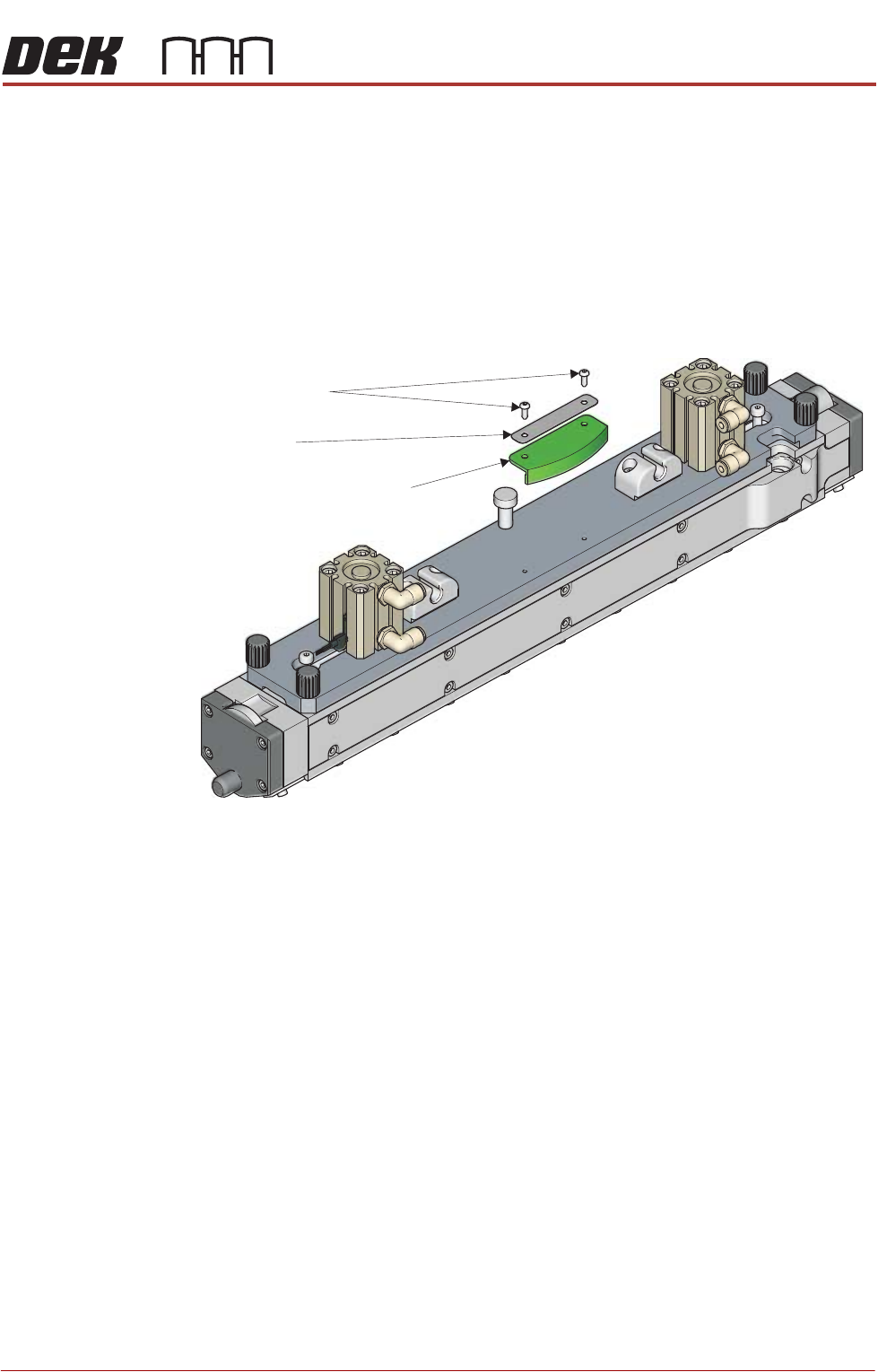
4. Using a 2mm Allen key, remove the two securing screws.
5. Remove the name plate.
6. Remove the type indicator.
7. Fit the new type indicator to the transfer head, ensuring the holes are
aligned.
8. Place the name plate on the type indicator, ensuring the holes are aligned.
9. Refit the securing screws.
Print Medium Type Indicator
Securing Screws
Name Plate
View on top of the Transfer Head
PROFLOW ATX
REPLACEMENT PROCEDURES
12.40 Technical Reference Manual Chapter Issue 6, Jan 16
Replacing the Transfer Head Wiper Blades
MANDATORY
TOXIC CHEMICALS MAY BE PRESENT. SAFETY GLOVES MUST BE WORN.
MANDATORY
TOXIC CHEMICALS MAY BE PRESENT. EYE PROTECTION MUST BE WORN.
To replace the transfer head wiper blades (ASM recommends that you replace
both at the same time), carry out the following:
1. Select Open Cover Commands.
2. Select Carriage to Front.
3. Open the machine front cover.
4. Remove the print medium cartridge and filler tube assembly.
5. Remove the transfer head from the ProFlow ATx mount.
6. Place the transfer head upside down on a flat surface.
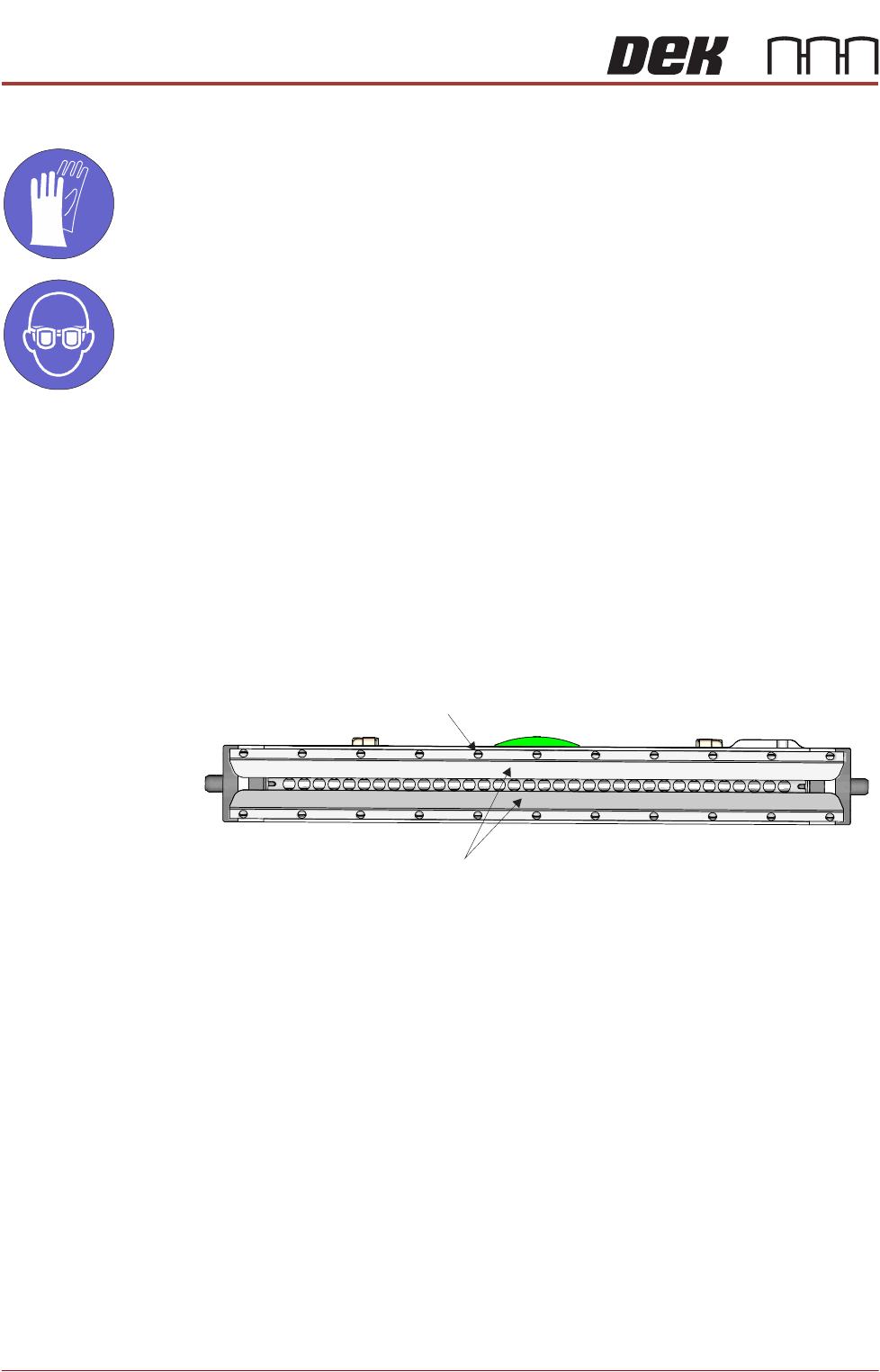
7. Using a flat bladed screwdriver, loosen the wiper blade retainer screws.
8. Remove the wiper blades (in 2 positions).
Retainer Screw
Wiper Blades
Transfer Head Underside View