KE2040Instruction Manual Ver2.01,REV04.2003.6.25.pdf - 第410页
5 − 66 W hen a component has a stag gered pat tern of elements par tially as shown in Figure 5.2.4. 4.12, divide them int o two grid arr angement gr oups, then def ine them . Figure 5.2.4. 4.12 ① Name Name an element g r…
5 − 65
5.2.4.4.2 Ball components (Element group/Element format)
− This section describes the procedure for creating data on ball components
(complex array components).
1. Operation on the “Extended Vision” screen
- Select “Ball Component” from the “Component Type” combo box.
- Check the “Element group/Element format” check box in the “Define data
format” field.
- Click the <Add> button on the “Element Group List”.
2. Operation on the “Element Group” screen
Define an element group.
An element group consists of components whose size and pitch is the same as
each other.
A complex array component refers to an area array component whose size is
different or whose ball/land pitch is different from each other.
When the lead pitch is not the same even though the polarity is the same, set
element groups separately. If the polarity is the same, the size and shape of the
polarity is the same also.
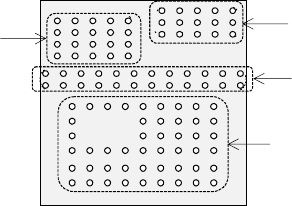
In the example shown in Figure 5.2.4.4.11, a complex array component that
consists of four element groups is shown.
• The procedure for creating data on this component is to be described below.
The element size and pitch of the second and third element groups are the
same as each another. However, columns of elements are not aligned with
each another. Define them as two different element groups.
The posture of a complex array component is viewed from the bottom in the
same manner as an area array component such as a BGA and FBGA.
Figure 5.2.4.4.11
Bottom View
Third element group
Fourth element group
Second element group
First element group
5 − 66
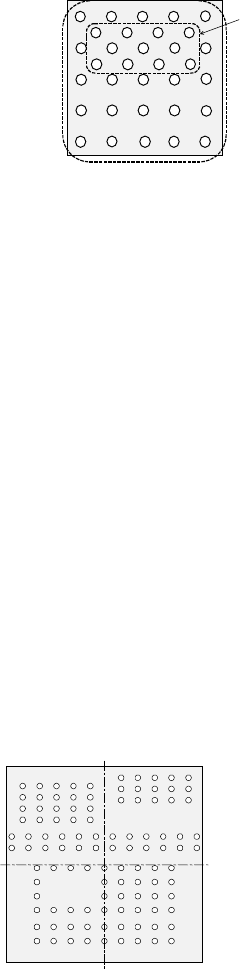
When a component has a staggered pattern of elements partially as shown in
Figure 5.2.4.4.12, divide them into two grid arrangement groups, then define them.
Figure 5.2.4.4.12
① Name
Name an element group to be handled. When you want to change an
element group, specify its name to edit it.
A name is automatically assigned with serial numbers. Users can change this
numbered name to an alphanumeric name (up to 32 characters).
- In the example, the numbered name is used.
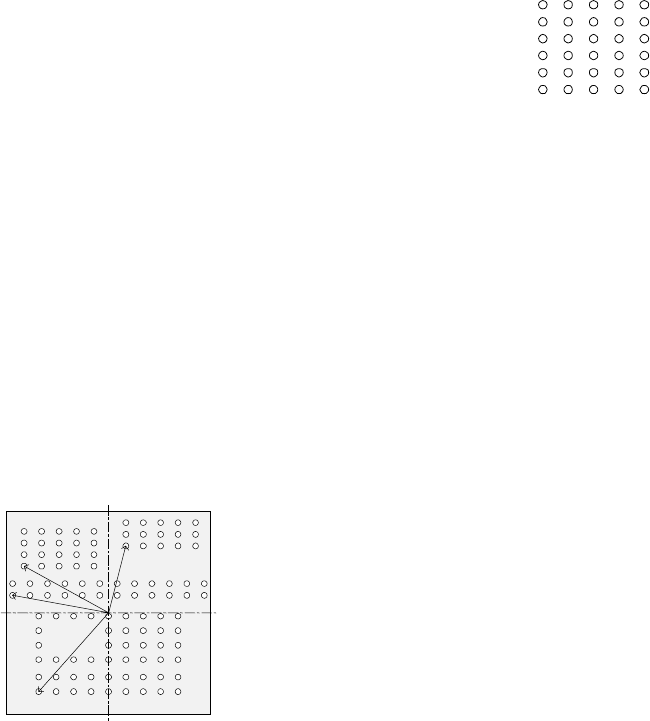
② First element position
Specify the position (X, Y) and direction (Theta) of an element group.
As the position, specify the distance (offset) from the center of a component.
Normally, the center of a component is the center of the component outline.
- If the placement coordinates set in Placement data of a production program
is not based on the center of the component outline, you can specify the
coordinates of the reference component center with coordinates different
from the center of the component outline.
Figure 5.2.4.4.13 indicates that the center of the component outline is the
center of a component.
Figure 5.2.4.4.13
Element group 1
Element group 2
Bottom View
Center of a component (Center of
the component outline)
5 − 67
Bottom View
13245
123456
▼ To be precise, the “First element position” is
the distance (offset) from the center of a
component to the first element.
The direction (angle) of the element group is
basically 0 degrees.
Figure 5.2.4.4.14 shows the relation between
the lines (rows) and columns.
The first (ball or land) element positions at the
coordinates of the element (ball/land) at the
lower left corner.
- This layout of elements is different from that of a standard BGA
component having balls on the outer frame.
▼ Figure 5.2.4.4.15 shows the first element (ball/land) position of the
component shown in the example above.
For a ball/land element, the center of the first ball/land viewed from the
center of a component becomes the coordinates of the first (ball/land)
element.
Figure 5.2.4.4.15
③ When the first lead end is set to (- 6.0 mm, - 5.0 mm), set each value in the
“First element position” field as follows:
Offset X: - 6.0
Offset Y: - 5.0
Offset Z: 0 (not used)
Offset Theta: 0
- Normally, enter “0” to each field of the setting item “Tolerance”.
• Next, set the element group arrangement.
To set the arrangemen, the setting items “Dimension”, and “Count” and “Pitch”
of the “Column” and “Row” are provided.
Line
(row)
number
Column number
Figure 5.2.4.4.14
Bottom View
Center of a component
(Center of the component outline)