KE2040Instruction Manual Ver2.01,REV04.2003.6.25.pdf - 第422页
5 − 78 Unless “Element dat a is completed” in Fig . 5.2. 4.6.1- 1, the [Pr eview] button is not displayed as shown below . Create data on the s creens of ② Fig. 5.2.4.6.1-5 and ③ Fig. 5.2.4.6. 1-6. Fig. 5.2.4. 6.1-4 [Ele…
5 − 77
① Opening from the Vision Form screen
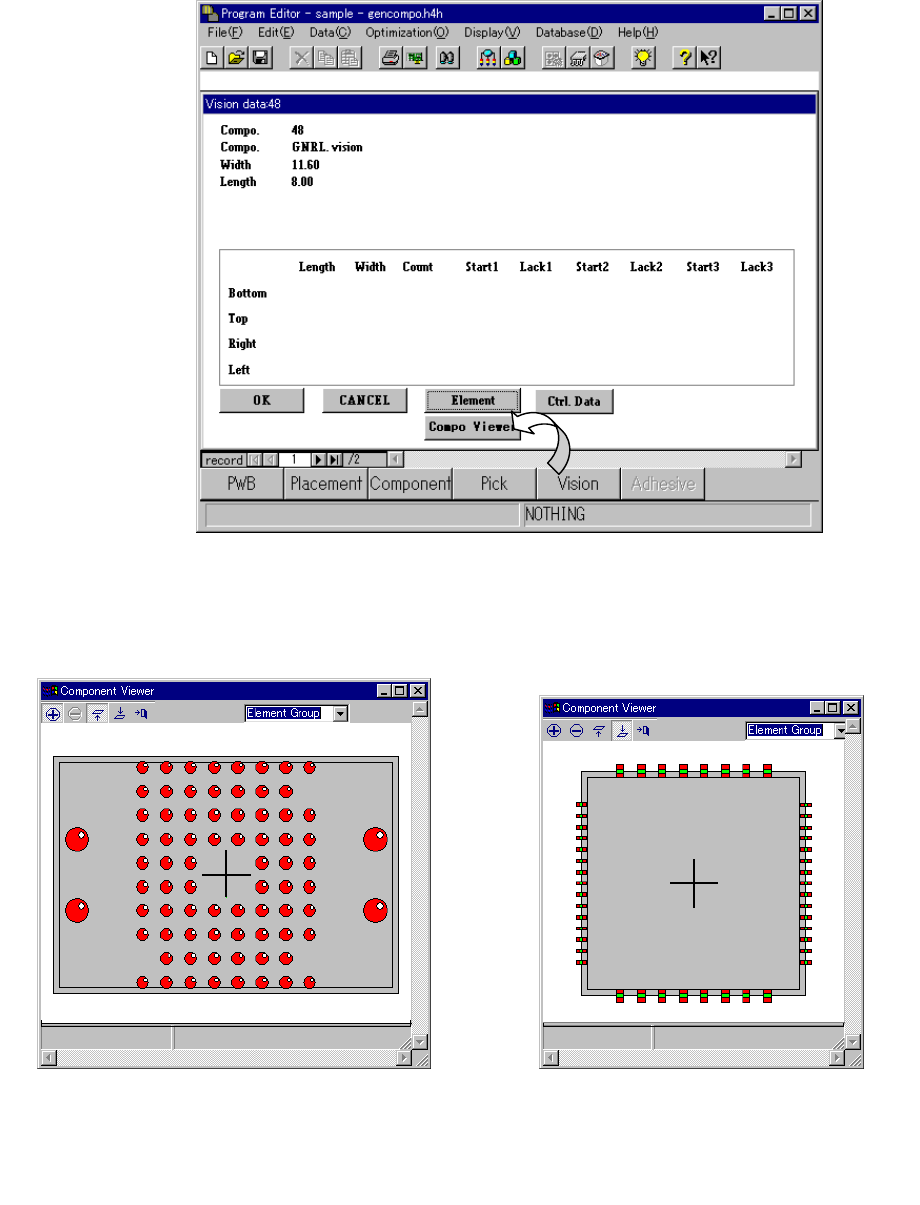
When a general vision component is displayed on the Vision Form screen, the
“Component Viewer” button is displayed on the Vision Form screen.
Fig. 5.2.4.6.1-1 [Viewer] Button of Vision Form
− Clicking the [Component Viewer] button displays the following dialog.
Fig. 6.7.3.6.1-2 Example of
Ball Component Screen Display
Fig. 6.7.3.6.1-3 Example of
Lead Component Screen Display
5 − 78
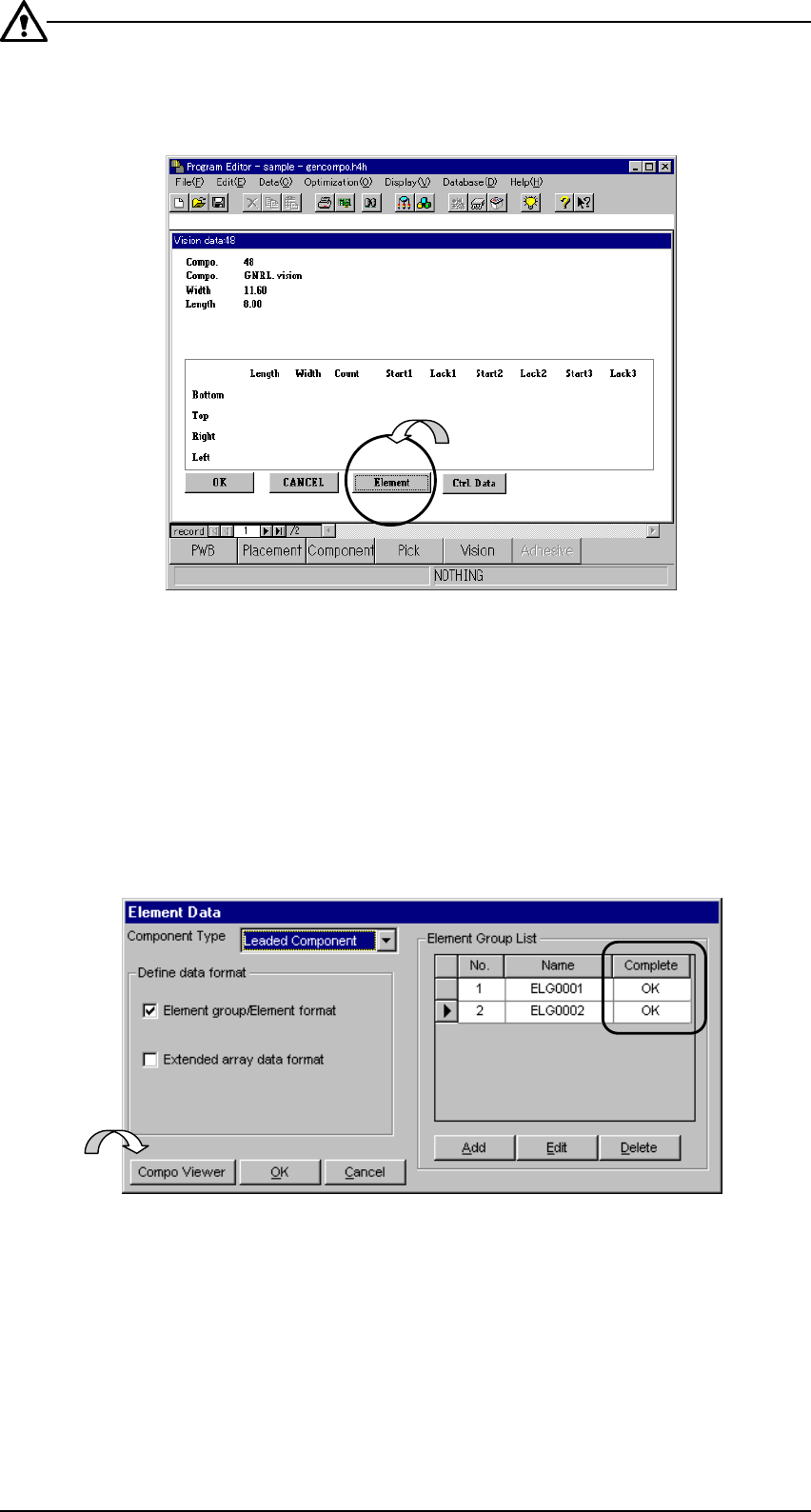
Unless “Element data is completed” in Fig. 5.2.4.6.1-1, the [Preview] button is not
displayed as shown below. Create data on the screens of ② Fig. 5.2.4.6.1-5 and
③ Fig. 5.2.4.6.1-6.
Fig. 5.2.4.6.1-4 [Element Data] Screen of Vision Form
− Clicking the [Element Data] button displays “② Element Data” screen.
② Opening from the Element Data screen
After making sure on the Element Data screen that element group data is
completed, click the “Component Viewer” button.
Fig. 5.2.4.6.1-5 “Component Viewer” Button of the Element Data Screen
5 − 79
③ Opening from the Element Group screen
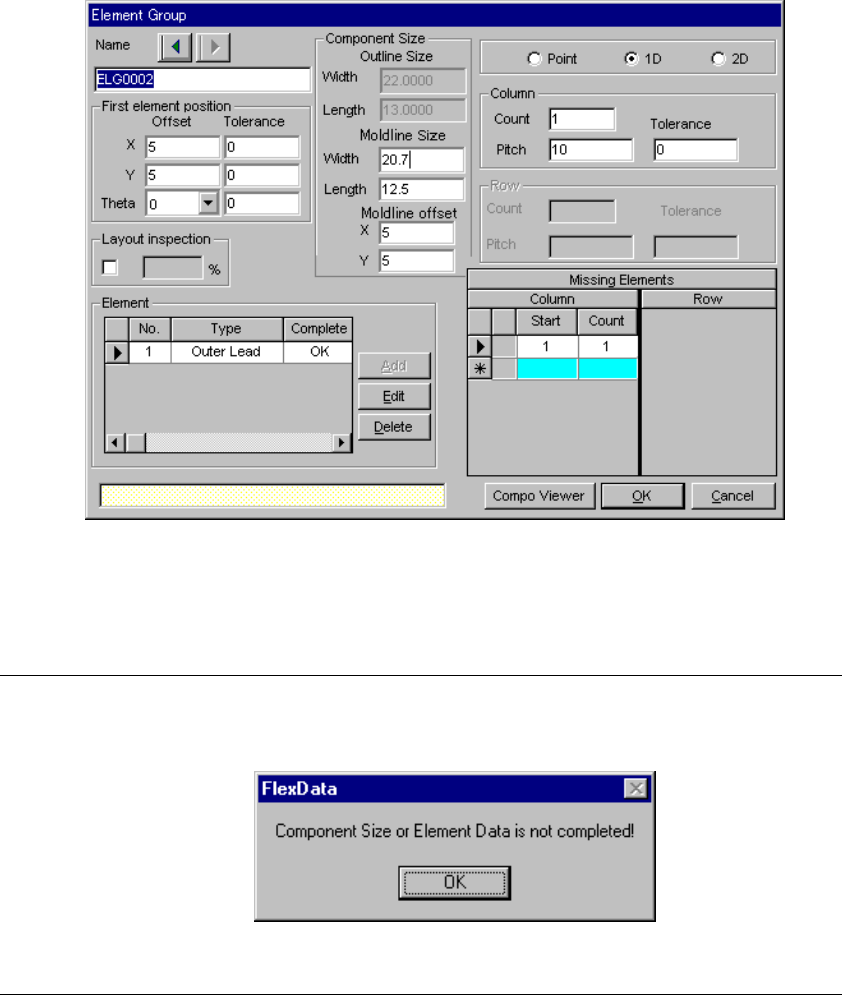
After making sure on the Element Group screen that element data is
completed, click the “Component Viewer” button.
Fig. 5.2.4.6.1-6 Example of Element Group Screen Display
−
If element data is not yet completed when you click the [Component Viewer]
button, the following message is displayed.
Fig. 5.2.4.6.1-7 Element Data Incompletion Message