KE2040Instruction Manual Ver2.01,REV04.2003.6.25.pdf - 第428页
5 − 84 Step 2 W hen “Component Viewer” is displayed f rom the Elem ent Group scr een, data can be edited on the Element Group scr een or the Element Data Editing screen can be opened without closing the “ Component Viewe…
5 − 83
5.2.4.6.3 Editing data
Step 1
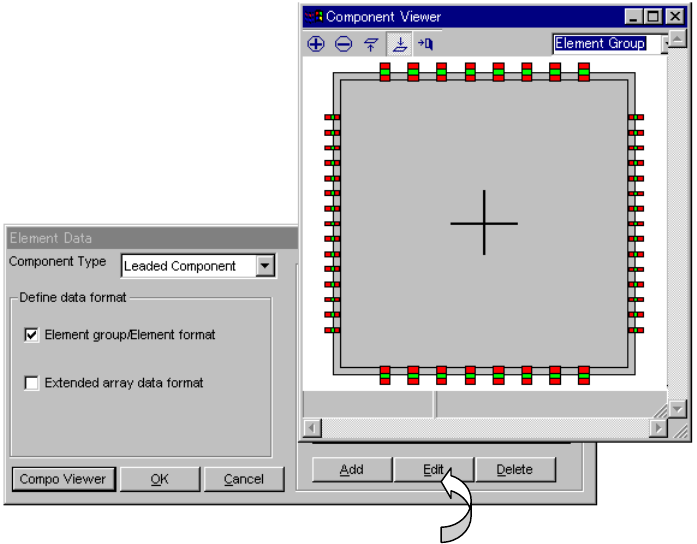
When “Component Viewer” is displayed from the Element Data screen, the
Element Group screen can be opened without closing the “Component
Viewer” screen.
Fig. 5.2.4.6.3-1 Opening the Element Group Screen
− When you click the <Edit> button, the data displayed on the “Element Group”
screen can be edited.
5 − 84
Step 2
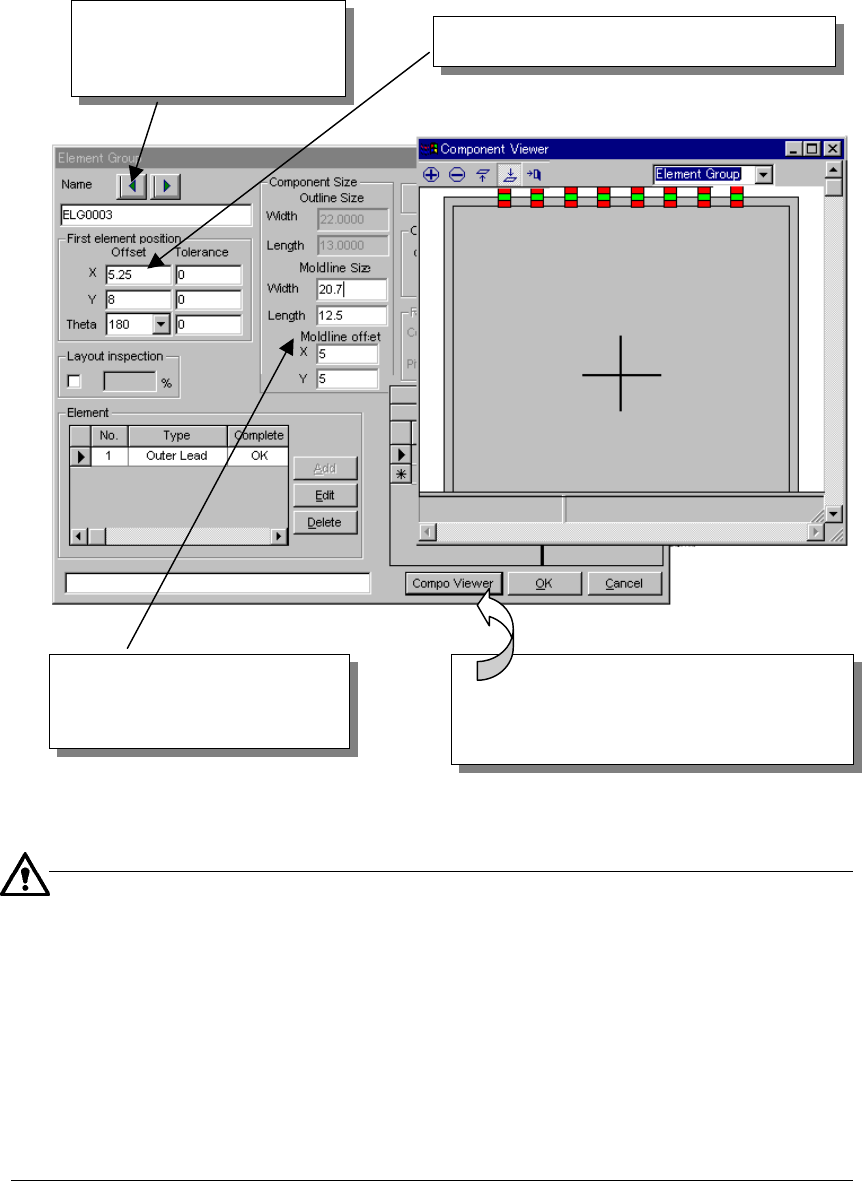
When “Component Viewer” is displayed from the Element Group screen, data
can be edited on the Element Group screen or the Element Data Editing
screen can be opened without closing the “Component Viewer” screen.
Fig. 5.2.4.6.3-2 Editing Data on the Element Group Screen
■
Mold field
The external dimensions of a lead component include a lead length.
Accordingly, if the lead component is displayed on the basis of the external
dimensions, it is displayed as if the lead were in the mold portion. When you
input the mold length and the mold line offset value, the lead component can
be accurately displayed.
−
Input both mold length and mold line offset value in the Element Group screen.
−
This function is an optional input item for view. If you do not input this item,
the external dimensions of the component are displayed.
Step 3
After editing data, click the “Component Viewer” button, and the edited
contents are reflected in “Component Viewer”.
When you click this arrow, the
previous or next element
group data can be displayed.
Element group data or element data is edited.
When you click the [Component Viewer]
button after editing data, the edited contents
are reflected in
“
Component Viewer
”
.
Mold field
[Refer to the following.]
5 − 85
5.2.4.6.4 Example of “Component Viewer” Screen by Element Type
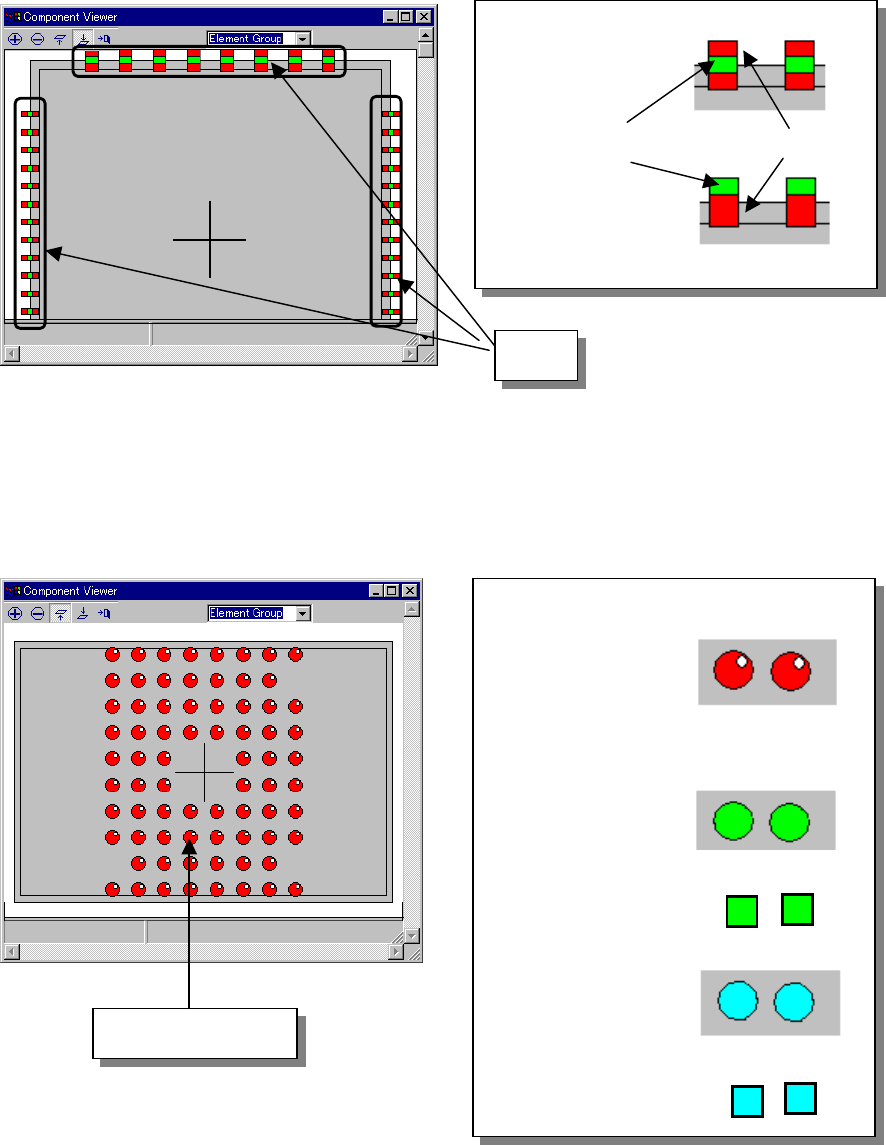
1) Outer lead/inner lead element
Leads are represented in rectangular form. A component shape is displayed
with dimensions including the lead length.
Fig. 5.2.4.6.4-1 Example of Outer Lead Element Screen Display
2) Ball, land, and column elements
Balls, lands, and columns are indicated as circles painted in different colors.
Fig. 5.2.4.6.4-2 Example of Ball Element Screen Display
◇Outer lead:
A green spot exists
in the center of the
red rectangle.
◇Inner lead:
A green spot exists
at the end of the
red rectangle.
Lead
Green
◇Ball:
Red circle
(painted). A white
spot exists in the
upper right part so
as to be
represented in
three dimensions.
◇Land:
Lands are indicated
as green circles or
rectangles.
◇Column:
Columns are
indicated as light
blue circles or
rectangles.
Or
Or
Ball, land or column
Red