KE2040Instruction Manual Ver2.01,REV04.2003.6.25.pdf - 第423页
5 − 79 ③ O pening f rom the Element G roup screen Aft er mak ing sure on t he Element Gr oup screen that element data is completed, click the “ Component Viewer” butt on. Fig. 5.2. 4.6.1-6 Example of Element Gr oup Scree…
5 − 78
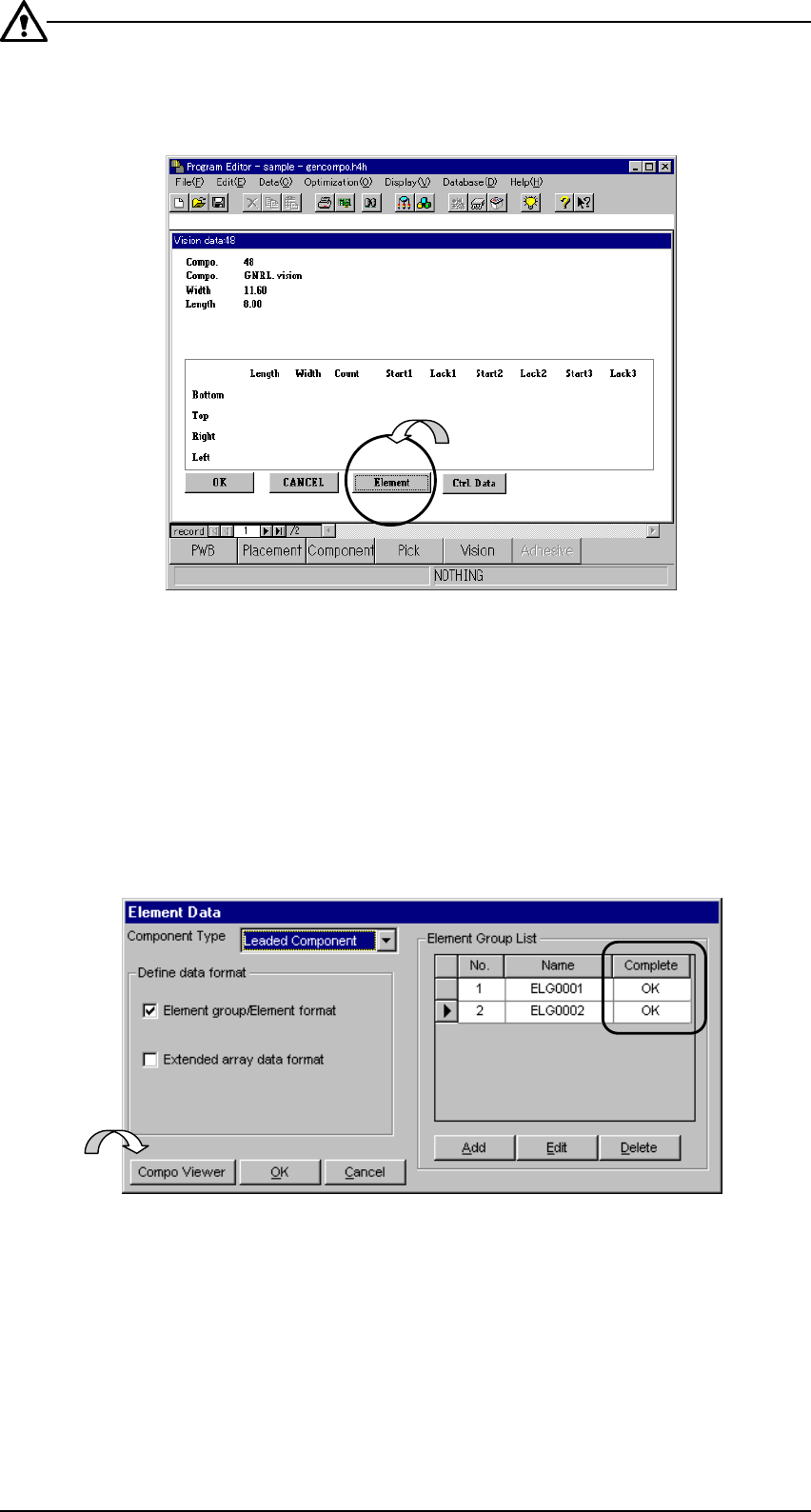
Unless “Element data is completed” in Fig. 5.2.4.6.1-1, the [Preview] button is not
displayed as shown below. Create data on the screens of ② Fig. 5.2.4.6.1-5 and
③ Fig. 5.2.4.6.1-6.
Fig. 5.2.4.6.1-4 [Element Data] Screen of Vision Form
− Clicking the [Element Data] button displays “② Element Data” screen.
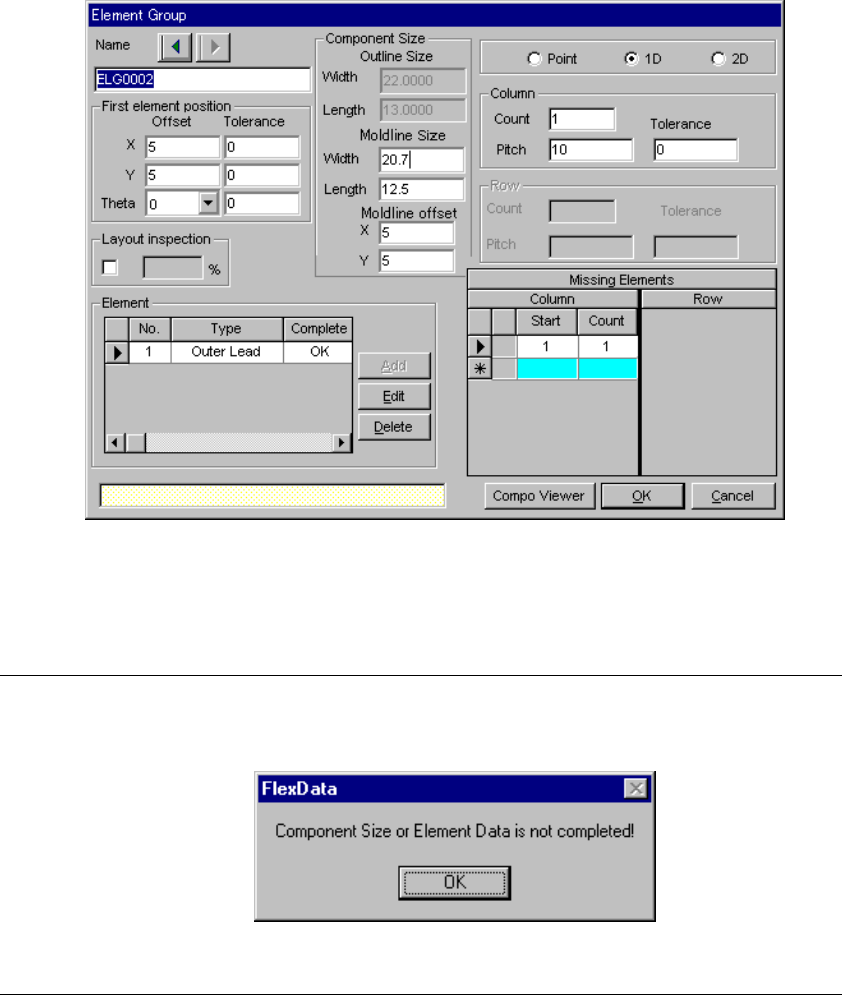
② Opening from the Element Data screen
After making sure on the Element Data screen that element group data is
completed, click the “Component Viewer” button.
Fig. 5.2.4.6.1-5 “Component Viewer” Button of the Element Data Screen
5 − 79
③ Opening from the Element Group screen
After making sure on the Element Group screen that element data is
completed, click the “Component Viewer” button.
Fig. 5.2.4.6.1-6 Example of Element Group Screen Display
−
If element data is not yet completed when you click the [Component Viewer]
button, the following message is displayed.
Fig. 5.2.4.6.1-7 Element Data Incompletion Message
5 − 80
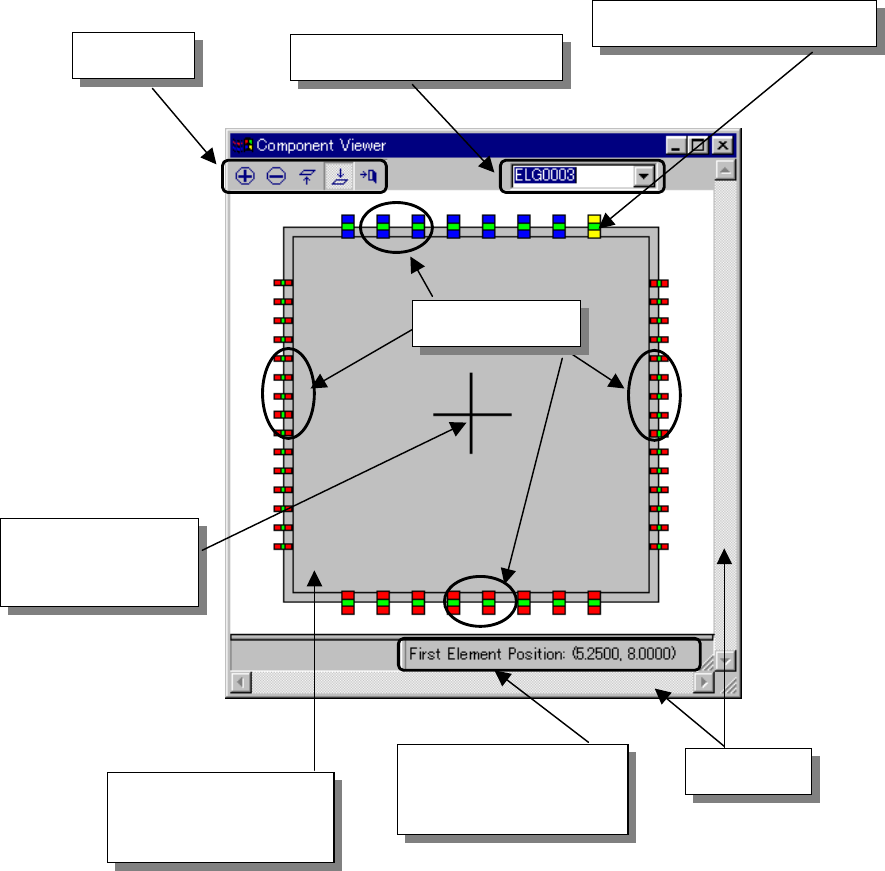
5.2.4.6.2 How to use “Component Viewer”
− A block diagram of the “Component Viewer” screen is shown below.
Fig. 5.2.4.6.2-1 Explanation of the “Component Viewer” Screen
Element group selection list
Tool bar
Anchor position (first element)
Cross line
representing the
center of component
Element group
Component shape input
by component data
(including leads)
Coordinates of the first
element of the selected
element group
Scroll bar