KE2040Instruction Manual Ver2.01,REV04.2003.6.25.pdf - 第426页
5 − 82 Step 2 Sel ecting an element group 1. Select an element group in t he drop-down list displayed on the “Component Viewer” screen or click an elem ent g roup that you want to select with the mouse. 2. Af ter an elem…
5 − 81
Step 1 Component View displayed on “Component Viewer”
In the “Component Viewer” dialog, a component is displayed so that all the
element data may be included in it.
− In the view that is first displayed by clicking the “Component Viewer” button,
the top surface view is displayed if the component is defined by the top
surface or the bottom view is displayed if the component is defined by the
bottom surface.
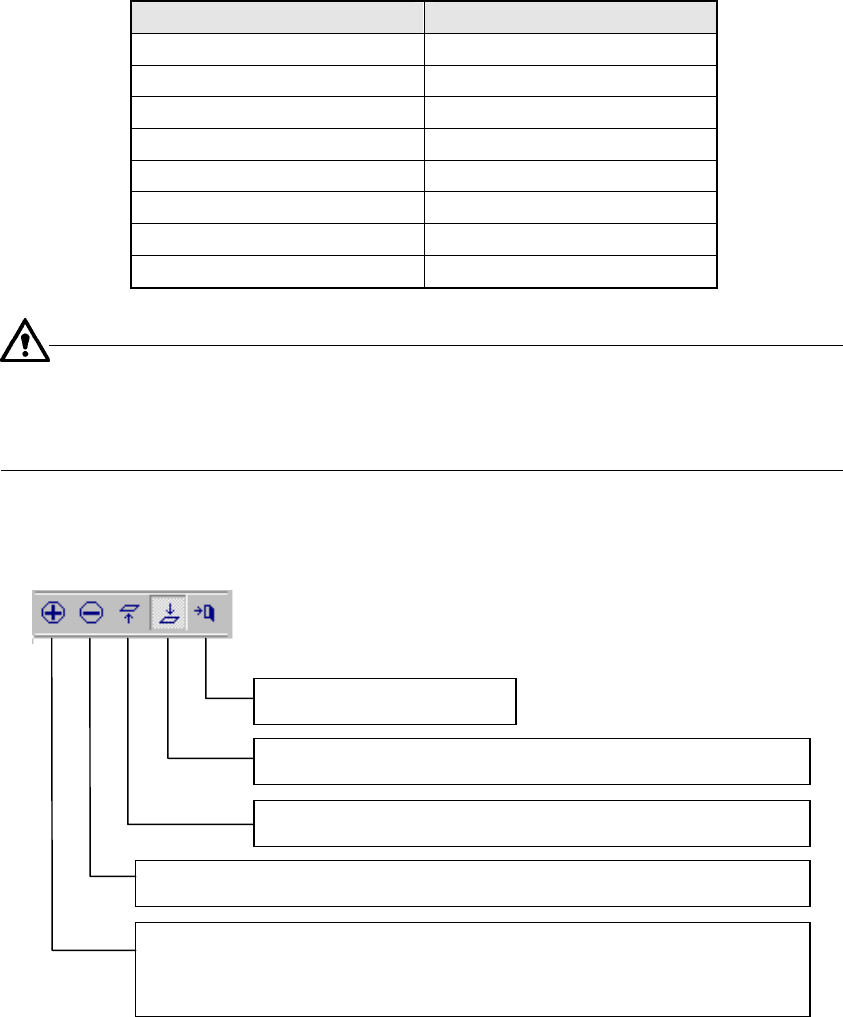
− The following table shows the relation between the element type and the
default display surface.
Table 5.2.4.6-2 Relation between Default Screen and Component Definition Surface
Element type Default screen display
Outer lead Top surface
Inner lead Bottom surface
Ball Bottom surface
Land Bottom surface
Column Bottom surface
Mark Bottom surface
Side Top surface
Corner Top surface
that when an element defined by the top surface is displayed as a view from
the bottom surface on the “Component Viewer” or when an element defined by
the bottom surface is displayed as a view from the top surface, the element
may be invisible.
■ Tool bar
End: Closes the V0iewer.
Top View: Displays a view of the component from the top.
Bottom View: Displays a view of the component from the bottom.
Zoom Out: Scales down the component size 10% by clicking the icon.
Zoom In: Displays the icon in the pressed status by clicking the icon.
When you click it with the mouse left-button on the screen, the
component size is scaled up 10%.
5 − 82
Step 2 Selecting an element group
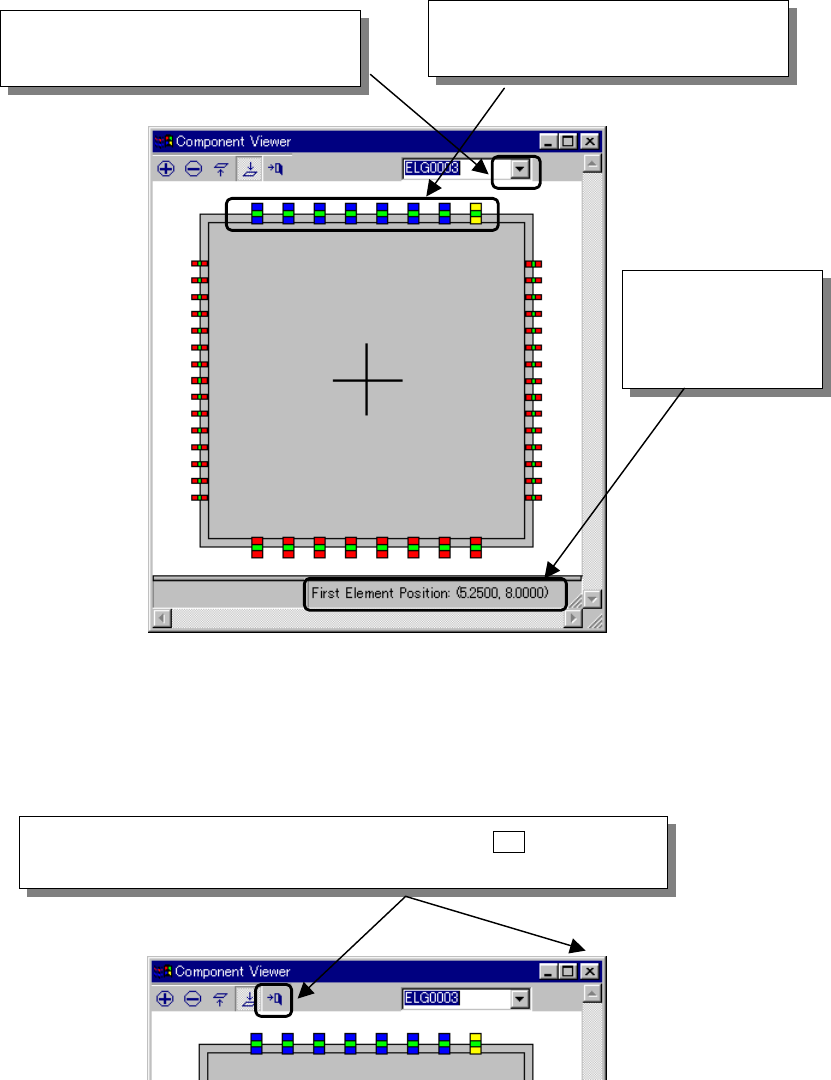
1. Select an element group in the drop-down list displayed on the “Component
Viewer” screen or click an element group that you want to select with the
mouse.
2. After an element group is selected, the selected element group is displayed
in blue and its first element is displayed in yellow. The coordinates of the
first element are displayed in the lower part of the “Component Viewer”
screen.
Fig. 5.2.4.6.2-2 Selecting an Element Group
Step 3 Closing the “Component Viewer” screen
Fig. 5.2.4.6.2-3 Closing the “Component Viewer” Dialog
② Or click an element group that you
want to select with the mouse.
The coordinates of
the first element of
the selected element
group are displayed.
① When you click this position, a list of
element groups is displayed.
When you click the “Close” button of the tool bar or the [ X ] button in the
upper right part of the dialog, the “Component Viewer” screen can be closed.
5 − 83
5.2.4.6.3 Editing data
Step 1
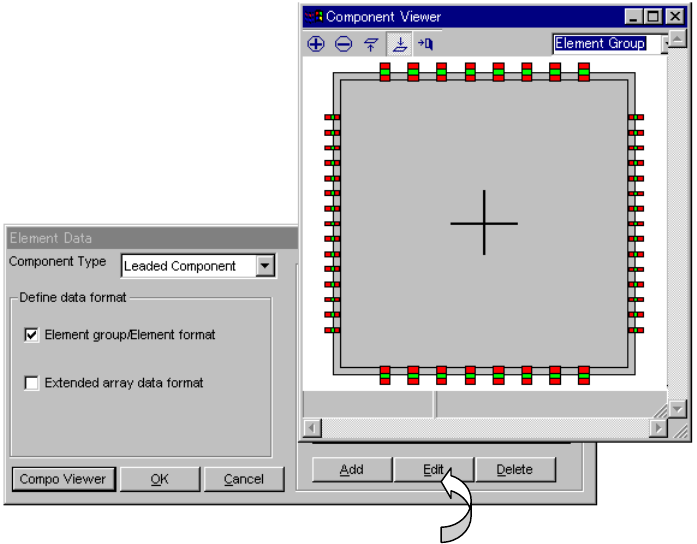
When “Component Viewer” is displayed from the Element Data screen, the
Element Group screen can be opened without closing the “Component
Viewer” screen.
Fig. 5.2.4.6.3-1 Opening the Element Group Screen
− When you click the <Edit> button, the data displayed on the “Element Group”
screen can be edited.