KE2040Instruction Manual Ver2.01,REV04.2003.6.25.pdf - 第782页
10 − 19 10.4.6 VCS operation information 10.4.6.1 VCS operation inf ormation W hen you select the [Tool] command on the m enu bar, t hen the [Reset] command while the "Driver Operation I nfor mation" scr een is…
10 − 18
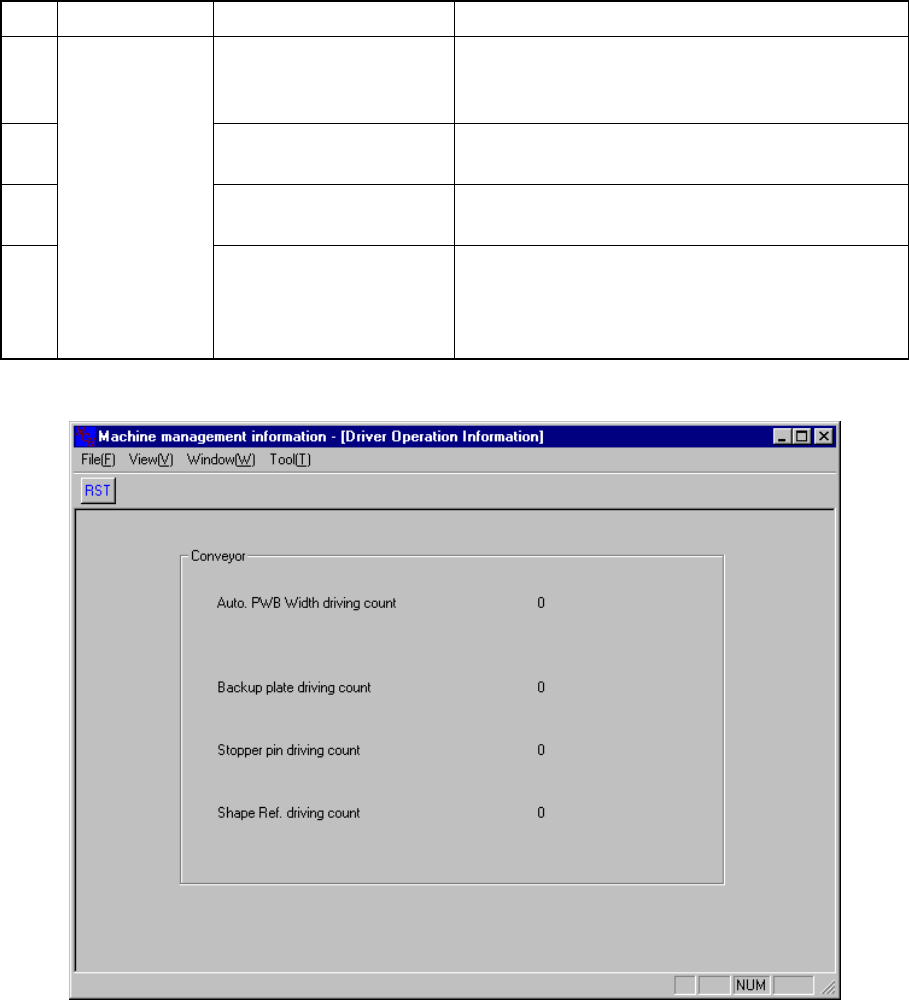
10.4.5 Driver operation information
When you select the [Window] command on the menu bar, then the [Driver Operation
Information] command on the displayed menu, the screen appears as shown in Figure
10.4.5.1.
No. Classification Item Description
1
Auto PWB Width driving
count
Displays how many times the automatic PWB
adjustment was performed since this information
was cleared the last time.
2
Backup plate driving
count
Displays how many times the backup plate was
driven.
3 Stopper pin driving count
Displays how many times the stopper pin was
driven.
4
Conveyor
Shape Ref. driving count
Displays how many times the machine has
produced PWBs by referring to the shape of
PWBs since this information was cleared the last
time.
Figure 10.4.5.1 Driver Operation Information
10 − 19
10.4.6 VCS operation information
10.4.6.1 VCS operation information
When you select the [Tool] command on the menu bar, then the [Reset] command
while the "Driver Operation Information" screen is being displayed, the dialog box
appears on the screen as shown in Figure 10.4.6.1.1.
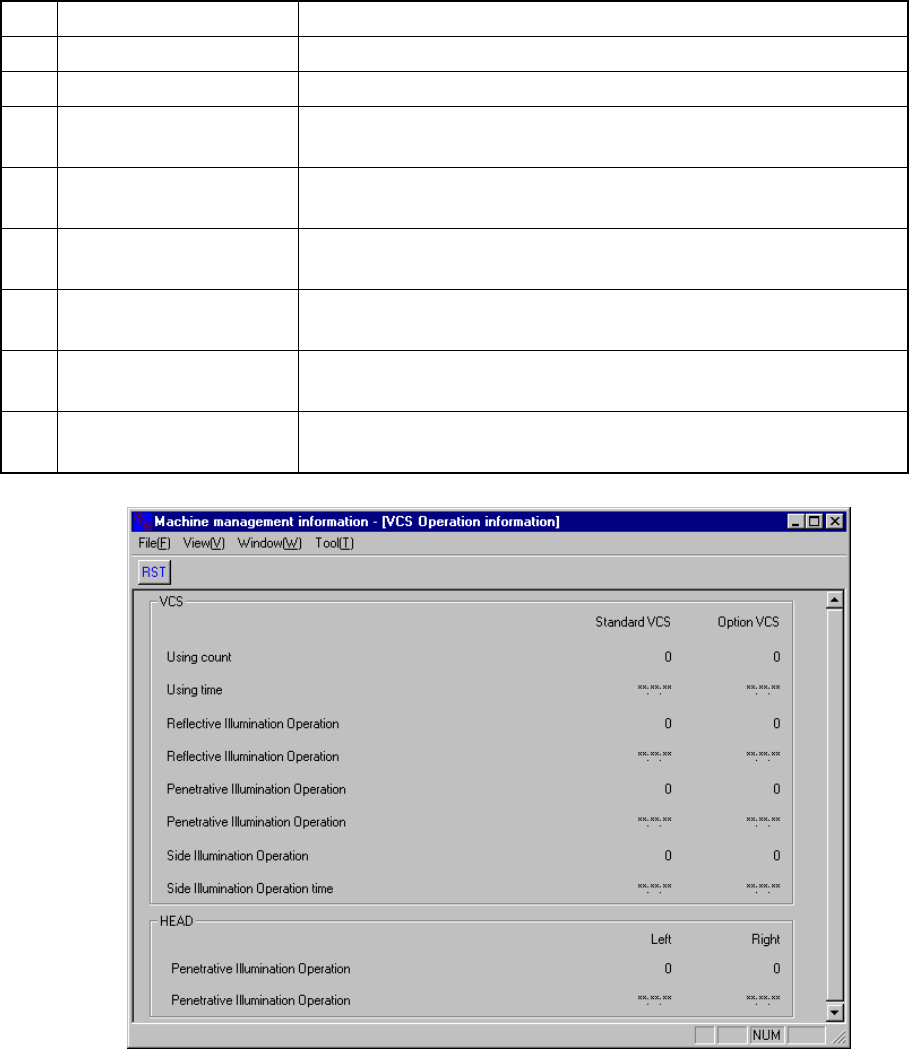
No. Item Description
1 Using count Displays how many times the VCS was used.
2 Using time Displays how long the VCS was used.
3
Reflective Illumination
Operation counts
Displays how many times the reflective light was used.
4
Reflective Illumination
Operation time
Displays how long the reflective light was used.
5
Penetrative Illumination
Operation counts
Displays how many times the penetrative light was used.
6
Penetrative Illumination
Operation time
Displays how long the penetrative light was used.
7
Side Illumination
Operation counts
Displays how many times the side light was used.
8
Side Illumination
Operation time
Displays how long the side light was used.
Figure 10.4.6.1.1 Driver operation information reset dialog box
10 − 20
10.4.7 Resetting the operation information data
10.4.7.1 Resetting each screen of the operation information
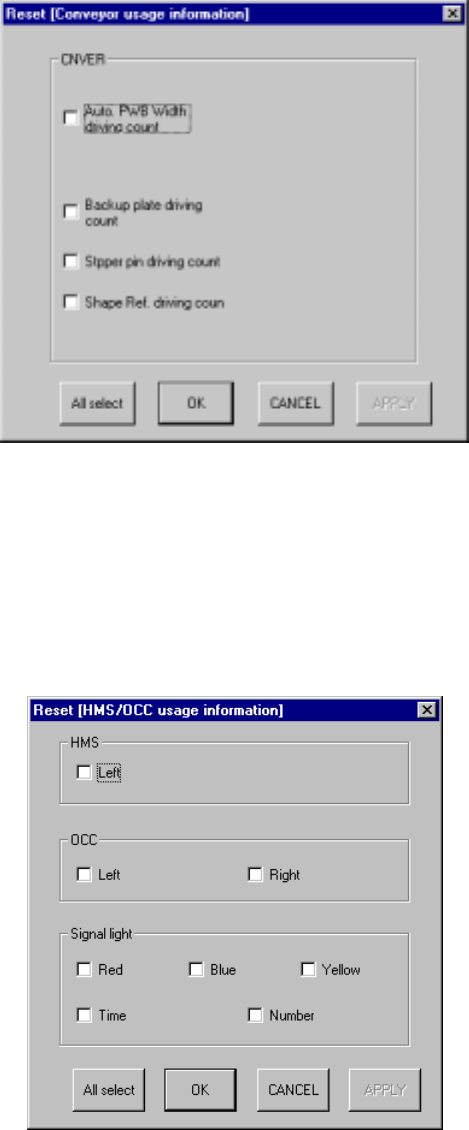
When you select the [Tool] command on the menu bar, then the [Reset] command on
the Tool menu while the "Driver Operation Information" window is being displayed on
the screen, or when you click the <RST> button on the tool bar, the following dialog
box appears on the screen.
Figure 10.4.7.1.1 "Reset [Driver Operation Information] dialog box
When you select the [Tool] command on the menu bar, then the [Reset] command on
the Tool menu while the "Light Operation Information" window is being displayed on
the screen, or when you click the <RST> button on the tool bar, the following dialog
box appears on the screen.
Figure 10.4.7.1.2 "Reset [Light Operation Information] dialog box