00195988-02_IM_SWS-Software-2.1_DE_EN.pdf - 第134页
Installation Manual SIPLACE SWS Software 2.1 Edition 05/2014 134 Then enter the following: t ar -xvzf /media/usbdisk0/wfBa ckup.tgz . 3 3 Fig. 85 Entry: tar -xvzf /media/usbdisk0/wfBackup.tgz . – After the process has …
Installation Manual SIPLACE SWS Software 2.1
Edition 05/2014
133
Open the terminal with CTRL + ALT + X.
3
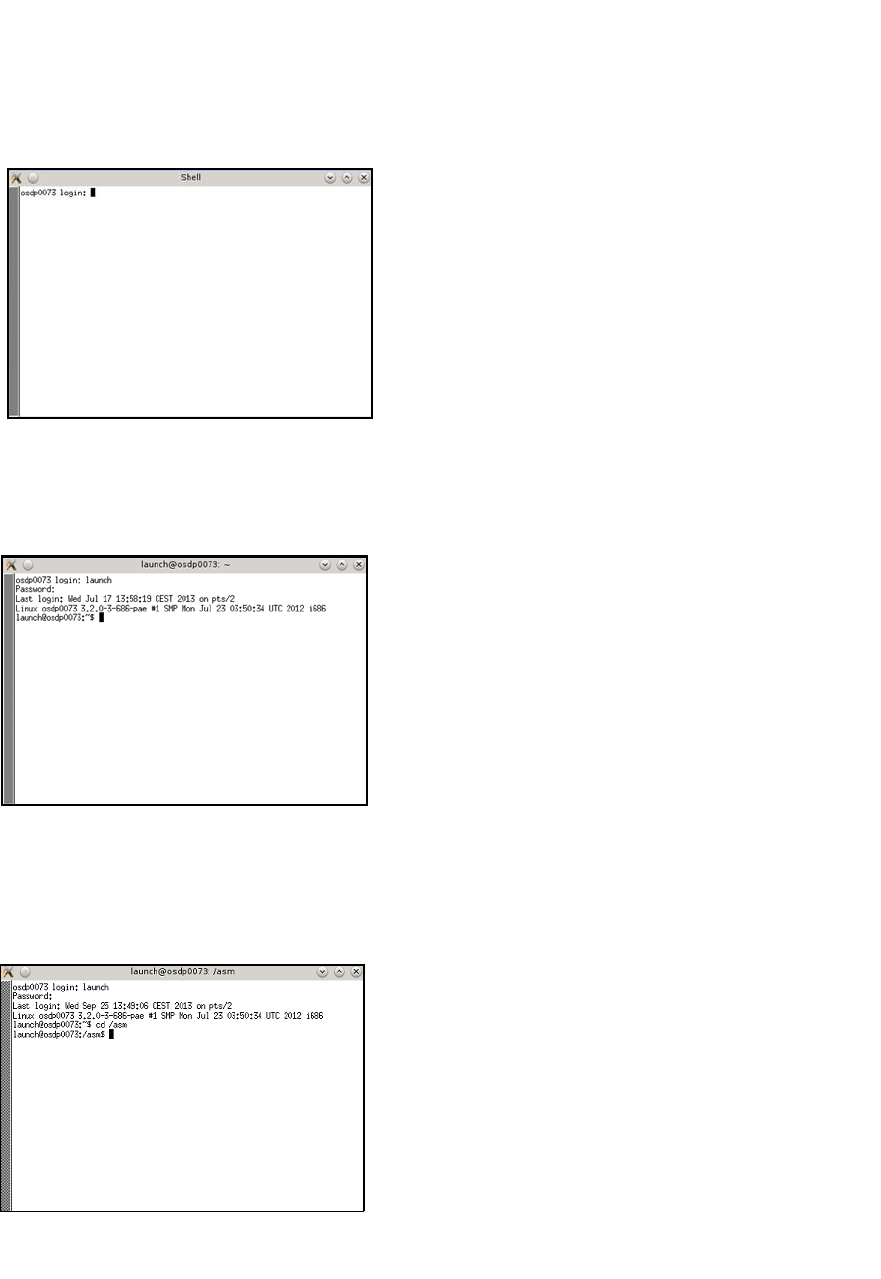
Fig. 82 Opened terminal
Enter the following at the terminal: Launch
Enter your password.
3
Fig. 83 Entry of launch and password
3
To change the test USB disk folder, enter the following: cd /asm
Enter the following: ls /media/usbdisk0
3
Fig. 84 Entry of cd/ asm and ls /media/usbdisk0
– The USB stick contents will be shown.
Installation Manual SIPLACE SWS Software 2.1
Edition 05/2014
134
Then enter the following:
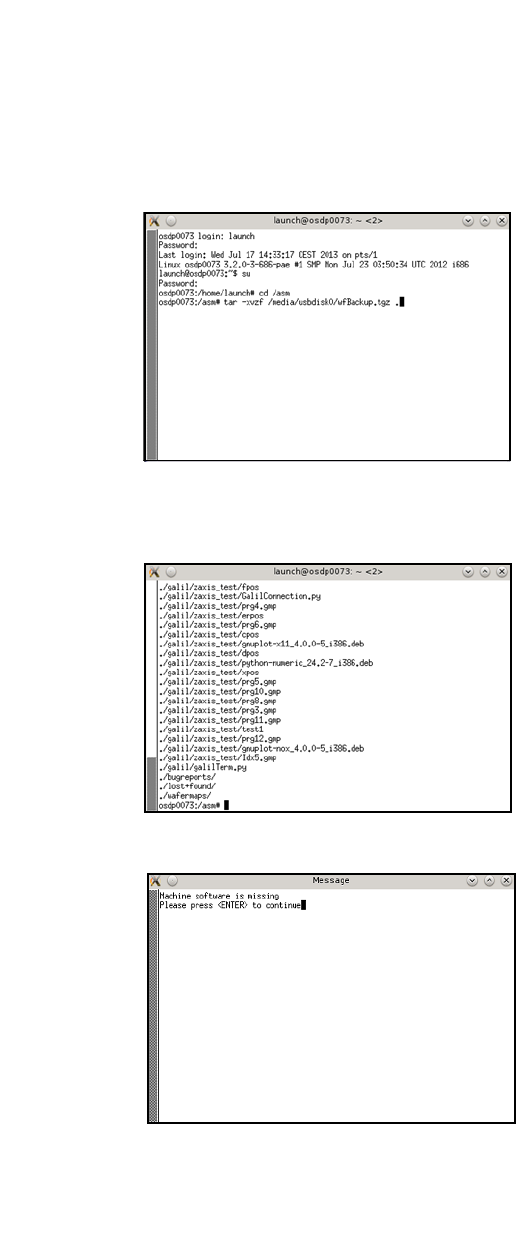
tar -xvzf /media/usbdisk0/wfBackup.tgz . 3
3
Fig. 85 Entry: tar -xvzf /media/usbdisk0/wfBackup.tgz .
– After the process has been executed, the following will appear on your screen:
3
Fig. 86 Screen after process execution
3
Fig. 87 Notification after rebooting
To start the software, select the software in the window shown and confirm with Enter.
– The start window will open.
Installation Manual SIPLACE SWS Software 2.1
Edition 05/2014
135
3
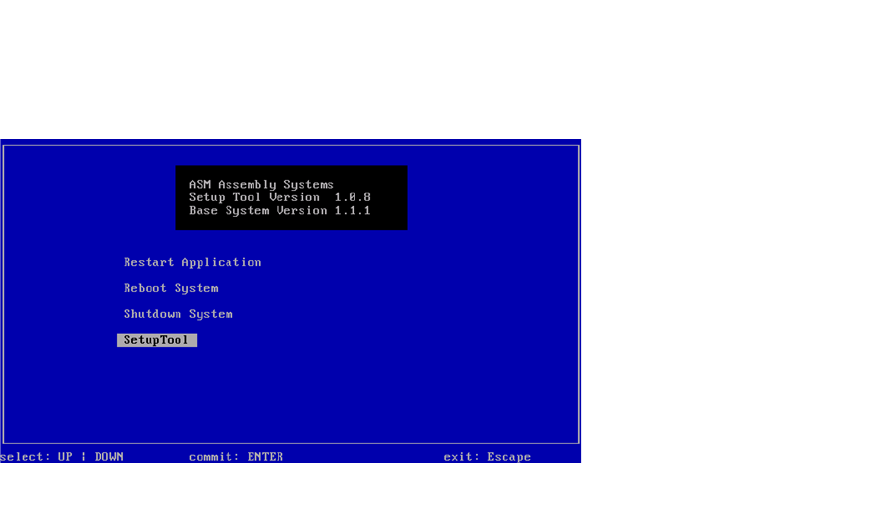
Fig. 88 Start window
Start the SWS software with the function Restart Application.
3
3