00195988-02_IM_SWS-Software-2.1_DE_EN.pdf - 第38页
Installationsanleitung SIPLACE SWS Software 2.1 Ausgabe 05/2014 38 3 Abb. 52 Menü des Setup T ools Bestätigen Sie Networking mit Enter . 3 Abb. 53 Menü Networking Bestätigen Sie Network In terfaces mit Enter .
Installationsanleitung SIPLACE SWS Software 2.1
Ausgabe 05/2014
37
3
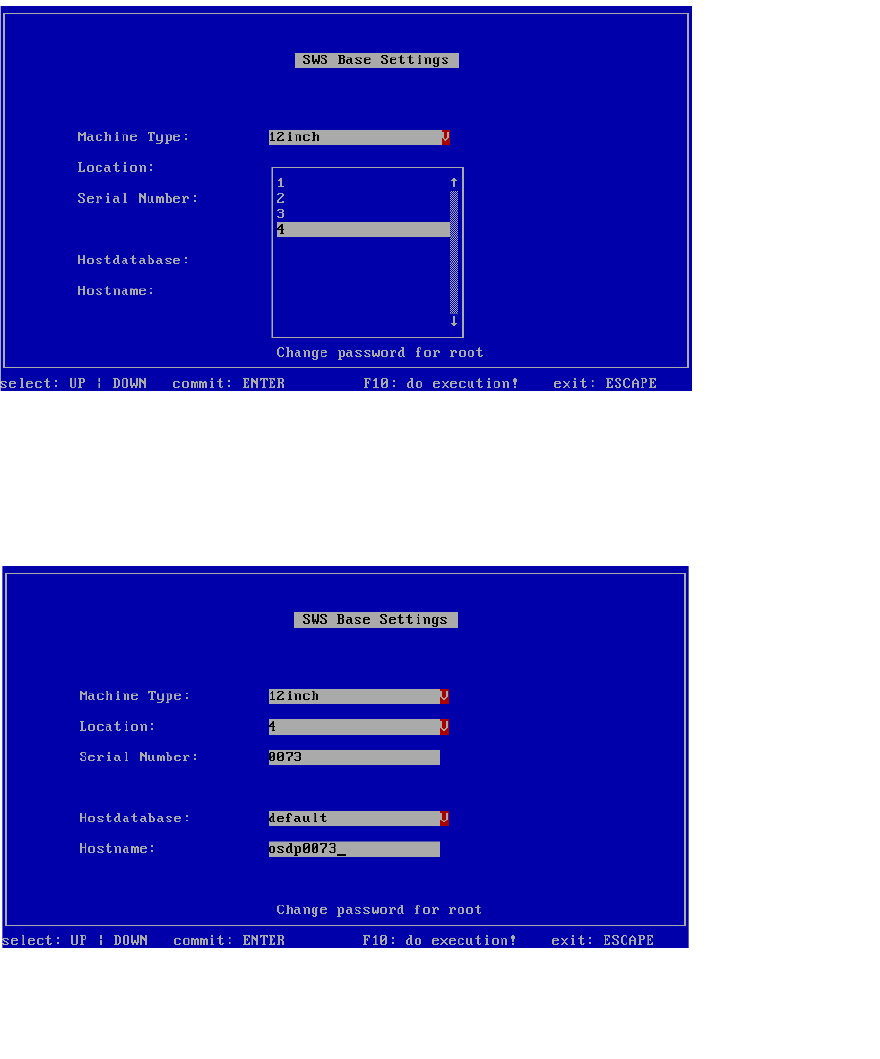
Abb. 50 Nummer des Stellplatzes einstellen
Wählen unter Location die Nummer des jeweiligen Stellplatzes (1-4).
– Hier im Beispiel SWS auf Stellplatz 4.
Bestätigen Sie mit Enter.
3
Abb. 51 Nummer des Stellplatzes eingestellt
– Die Nummer des Stellplatzes ist eingestellt.
Drücken Sie ESC.
Installationsanleitung SIPLACE SWS Software 2.1
Ausgabe 05/2014
38
3
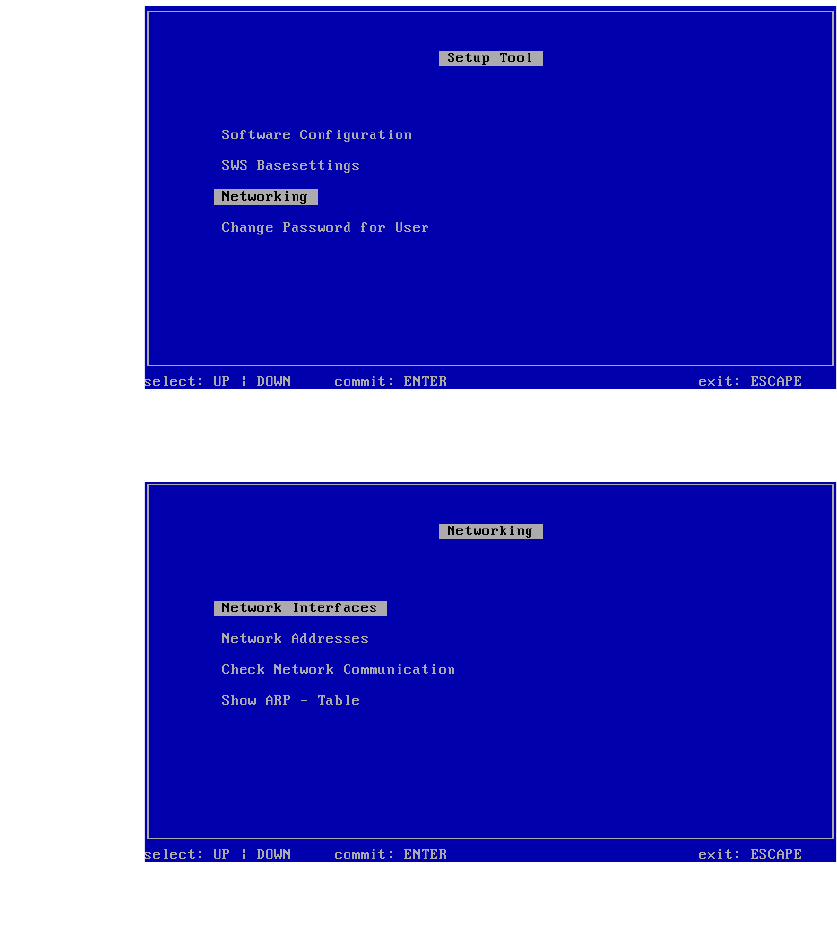
Abb. 52 Menü des Setup Tools
Bestätigen Sie Networking mit Enter.
3
Abb. 53 Menü Networking
Bestätigen Sie Network Interfaces mit Enter.
Installationsanleitung SIPLACE SWS Software 2.1
Ausgabe 05/2014
39
3
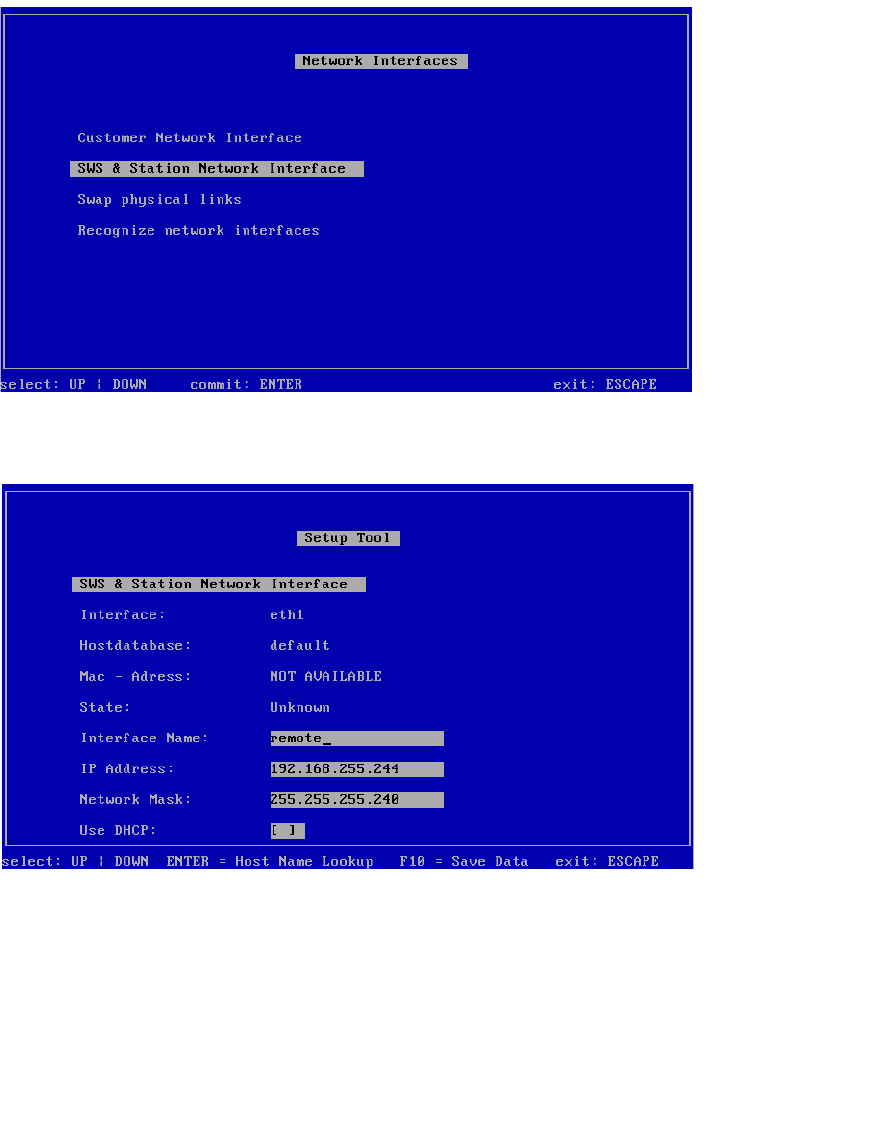
Abb. 54 Menü Network Interfaces
Bestätigen Sie SWS & Station Network Interface mit Enter.
3
Abb. 55 SWS & Station Network Interface
Nehmen Sie die Einstellungen der Verbindung vom SWS zu Station vor.
– SWS auf Stellplatz 1 – IP-Adresse 192.168.255.241
– SWS auf Stellplatz 2 – IP-Adresse 192.168.255.242
– SWS auf Stellplatz 3 – IP-Adresse 192.168.255.243
– SWS auf Stellplatz 4 – IP-Adresse 192.168.255.244
Speichern Sie die Eingaben mit F10.