00195988-02_IM_SWS-Software-2.1_DE_EN.pdf - 第89页
Installation Manual SIPLACE SWS Software 2.1 Edition 05/2014 89 2 Inst alling the Operating System 2 2.1 Creating a Back up of the Inst alled SWS Sof tware 2 Proceed as follow s: Connect a USB stick to the port provi…

Installation Manual SIPLACE SWS Software 2.1
Edition 05/2014
88
Installation Manual SIPLACE SWS Software 2.1
Edition 05/2014
89
2 Installing the Operating System
2
2.1 Creating a Backup of the Installed SWS Software
2
Proceed as follows:
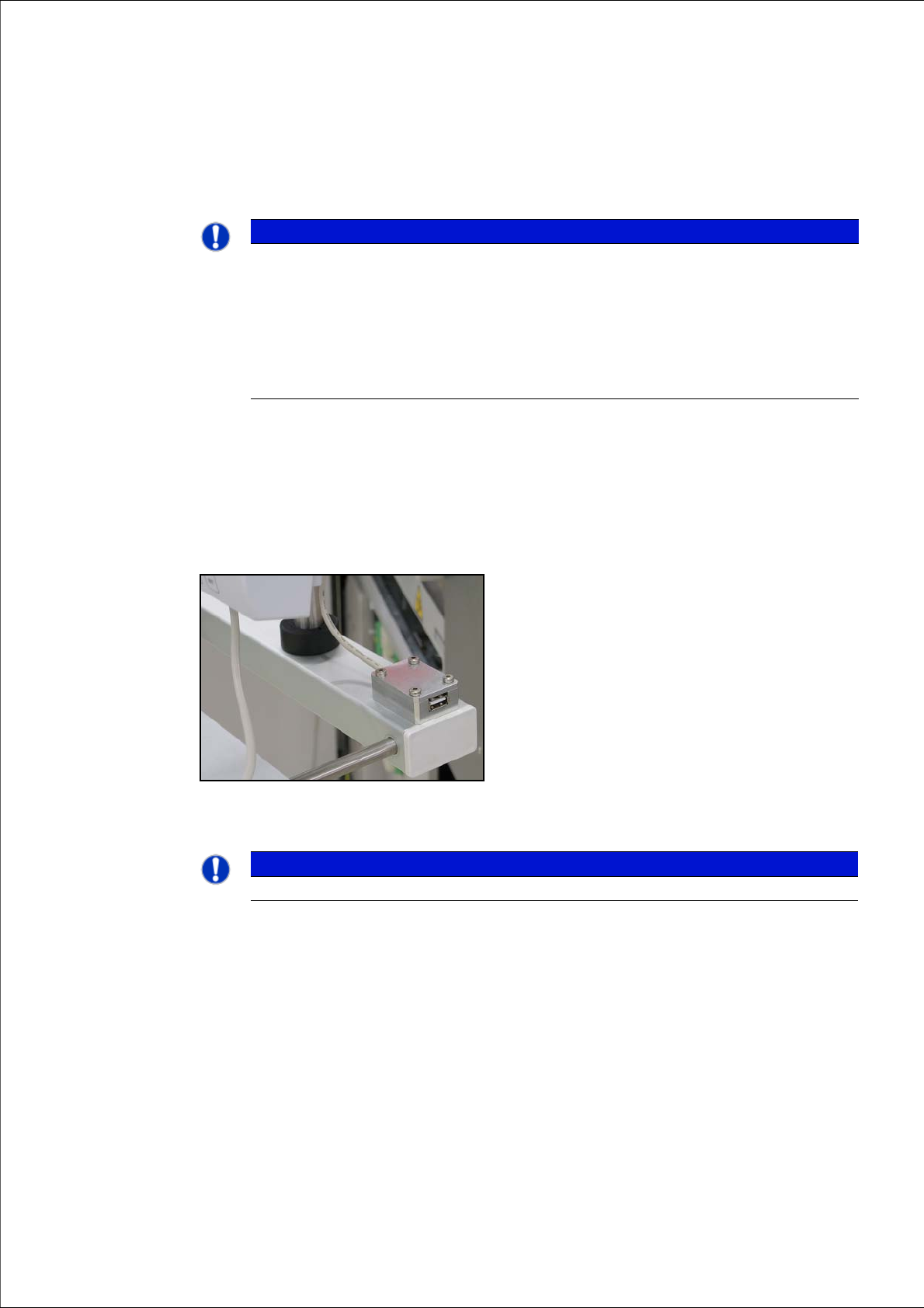
Connect a USB stick to the port provided on your computer.
2
Fig. 1 USB port on SWS monitor
2
2
PLEASE NOTE
Backup of installed SWS software version
If you replace the computer, first perform a backup of the operating system and the SWS
control (see “Backup des Betriebssystems und der SWS-Software” auf Seite 66). This
backup can then be used to install the operating system (see Installing the Operating
Systemon page 93) and the control software.
If you need to perform a backup of the operating system at the customer site, you will first
need to back up the installed SWS software.
PLEASE NOTE
To achieve the required effect, confirm each entry with Enter.
Installation Manual SIPLACE SWS Software 2.1
Edition 05/2014
90
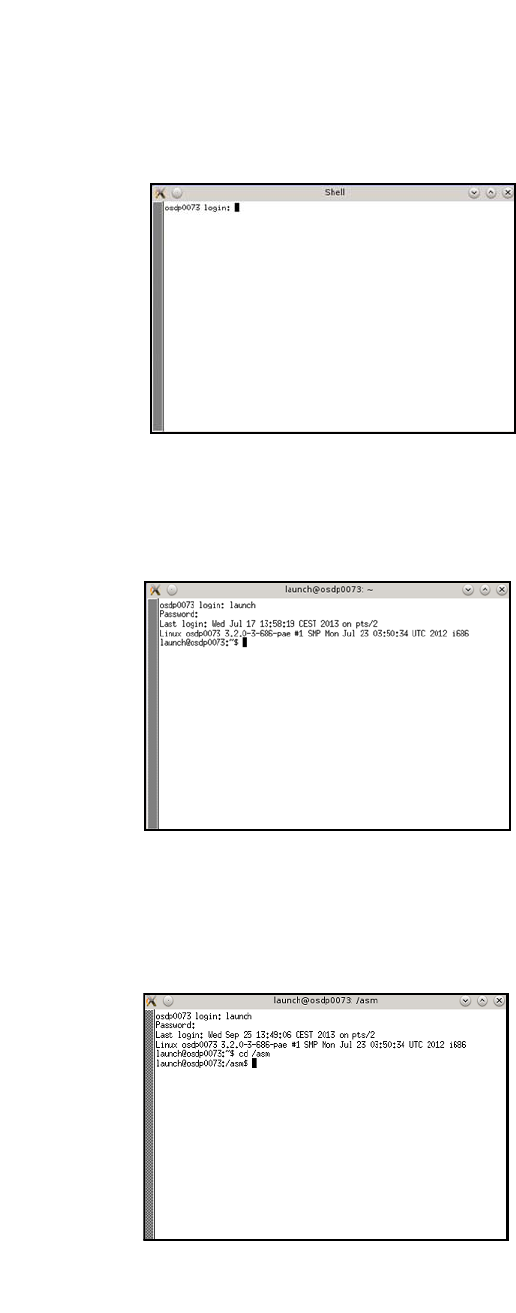
Open the terminal with CTRL + ALT + X.
2
Fig. 2 Opened terminal
Enter the following at the terminal: Launch
Enter your password.
2
Fig. 3 Entry of launch and password
2
To change the test USB disk folder, enter the following: cd /asm
Enter the following: ls /media/usbdisk0
2
Fig. 4 Entry of cd/ asm and ls /media/usbdisk0
– The USB stick contents will be shown.