00195988-02_IM_SWS-Software-2.1_DE_EN.pdf - 第93页
Installation Manual SIPLACE SWS Software 2.1 Edition 05/2014 93 2.2 Inst alling the Operating System 2 2 2 St a r t t h e P C (1) . The PC is located behind the fr ont door in the SWS supply unit. 2 Fig. 9 PC in the SW…
Installation Manual SIPLACE SWS Software 2.1
Edition 05/2014
92
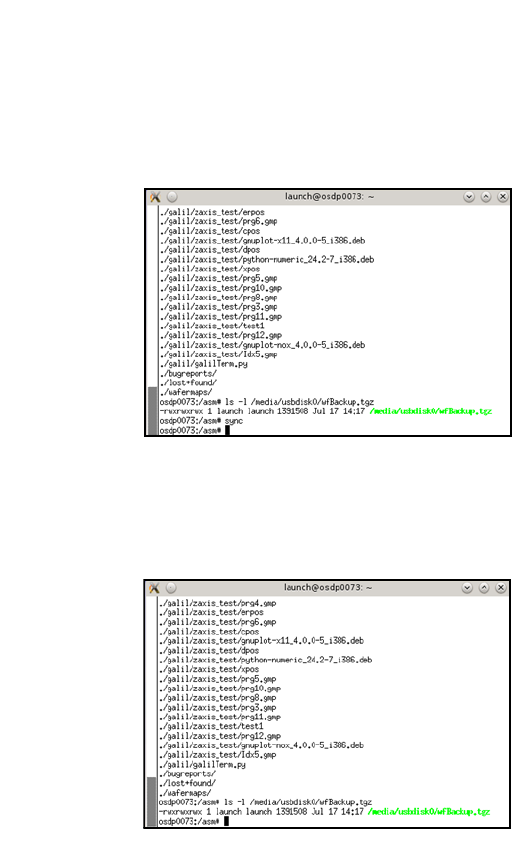
To prepare the USB stick for removal, enter the following: sync
2
2
Fig. 7 Entry of sync
To test whether the backup was generated, enter the following:
ls -l /media/usbdisk0/wfBackup.tgz 2
2
Fig. 8 Entry of ls -l /media/usbdisk/wfBackup.tgz
Installation Manual SIPLACE SWS Software 2.1
Edition 05/2014
93
2.2 Installing the Operating System
2
2
2
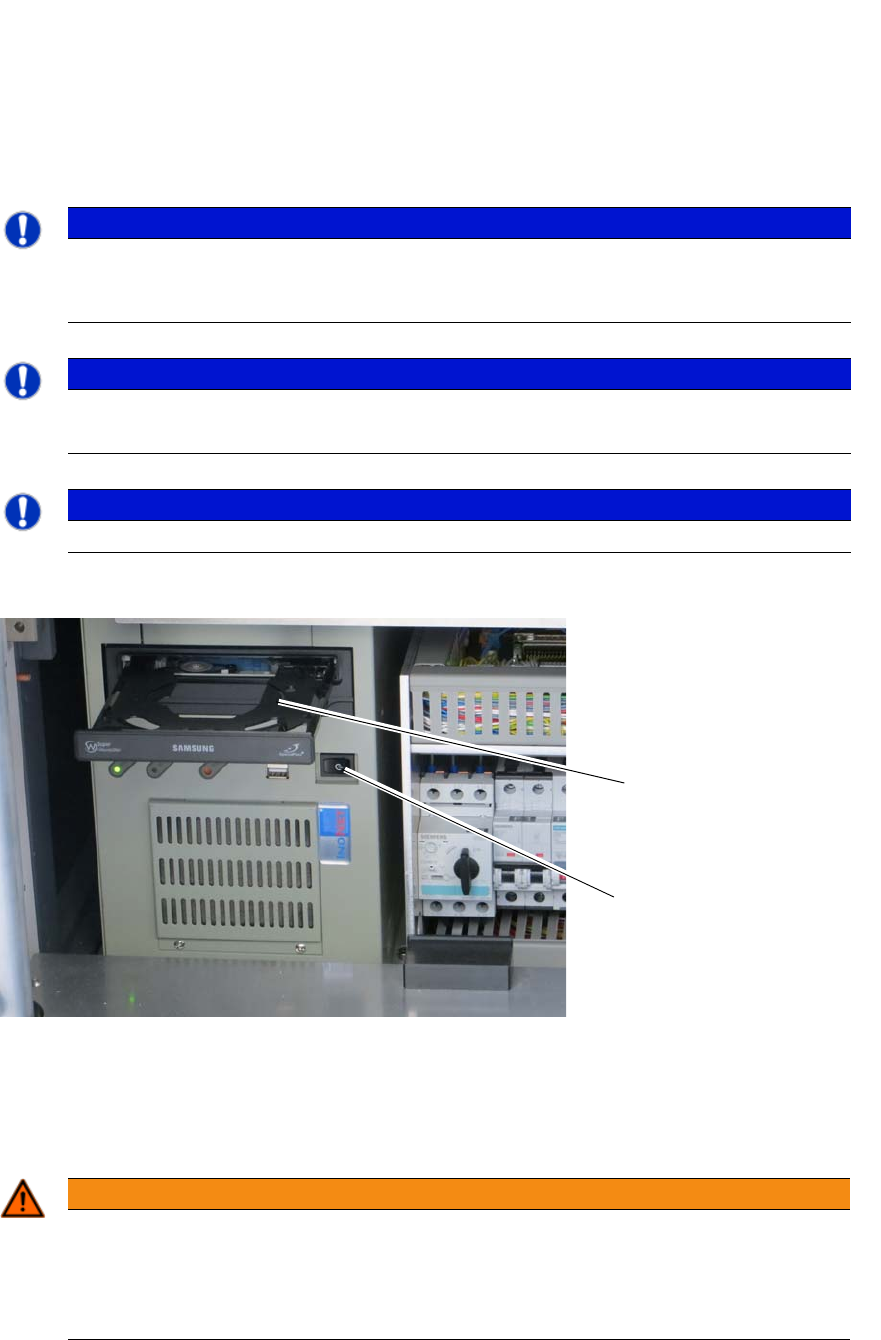
Start the PC (1). The PC is located behind the front door in the SWS supply unit.
2
Fig. 9 PC in the SWS supply unit
If needed, change the boot order in the BIOS, so that the computer can be started by the CD/
DVD drive.
Insert the CD (2).
2
PLEASE NOTE
Before installation, make a note of the settings for the SWS IP addresses and the assign-
ment to the respective location for the placement machine. Siehe “Installation mit Netzw-
erkkonfiguration und Stellplatz-Zuweisung” auf Seite 31.
PLEASE NOTE
You can choose between two options for the installation.
Use the arrow keys on your keyboard to select the required option.
PLEASE NOTE
To achieve the required effect, confirm each entry with Enter.
WARNING
Perform a backup of the installed version first
If you are updating an existing system installation, you need to perform a backup of the
installed version first (see Creating a Backup of the Installed SWS Softwareon page 89).
If you do not, you will lost the production data, calibration data and the licenses!
2
1
Installation Manual SIPLACE SWS Software 2.1
Edition 05/2014
94
2
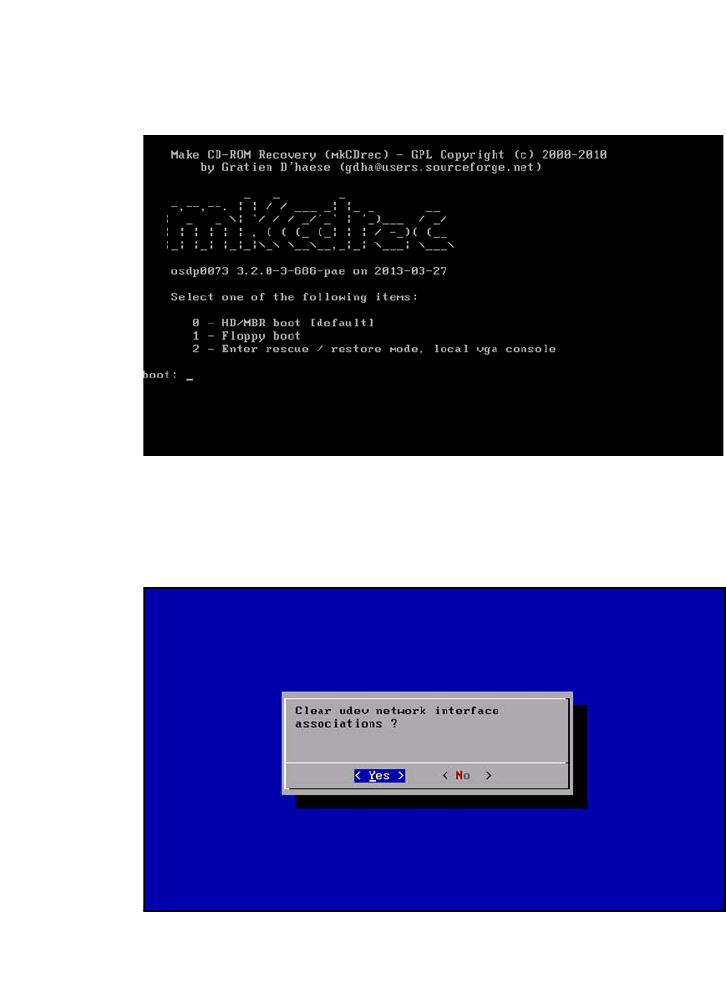
Fig. 10 Start window
Enter the following: 2
Confirm with Enter.
2
Fig. 11 Remove the udev network interface connections
Confirm YES with Enter.