00195813-08_IM_605_03_SP4_DE EN.pdf - 第23页
Station S oftware 60 5.03 SP4 / Ins tallation M anual Ausgabe 04/2013 E dition 23 5.3.3 Calibrating the Touch Screen 5.3.3.1 Calibrati ng the Touch Screen for the X - Seri es and CA - Series ► C hoose Sta rt Settings …
Station Software 605.03 SP4 / Installation Manual Ausgabe 04/2013 Edition
22
5.3 Preparations for Installing the Software
5.3.1 Requirements
Requirements for installing the SIPLACE software and the optional Vision computer software:
– Installation of the Windows XP Professional operating system including Service Pack 2 on
the station computer and the Vision computer (if present)
(see Installation Manual "Windows XP Operating System", item no. [00194575-xx]).
– Installation of the Windows XP Embedded operating system on the machine controller
(see Installation Manual "Windows XP Embedded Operating System for the Machine
Controller", item no. [00195327-xx]).
– Installation of the Windows XP Embedded operating system for machines in one-computer
operation with 627C/827C (see Installation Manual "Windows XP Embedded Operating System
SP2", item no. [00196737-xx]).
The default Windows display settings must be changed and the touchscreen must be calibrated.
You must be logged on as the Administrator in order to be able to carry out this work.
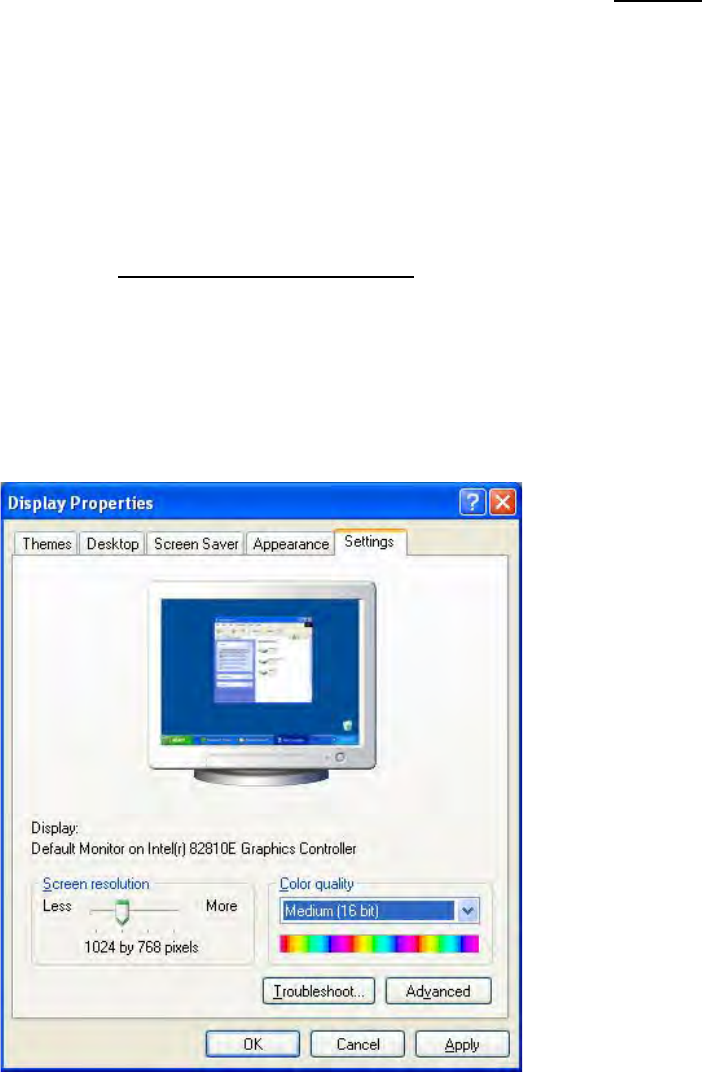
5.3.2 Changing the Display Settings
► Choose Start Settings Control Panel Display.
► Click the Settings tab.
► Set the "Screen resolution" slider to "1024 by 768 pixels".
Figure 5-1: Screen settings
► Confirm the settings by clicking OK.
Station Software 605.03 SP4 / Installation Manual Ausgabe 04/2013 Edition
23
5.3.3 Calibrating the Touch Screen
5.3.3.1 Calibrating the Touch Screen for the X-Series and CA-Series
► Choose Start
Settings
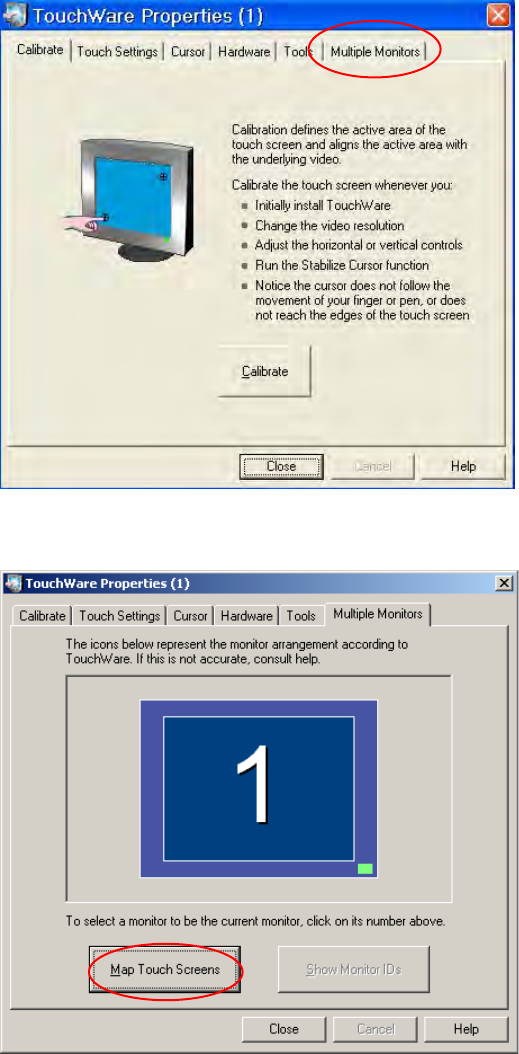
TouchWare, to start the TouchWare Properties program.
Figure 5-2: TouchWare Properties
► Open the Multiple Monitors tab.
Figure 5-3: TouchWare Properties – Multiple Monitors tab
► Click the Map Touch Screens button.
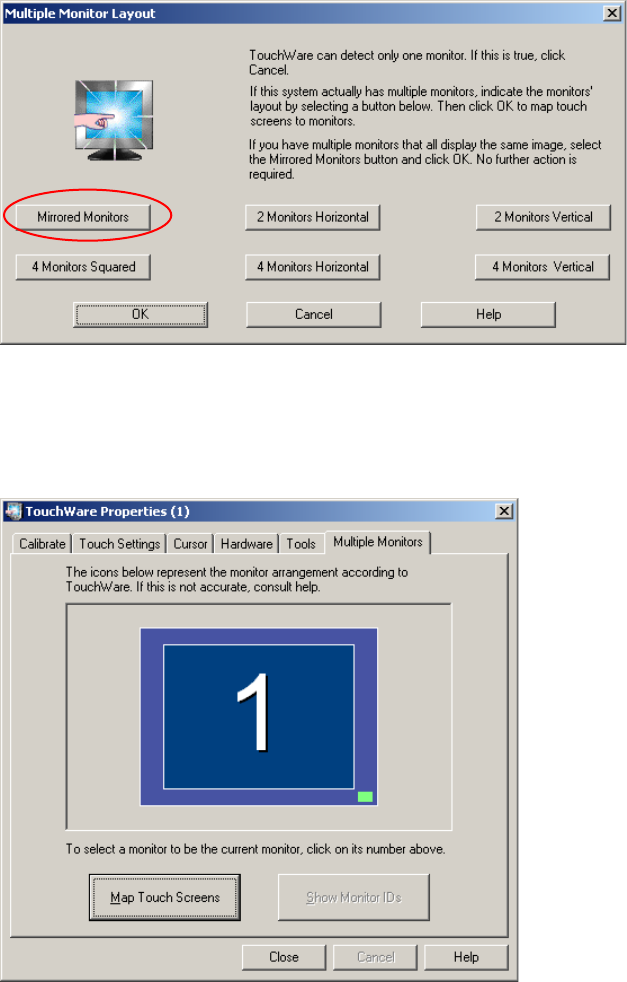
The "Multiple Monitor Layout" dialog box appears.
Station Software 605.03 SP4 / Installation Manual Ausgabe 04/2013 Edition
24
Figure 5-4: "Multiple Monitor Layout" dialog box
► Click the Mirrored Monitors button.
► Confirm your entry with OK.
The touch screens are now mapped and the "Multiple Monitors" tab is displayed again.
Figure 5-5: TouchWare Properties – Multiple Monitors tab (example for Monitor 1)