00195813-08_IM_605_03_SP4_DE EN.pdf - 第40页
Station S oftware 60 5.03 SP4 / Ins tallation M anual Ausgabe 04/2013 E dition 40 7 Insta lling th e Vi sion Com put er So ft w are (Optio n) NOTICE The Visio n computer is only req uired if the optiona l 3D coplanari ty…
Station Software 605.03 SP4 / Installation Manual Ausgabe 04/2013 Edition
39
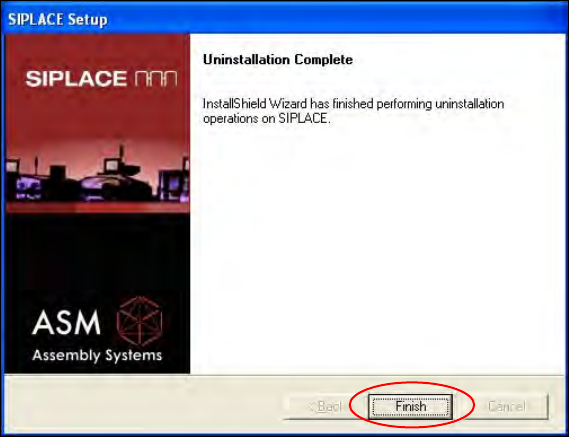
The installation program now uninstalls the SIPLACE software including the SIPLACE hot fixes,
SIPLACE Language Pack and SIPLACE Vision.
Figure 6-3: Finalizing uninstallation
► Click the Finish button.
The SIPLACE software and SIPLACE Vision have now been uninstalled correctly.
Station Software 605.03 SP4 / Installation Manual Ausgabe 04/2013 Edition
40
7 Installing the Vision Computer Software (Option)
NOTICE
The Vision computer is only required if the optional 3D coplanarity sensor is used.
In one-computer operation the Vision computer software is automatically installed during
the station software installation.
In two-computer operation the Vision computer software has to be installed explicitly.
The installation requires approx. 20 minutes.
► Connect the USB keyboard to the Vision computer.
► Switch the video multiplexer from the station computer to the Vision computer.
► Switch on the SIPLACE placement machine.
► Log in to the Vision computer as Administrator.
(Keep the Shift key pressed as soon as the Windows XP logo appears)
► Insert the installation CD in the drive.
► Open the Explorer and start "setup.exe" under drive E: by double clicking it.
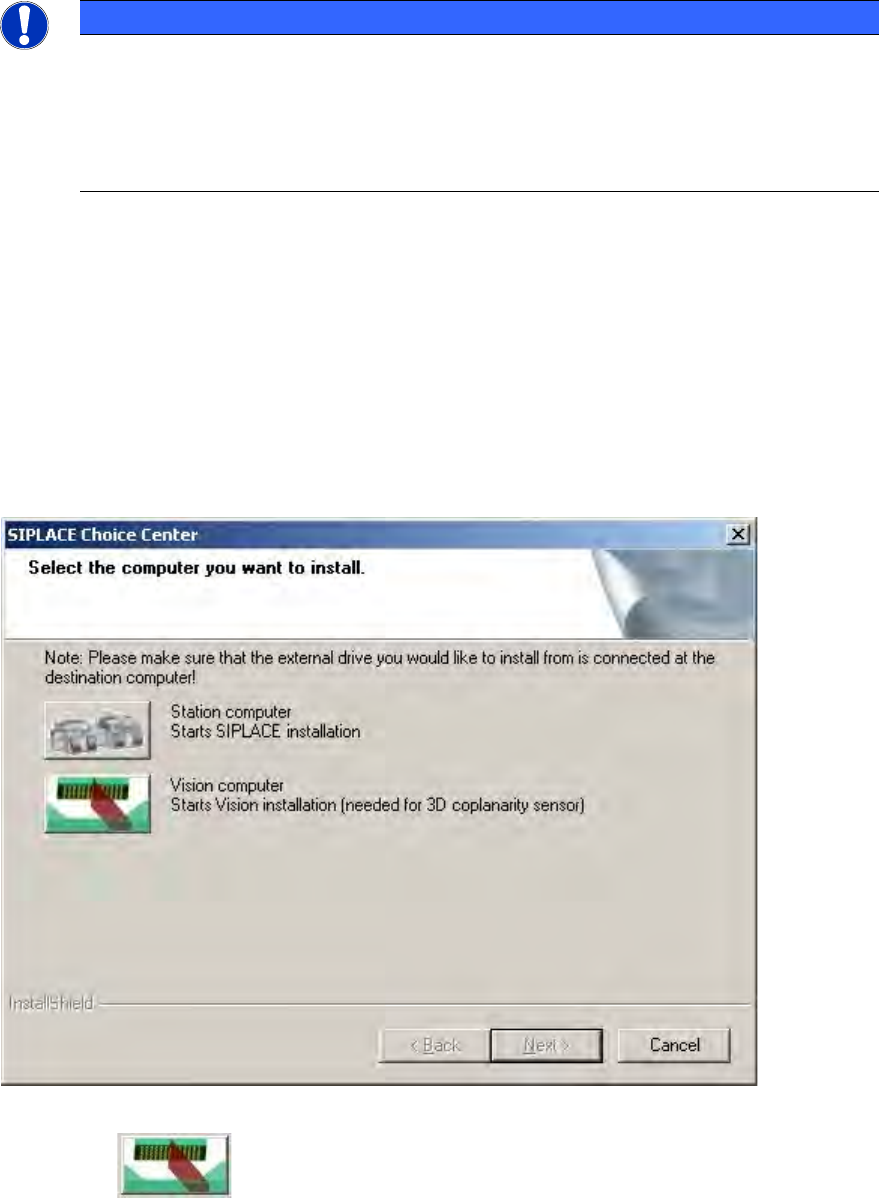
The "SIPLACE Choice Center" dialog box is opened.
Figure 7-1: "SIPLACE Choice Center" dialog box
► Click the "Vision computer" button.
Installation of the vision computer software continues with the welcome screen.
Station Software 605.03 SP4 / Installation Manual Ausgabe 04/2013 Edition
41
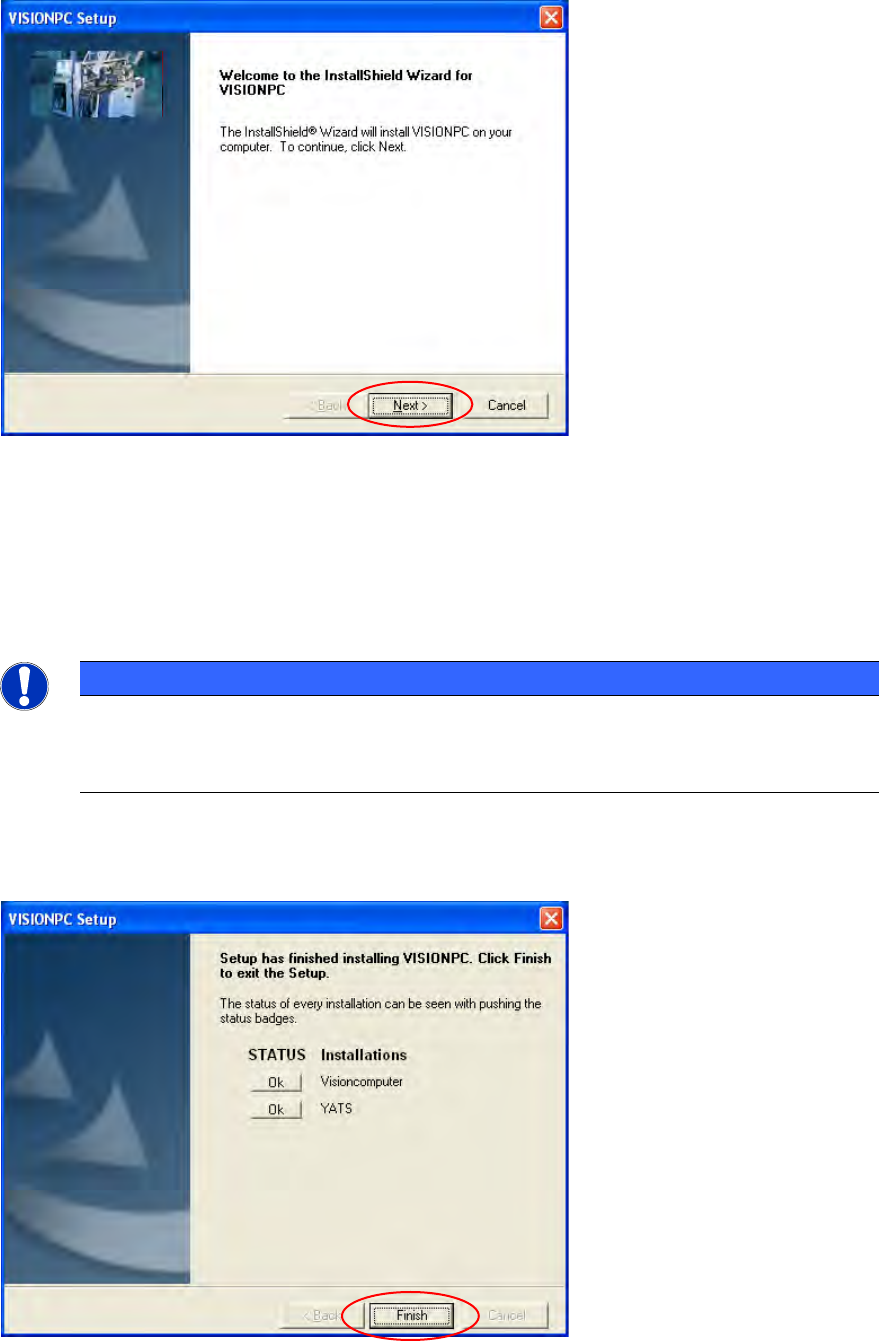
7.1 Welcome Screen
Figure 7-2: Welcome screen
► Click the Next button.
The necessary files are installed on the Vision computer.
7.2 Finalizing the Installation
NOTICE
The status only lists the programs that have just been installed.
If errors occurred during installation, the status is indicated by the Error button being
displayed next to the program name instead of the Ok button.
► If you wish to read the log of the installation of any program, click the Ok (or Error) button next
to the name of the program. Notepad is started and displays the appropriate file.
Figure 7-3: Finalizing the installation