00195813-08_IM_605_03_SP4_DE EN.pdf - 第32页
Station S oftware 60 5.03 SP4 / Ins tallation M anual Ausgabe 04/2013 E dition 32 5.4.4 Welcome S creen Figure 5- 18 : Welcome screen ► C lick the Next but ton 5.4.5 Selecti ng the M achin e Typ e Figure 5- 19 : Selectin…
Station Software 605.03 SP4 / Installation Manual Ausgabe 04/2013 Edition
31
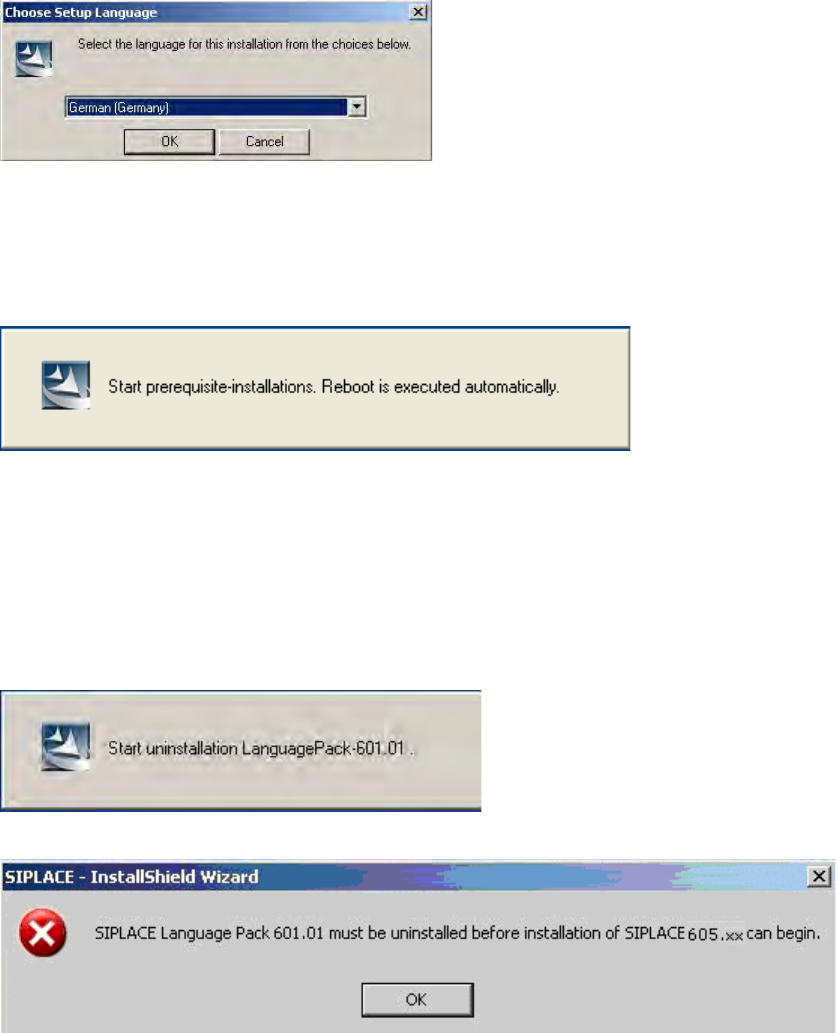
5.4.1 Language Selection
► Select the language to be used during installation.
You can choose between German (Germany) and English (United States).
Figure 5-17: Language selection
► Click the OK button.
5.4.2 Installing the System Files
The necessary system files are installed if they are not already on the station computer. The station
computer is rebooted automatically after installation. You are automatically logged in as
administrator.
5.4.3 Uninstalling Language Pack of a Previous Version (If Installed)
If a Language Pack of a previous version is still installed on the computer, uninstallation is started
automatically.
If uninstallation of the Language Pack is cancelled, the following error message appears::
► Click the OK button.
Installation of the station software is canceled and must be restarted.
Installation of the station software continues with the welcome screen.
Station Software 605.03 SP4 / Installation Manual Ausgabe 04/2013 Edition
32
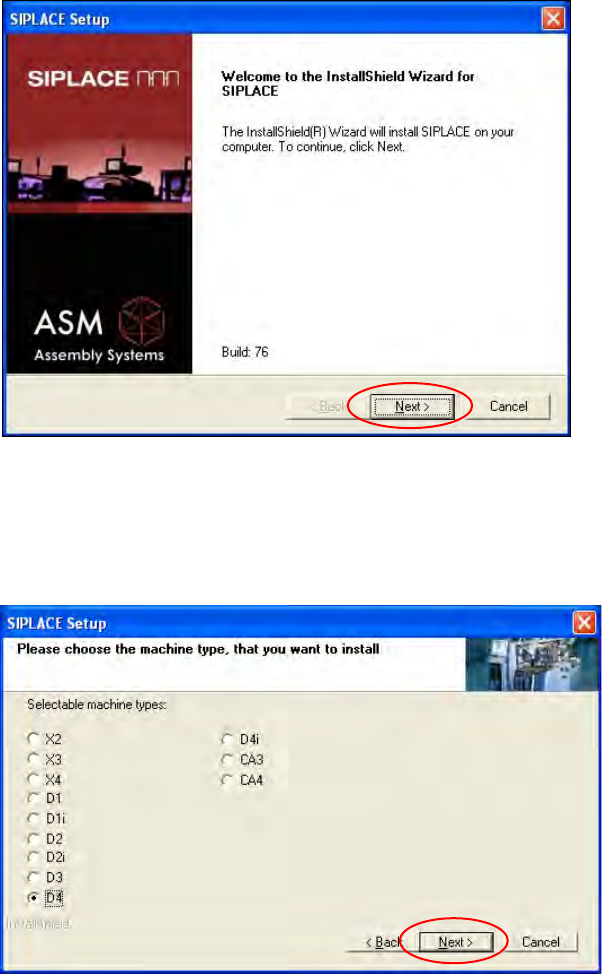
5.4.4 Welcome Screen
Figure 5-18: Welcome screen
► Click the Next button
5.4.5 Selecting the Machine Type
Figure 5-19: Selecting the machine type
► Select the option for the machine type for which the software is to be configured.
► Click the Next button
Station Software 605.03 SP4 / Installation Manual Ausgabe 04/2013 Edition
33
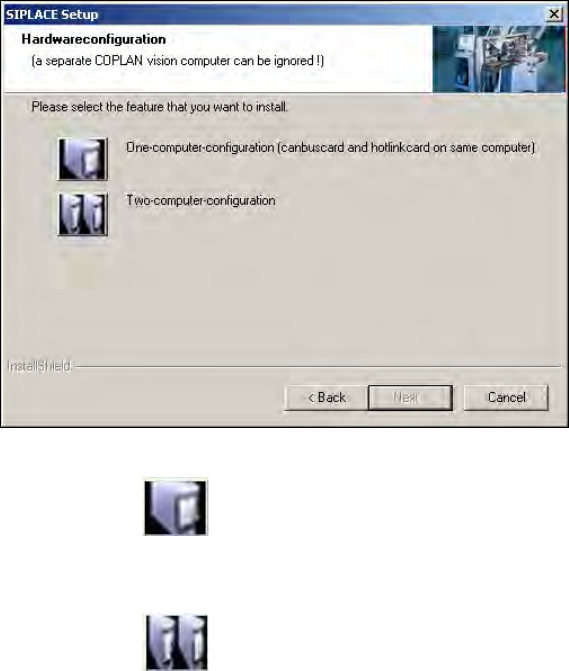
5.4.6 Selecting the Hardware Configuration
The Hardwareconfiguration dialog box is opened, in which you can configure the hardware for
one-computer or two-computer operation. Two-computer operation has always to be selected for
X- and CA-series placement machines. For D-series placement machines the selection should
match the actual hardware configuration.
Figure 5-20: Selecting the hardware configuration
► Click on the One-computer-configuration button for one-computer operation.
Or
► Click on the Two-computer-configuration for two-computer operation.
► Click on the Next button.