00195813-08_IM_605_03_SP4_DE EN.pdf - 第28页
Station S oftware 60 5.03 SP4 / Ins tallation M anual Ausgabe 04/2013 E dition 28 Figure 5- 11 : PenMount Cont rol Panel – "Mapping" dialog box ► Ac knowledge th e "Mappi ng" dialog box by clic king o…
Station Software 605.03 SP4 / Installation Manual Ausgabe 04/2013 Edition
27
5.3.3.2 Calibrating the Touch Screen for the D-Series
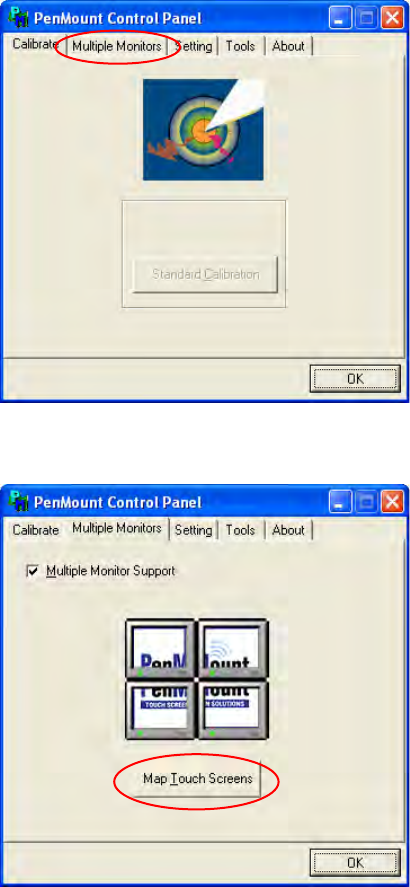
► Select Start Program Files PenMount Utilities PenMount Control Panel to start the
touch screen calibration applet.
Figure 5-9: PenMount Control Panel
► Open the Multiple Monitors tab.
Figure 5-10: PenMount Control Panel – Multiple Monitors tab
► Check the Multiple Monitor Support box.
► Click the Map Touch Screens button.
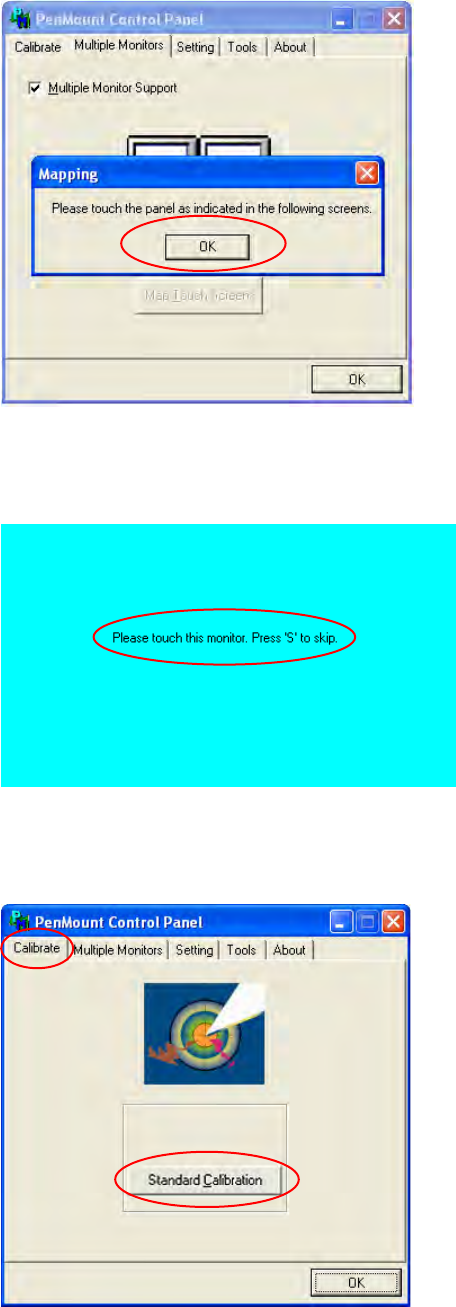
The "Mapping" dialog box opens.
Station Software 605.03 SP4 / Installation Manual Ausgabe 04/2013 Edition
28
Figure 5-11: PenMount Control Panel – "Mapping" dialog box
► Acknowledge the "Mapping" dialog box by clicking on OK.
► Touch the monitor showing Please touch this monitor with your finger.
Figure 5-12: Mapping the touch screens
The touch screens are now mapped and the PenMount Control Panel is displayed again.
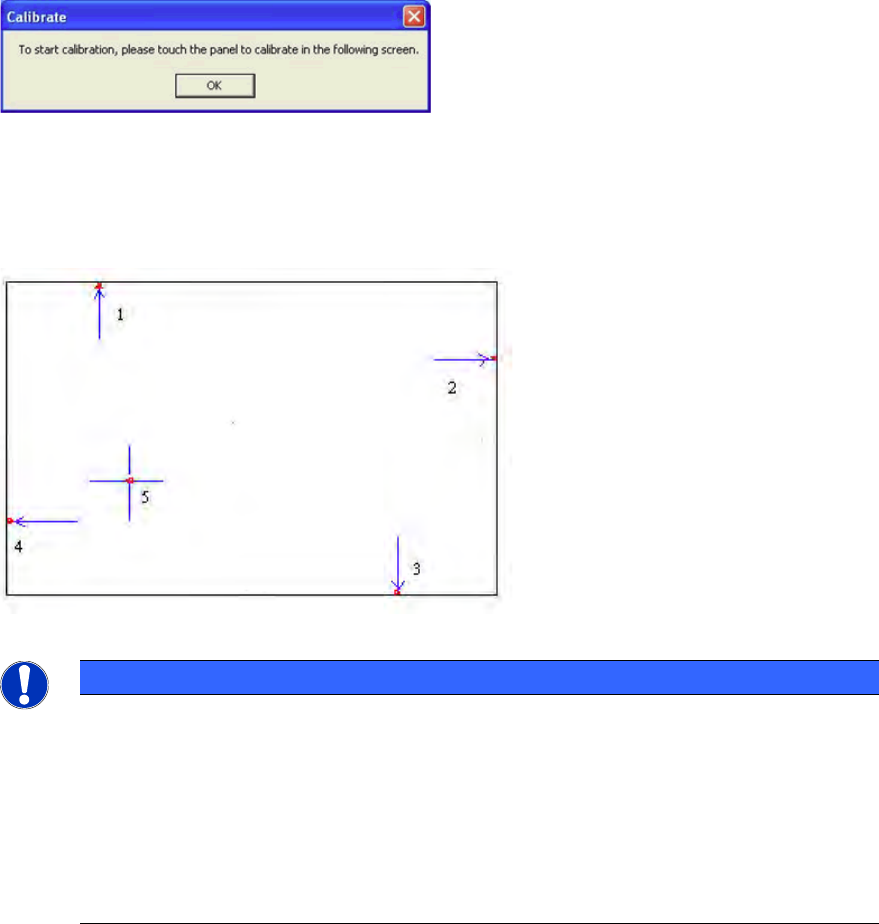
► Open the Calibrate tab.
Figure 5-13: PenMount Control Panel – Calibrate tab
Station Software 605.03 SP4 / Installation Manual Ausgabe 04/2013 Edition
29
► Click the Standard Calibration button.
The Calibrate dialog box opens.
Figure 5-14: "Calibrate" dialog box
► Acknowledge the dialog box by clicking on OK.
► Touch the monitor you wish to calibrate with the pen supplied.
You are now prompted to Touch the red square.
Figure 5-15: Calibration marks
NOTICE
► Touch the calibration icon within 20 seconds, otherwise calibration is automatically
canceled.
► Make sure that you are standing directly in front of the monitor.
► Carry out calibration in the position (standing or seated) you normally adopt when
working at this screen.
► Touch the calibration icon firmly and accurately with your fingertip.
► Make sure that you do not inadvertently touch the screen with any other finger.
► Touch the red calibration marks with the pen in the numbered sequence shown.
► Carry out the steps described above for the second screen as well.
► Click OK in the PenMount Control Panel to close the program.