00195813-08_IM_605_03_SP4_DE EN.pdf - 第30页
Station S oftware 60 5.03 SP4 / Ins tallation M anual Ausgabe 04/2013 E dition 30 5.4 I nstall ing the SIPLACE Softw are (Station Sof t w are 605.03 SP 4) NOTICE The instal lation req uires ap prox. 30 m inutes. If a pre…
Station Software 605.03 SP4 / Installation Manual Ausgabe 04/2013 Edition
29
► Click the Standard Calibration button.
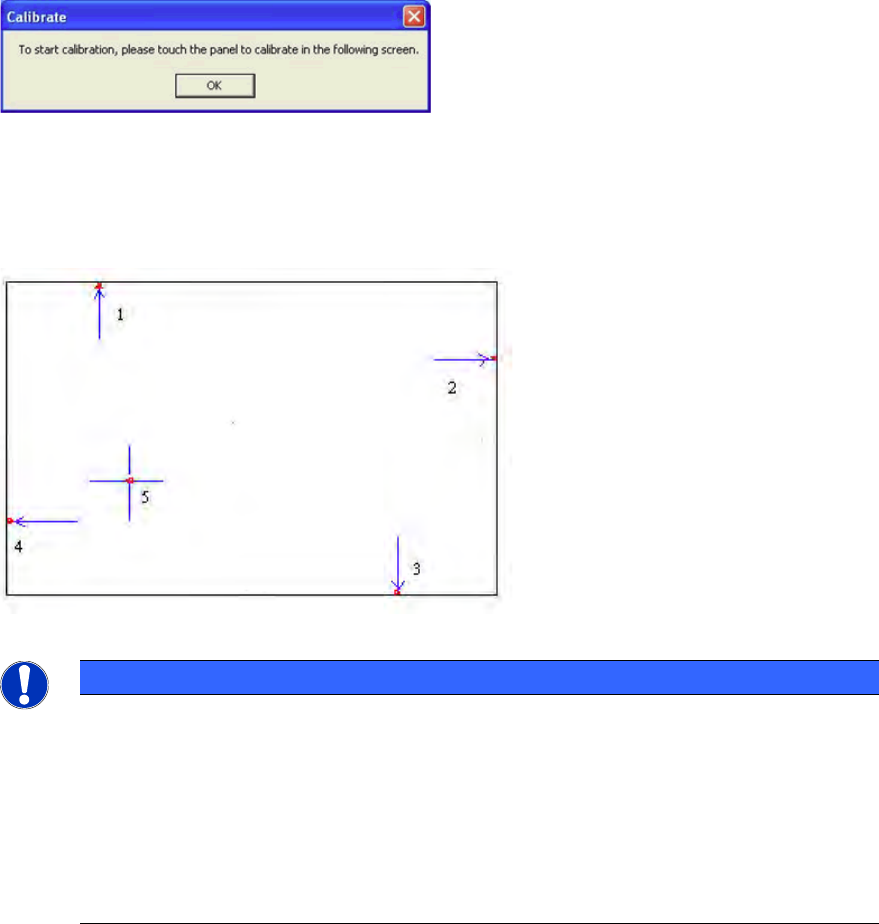
The Calibrate dialog box opens.
Figure 5-14: "Calibrate" dialog box
► Acknowledge the dialog box by clicking on OK.
► Touch the monitor you wish to calibrate with the pen supplied.
You are now prompted to Touch the red square.
Figure 5-15: Calibration marks
NOTICE
► Touch the calibration icon within 20 seconds, otherwise calibration is automatically
canceled.
► Make sure that you are standing directly in front of the monitor.
► Carry out calibration in the position (standing or seated) you normally adopt when
working at this screen.
► Touch the calibration icon firmly and accurately with your fingertip.
► Make sure that you do not inadvertently touch the screen with any other finger.
► Touch the red calibration marks with the pen in the numbered sequence shown.
► Carry out the steps described above for the second screen as well.
► Click OK in the PenMount Control Panel to close the program.
Station Software 605.03 SP4 / Installation Manual Ausgabe 04/2013 Edition
30
5.4 Installing the SIPLACE Software (Station Software 605.03 SP4)
NOTICE
The installation requires approx. 30 minutes.
If a predecessor version of the station software is already installed on the station
computer, it need not be uninstalled before installing the new version; it can instead be
removed during the installation procedure (see section 5.4.3).
For uninstalling the SIPLACE software manually see chapter 6.
► Switch on the SIPLACE placement machine.
► Log in to the station computer as Administrator.
(Keep the Shift key pressed as soon as the Windows XP logo appears)
► Insert the installation CD in the drive.
► Open the Explorer and start "setup.exe" under drive E: by double clicking it.
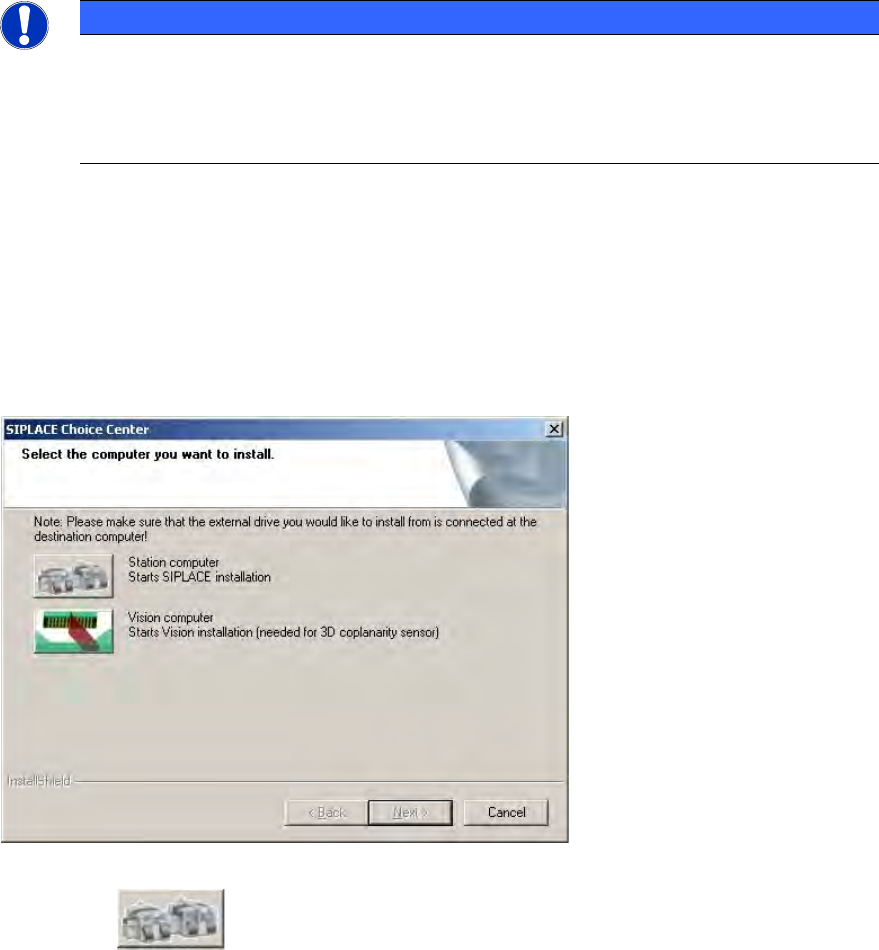
The "SIPLACE Choice Center" dialog box is opened.
Figure 5-16: "SIPLACE Choice Center" dialog box
► Click the "Station computer" button.
A check is carried out to determine whether a predecessor version of the station software is
installed. If this is the case, the routine for uninstalling the predecessor version is called before
actual installation starts (see chapter 6).
Installation of the station software continues with the selection of the language.
Station Software 605.03 SP4 / Installation Manual Ausgabe 04/2013 Edition
31
5.4.1 Language Selection
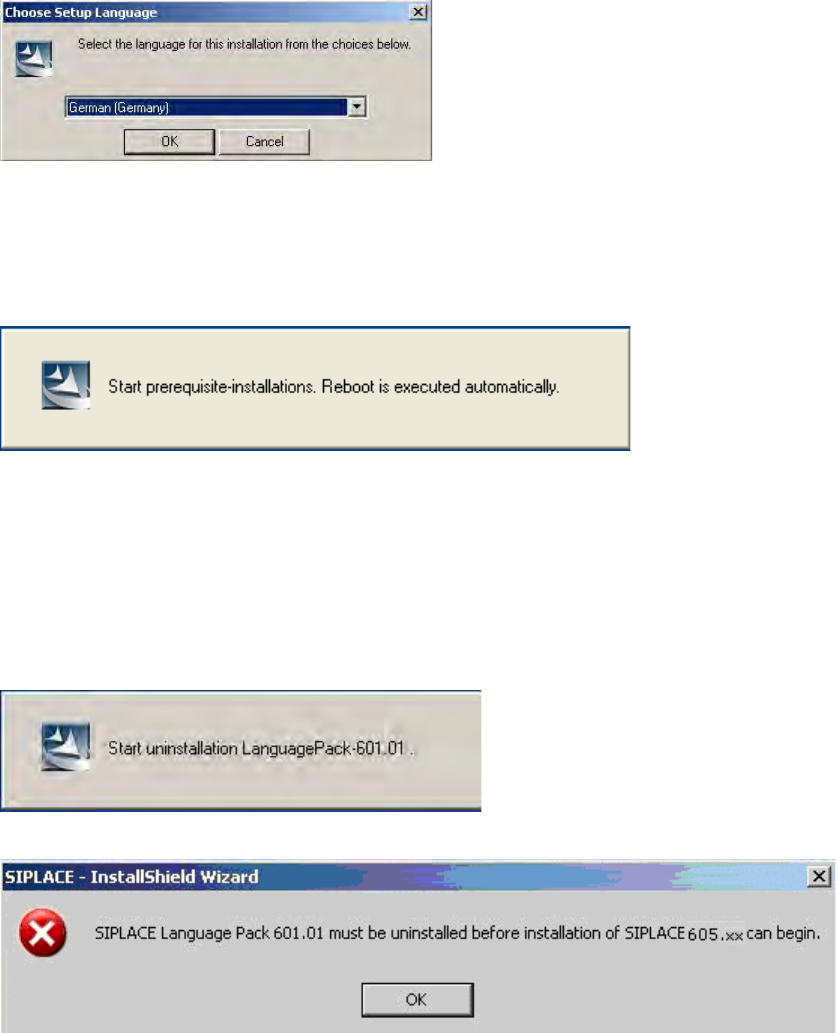
► Select the language to be used during installation.
You can choose between German (Germany) and English (United States).
Figure 5-17: Language selection
► Click the OK button.
5.4.2 Installing the System Files
The necessary system files are installed if they are not already on the station computer. The station
computer is rebooted automatically after installation. You are automatically logged in as
administrator.
5.4.3 Uninstalling Language Pack of a Previous Version (If Installed)
If a Language Pack of a previous version is still installed on the computer, uninstallation is started
automatically.
If uninstallation of the Language Pack is cancelled, the following error message appears::
► Click the OK button.
Installation of the station software is canceled and must be restarted.
Installation of the station software continues with the welcome screen.