00195813-08_IM_605_03_SP4_DE EN.pdf - 第42页
Station S oftware 60 5.03 SP4 / Ins tallation M anual Ausgabe 04/2013 E dition 42 ► C lick the Finish butt on. NOTICE To est ablish the conn ection between the Vision com puter and the mac hine control ler after inst all…
Station Software 605.03 SP4 / Installation Manual Ausgabe 04/2013 Edition
41
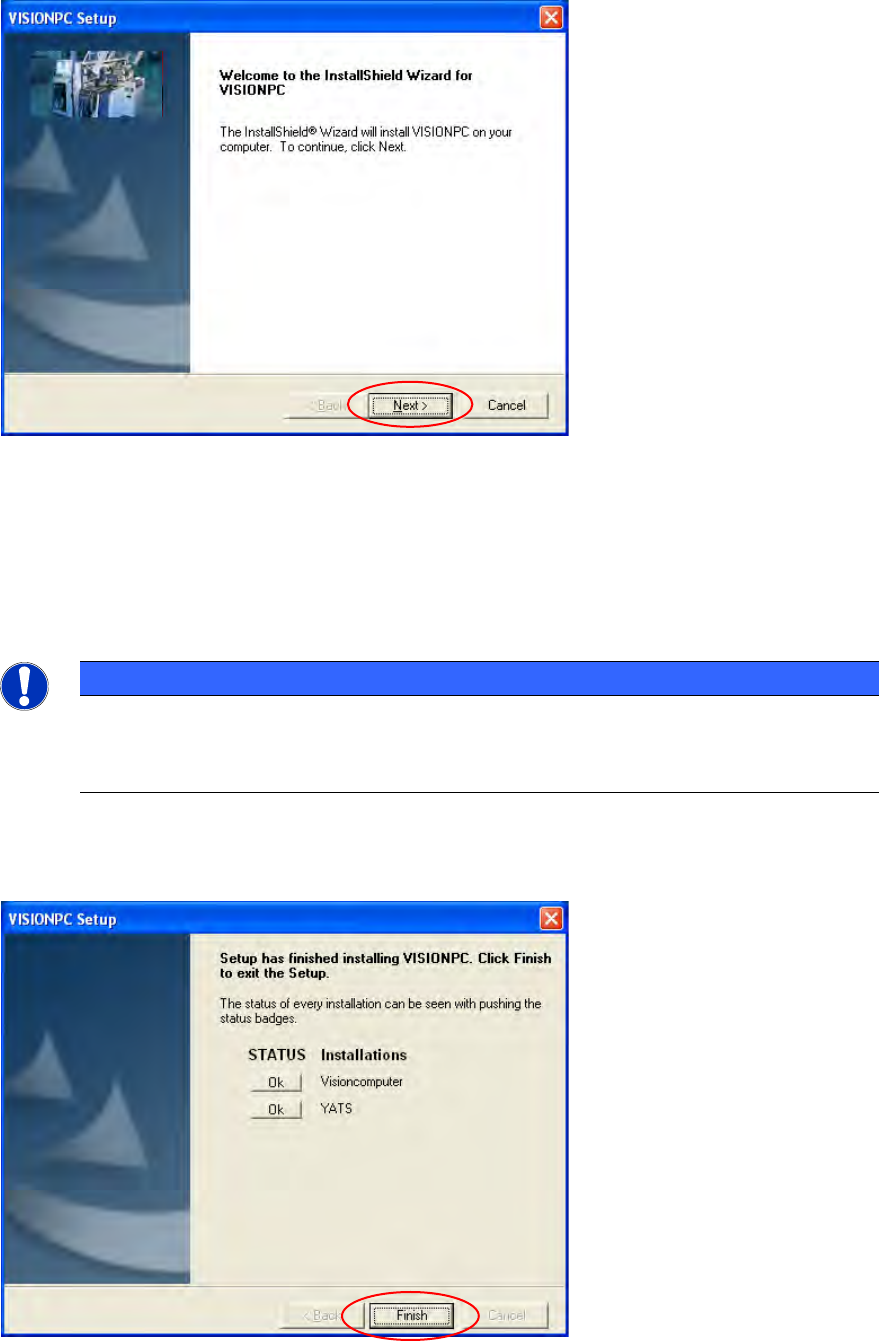
7.1 Welcome Screen
Figure 7-2: Welcome screen
► Click the Next button.
The necessary files are installed on the Vision computer.
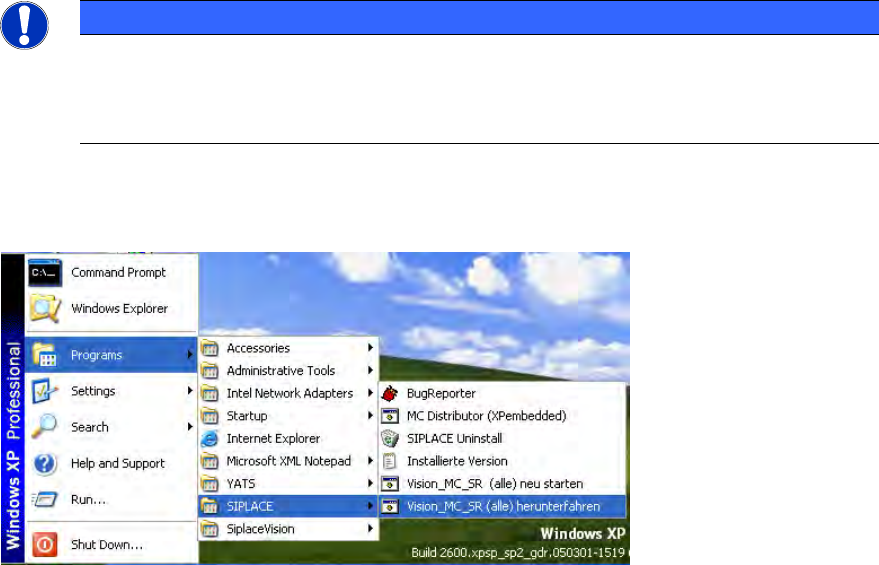
7.2 Finalizing the Installation
NOTICE
The status only lists the programs that have just been installed.
If errors occurred during installation, the status is indicated by the Error button being
displayed next to the program name instead of the Ok button.
► If you wish to read the log of the installation of any program, click the Ok (or Error) button next
to the name of the program. Notepad is started and displays the appropriate file.
Figure 7-3: Finalizing the installation
Station Software 605.03 SP4 / Installation Manual Ausgabe 04/2013 Edition
42
► Click the Finish button.
NOTICE
To establish the connection between the Vision computer and the machine controller
after installation has been completed, the Vision computer, machine controller and
station computer must first be run down and the machine must then be switched off
completely.
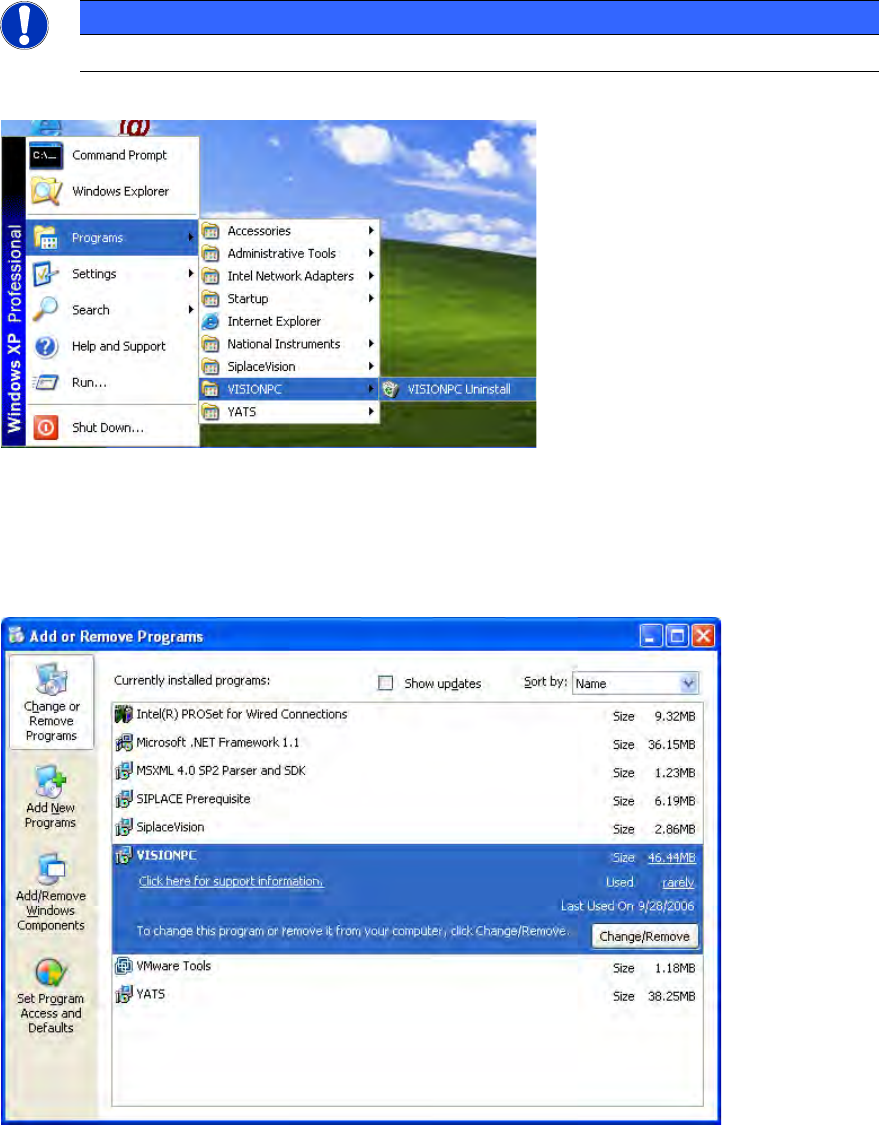
► To do this, open the Start menu and select Programs SIPLACE
Shutdown_Vision_MC_SR (all).
Figure 7-4: Shutting down the station computer, machine controller and Vision computer
► Switch the machine off when the computer systems have shut down.
► Switch the machine back on again. This then reboots the Vision computer, the machine
controller and the station computer.
Station Software 605.03 SP4 / Installation Manual Ausgabe 04/2013 Edition
43
8 Uninstalling the Vision Computer Software
If it is necessary to uninstall the Vision computer software manually, this must be done in one of the
ways described below.
NOTICE
You must be logged in as administrator to uninstall the software.
► Open the Start menu and choose Programs VISIONPC VISIONPC Uninstall.
Figure 8-1: Starting uninstallation (alternative 1)
Or:
► Open the Start menu and choose Settings Control Panel.
► Double-click Add/Remove Programs.
Figure 8-2: Starting uninstallation (alternative 2)
► Select VISIONPC from the list of installed programs.
► Click the Change/Remove button.