00197184-03_IM_Celsius_W520LLC_Windows7_EN.pdf - 第12页
Celsius W 520 w ith W indows 7 03/2014 Editio n 12 The next window ap pears. Figure 3-6 : Account - and Computername ► Enter the account nam e " SIPL ACEAd mi n". ► Enter the name f or the com puter . ► Click t…
Celsius W520 with Windows 7 03/2014 Edition
11
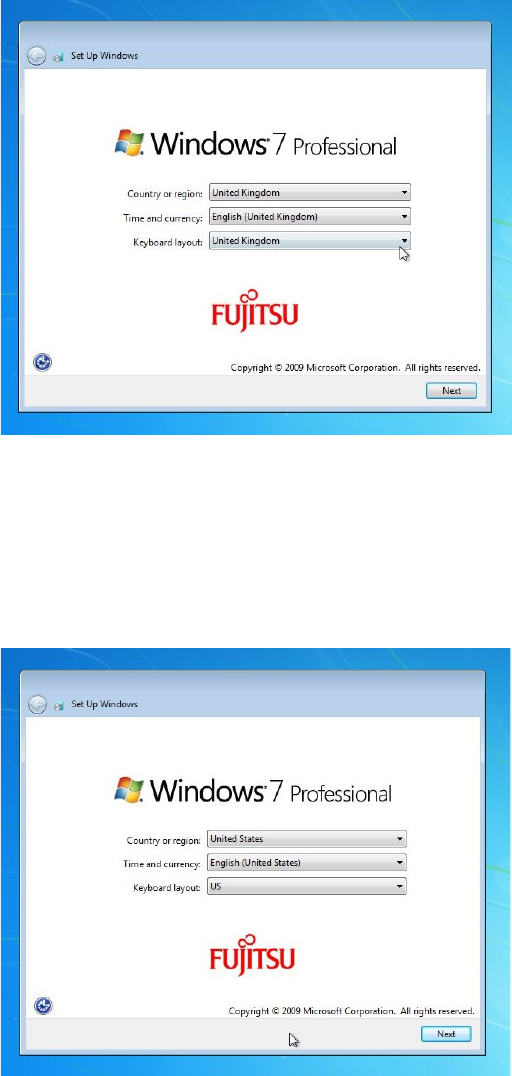
The regional settings dialog appears.
Figure 3-4: Regional settings
► Select the appropriate country or region.
► Select the appropriate time and currency format.
► Select the appropriate keyboard layout. For SIPLACE Line Computers, the default is US.
In this documentation, we use German for country and time/currency and United States for the
keyboard layout.
Figure 3-5: Customized Regional settings
► Click the Next button to continue.
Celsius W520 with Windows 7 03/2014 Edition
12
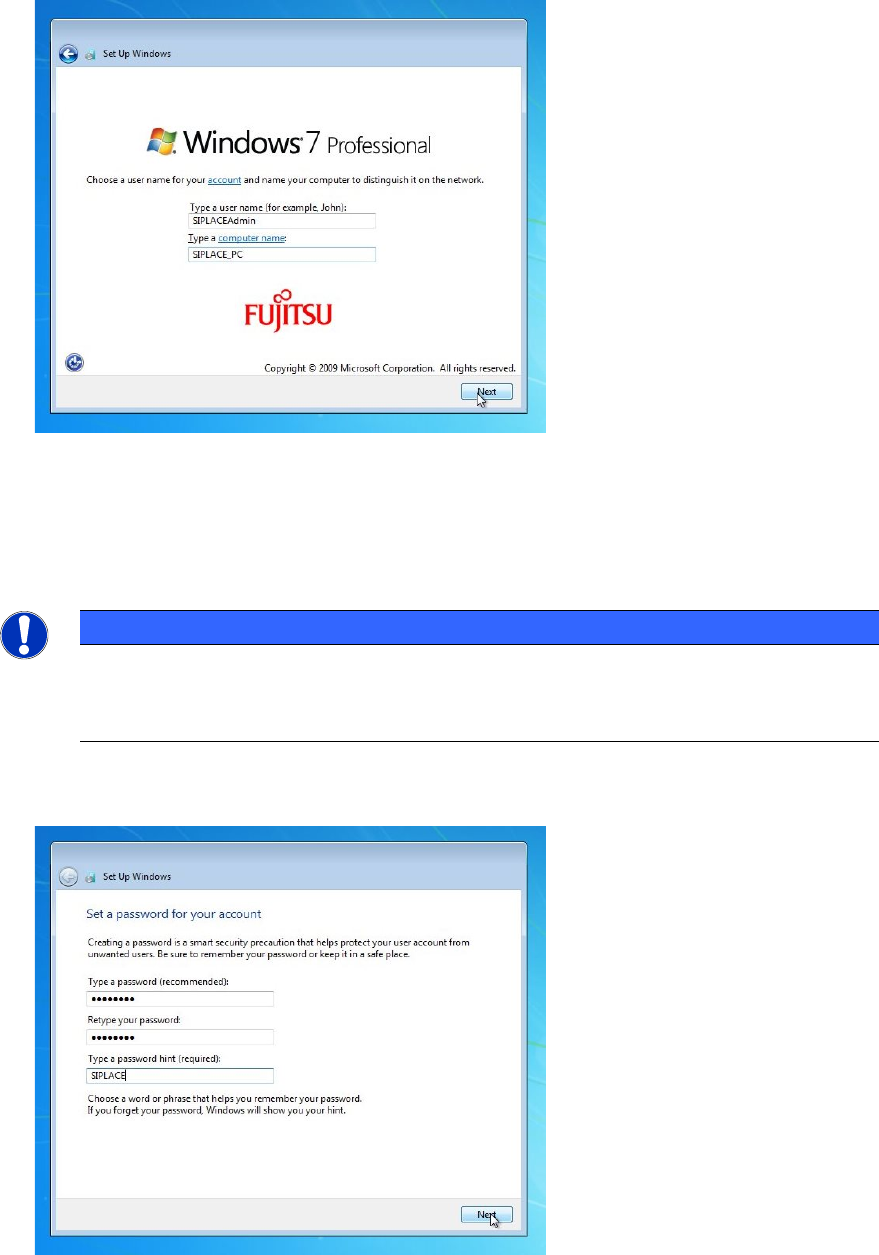
The next window appears.
Figure 3-6: Account- and Computername
► Enter the account name "SIPLACEAdmin".
► Enter the name for the computer.
► Click the Next button to continue.
NOTICE
Ensure valid Computer Name
Please choose the computer name carefully. Some products, like SQL Server strongly
depend on the computer name and may stop working when you change it afterwards!
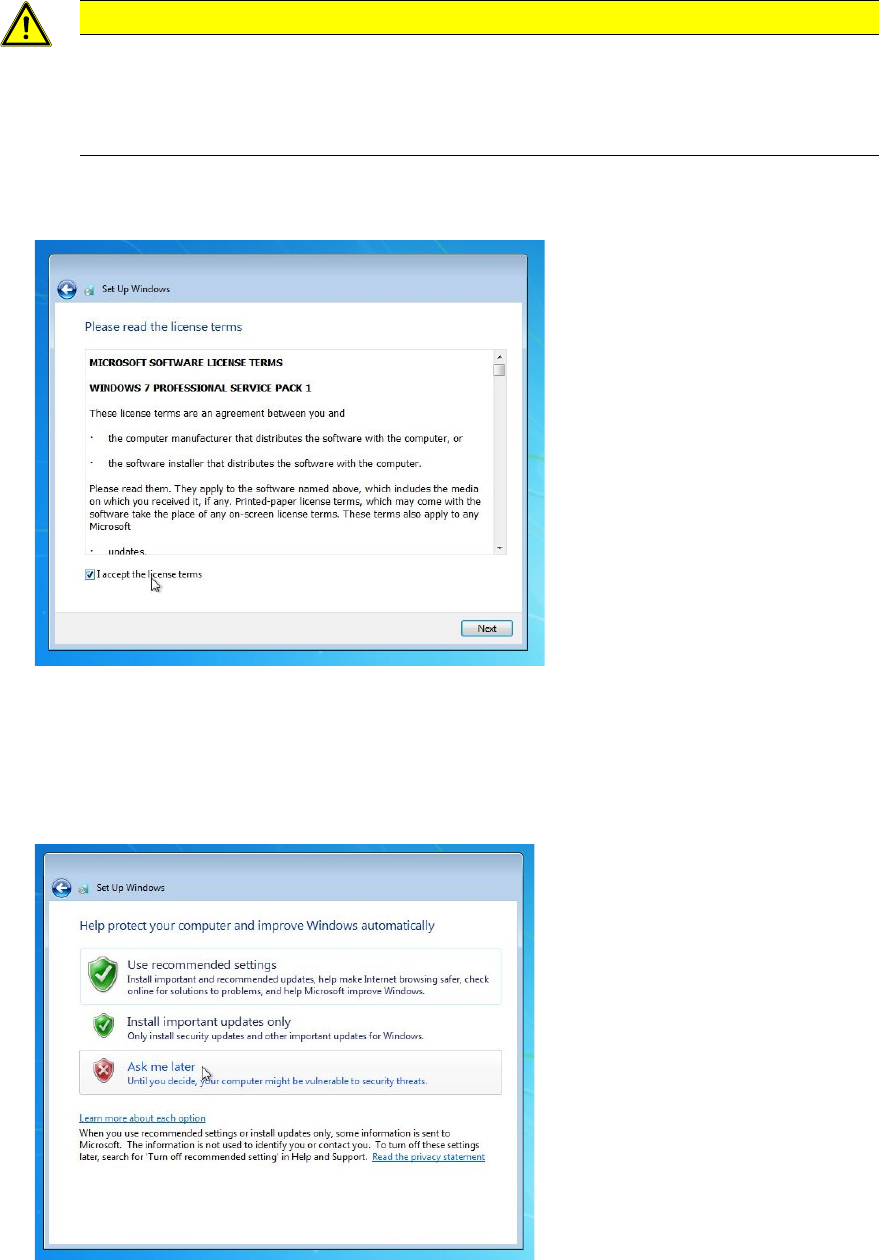
The next window appears.
Figure 3-7: Password for specified account
► Enter the password for the SIPLACEAdmin account as specified in the technical information
TI2008-04V08.
► Add a valid password hint, e.g. "Default password".
Celsius W520 with Windows 7 03/2014 Edition
13
CAUTION
Possible Account / Password Inconsistency
Operating System Setups may vary in consistency when creating accounts with related
passwords given during setup. You should always ensure you check the created account
/ password combination after installation!
► Click the Next button to continue.
The next window appears.
Figure 3-8: License Agreement
► After reading the license agreement, check the checkbox besides I accept the license terms to
accept the license.
► Click the Next button to continue.
The next window appears.
Figure 3-9: Windows Update Settings
► Since we don't use the automatic update feature in our SIPLACE workgroup environment, click
the Ask me later option.