00197184-03_IM_Celsius_W520LLC_Windows7_EN.pdf - 第21页
Celsius W 520 w ith W indows 7 03/2014 Editio n 21 The following w indow appe ars. Figure 3- 25 : Uninstalling Norton Internet Sec urity – Step 2 ► Click the P lease rem ove all us er data opt ion. The following w indow …
Celsius W520 with Windows 7 03/2014 Edition
20
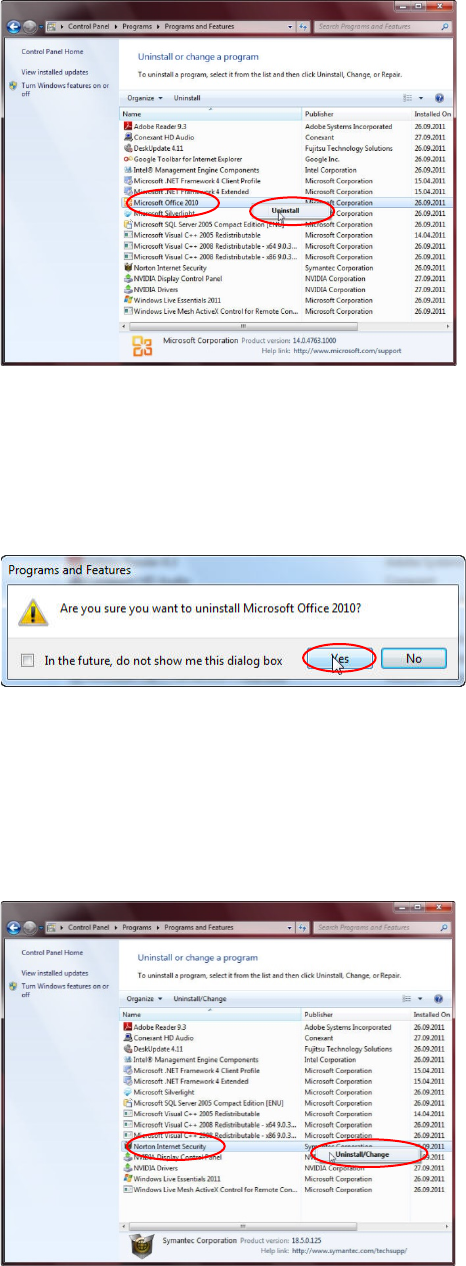
The Uninstall or change a program window opens.
Figure 3-22: Uninstalling Office – step 1
► In the list of programs, right-click on Microsoft Office 2010.
► Select Uninstall.
A confirmation message appears.
Figure 3-23: Uninstall Office 2010 confirmation message
► Accept the message by clicking the Yes button.
► When uninstallation starts, another confirmation message will appear. Accept this message by
clicking the Yes button.
When done, the program will be removed from the list.
Figure 3-24: Uninstalling Norton Internet Security – Step 1
► In the list of programs, right-click on Norton Internet Security.
► Select Uninstall/Change.
Celsius W520 with Windows 7 03/2014 Edition
21
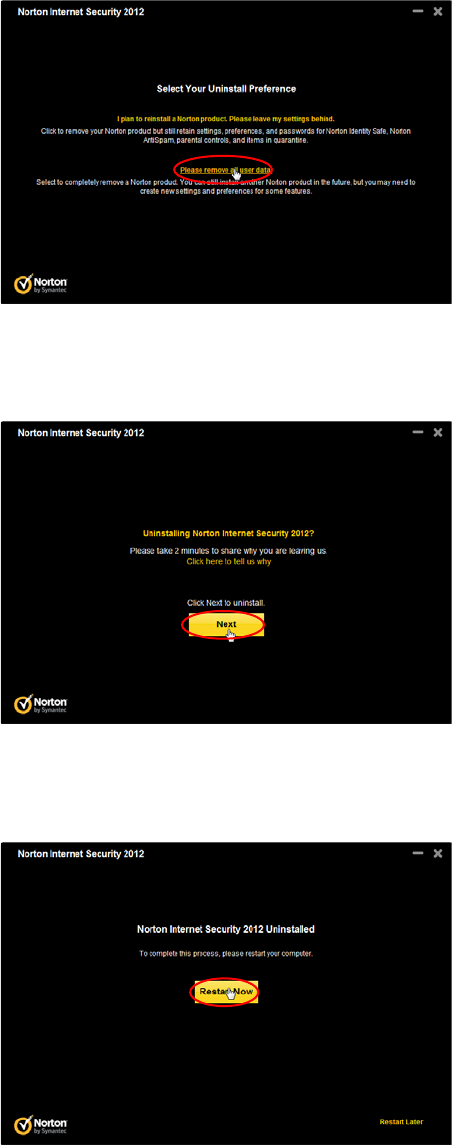
The following window appears.
Figure 3-25: Uninstalling Norton Internet Security – Step 2
► Click the Please remove all user data option.
The following window appears.
Figure 3-26: Uninstalling Norton Internet Security – Step 3
► Click the Next button
After a while, the following window will appear.
Figure 3-27: Uninstalling Norton Internet Security – Reboot message
► Click the Restart Now button to reboot your computer.
► Continue with the next chapter.
Celsius W520 with Windows 7 03/2014 Edition
22
3.2 Before you continue
NOTICE
Additional Actions required
Please follow the steps in the chapter “After Installation
” before you continue preparing
your computer for the use with SIPLACE Software.
3.3 Resetting configuration to the original delivery state
The pre- installed Windows 7 installation has an option to revert back to the delivery state.
You can use this option if you run into problems with your current installation or you want to revert
all changes made to the system.
WARNING
Unsaved data will be lost
When you reset the system to the delivered state, all previous data on the hard disk will
be deleted. Please ensure you’ve backed up all important data to a different media.
To reset the system to the delivered state, you have to perform the following actions.
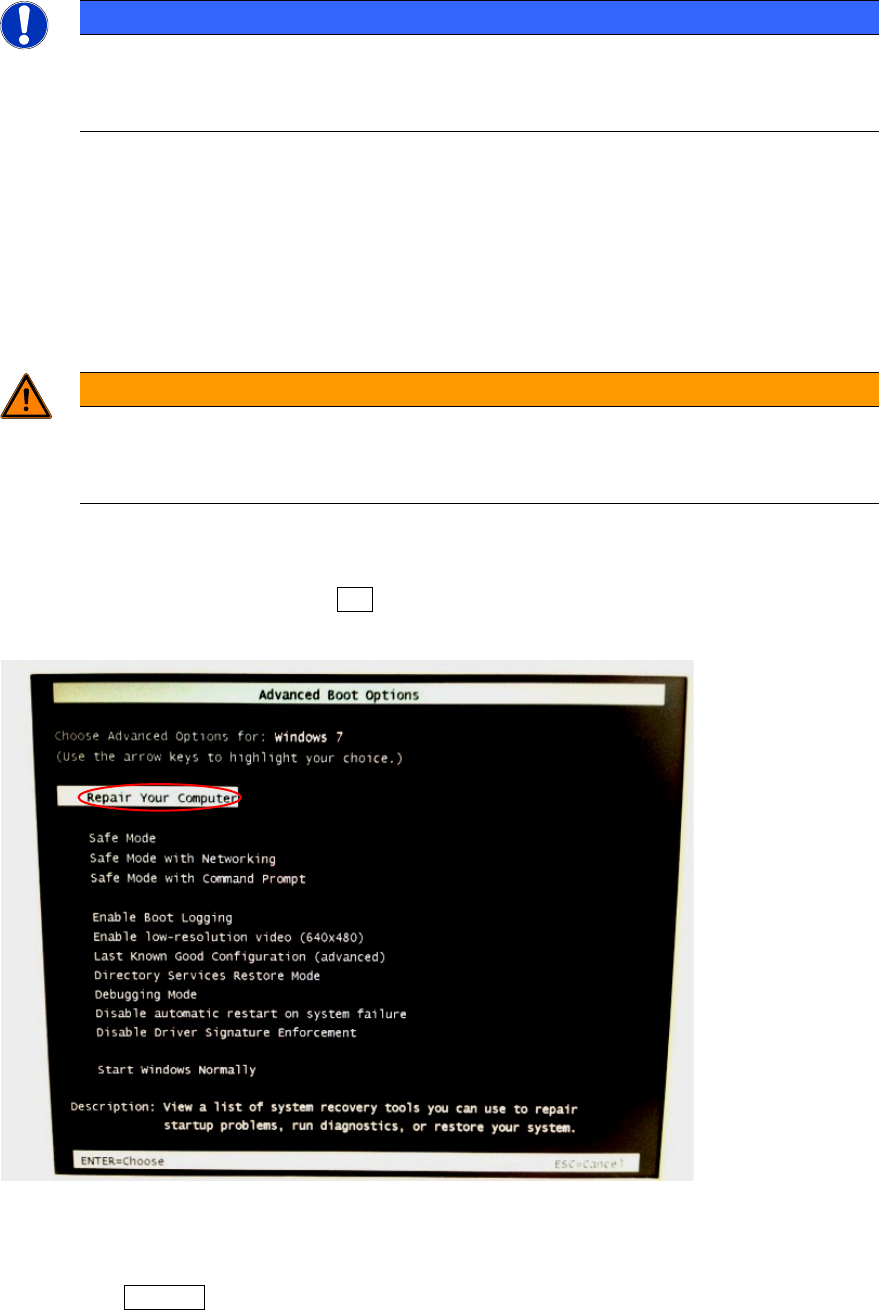
► Power on your system and hit the F8 key multiple times during the boot process.
The Windows 7 boot menu appears.
Figure 3-28: Windows 7 boot menu with Repair Option chosen
► Ensure the option "Repair Your Computer" is selected by hitting the appropriate arrow keys if
required.
► Press the ENTER key.
After a while, the following window will appear.