00197184-03_IM_Celsius_W520LLC_Windows7_EN.pdf - 第54页
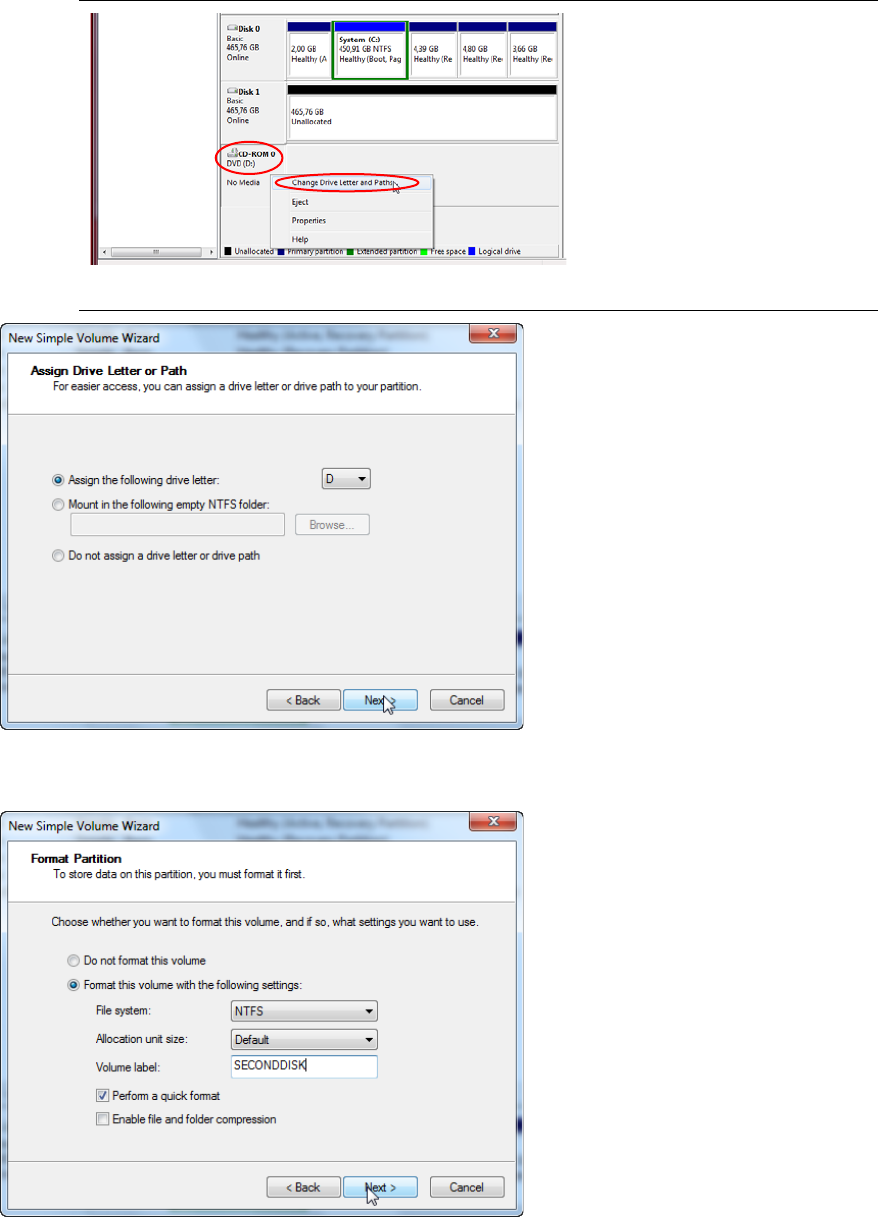
Celsius W 520 w ith W indows 7 03/2014 Editio n 54 Figure 5-8: Example: Changing drive letter of CD - ROM Figure 5-9: Assigning a drive letter in New Simple Volume Wizard – after changing letter of CD - ROM drive to E: ►…
Celsius W520 with Windows 7 03/2014 Edition
53
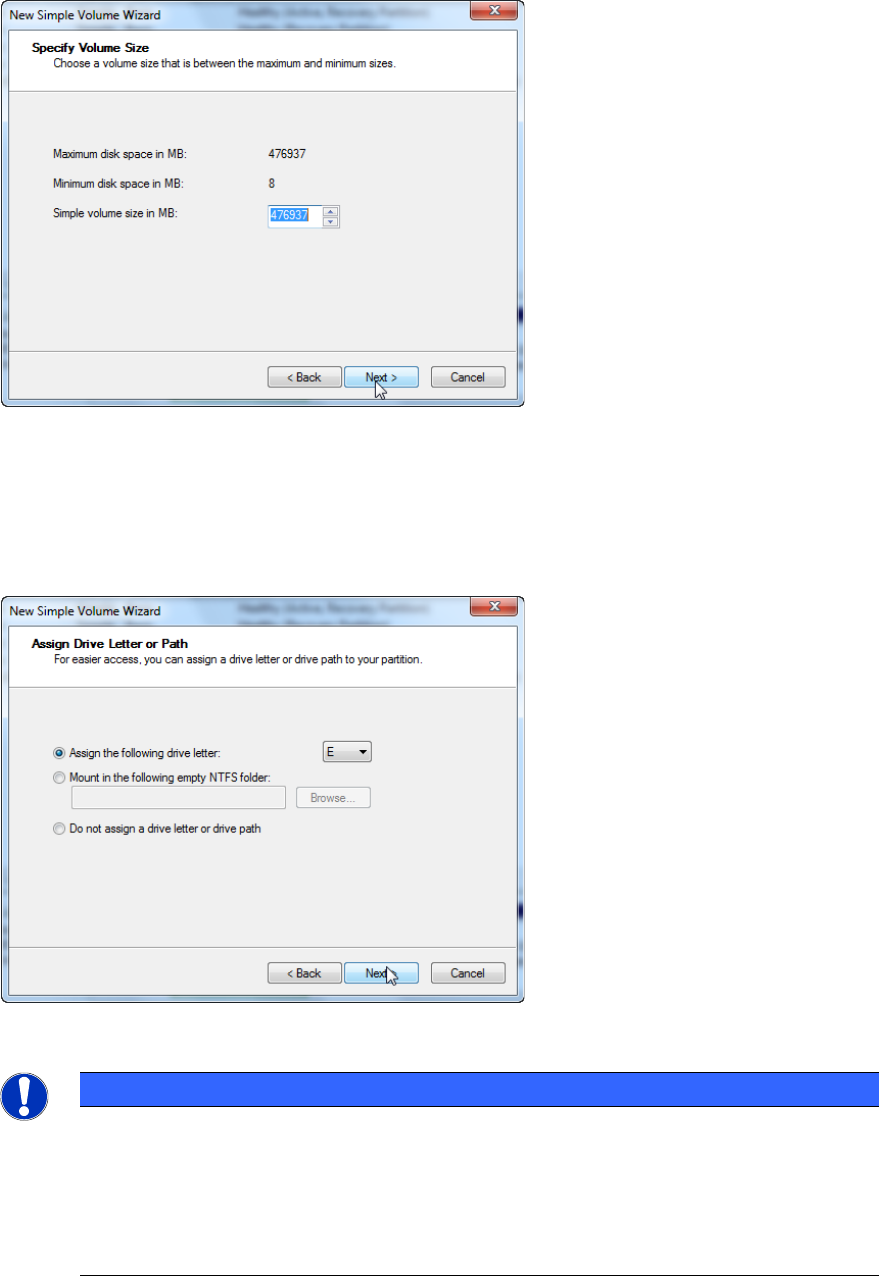
Figure 5-6: Defining Partition Size in New Simple Volume Wizard
► If you want to create multiple partitions, you may enter a lower value.
► If you want to create only one additional partition, leave the default value.
► Click the Next > button to continue.
In the next step, you are allowed to choose the drive letter.
Figure 5-7: Assigning a drive letter in New Simple Volume Wizard
► Select an appropriate drive letter for your additional drive.
NOTICE
Some drive letters might be already assigned
If you want to choose a drive letter which is already assigned by another drive, you will
have to change the letter of the other drive first (only free drive letters are shown). In this
case, cancel the wizard. Then you can assign a new letter by right- clicking the drive
(e.g. “CD-ROM 0”) in Computer Management and selecting “Change Drive Letter and
Paths…”
Celsius W520 with Windows 7 03/2014 Edition
54
Figure 5-8: Example: Changing drive letter of CD-ROM
Figure 5-9: Assigning a drive letter in New Simple Volume Wizard – after changing letter of CD-ROM drive to E:
► Click the Next > button to continue.
Figure 5-10: Format Partition window of New Simple Volume Wizard
► Leave the radio button selected on "Format this volume with the following settings"
► Click in the field besides "Volume label:" and enter an appropriate name for the logical drive.
► Leave the "Perform a quick format" checkbox selected.
► Click the Next > button to continue.
Celsius W520 with Windows 7 03/2014 Edition
55
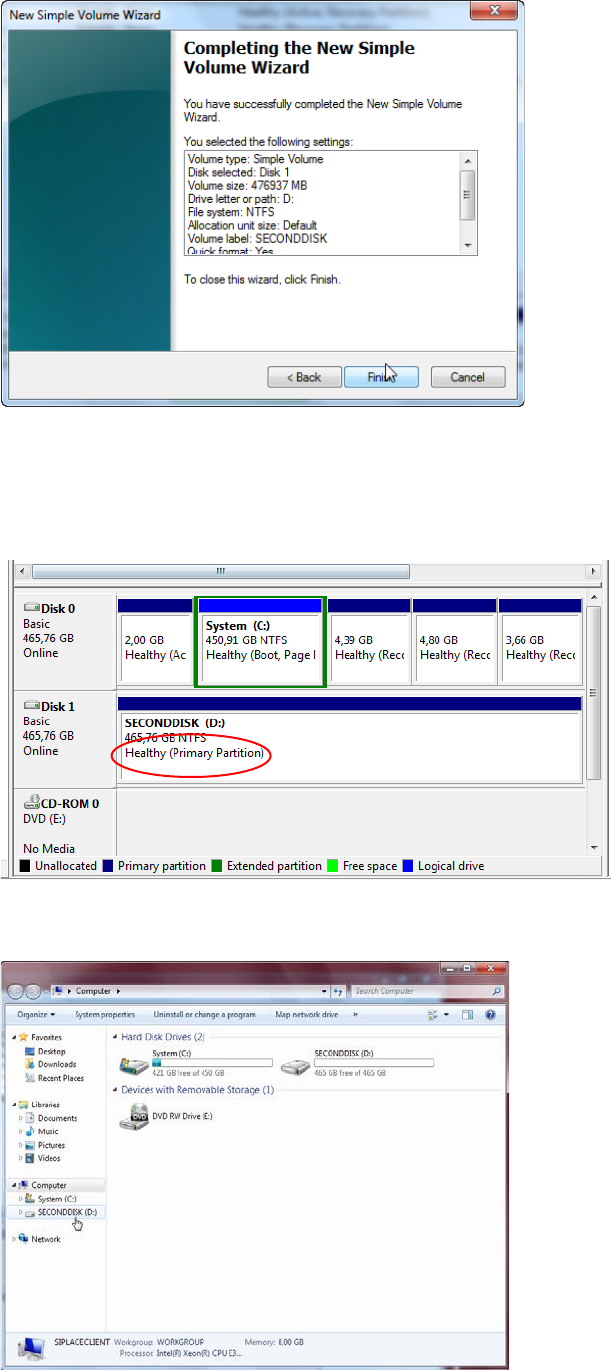
Figure 5-11: New Simple Volume Wizard – Final Page
► Verify the listed settings.
► Click the Finish button to complete the task.
Formatting the drive will take some seconds. After that, the drive should look like this.
Figure 5-12: Formatted drive D: of second hard disk
You now should be able to access the drive in Windows Explorer.
Figure 5-13: Windows Explorer showing the new drive