00197184-03_IM_Celsius_W520LLC_Windows7_EN.pdf - 第44页
Celsius W 520 w ith W indows 7 03/2014 Editio n 44 Figure 4- 31 : Opening the W indows Explorer ► Open the W indows Explore r by click ing on the appropri ate icon in t he task bar. Figure 4- 32 : Selecting DVD drive ► I…
Celsius W520 with Windows 7 03/2014 Edition
43
4.2 Installing Drivers for the Computer
This section describes the installation of all required drivers.
► Ensure that you are logged in with an account with administrative permissions (if you followed
this guide step by step, this is the case).
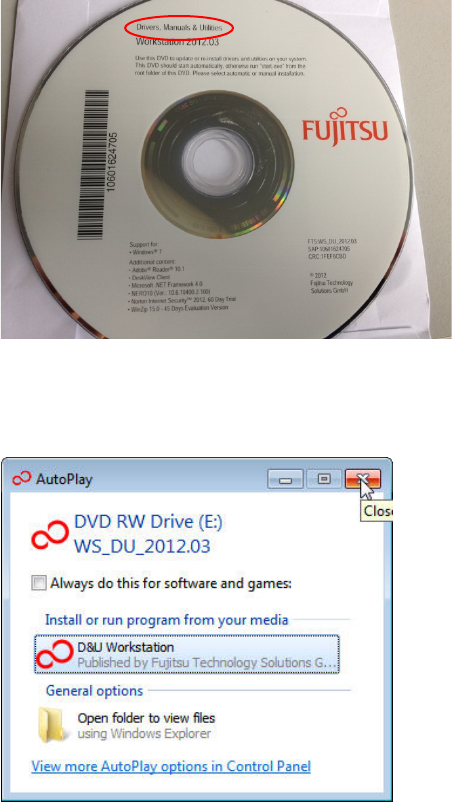
Figure 4-29: Drivers DVD
► Insert the "Drivers, Manuals & Utilities" DVD into the DVD drive.
The auto play window may appear.
Figure 4-30: Closing the AutoPlay window
► Close the AutoPlay window by clicking on the X.
Celsius W520 with Windows 7 03/2014 Edition
44
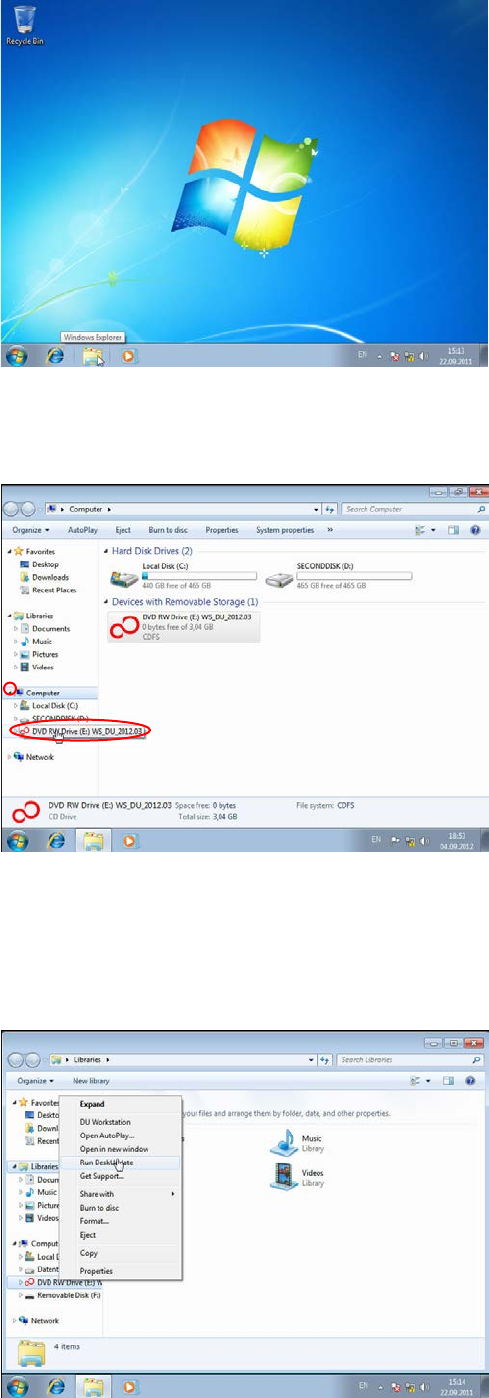
Figure 4-31: Opening the Windows Explorer
► Open the Windows Explorer by clicking on the appropriate icon in the task bar.
Figure 4-32: Selecting DVD drive
► If your DVD drive isn’t visible in the tree view, expand it by clicking on the arrow besides
Computer.
► Right-click on the DVD drive.
Figure 4-33: Selecting “Run DeskUpdate” from the context menu
Celsius W520 with Windows 7 03/2014 Edition
45
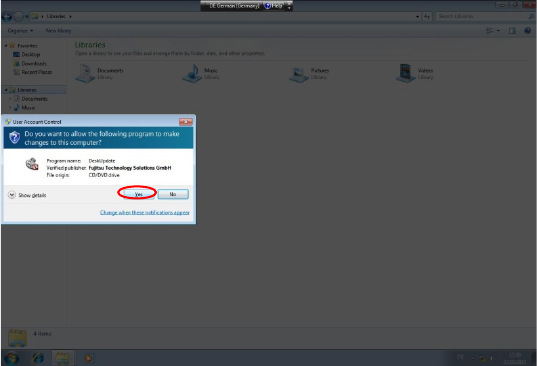
► Select the Run DeskUpdate entry from the context menu.
The User Account Control (UAC) confirmation dialog appears.
Figure 4-34: User Account Control confirmation prompt
► Click the Yes button to confirm the DeskUpdate application being executed with administrative
permissions.