00197184-03_IM_Celsius_W520LLC_Windows7_EN.pdf - 第27页
Celsius W 520 w ith W indows 7 03/2014 Editio n 27 ► Proceed with the st eps in chapter " Finishin g the pre - i nstalled W indows 7 (64 Bit) Instal lation ". ► W hen asked to res tore previ ously bac ked up da…
Celsius W520 with Windows 7 03/2014 Edition
26
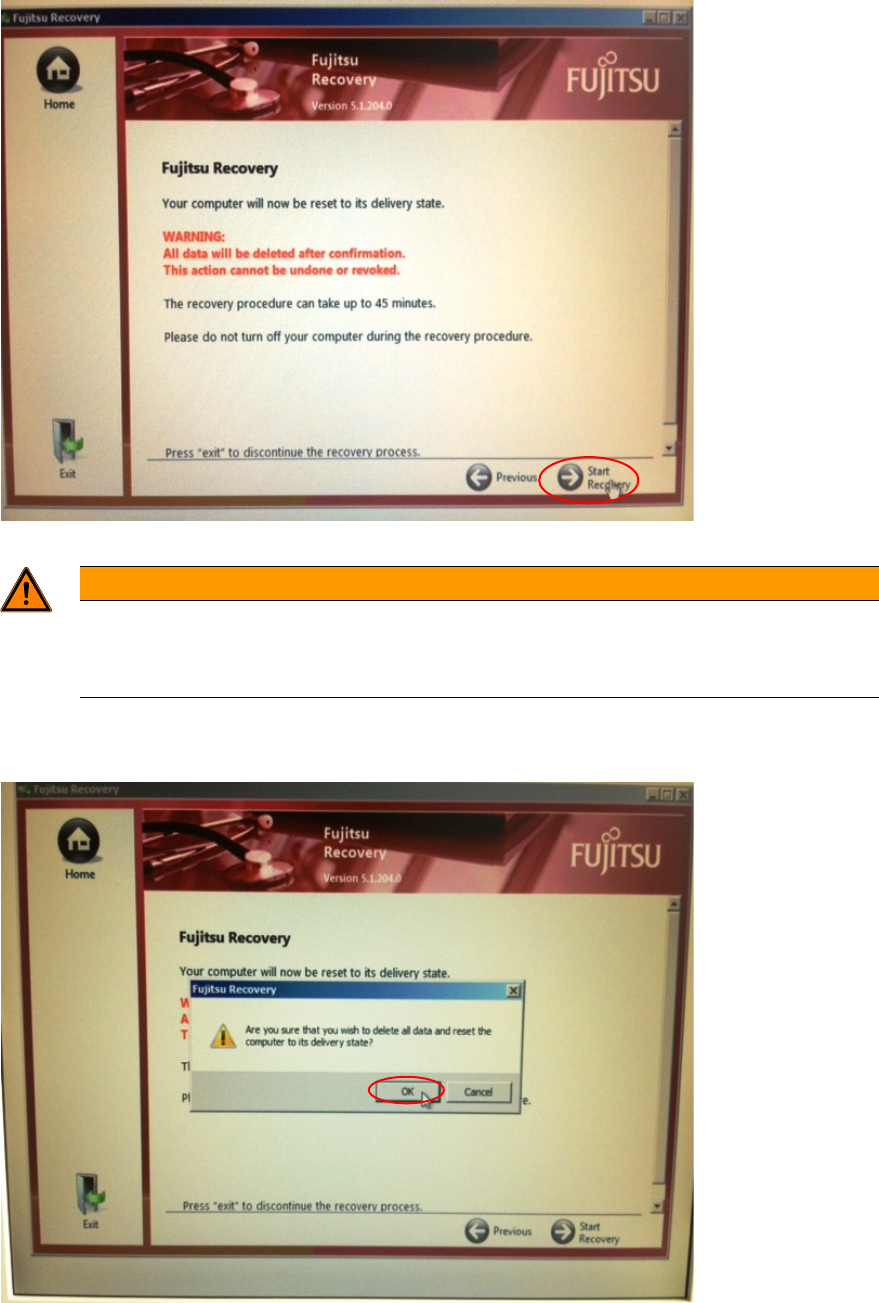
Figure 3-35: Recovery Options Data Delete Warning
WARNING
Unsaved data will be lost
As mentioned before, all unsaved data will be lost. Please ensure you’ve backed up all
important data to a different media before you continue.
► Click the button with the arrow to the right with the text "Start Recovery".
Again, a warning message will be displayed.
Figure 3-36: Recovery Options Data Delete Warning #2
► After you've ensured all important data has been backed up click the OK button to continue.
The system will now restore to the delivery state which takes a couple of minutes.
Celsius W520 with Windows 7 03/2014 Edition
27
► Proceed with the steps in chapter "Finishing the pre-installed Windows 7 (64 Bit) Installation".
► When asked to restore previously backed up data, you can choose cancel and restore the data
later manually (depending on the backup method you’ve used before).

Celsius W520 with Windows 7 03/2014 Edition
28
4 Performing a new Installation of Windows 7
This chapter describes the (new) installation of Windows 7 Professional on the Celsius W520
computer using the delivered DVDs.
WARNING
Backup important Data
This procedure will remove any data from the first hard disk.
Before you continue, please ensure you’ve backed up all important data.
NOTICE
Existing Data assumed
The screenshots and descriptions in this chapter assume that you have a previous
installation on your hard disk. The procedure may differ a bit if you already have erased
your disk.
NOTICE
No reset to delivery state possible after manual installation
When using the procedure described in this chapter, resetting the system to the original
delivery state isn’t possible anymore. If all you want is reset to the original delivery state
of your pre- installed Windows 7, please proceed with the chapter "Resetting
configuration to the original delivery state" instead.
If you plan installing Windows 7 manually but you want to have the option to revert to the
previously (pre-) installed Windows 7, you have to perform an image backup of your
computer by yourself before proceeding.
4.1 Installing Windows
► To begin, ensure you’ve connected all necessary cables to the computer, except the power
cord.
► Connect the power cord.
► If the computer doesn’t start automatically, press the Power button on your computer.
► During the boot process, press the F12 key multiple times to ensure that the boot menu
appears as shown in the following picture.