00197184-03_IM_Celsius_W520LLC_Windows7_EN.pdf - 第6页
Celsius W 520 w ith W indows 7 03/2014 Editio n 6 2 Prepar ation Before i nstalling t he com puter, som e preparation t ask s have to be per form ed. 2.1 Interfaces Overview The following pic tures sho w an overview of y…
Celsius W520 with Windows 7 03/2014 Edition
5
1 Purpose
This document describes the installation of the Celsius W520 computer with Windows 7 (32 or 64
bit) using the installation media delivered from Fujitsu.
Celsius W520 with Windows 7 03/2014 Edition
6
2 Preparation
Before installing the computer, some preparation tasks have to be performed.
2.1 Interfaces Overview
The following pictures show an overview of your computer hardware.
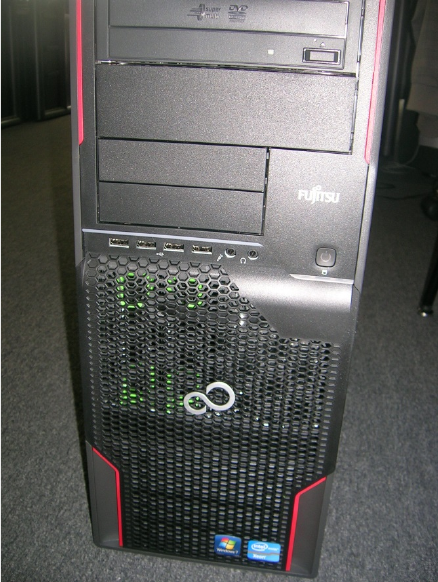
Figure 2-1: Front of Celsius W520 computer
Celsius W520 with Windows 7 03/2014 Edition
7
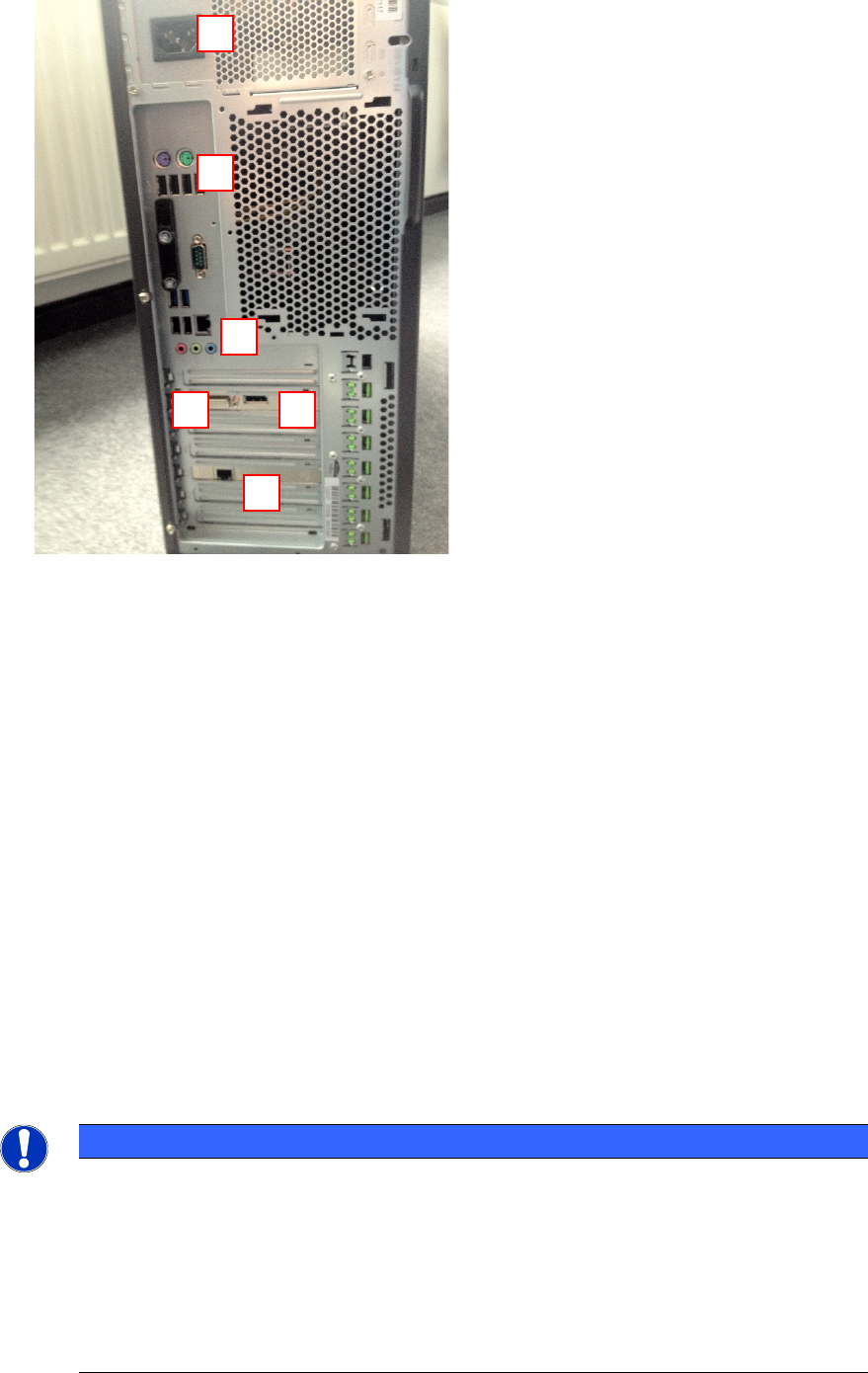
Figure 2-2: Back of Celsius W520 computer
Legend:
1) First Monitor Connector (DVI) to graphics card. For monitors with VGA you have to use the
delivered DVI to VGA adapter additionally
2) Second Monitor Connector (Display Port) to graphics card. Use the delivered adapter cable
to connect the second Monitor using DVI.
3) SIPLACE LAN Network connection
4) Additional onboard LAN connection (not used)
5) PS/2 and USB Ports for keyboard, mouse and other peripherals
6) Power connector
2.2 Used network connections
► Before you begin, please ensure that you have connected the SIPLACE LAN network cable
(usually IP range 172.22.x.x) to the external network adapter at the bottom and removed all
other network cable connections.
NOTICE
Network Adapter Identification
For simple identification of the appropriate SIPLACE LAN network adapter later after
installation, it is strongly recommended to disconnect all other adapters.
SSD Hard Disc
The W520 LLC has three hard discs. The SSD is recommended for the operating
system, the other two discs are intended for the product database. Please consider this
in the installation of the SIPLACE products (SIPLACE Pro, Setup Center …).
1
2
3
4
5
6