00197184-03_IM_Celsius_W520LLC_Windows7_EN.pdf - 第28页
Celsius W 520 w ith W indows 7 03/2014 Editio n 28 4 Per formi ng a ne w I nsta llati on of Wind ows 7 This c hapter descr ibes the (new) inst allation of W indows 7 Profes sional on the Cels ius W 520 computer using th …
Celsius W520 with Windows 7 03/2014 Edition
27
► Proceed with the steps in chapter "Finishing the pre-installed Windows 7 (64 Bit) Installation".
► When asked to restore previously backed up data, you can choose cancel and restore the data
later manually (depending on the backup method you’ve used before).

Celsius W520 with Windows 7 03/2014 Edition
28
4 Performing a new Installation of Windows 7
This chapter describes the (new) installation of Windows 7 Professional on the Celsius W520
computer using the delivered DVDs.
WARNING
Backup important Data
This procedure will remove any data from the first hard disk.
Before you continue, please ensure you’ve backed up all important data.
NOTICE
Existing Data assumed
The screenshots and descriptions in this chapter assume that you have a previous
installation on your hard disk. The procedure may differ a bit if you already have erased
your disk.
NOTICE
No reset to delivery state possible after manual installation
When using the procedure described in this chapter, resetting the system to the original
delivery state isn’t possible anymore. If all you want is reset to the original delivery state
of your pre- installed Windows 7, please proceed with the chapter "Resetting
configuration to the original delivery state" instead.
If you plan installing Windows 7 manually but you want to have the option to revert to the
previously (pre-) installed Windows 7, you have to perform an image backup of your
computer by yourself before proceeding.
4.1 Installing Windows
► To begin, ensure you’ve connected all necessary cables to the computer, except the power
cord.
► Connect the power cord.
► If the computer doesn’t start automatically, press the Power button on your computer.
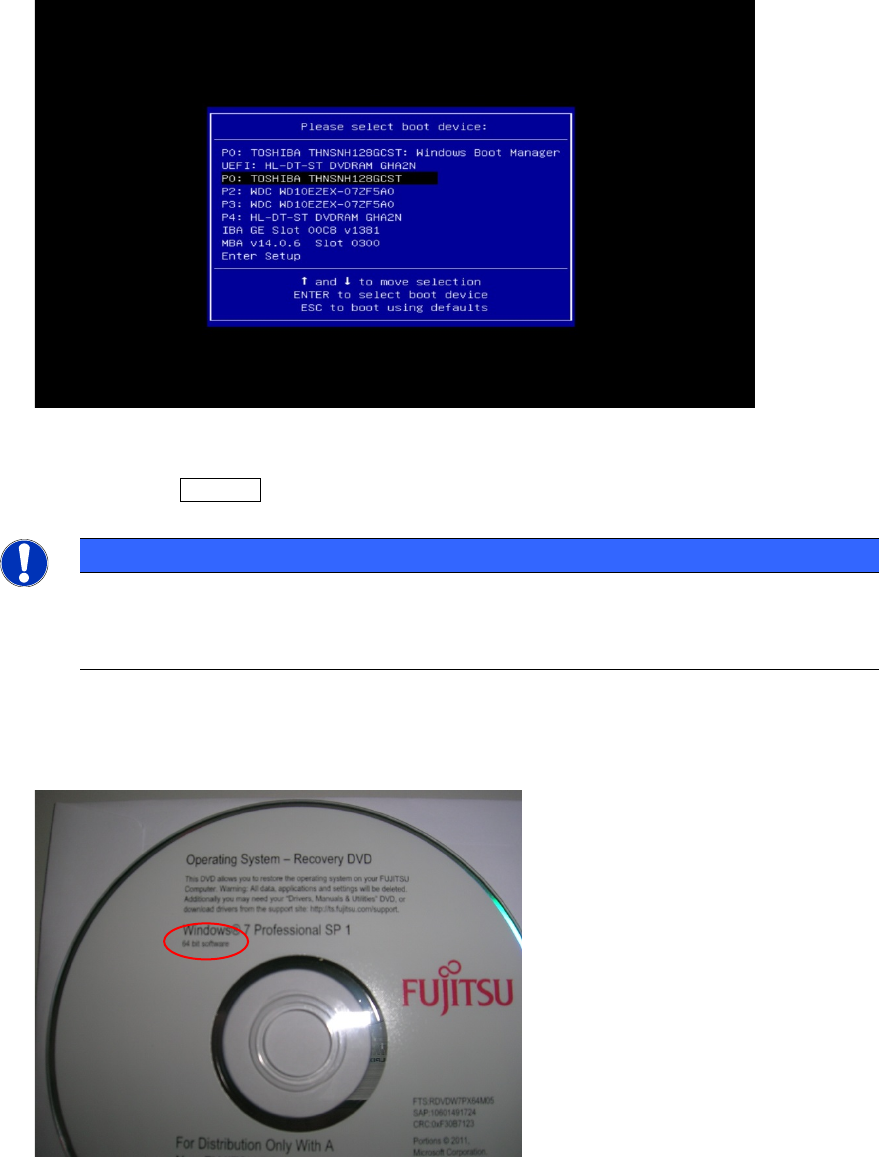
► During the boot process, press the F12 key multiple times to ensure that the boot menu
appears as shown in the following picture.
Celsius W520 with Windows 7 03/2014 Edition
29
Figure 4-1: Example Boot menu with DVD selected
► By using the arrow keys, select the appropriate entry for the DVD drive of the computer, but
don't press the ENTER key yet!
NOTICE
Don't use UEFI entry
If two DVD drive entries are shown, please don’t use the UEFI entry – this may break
compatibility with other hardware- related tools.
► Insert the appropriate Windows 7 DVD, depending on the architecture you decided to use.
The following pictures show you the different delivered versions of Windows 7.
Figure 4-2: Windows 7 Professional, 64 bit DVD