00197184-03_IM_Celsius_W520LLC_Windows7_EN.pdf - 第45页
Celsius W 520 w ith W indows 7 03/2014 Editio n 45 ► Select th e Run Desk Update entry fr om the cont ext m enu . The Us er Account C ontrol ( UAC) conf irmation d ialog a ppears. Figure 4- 34 : User Account Control conf…
Celsius W520 with Windows 7 03/2014 Edition
44
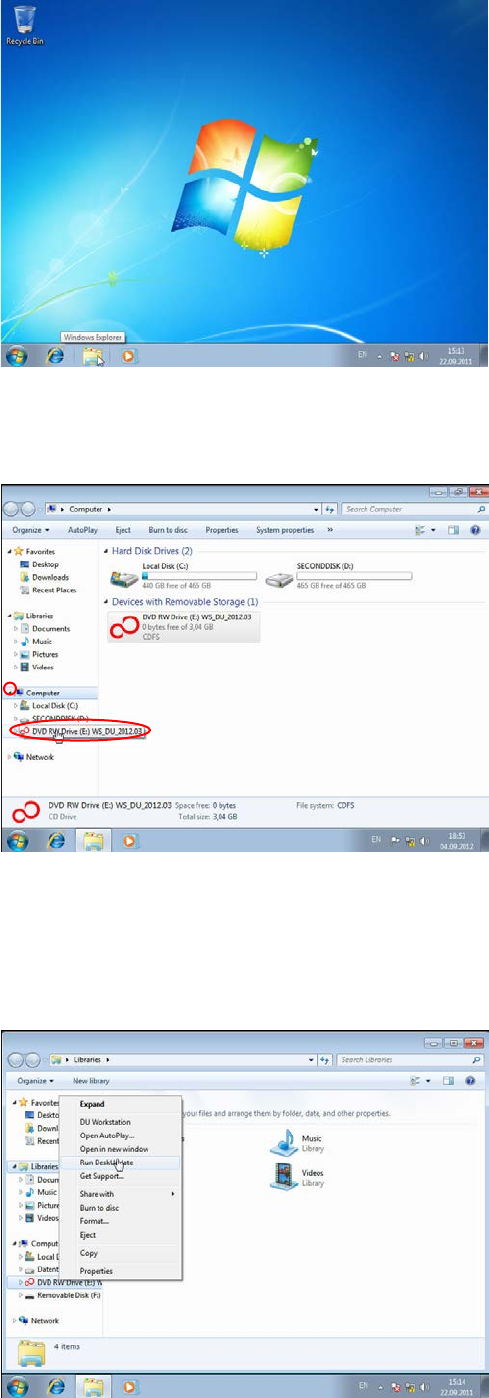
Figure 4-31: Opening the Windows Explorer
► Open the Windows Explorer by clicking on the appropriate icon in the task bar.
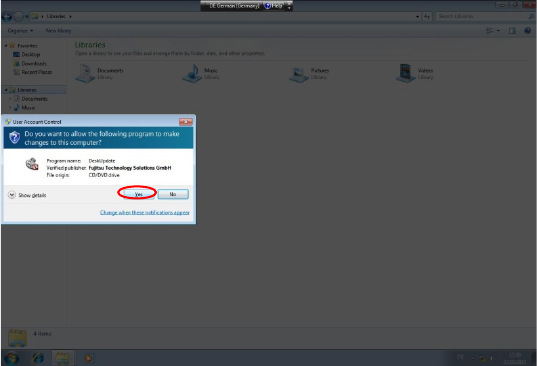
Figure 4-32: Selecting DVD drive
► If your DVD drive isn’t visible in the tree view, expand it by clicking on the arrow besides
Computer.
► Right-click on the DVD drive.
Figure 4-33: Selecting “Run DeskUpdate” from the context menu
Celsius W520 with Windows 7 03/2014 Edition
45
► Select the Run DeskUpdate entry from the context menu.
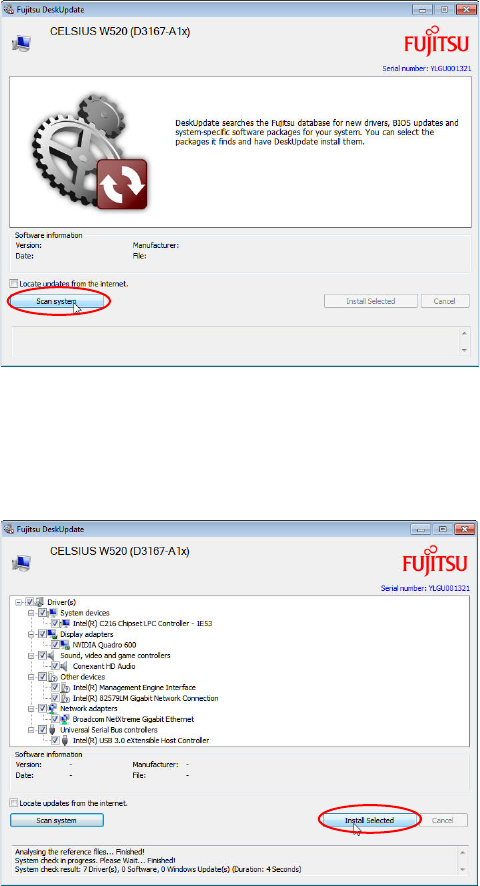
The User Account Control (UAC) confirmation dialog appears.
Figure 4-34: User Account Control confirmation prompt
► Click the Yes button to confirm the DeskUpdate application being executed with administrative
permissions.
Celsius W520 with Windows 7 03/2014 Edition
46
The following window appears.
Figure 4-35: Starting Scan for appropriate drivers
► Click the Scan system button to start the scan for missing drivers.
After a short time, the system has found appropriate missing drivers.
Figure 4-36: Starting missing drivers installation
► Click the Install Selected button to install the missing drivers.
The driver installation may take some minutes. During the installation, the Install Selected button is
greyed-out.