00197184-03_IM_Celsius_W520LLC_Windows7_EN.pdf - 第41页
Celsius W 520 w ith W indows 7 03/2014 Editio n 41 Figure 4- 26 : Network Loc ation Setting ► Click on W ork network . After that, W indows will fina lize the set tings . Figure 4- 27 : Windows finalizing the s ettings
Celsius W520 with Windows 7 03/2014 Edition
40
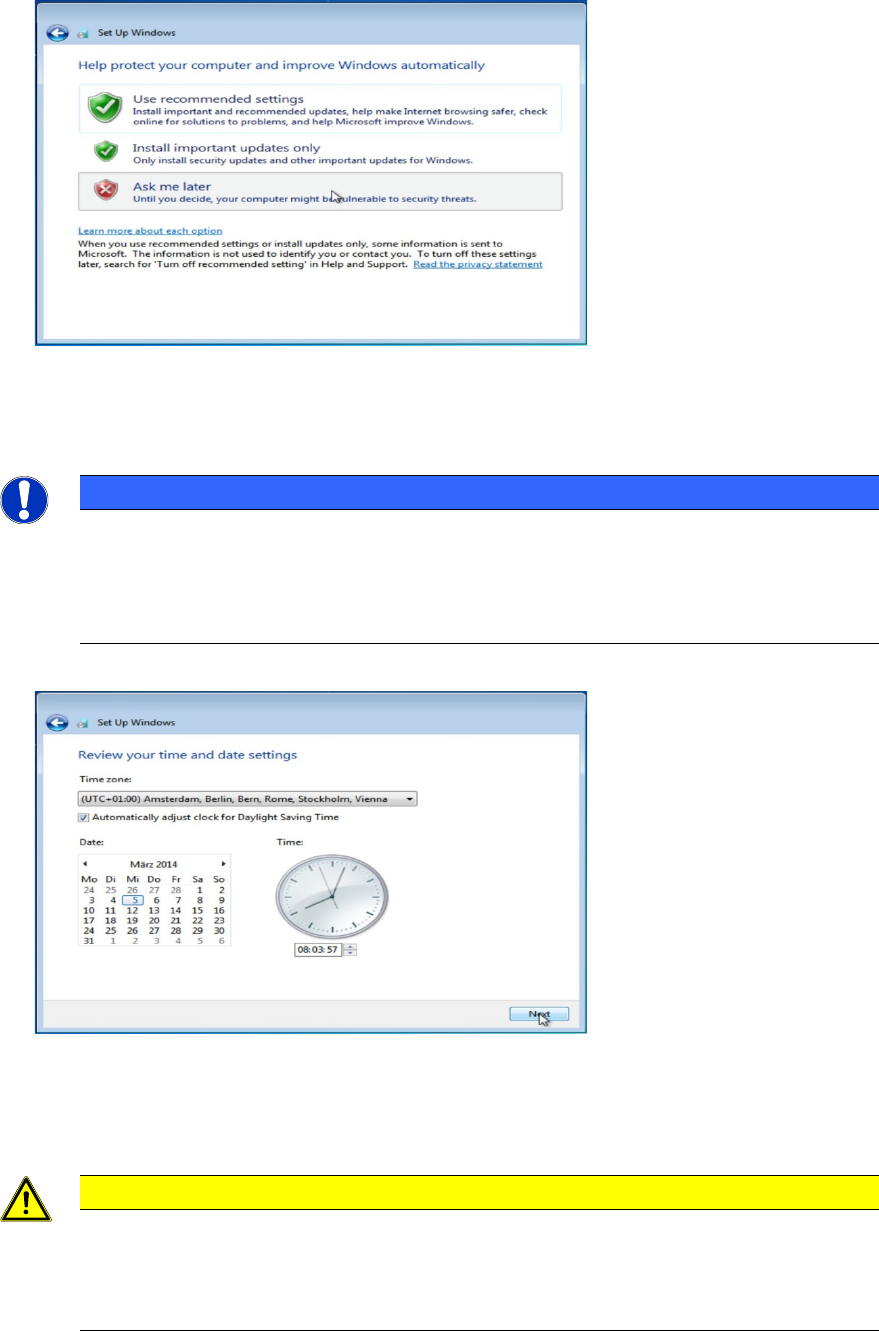
Figure 4-24: Windows Update Settings
► Since we don’t use the automatic update feature in our SIPLACE workgroup environment, click
the Ask me later option.
NOTICE
SIPLACE Software and Microsoft Updates
In general, SIPLACE software is only tested with a specific set of Microsoft updates.
Therefore - as long as not explicitly required in your environment – you shouldn'
t activate
automatic updates.
The next window appears.
Figure 4-25: Date and Time settings
► Choose the appropriate time zone.
► Ensure the date and time are correct.
► Click the Next button to continue.
CAUTION
Server and Client must be uniform
For proper Windows authentication, date and time of all involved computers must not
differ too much! Additionally, some SIPLACE Products like OIS require the time zone to
be identical on all computers!
The next window appears.
Celsius W520 with Windows 7 03/2014 Edition
41
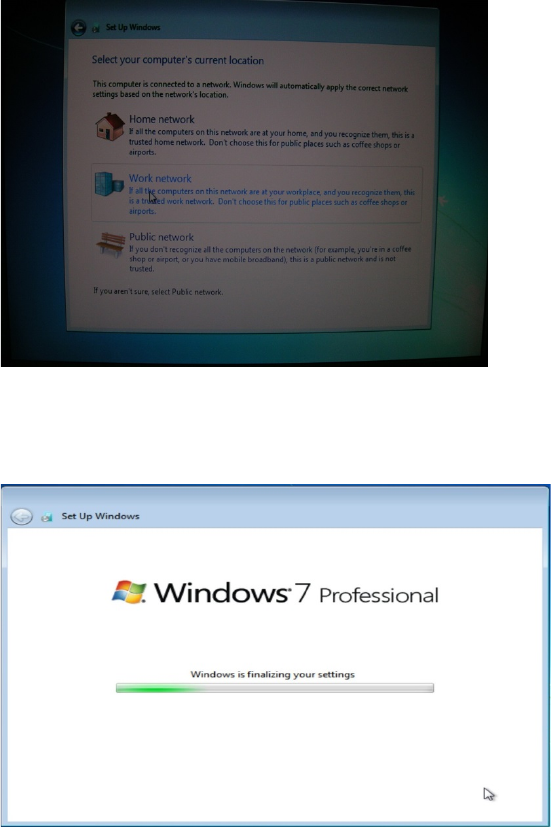
Figure 4-26: Network Location Setting
► Click on Work network.
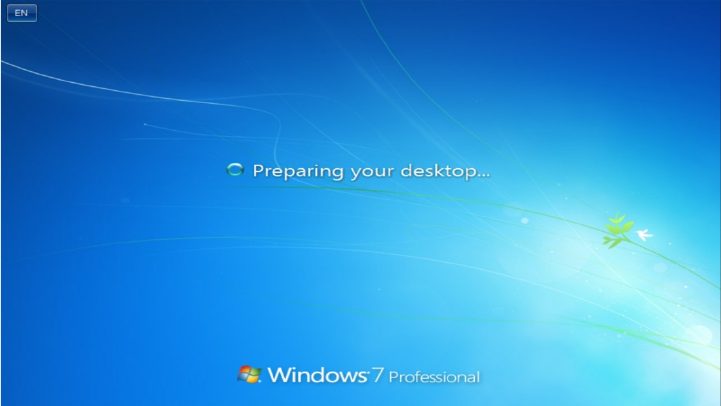
After that, Windows will finalize the settings.
Figure 4-27: Windows finalizing the settings
Celsius W520 with Windows 7 03/2014 Edition
42
After finalization, Windows will log you on automatically.
Figure 4-28: Computer logging in automatically
► Please continue with the next chapter.