00197184-03_IM_Celsius_W520LLC_Windows7_EN.pdf - 第20页
Celsius W 520 w ith W indows 7 03/2014 Editio n 20 The Uninstall or chang e a program windo w opens. Figure 3- 22 : Uninstalling Off ice – step 1 ► In the lis t of program s, r ight - clic k on Mic rosoft Off ice 2010 . …
Celsius W520 with Windows 7 03/2014 Edition
19
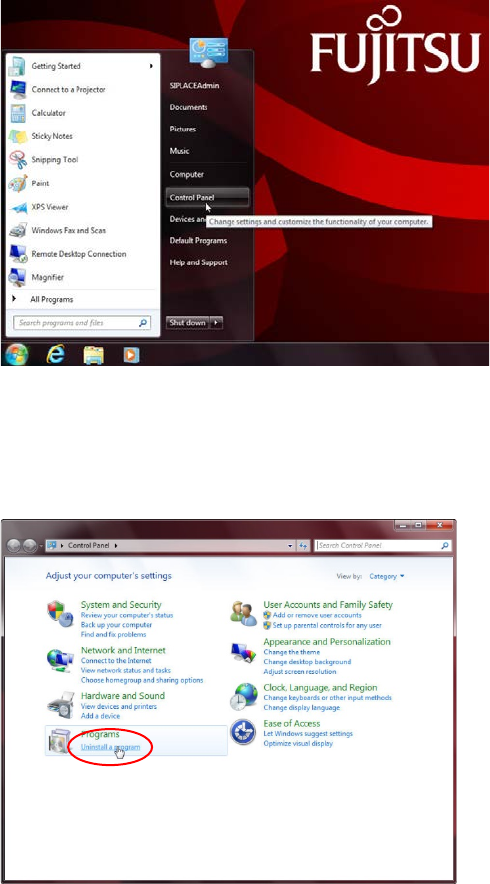
First, we have to navigate to the Add/Remove programs window.
Figure 3-20: Opening Control Panel
► Click the Windows button
► Click at Control Panel.
The Control Panel opens.
Figure 3-21: Calling Uninstall a program
► Click on Uninstall a program in the Programs group.
Celsius W520 with Windows 7 03/2014 Edition
20
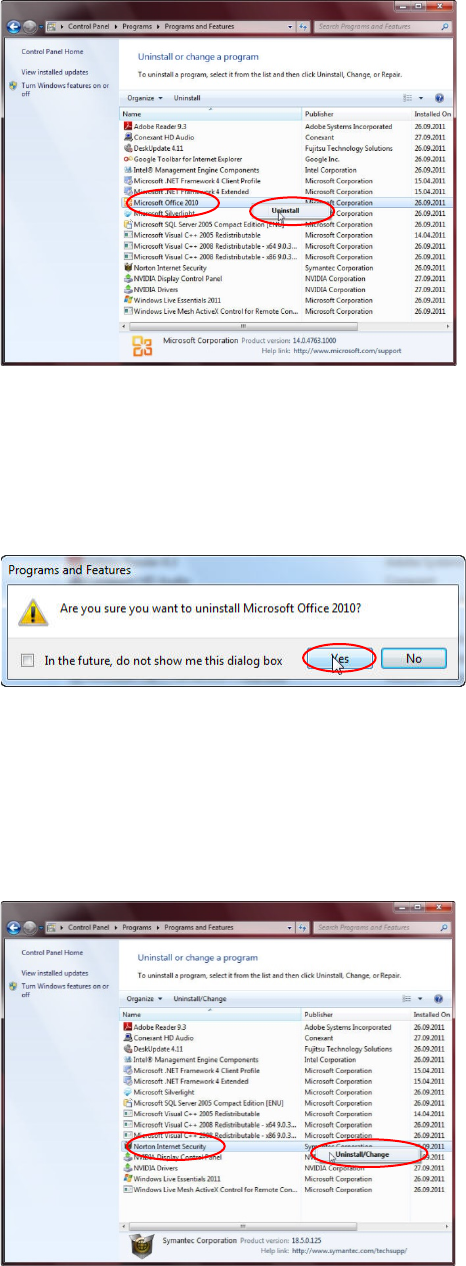
The Uninstall or change a program window opens.
Figure 3-22: Uninstalling Office – step 1
► In the list of programs, right-click on Microsoft Office 2010.
► Select Uninstall.
A confirmation message appears.
Figure 3-23: Uninstall Office 2010 confirmation message
► Accept the message by clicking the Yes button.
► When uninstallation starts, another confirmation message will appear. Accept this message by
clicking the Yes button.
When done, the program will be removed from the list.
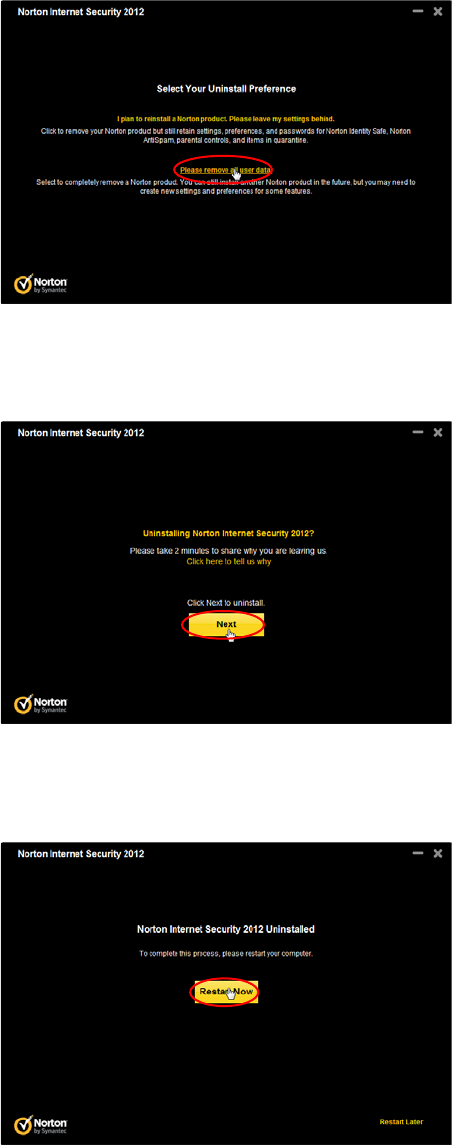
Figure 3-24: Uninstalling Norton Internet Security – Step 1
► In the list of programs, right-click on Norton Internet Security.
► Select Uninstall/Change.
Celsius W520 with Windows 7 03/2014 Edition
21
The following window appears.
Figure 3-25: Uninstalling Norton Internet Security – Step 2
► Click the Please remove all user data option.
The following window appears.
Figure 3-26: Uninstalling Norton Internet Security – Step 3
► Click the Next button
After a while, the following window will appear.
Figure 3-27: Uninstalling Norton Internet Security – Reboot message
► Click the Restart Now button to reboot your computer.
► Continue with the next chapter.