00197184-03_IM_Celsius_W520LLC_Windows7_EN.pdf - 第33页
Celsius W 520 w ith W indows 7 03/2014 Editio n 33 The following w indow appe ars. Figure 4-8: Install Now ► Click t he Install no w button. The following w indow appe ars. Figure 4-9 : License Agreement ► After readi ng…
Celsius W520 with Windows 7 03/2014 Edition
32
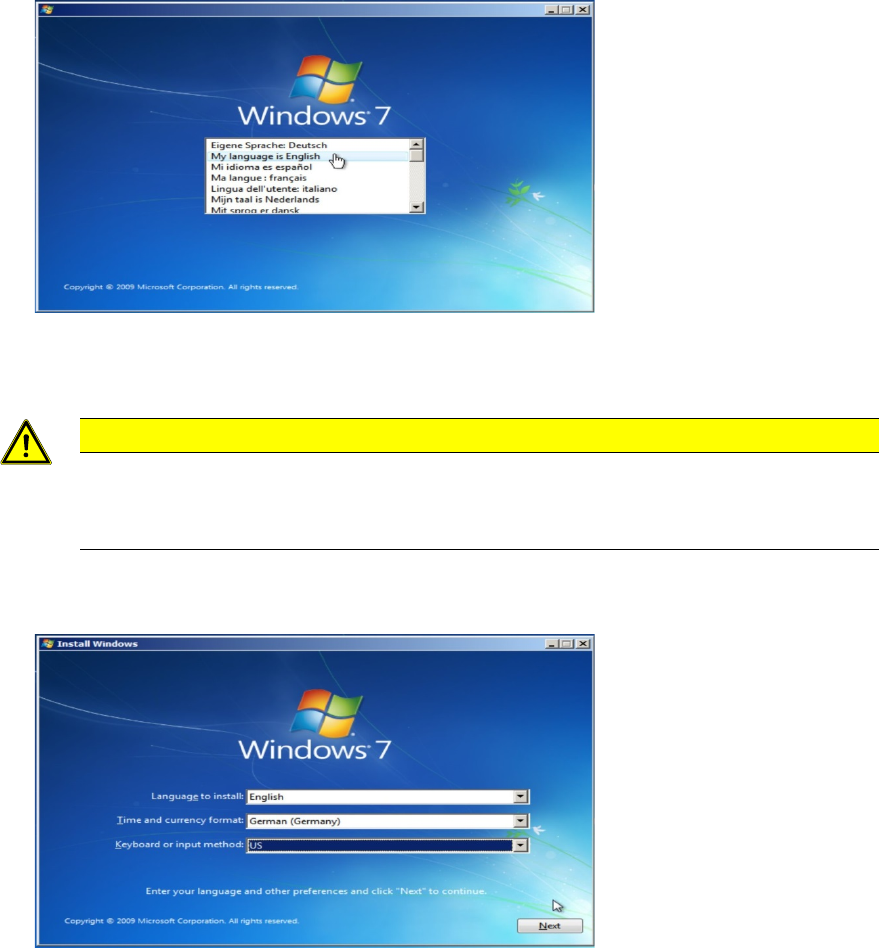
After a while, the following dialog will appear.
Figure 4-6: Language selection
► Select the My language is English entry.
CAUTION
Click carefully
After clicking at one entry in this step, you can’t go back! If you clicked at the wrong
entry, you have to power off the computer and restart the whole procedure again!
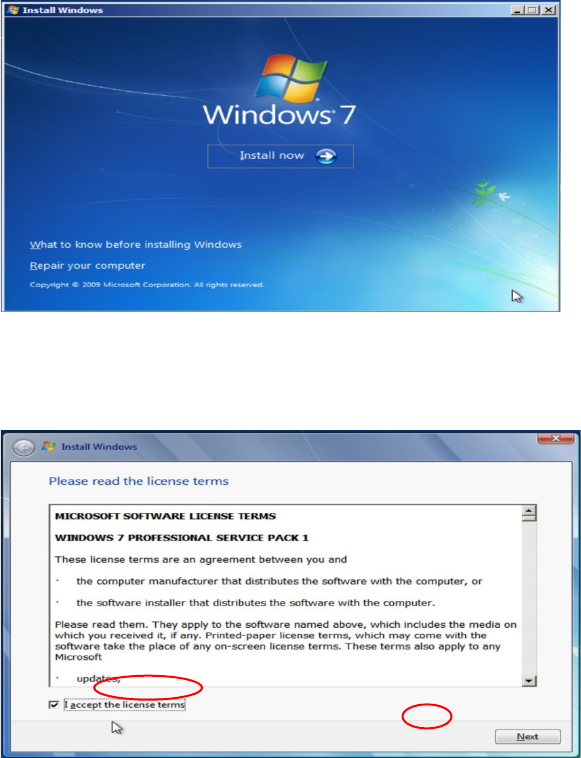
The following window appears.
Figure 4-7: Regional settings
► Select English besides Language to install.
► Select the appropriate time and currency format.
► Select the appropriate keyboard layout. For SIPLACE Line Computers, the default is US.
► Click the Next button to continue.
Celsius W520 with Windows 7 03/2014 Edition
33
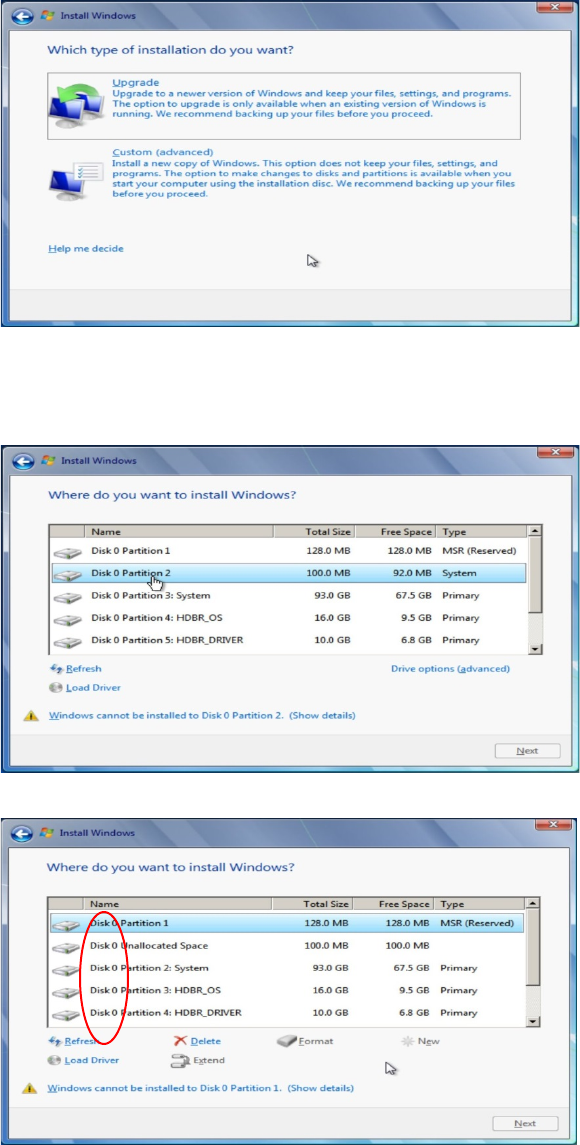
The following window appears.
Figure 4-8: Install Now
► Click the Install now button.
The following window appears.
Figure 4-9: License Agreement
► After reading the license agreement, check the checkbox besides I accept the license terms to
accept the license.
► Click the Next button to continue.
Celsius W520 with Windows 7 03/2014 Edition
34
The next window appears.
Figure 4-10: Installation Type
► Click the installation type Custom (advanced).
The following window appears.
Figure 4-11: Partitioning screen
Figure 4-12: Selecting first partition on Disk 0
► Click on the first partition on Disk 0 as shown in the picture above.
Only consider
Partitions of “Disk 0” !