00197184-03_IM_Celsius_W520LLC_Windows7_EN.pdf - 第30页
Celsius W 520 w ith W indows 7 03/2014 Editio n 30 Figure 4-3: Windows 7 Professional, 32 b it DV D ► I nsert the appropri ate DVD and press the ENT ER k ey.
Celsius W520 with Windows 7 03/2014 Edition
29
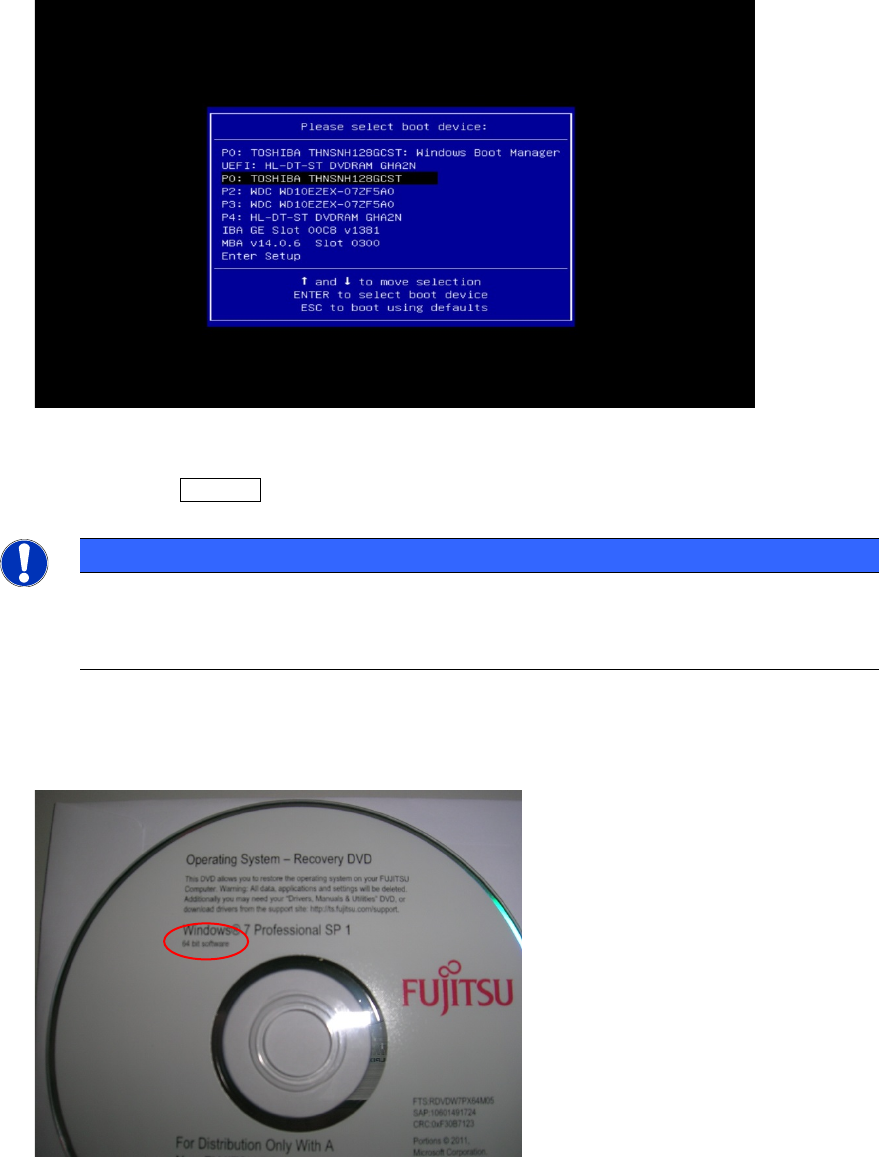
Figure 4-1: Example Boot menu with DVD selected
► By using the arrow keys, select the appropriate entry for the DVD drive of the computer, but
don't press the ENTER key yet!
NOTICE
Don't use UEFI entry
If two DVD drive entries are shown, please don’t use the UEFI entry – this may break
compatibility with other hardware- related tools.
► Insert the appropriate Windows 7 DVD, depending on the architecture you decided to use.
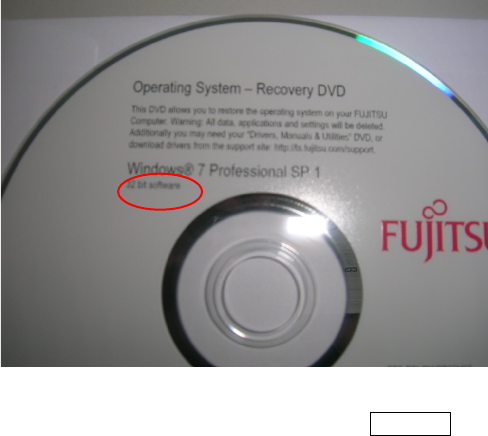
The following pictures show you the different delivered versions of Windows 7.
Figure 4-2: Windows 7 Professional, 64 bit DVD
Celsius W520 with Windows 7 03/2014 Edition
30
Figure 4-3: Windows 7 Professional, 32 bit DVD
► Insert the appropriate DVD and press the ENTER key.

Celsius W520 with Windows 7 03/2014 Edition
31
After a couple of seconds, the following message appears.
Figure 4-4: “Press any key” message
► Press any key to boot from the DVD.
WARNING
Ensure booted from DVD
Assuming that the hard disk already contains data / a previous installation, the
Press any
key message should appear. Ensure you don't confuse the DVD-based setup with the
pre-installed Windows Setup.
Windows will load some files from the DVD as shown in the following screenshot.
Figure 4-5: Windows is loading files