00197184-03_IM_Celsius_W520LLC_Windows7_EN.pdf - 第55页
Celsius W 520 w ith W indows 7 03/2014 Editio n 55 Figure 5- 11 : New Simple Volume Wizard – Final Page ► Verif y the listed set tings. ► Click the Fin ish button to c omplete the task . Formatting the dr ive will ta ke …
Celsius W520 with Windows 7 03/2014 Edition
54
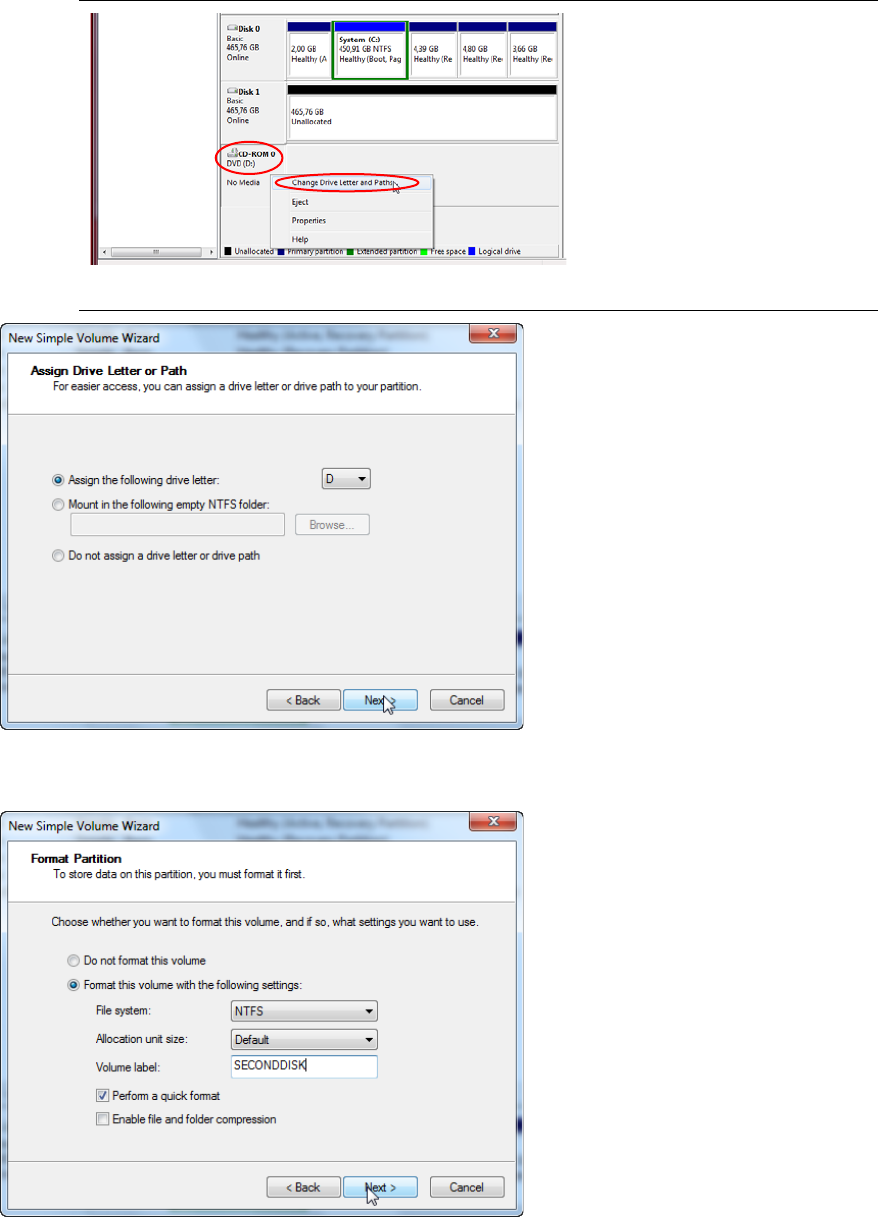
Figure 5-8: Example: Changing drive letter of CD-ROM
Figure 5-9: Assigning a drive letter in New Simple Volume Wizard – after changing letter of CD-ROM drive to E:
► Click the Next > button to continue.
Figure 5-10: Format Partition window of New Simple Volume Wizard
► Leave the radio button selected on "Format this volume with the following settings"
► Click in the field besides "Volume label:" and enter an appropriate name for the logical drive.
► Leave the "Perform a quick format" checkbox selected.
► Click the Next > button to continue.
Celsius W520 with Windows 7 03/2014 Edition
55
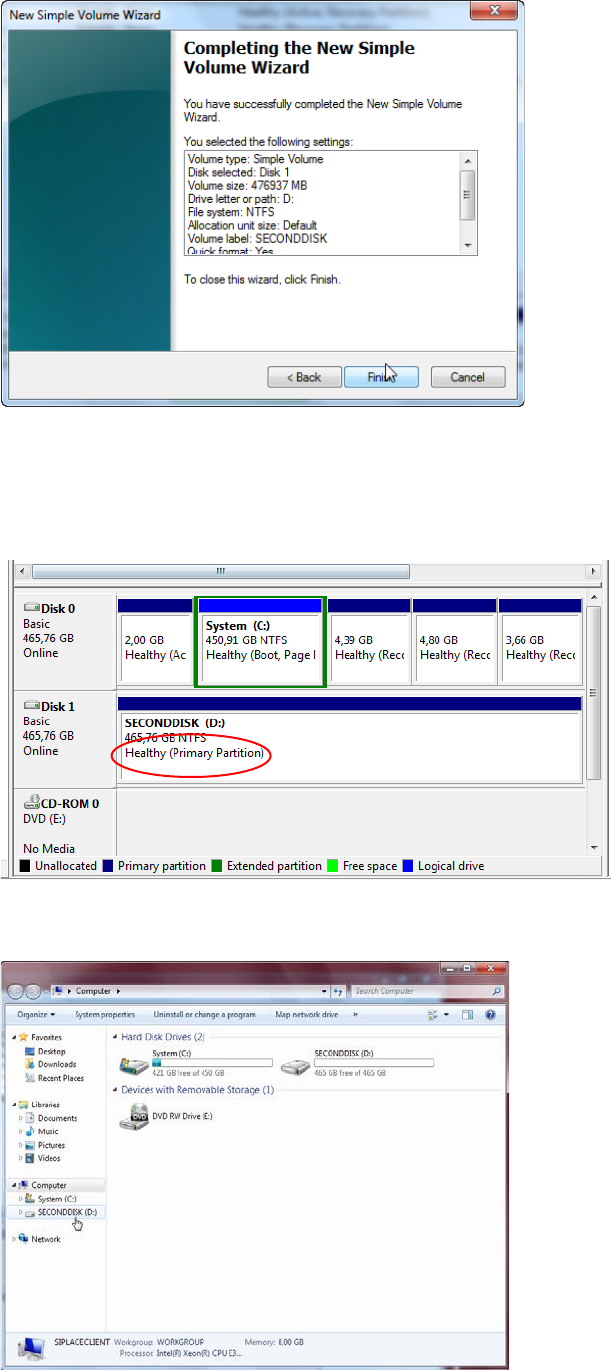
Figure 5-11: New Simple Volume Wizard – Final Page
► Verify the listed settings.
► Click the Finish button to complete the task.
Formatting the drive will take some seconds. After that, the drive should look like this.
Figure 5-12: Formatted drive D: of second hard disk
You now should be able to access the drive in Windows Explorer.
Figure 5-13: Windows Explorer showing the new drive
Celsius W520 with Windows 7 03/2014 Edition
56
5.2 Before proceeding with Support Media
Before applying the Support Media, you must check a couple of settings.
These further preparation steps are described in the document "Required Steps before using
Support Media"”, item no. [00197185-xx].
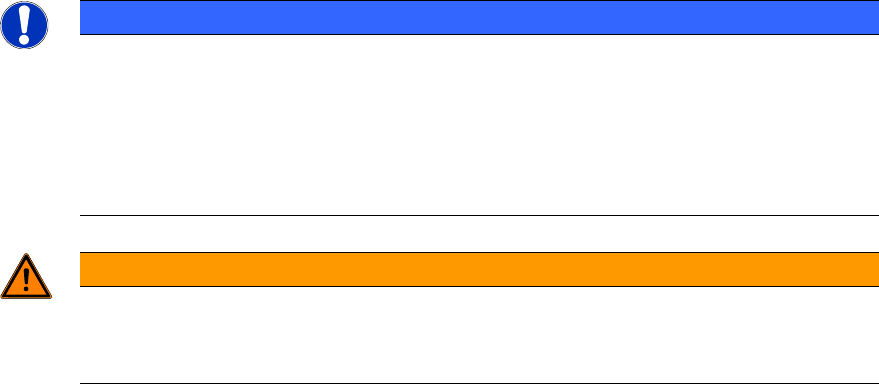
NOTICE
Wrong Settings cause serious Problems
It is strongly recommended to perform all the steps as described in the "Required Steps
before using Support Media" documentation before you continue setting up the
computer.
Inappropriate settings may cause serious, irreversible problems in network
communication!
WARNING
Check Configuration before installing any Software.
Please ensure that your account and network configuration is appropriate before
installing any software.