00197184-03_IM_Celsius_W520LLC_Windows7_EN.pdf - 第37页
Celsius W 520 w ith W indows 7 03/2014 Editio n 37 Af t er you ' ve de leted al l partitions f rom the f irst hard d isk , your window sh ould look like this . Figure 4- 17 : Emp ty Dis k 0 s ele ct ed ► Ensure you …
Celsius W520 with Windows 7 03/2014 Edition
36
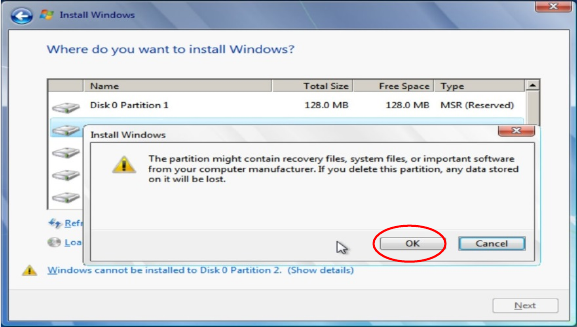
► Verify you've selected the correct partition and the appropriate disk (Disk 0) and backed up all
important data before proceeding.
Figure 4-16: Accepting partition deletion
► Click the OK button to confirm deletion.
► Repeat these steps for all partitions on the first hard disk (Disk 0)
Celsius W520 with Windows 7 03/2014 Edition
37
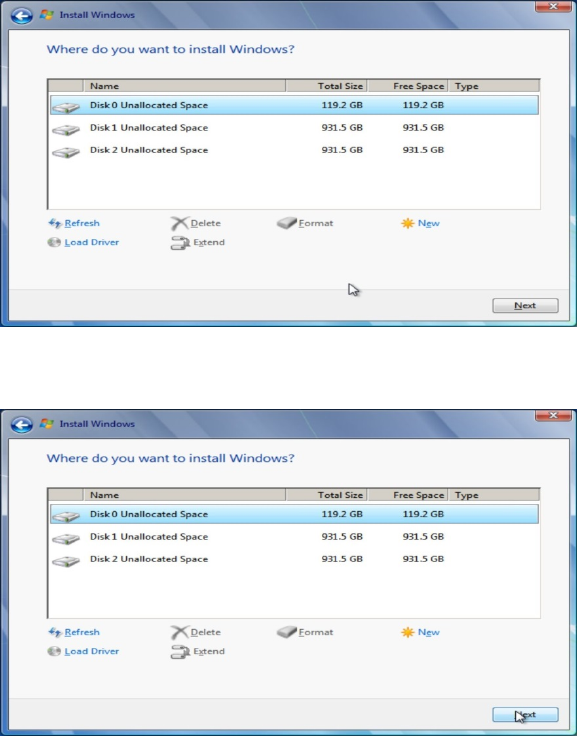
After you've deleted all partitions from the first hard disk, your window should look like this.
Figure 4-17: Empty Disk 0 selected
► Ensure you've selected the empty Disk 0 as shown in the screen above.
Figure 4-18: Clicking Next with empty Disk 0 selected
► Click the Next button to continue.
Celsius W520 with Windows 7 03/2014 Edition
38
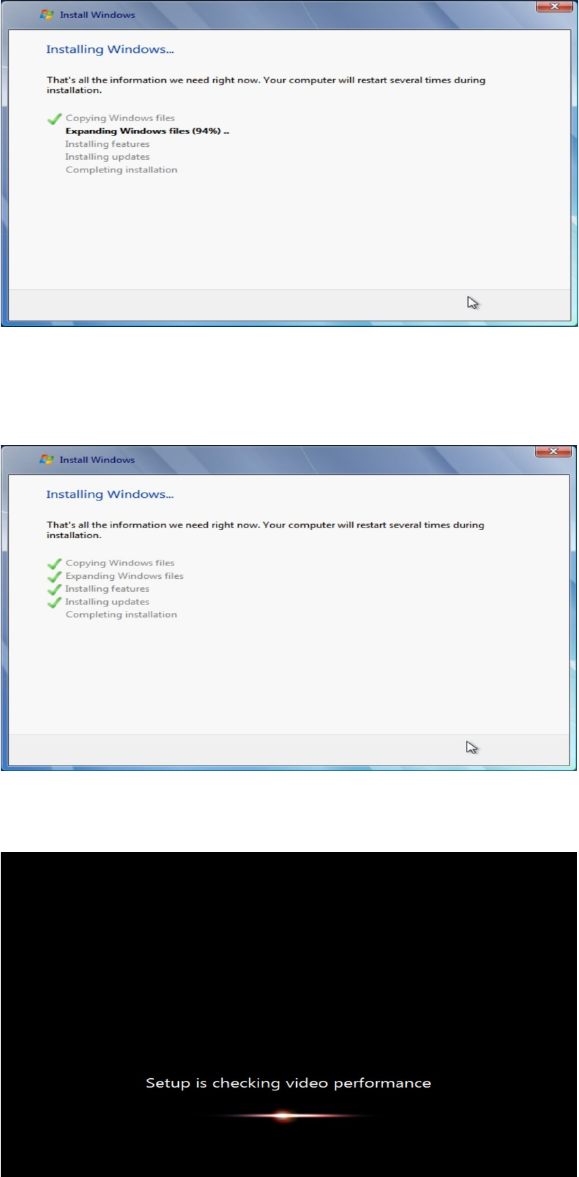
The installation will begin.
Figure 4-19: Installation begins
► Wait until the installation completes. This will take 15 minutes or more.
After a while you will see the installation completing as shown in the following picture.
Figure 4-20: Installation completes
The system may reboot multiple times.
Figure 4-21: Setup checking video performance
Wait until the following window appears.