00197184-03_IM_Celsius_W520LLC_Windows7_EN.pdf - 第51页
Celsius W 520 w ith W indows 7 03/2014 Editio n 51 5 After I nstallat ion 5.1 Parti tioning t he secon d and t hird hard di sk After insta llation of the Ope rating S ystem, you might n eed to partit ion the s econd hard…

Celsius W520 with Windows 7 03/2014 Edition
51
5 After Installation
5.1 Partitioning the second and third hard disk
After installation of the Operating System, you might need to partition the second hard disk before
you are able to access it.
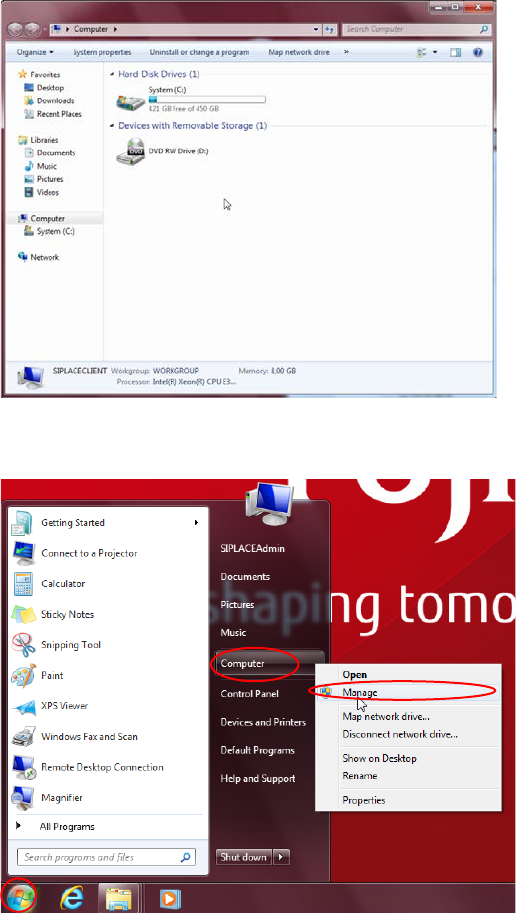
If you open Windows Explorer and only see a single logical drive (C: ), your second hard disk
requires partitioning.
Figure 5-1: Windows Explorer only showing a single Hard Disk Drive C:
To partition your second hard disk, you have to perform the following steps.
Figure 5-2: Opening the Computer Management
► Click the Windows button.
► Right- click at the "Computer" entry and select "Manage".
The Computer Management window opens.
Celsius W520 with Windows 7 03/2014 Edition
52
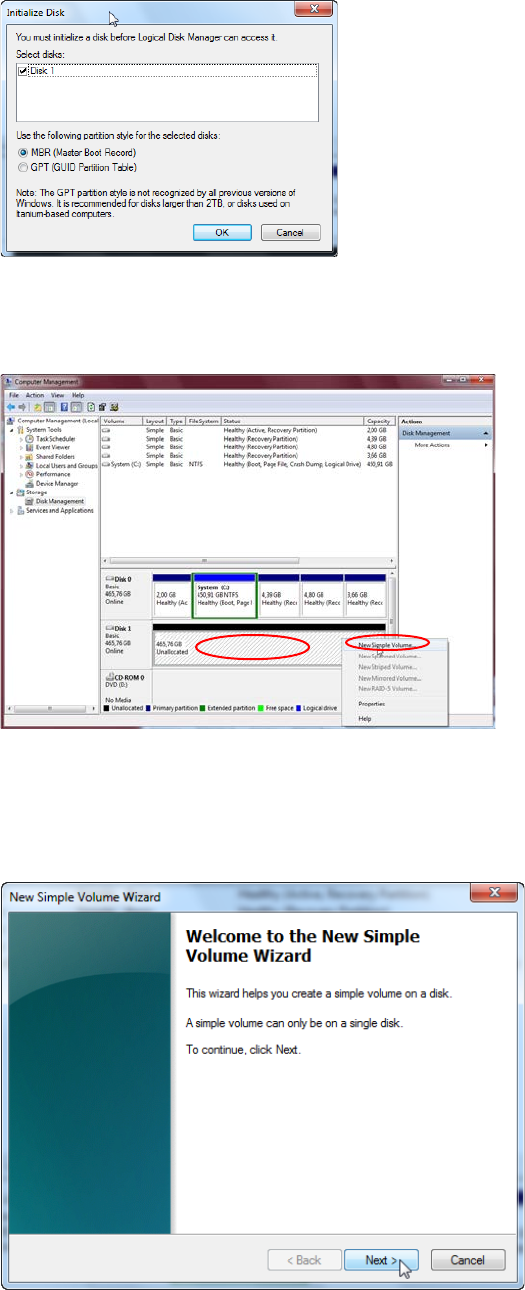
► In the left tree view, open the folder "Storage" and click at "Disk Management".
The following window might appear.
Figure 5-3: Computer Management asking for initialization of Disk 1 (second hard disk)
► Click OK to accept initialization of the second hard disk with the MBR (Master Boot Record).
After that, you have to create a partition on the hard disk.
Figure 5-4: Creating a partition on second hard disk – Step 1
► Right- Click in the empty right area besides "Disk1".
► Select "New Simple Volume…"
The New Simple Volume Wizard opens.
Figure 5-5: Welcome Message of New Simple Volume Wizard
► Click the Next > button to continue.