00197184-03_IM_Celsius_W520LLC_Windows7_EN.pdf - 第14页
Celsius W 520 w ith W indows 7 03/2014 Editio n 14 NOTICE SIPL ACE Sof tware a nd M ic rosoft Upda tes In genera l, SIPLAC E s oft ware is onl y tested w ith a spec ific set of Microsof t u pdat es. Theref ore - as long …
Celsius W520 with Windows 7 03/2014 Edition
13
CAUTION
Possible Account / Password Inconsistency
Operating System Setups may vary in consistency when creating accounts with related
passwords given during setup. You should always ensure you check the created account
/ password combination after installation!
► Click the Next button to continue.
The next window appears.
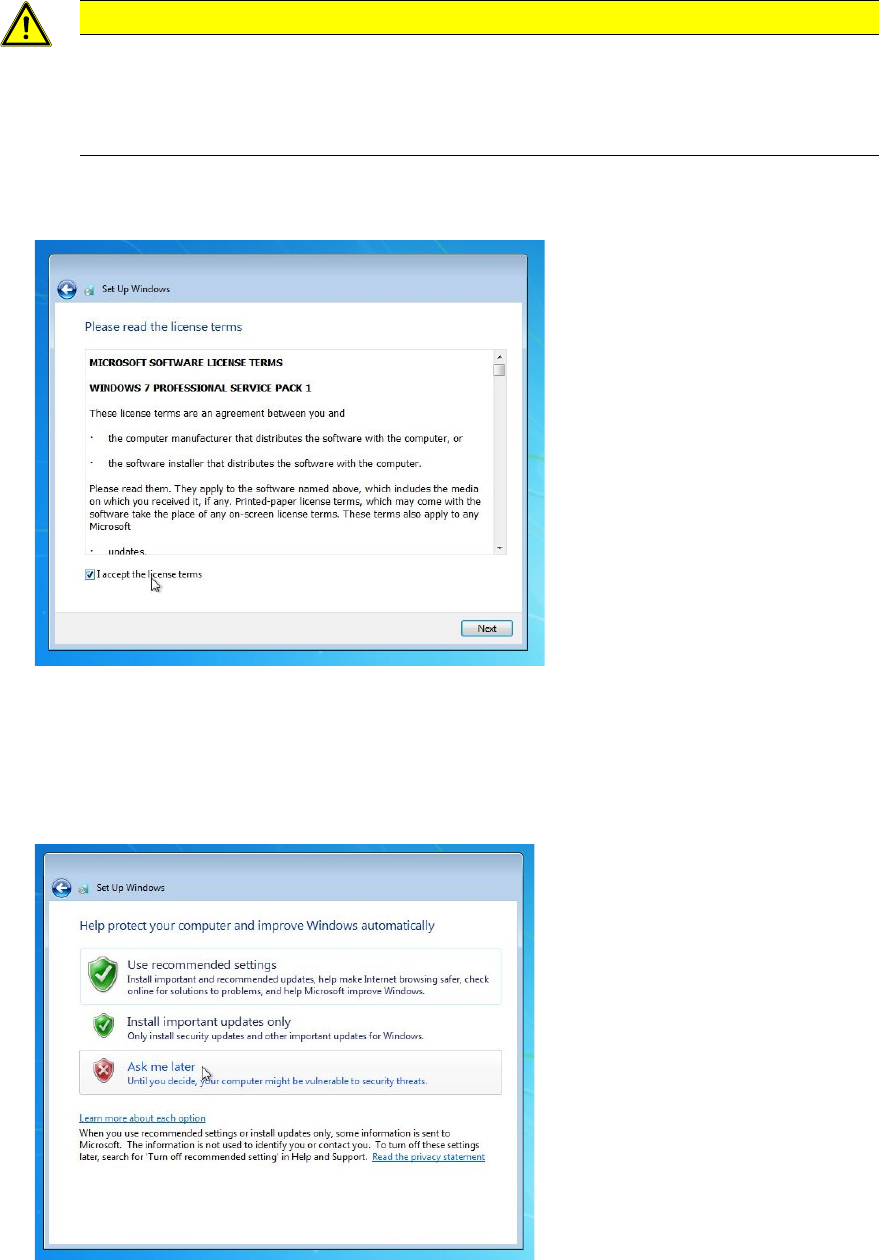
Figure 3-8: License Agreement
► After reading the license agreement, check the checkbox besides I accept the license terms to
accept the license.
► Click the Next button to continue.
The next window appears.
Figure 3-9: Windows Update Settings
► Since we don't use the automatic update feature in our SIPLACE workgroup environment, click
the Ask me later option.
Celsius W520 with Windows 7 03/2014 Edition
14
NOTICE
SIPLACE Software and Microsoft Updates
In general, SIPLACE software is only tested with a specific set of Microsoft updates.
Therefore - as long as not explicitly required in your environment –
you shouldn’t activate
automatic updates.
The next window appears.
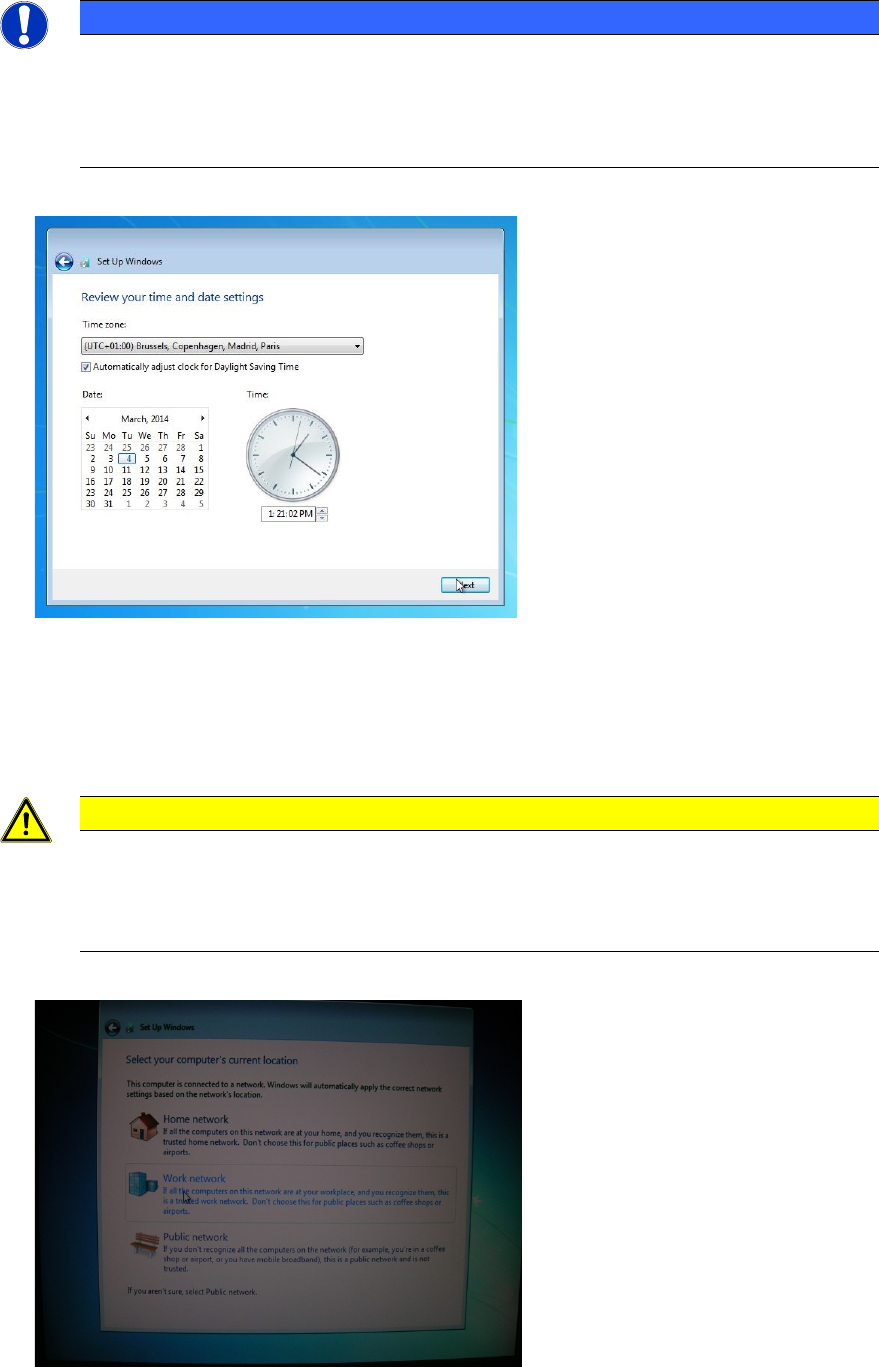
Figure 3-10: Date and Time settings
► Choose the appropriate time zone.
► Ensure the date and time are correct.
► Click the Next button to continue.
CAUTION
Server and Client must be uniform
For proper Windows authentication, date and time of all involved computers must not
differ too much! Additionally, some SIPLACE products like OIS require the time zone to
be identical on all computers!
In some cases, the following window appears.
Figure 3-11: Network location
► Click at Work network.
Celsius W520 with Windows 7 03/2014 Edition
15
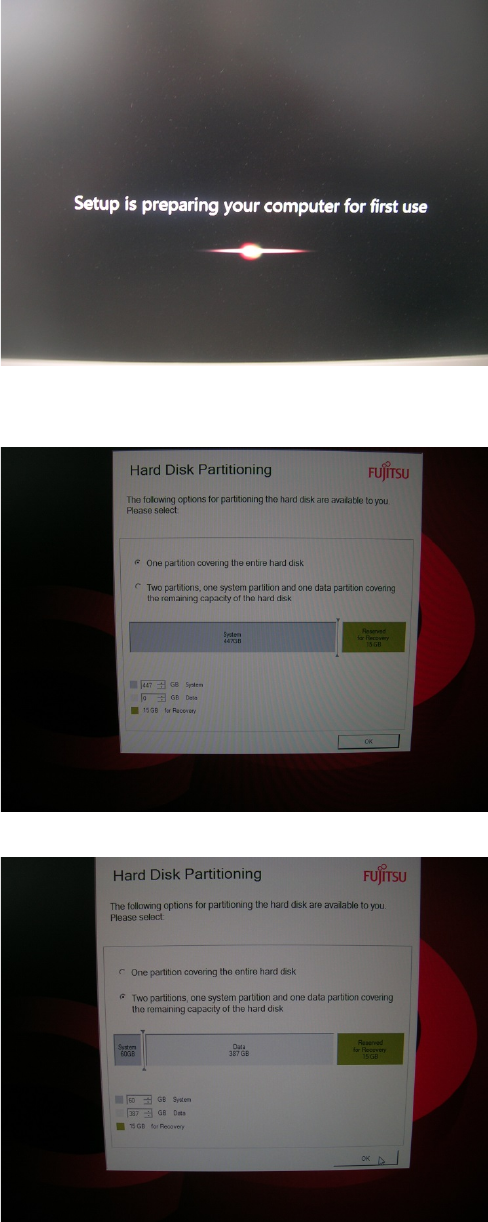
After this, the computer will reboot and continue preparation, applying your settings.
Figure 3-12: Setup preparing for first use
Preparation will take some time. After a while, you will see the following screen (or very similar).
Figure 3-13: Partitioning choice – one partition
Figure 3-14: Partitioning choice – two partitions
► Depending on your needs, either select the radio button besides One partition covering the
entire hard disk or Two partition, one system partition and one data partition covering the
remaining capacity of the hard disk.