00197184-03_IM_Celsius_W520LLC_Windows7_EN.pdf - 第16页
Celsius W 520 w ith W indows 7 03/2014 Editio n 16 NOT ICE No additiona l P artitioni ng required for this C omputer Since this computer has two or three h ard disk s installed b y default, we recom mend choosing t he on…
Celsius W520 with Windows 7 03/2014 Edition
15
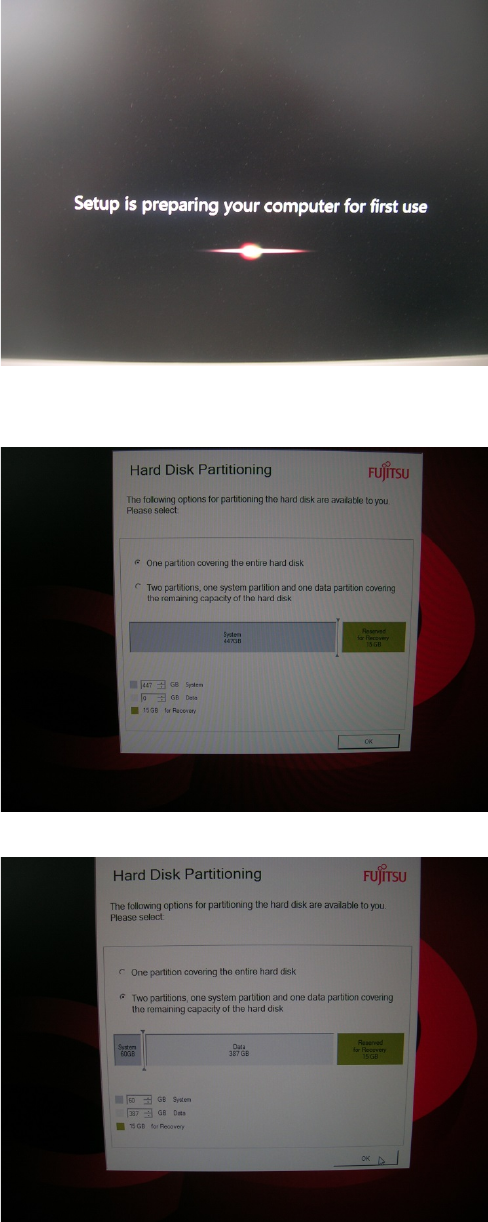
After this, the computer will reboot and continue preparation, applying your settings.
Figure 3-12: Setup preparing for first use
Preparation will take some time. After a while, you will see the following screen (or very similar).
Figure 3-13: Partitioning choice – one partition
Figure 3-14: Partitioning choice – two partitions
► Depending on your needs, either select the radio button besides One partition covering the
entire hard disk or Two partition, one system partition and one data partition covering the
remaining capacity of the hard disk.
Celsius W520 with Windows 7 03/2014 Edition
16
NOTICE
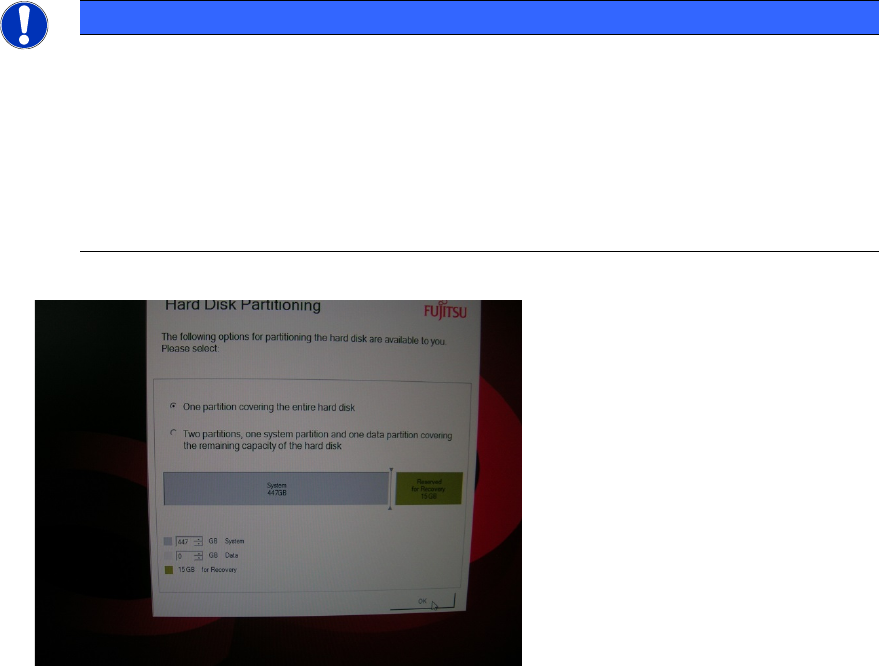
No additional Partitioning required for this Computer
Since this computer has two or three hard disks installed by default, we recommend
choosing the one partition option. This way you still have an additional drive letter (D: or
E:) for data backup or other purposes.
If this computer has an SSD hard disc, please use the first hard disc for the operating
system, the second hard disk for the product database and the third hard disk for
backup.
Figure 3-15: Selecting one partition
► Click the OK button to continue.
Celsius W520 with Windows 7 03/2014 Edition
17
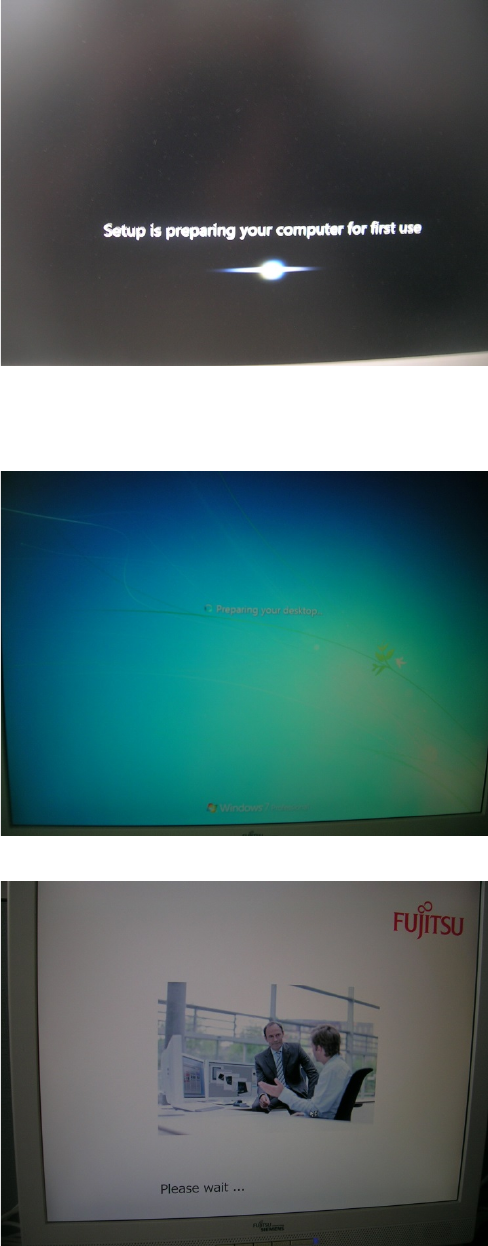
The computer will continue preparing for first use, as shown in the following picture.
Figure 3-16: Setup continues preparing for first use
After a while, the computer will reboot and automatically login and continue preparation (takes
some time).
Figure 3-17: Computer logging in automatically
Figure 3-18: Fujitsu “Please wait…” screen