00197184-03_IM_Celsius_W520LLC_Windows7_EN.pdf - 第8页
Celsius W 520 w ith W indows 7 03/2014 Editio n 8 2.3 BIOS Settings For this com puter, you don ' t have to m odif y BIOS s ettings f or proper installatio n. 2.4 Choose Operating Sy stem A rchitecture Before you be…
Celsius W520 with Windows 7 03/2014 Edition
7
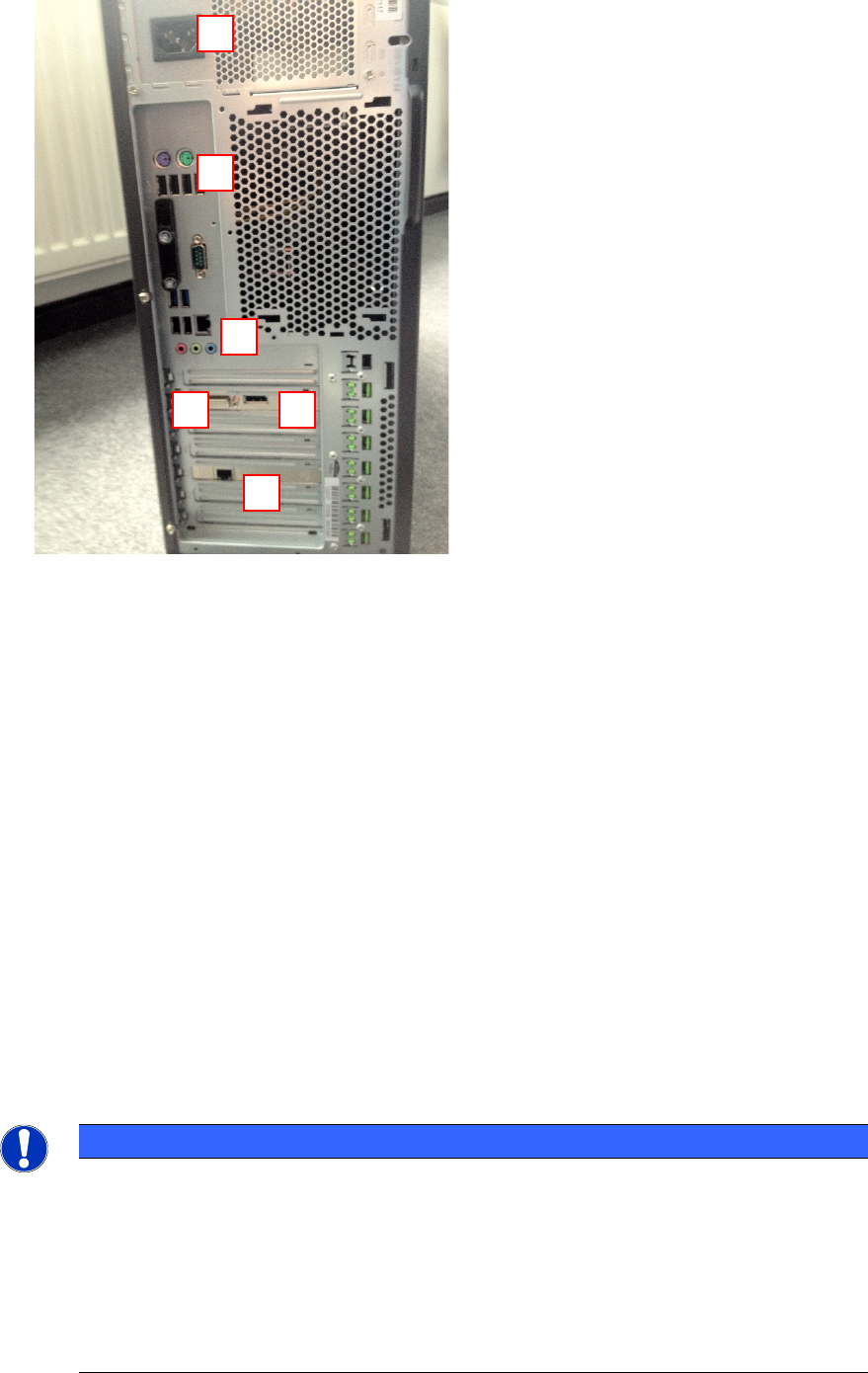
Figure 2-2: Back of Celsius W520 computer
Legend:
1) First Monitor Connector (DVI) to graphics card. For monitors with VGA you have to use the
delivered DVI to VGA adapter additionally
2) Second Monitor Connector (Display Port) to graphics card. Use the delivered adapter cable
to connect the second Monitor using DVI.
3) SIPLACE LAN Network connection
4) Additional onboard LAN connection (not used)
5) PS/2 and USB Ports for keyboard, mouse and other peripherals
6) Power connector
2.2 Used network connections
► Before you begin, please ensure that you have connected the SIPLACE LAN network cable
(usually IP range 172.22.x.x) to the external network adapter at the bottom and removed all
other network cable connections.
NOTICE
Network Adapter Identification
For simple identification of the appropriate SIPLACE LAN network adapter later after
installation, it is strongly recommended to disconnect all other adapters.
SSD Hard Disc
The W520 LLC has three hard discs. The SSD is recommended for the operating
system, the other two discs are intended for the product database. Please consider this
in the installation of the SIPLACE products (SIPLACE Pro, Setup Center …).
1
2
3
4
5
6

Celsius W520 with Windows 7 03/2014 Edition
8
2.3 BIOS Settings
For this computer, you don't have to modify BIOS settings for proper installation.
2.4 Choose Operating System Architecture
Before you begin with the installation, you should decide which architecture of the Operating
System should be used.
In this installation package, you have the choice between the 32 bit (x86) and the 64 bit (x64)
version of Windows 7 Professional. The 64 bit version of Windows 7 is pre-installed.
If you don't plan to use software or hardware which explicitly needs a 32 bit Operating System, we
recommend using the 64 bit version.
NOTICE
64 Bit Windows requires 64 Bit Hardware Drivers
If you don't have 64 bit drivers for you hardware, you can’t use it with the 64 b
it version of
Windows.
Celsius W520 with Windows 7 03/2014 Edition
9
3 Finishing the pre-installed Windows 7 (64 Bit)
Installation
The following chapter describes the completion of the pre-installed Windows 7 Professional 64 Bit
installation as delivered by Fujitsu.
If you need to reinstall the computer completely (deleting all previously stored data), please refer to
the chapter Performing a new Installation of Windows 7 on page 28.
NOTICE
Pre-installed Windows is 64 Bit only
If you have software or hardware that requires you to use the 32 bit version of Windows
instead of the pre-installed 64 bit bersion, you will have to perform a complete
reinstallation of Windows as described later in this document.
► To begin, ensure you've connected all necessary cables to the computer, except the power
cord.
► Connect the power cord.
► If the computer doesn't start automatically, press the Power button on your computer.
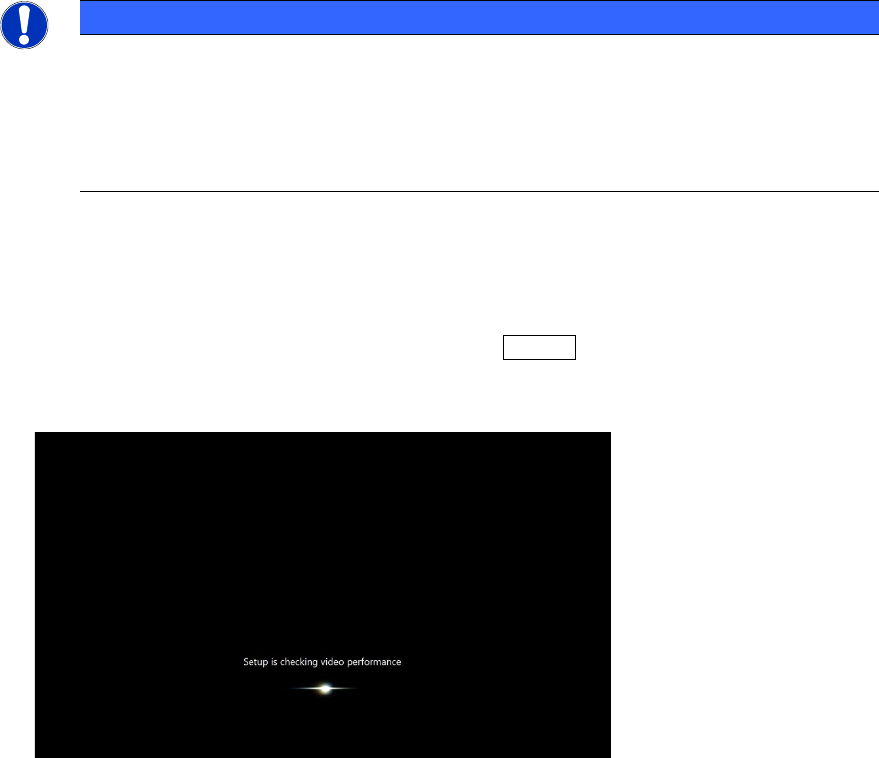
When booting up, the windows logo will appear a couple of seconds. After that, windows will
perform some initialization steps as shown in the following picture.
Figure 3-1: Windows performing initialization steps