00197184-03_IM_Celsius_W520LLC_Windows7_EN.pdf - 第35页
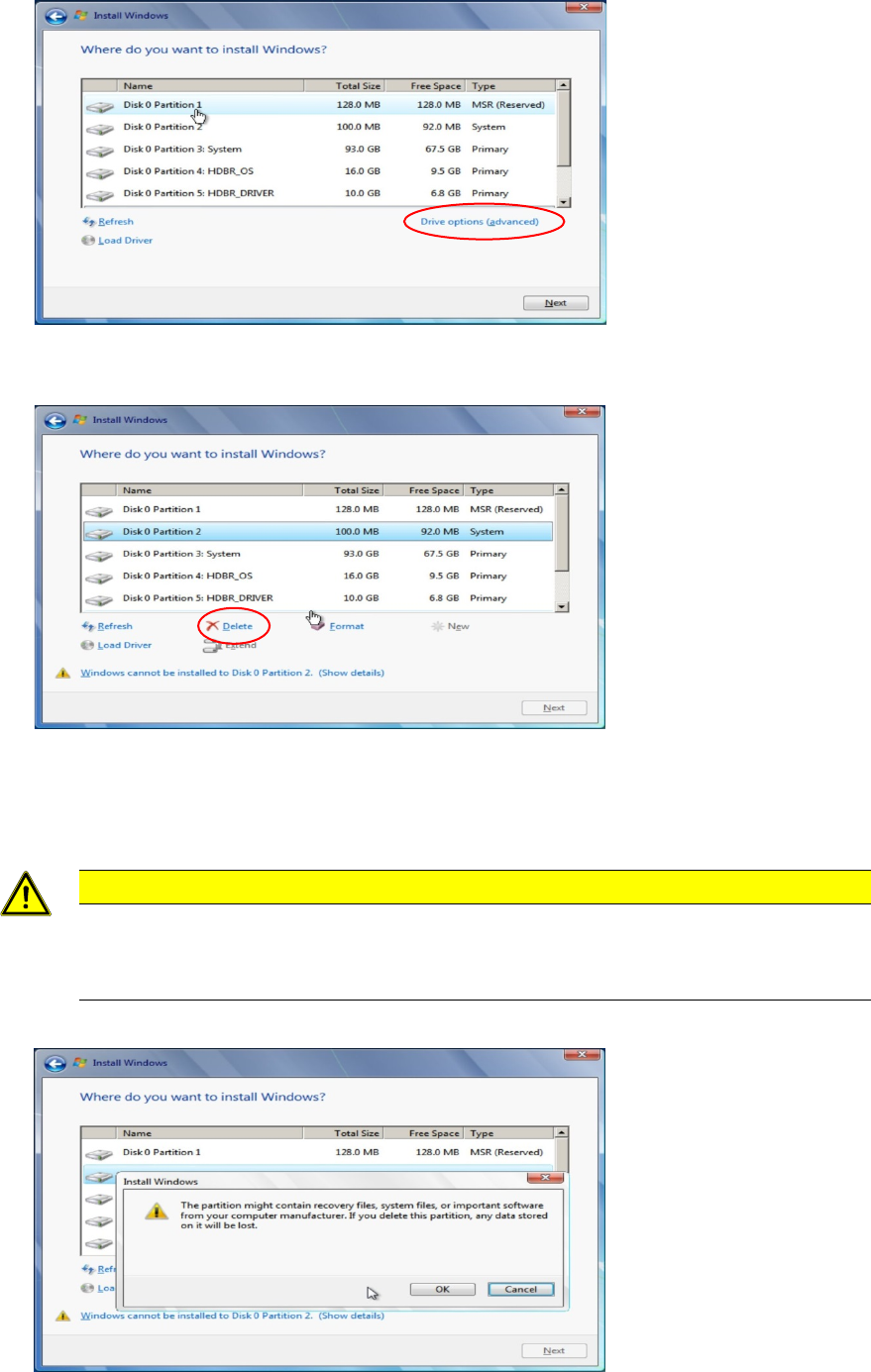
Celsius W 520 w ith W indows 7 03/2014 Editio n 35 Figure 4- 13 : Clicking on Drive Options f or the first partition ► Click on Driv e options ( advanced) as sh own in the picture ab ove. Figure 4- 14 : Selecting “Del et…
Celsius W520 with Windows 7 03/2014 Edition
34
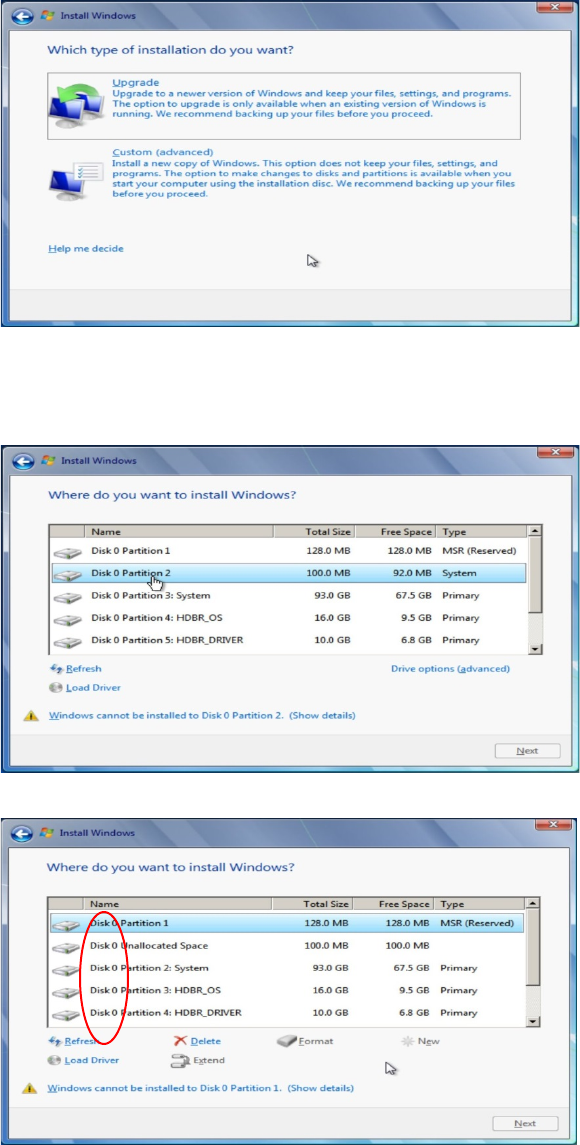
The next window appears.
Figure 4-10: Installation Type
► Click the installation type Custom (advanced).
The following window appears.
Figure 4-11: Partitioning screen
Figure 4-12: Selecting first partition on Disk 0
► Click on the first partition on Disk 0 as shown in the picture above.
Only consider
Partitions of “Disk 0” !
Celsius W520 with Windows 7 03/2014 Edition
35
Figure 4-13: Clicking on Drive Options for the first partition
► Click on Drive options (advanced) as shown in the picture above.
Figure 4-14: Selecting “Delete” for the first partition
► Click on Delete as shown in the picture above.
A confirmation message will appear.
CAUTION
Data will be erased
Before confirming the appearing message, ensure you've selected the correct partition
from the appropriate disk (Disk 0) and you've backed up any important data.
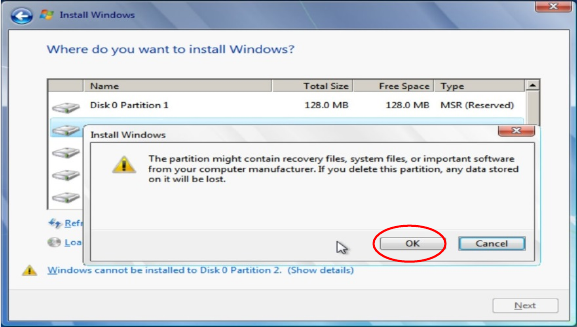
Figure 4-15: Confirm delete message
Celsius W520 with Windows 7 03/2014 Edition
36
► Verify you've selected the correct partition and the appropriate disk (Disk 0) and backed up all
important data before proceeding.
Figure 4-16: Accepting partition deletion
► Click the OK button to confirm deletion.
► Repeat these steps for all partitions on the first hard disk (Disk 0)