00197184-03_IM_Celsius_W520LLC_Windows7_EN.pdf - 第18页
Celsius W 520 w ith W indows 7 03/2014 Editio n 18 After prepar ation, you will s ee the foll owing win dow. Figure 3- 19 : Fujtisu Options This tool pr ovides you with links help ing you to p erform some c ommon task s.…
Celsius W520 with Windows 7 03/2014 Edition
17
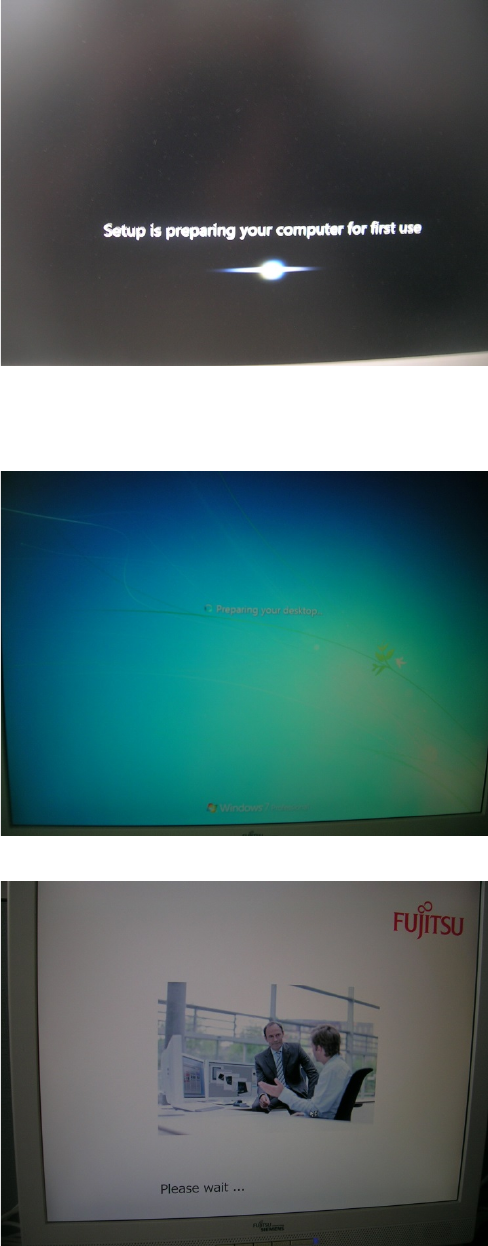
The computer will continue preparing for first use, as shown in the following picture.
Figure 3-16: Setup continues preparing for first use
After a while, the computer will reboot and automatically login and continue preparation (takes
some time).
Figure 3-17: Computer logging in automatically
Figure 3-18: Fujitsu “Please wait…” screen
Celsius W520 with Windows 7 03/2014 Edition
18
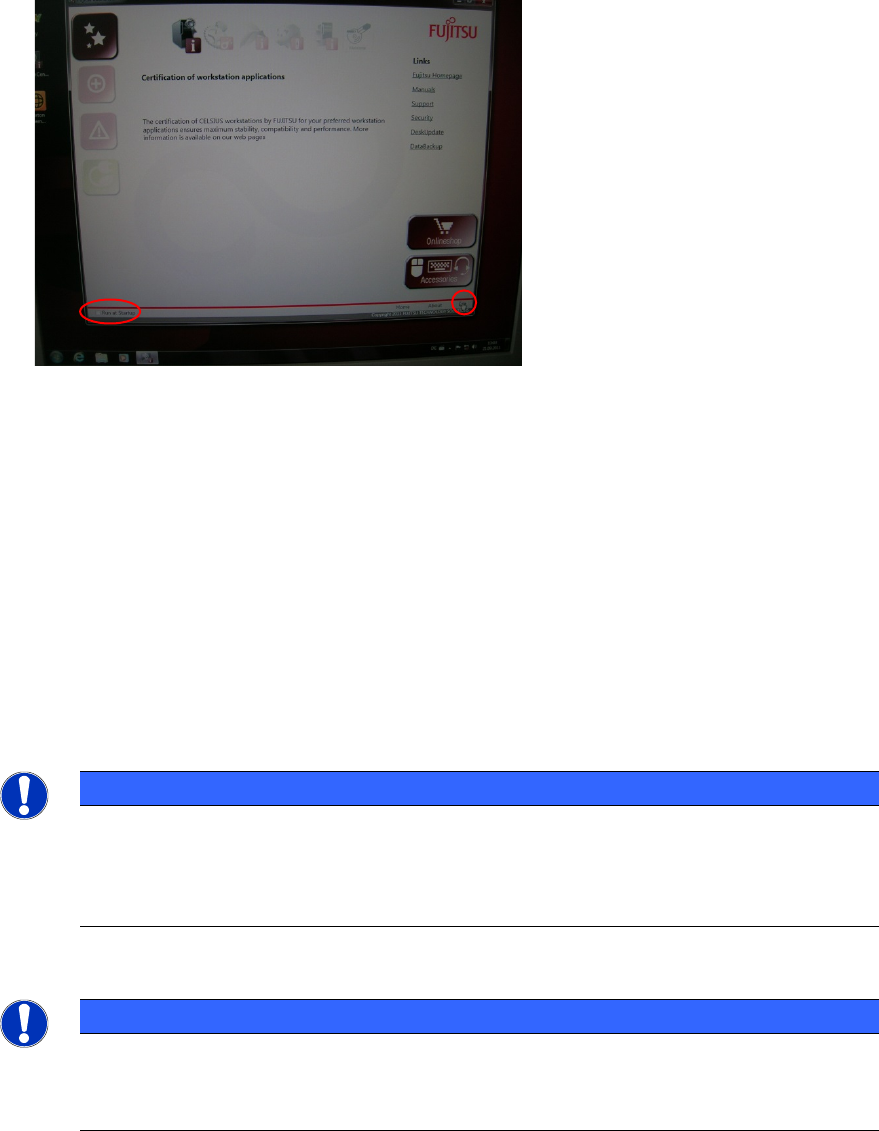
After preparation, you will see the following window.
Figure 3-19: Fujtisu Options
This tool provides you with links helping you to perform some common tasks.
► If you don’t want this tool to show again, ensure the checkbox besides Run at Startup in the
lower left corner isn’t selected.
► Click the Exit link in the lower right corner to close the tool.
► Continue with the next chapter
3.1 Uninstall unused Tools
In the pre-installed image, there are some tools not required by SIPLACE which we recommend to
uninstall before proceeding.
NOTICE
Screens may look slightly different
The screens taken in this chapter may look slightly different from your computer
installation, since they were taken from a previous computer installation. Nevertheless
their meaning is still the same.
NOTICE
Security Tools might conflict with SIPLACE Software
Some anti-virus or firewall tools might conflict with SIPLACE software. We recommend
uninstalling them as described in this chapter.
Celsius W520 with Windows 7 03/2014 Edition
19
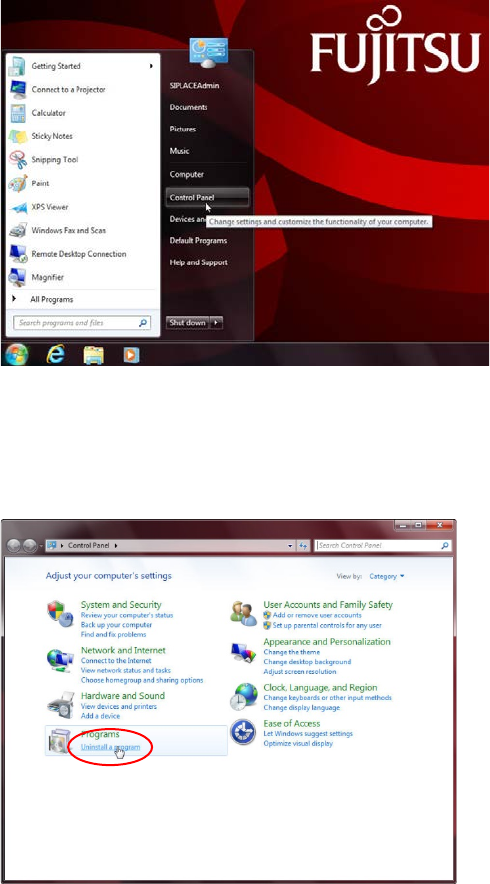
First, we have to navigate to the Add/Remove programs window.
Figure 3-20: Opening Control Panel
► Click the Windows button
► Click at Control Panel.
The Control Panel opens.
Figure 3-21: Calling Uninstall a program
► Click on Uninstall a program in the Programs group.