00197184-03_IM_Celsius_W520LLC_Windows7_EN.pdf - 第25页
Celsius W 520 w ith W indows 7 03/2014 Editio n 25 Figure 3- 33 : Recovery Options Language Choic e with right arrow button ► Click the bu tton with th e arro w to the r ight to conti nue. Figure 3- 34 : Recovery Options…
Celsius W520 with Windows 7 03/2014 Edition
24
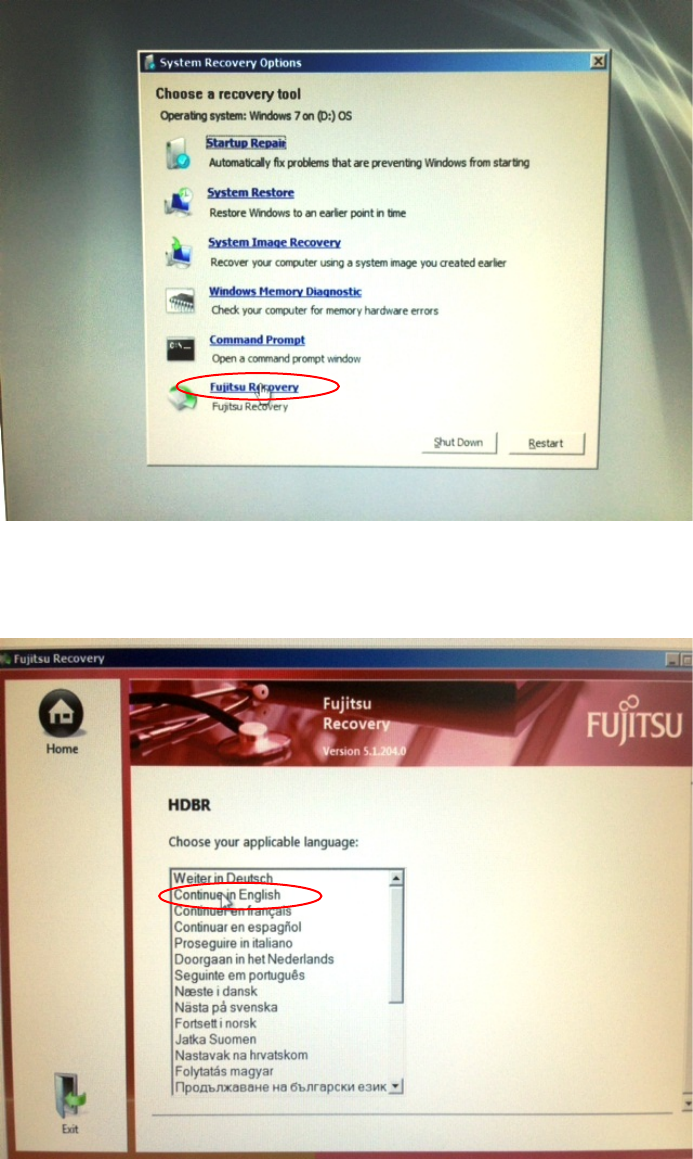
Figure 3-31: System Recovery Options selection
► Click the option "Fujitsu Recovery".
This will get you to the recovery of Fujitsu.
Figure 3-32: Recovery Options Language Choice
► Choose the language for recovery.
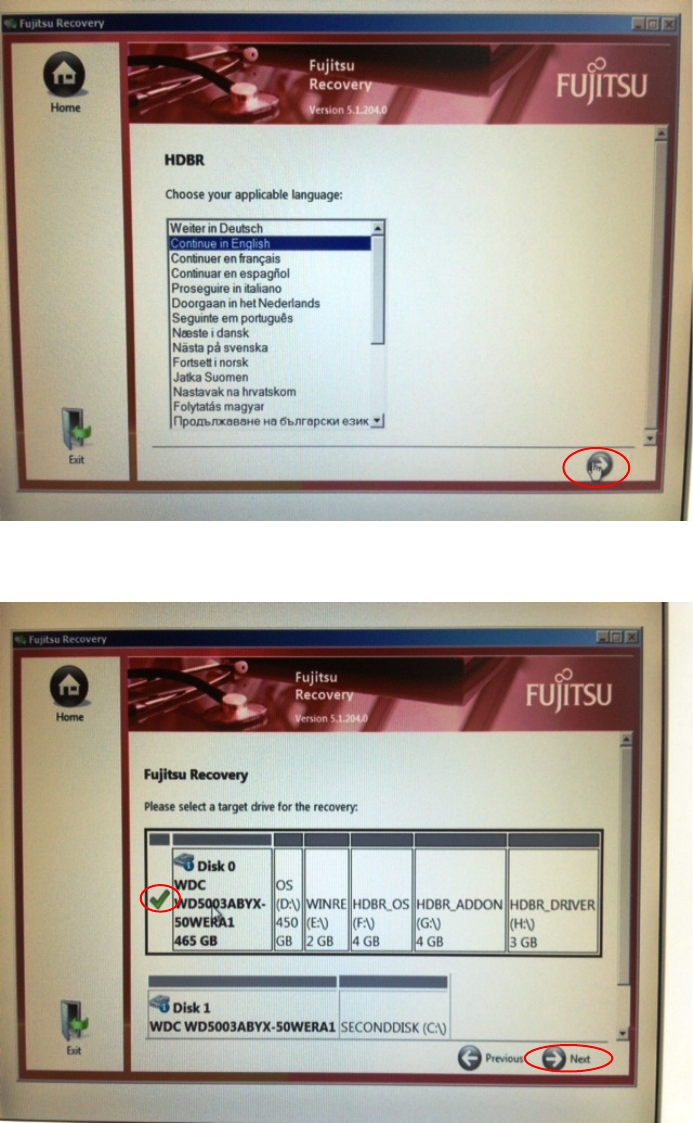
After you've chosen the language, an arrow button will be available.
Celsius W520 with Windows 7 03/2014 Edition
25
Figure 3-33: Recovery Options Language Choice with right arrow button
► Click the button with the arrow to the right to continue.
Figure 3-34: Recovery Options Target Drive Selection
► Ensure the first hard disk is selected as target.
► Click the button with the arrow to the right with the text "Next" to continue.
Celsius W520 with Windows 7 03/2014 Edition
26
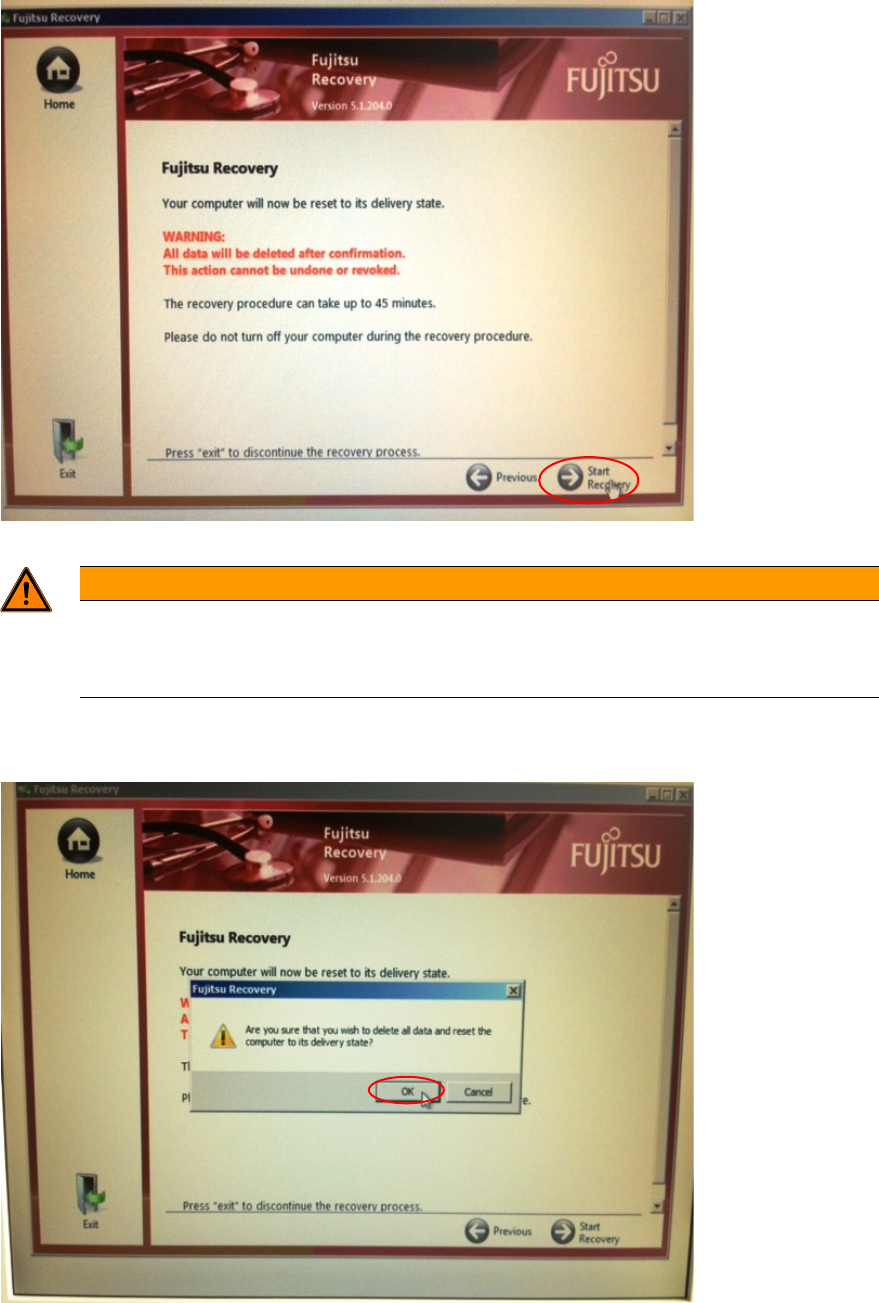
Figure 3-35: Recovery Options Data Delete Warning
WARNING
Unsaved data will be lost
As mentioned before, all unsaved data will be lost. Please ensure you’ve backed up all
important data to a different media before you continue.
► Click the button with the arrow to the right with the text "Start Recovery".
Again, a warning message will be displayed.
Figure 3-36: Recovery Options Data Delete Warning #2
► After you've ensured all important data has been backed up click the OK button to continue.
The system will now restore to the delivery state which takes a couple of minutes.