00197184-03_IM_Celsius_W520LLC_Windows7_EN.pdf - 第47页
Celsius W 520 w ith W indows 7 03/2014 Editio n 47 Figure 4- 37 : DeskUpdate install ing drivers After driver ins tallation, th e following windo w will appear . Figure 4- 38 : Reboot message ► Ensure that you’ve s aved …
Celsius W520 with Windows 7 03/2014 Edition
46
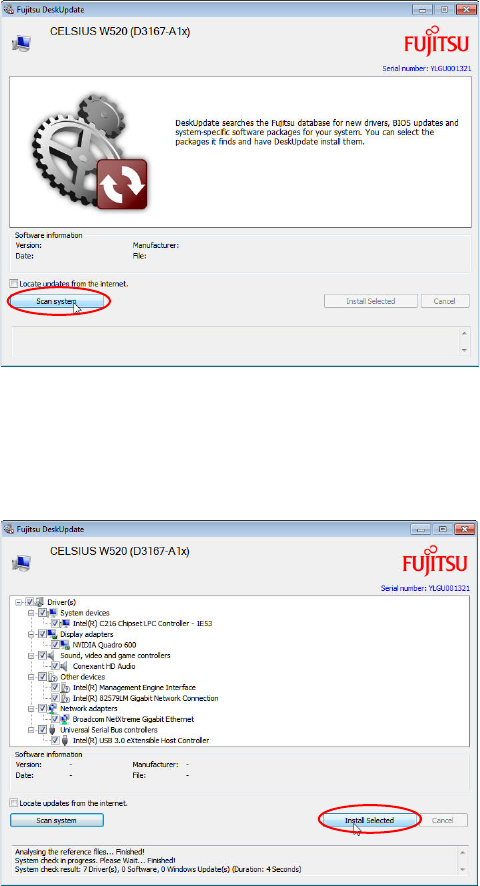
The following window appears.
Figure 4-35: Starting Scan for appropriate drivers
► Click the Scan system button to start the scan for missing drivers.
After a short time, the system has found appropriate missing drivers.
Figure 4-36: Starting missing drivers installation
► Click the Install Selected button to install the missing drivers.
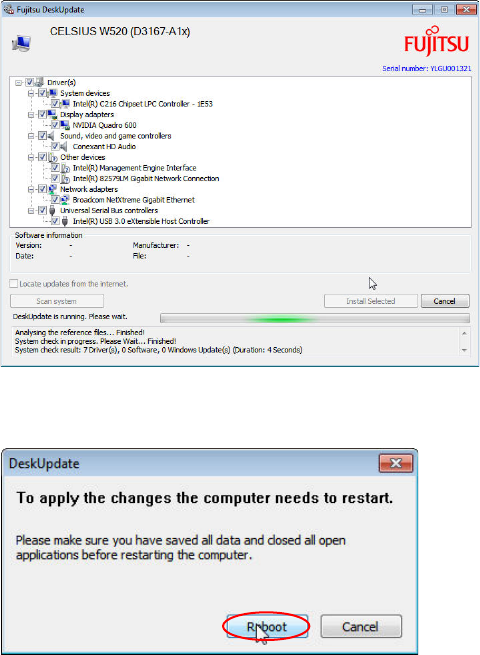
The driver installation may take some minutes. During the installation, the Install Selected button is
greyed-out.
Celsius W520 with Windows 7 03/2014 Edition
47
Figure 4-37: DeskUpdate installing drivers
After driver installation, the following window will appear.
Figure 4-38: Reboot message
► Ensure that you’ve saved all unwritten data.
► Click the Reboot button to reboot your computer.
The driver installation is completed.
4.3 Activating Aero
Your Computer Celsius W520 has an external graphics card supporting Direct3D and Aero
(enhances the GUI of Windows with some graphic effects).
To activate Aero, you have to perform the following steps.
Celsius W520 with Windows 7 03/2014 Edition
48
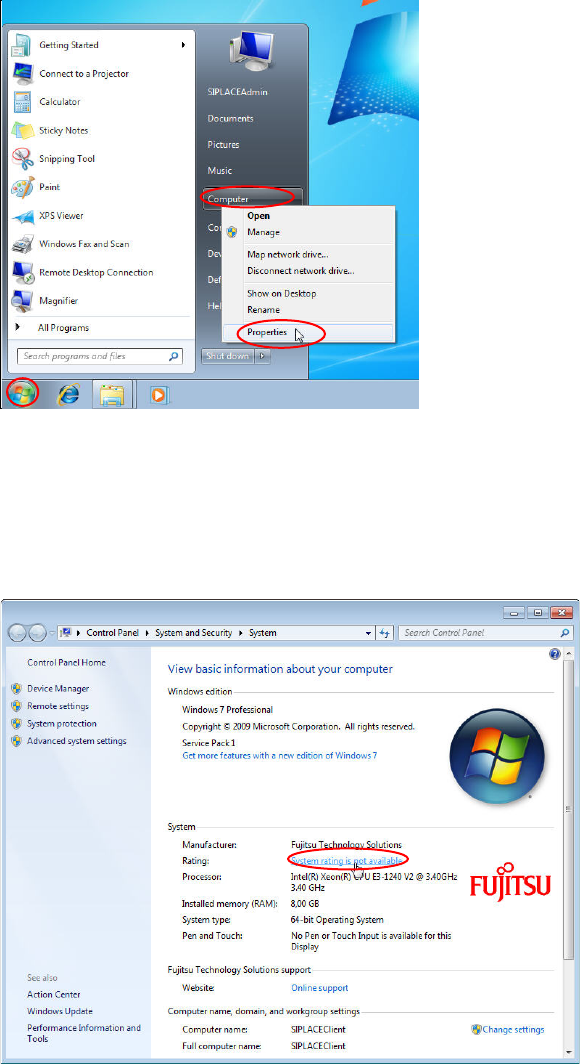
Figure 4-39: Opening System Settings
► Click the Windows button.
► Right- click at "Computer".
► Select "Properties".
The System Settings Window opens.
Figure 4-40: System Settings Window
► Click at "System rating is not available".