F4000N_revD.pdf - 第49页
F4000N Series Operating Manual Section 5: Point T ype & Function Reference Part # 562187N - 1 Rev . D Sep 201 2 48 © 20 12 Fisnar Inc. 1.12.5 Brush Area: Circle Band Brush Area Circle Band causes the tip to „pai nt‟ …
F4000N Series Operating Manual
Section 5: Point Type & Function Reference
Part # 562187N-1
Rev. D Sep 2012
47
© 2012 Fisnar Inc.
1.12.4 Brush Area: Rect. Band
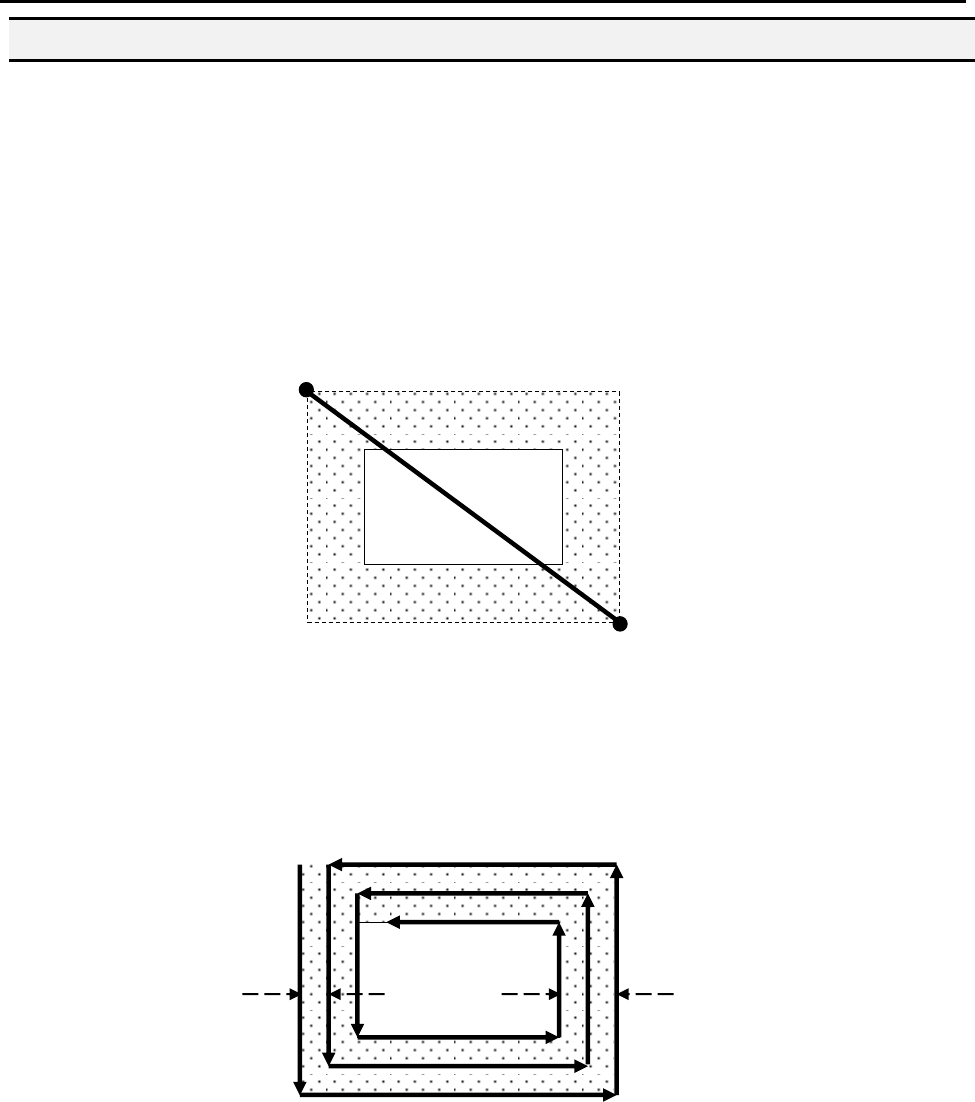
Brush Area Rect. Band causes the tip to „paint‟ a defined rectangular band area by
following a square spiral path from the outside of the rectangle to the center.
After registering the Brush Area Rect. Band command, teach a Line Start point at the top
left corner of the area to be brushed and a Line End point at the bottom right corner of that
area (the tip will not dispense a straight line between these two points):
If, for example, a brush width of 5 mm and band of 10mm was used, the tip will take the
following path when the program is run:
Band 10mm
Width 5mm
Line Start
Line End
F4000N Series Operating Manual
Section 5: Point Type & Function Reference
Part # 562187N-1
Rev. D Sep 2012
48
© 2012 Fisnar Inc.
1.12.5 Brush Area: Circle Band
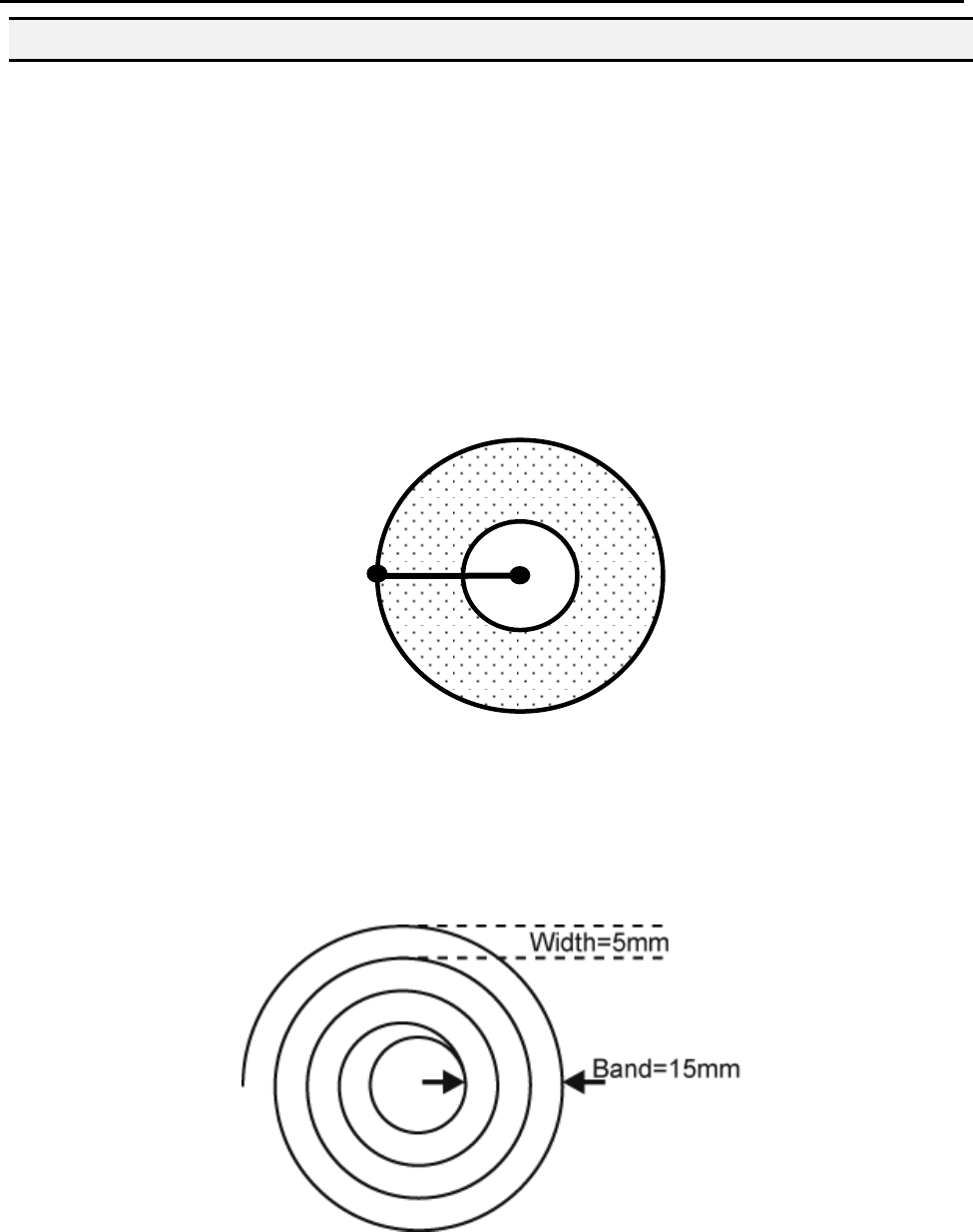
Brush Area Circle Band causes the tip to „paint‟ a defined circular band area by following a
spiral path from the outside limit of the circle to the center of the circle.
After registering the Brush Area Circle Band command, jog the tip to a point on the outside
limit of the circle to be brushed and register that location as a Line Start point. Then jog
the tip directly across to the center of the circle and register that location as a Line End
point (the tip will not dispense a straight line between these two points):
If, for example, a brush width of 5 mm and Band of 15mm was used, the tip will take the
following path when the program is run:
Line Start
Line End
Paint Area
F4000N Series Operating Manual
Section 5: Point Type & Function Reference
Part # 562187N-1
Rev. D Sep 2012
49
© 2012 Fisnar Inc.
1.12.6 Brush Area: Circle 1
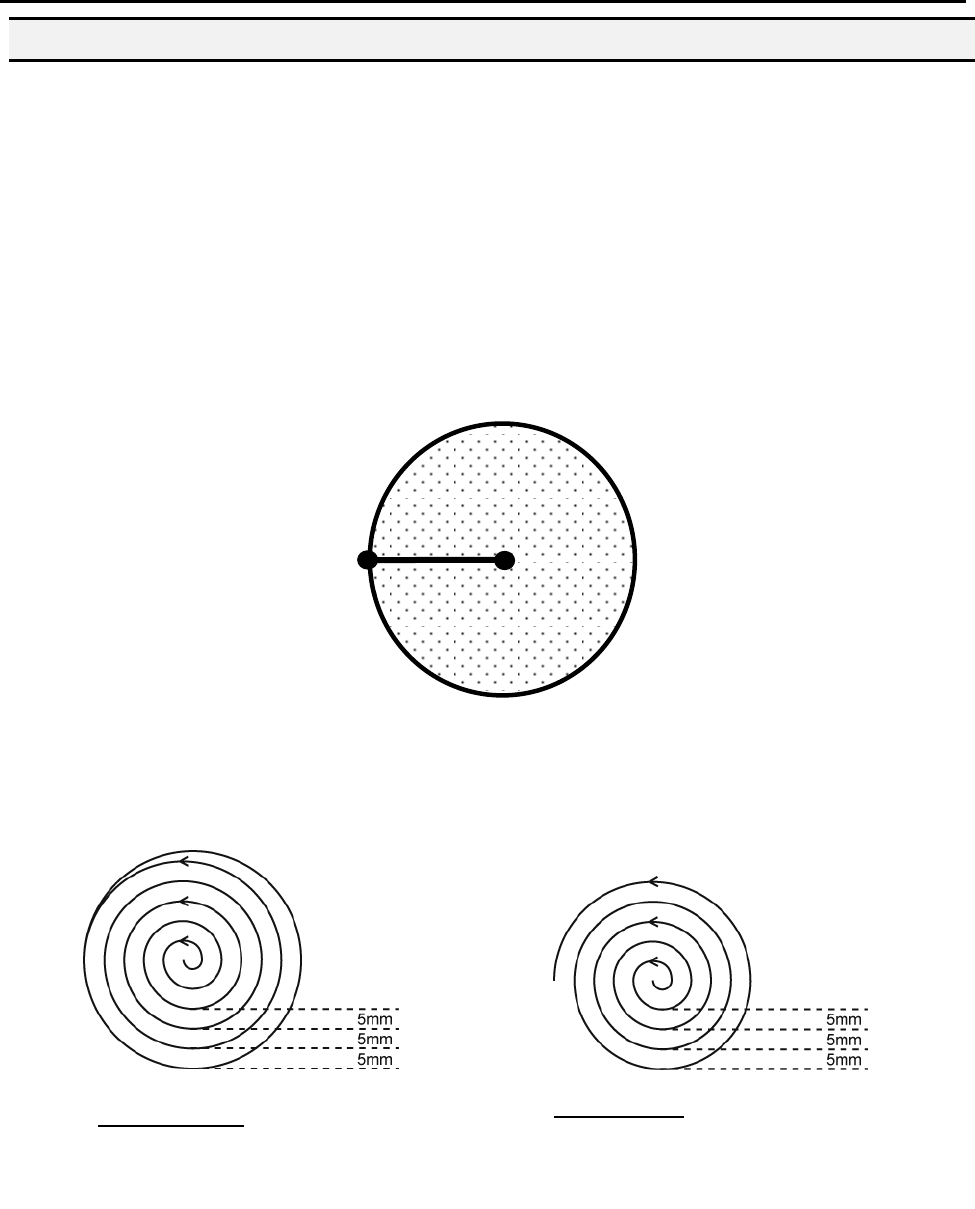
Brush Area: Circle 1, causes the tip to „paint‟ the defined area by following a spiral path
from the center of the circle to the outside limit of the circle. It works in reverse of the
Circle function.
After registering the Brush Area Circle command, jog the tip to a point where you want to
register the center of the circle and register that location as a Line Start. Then jog the tip
directly across on the outside limit of the circle to be brushed and register that location as
a Line End point (the tip will not dispense a straight line between these two points):
If, for example, a brush width of 5 mm was used, the tip will take the following path when
the program is run:
An open or closed option is also available for this function. Selecting the Closed option will
make a whole circle after making the spiral. Selecting the Open option will make the spiral
without closing the outer circle.
Closed Circle1: Creates a spiral from
the center to the outside finishing with
a closed circle.
Line End
Paint
Area
Line
Start
Open Circle1: Creates a spiral from
the center to the outside.