F4000N_revD.pdf - 第88页
F4000N Series Operating Manual Section 5: Point T ype & Function Reference Part # 562187N - 1 Rev . D Sep 201 2 87 © 20 12 Fisnar Inc. 5.16 USB Up/Down Load The F4000N Series robots offer the convenience of a Univ er…

F4000N Series Operating Manual
Section 5: Point Type & Function Reference
Part # 562187N-1
Rev. D Sep 2012
86
© 2012 Fisnar Inc.
5.14 Acceleration
Controls the acceleration of each axis. The value entered in this setting is a robot
parameter and its exact relation to the robot‟s acceleration is beyond the scope of this
manual.
In general, the value of the acceleration parameter is inversely related to the robot‟s
acceleration. A small value will result in a high acceleration and vice versa.
Very small values can make the motors slip and can cause the driver cards to over
heat.
The default value is 25 for all the axes and values lower than 15 are not
recommended.
5.15 Pause Status
Pause Status sets the position to which the tip will move after pressing the Start button.
There are two options:
Home position: The tip will move to the home position.
Stand: The tip will stay at the position where the Start button was pressed.
F4000N Series Operating Manual
Section 5: Point Type & Function Reference
Part # 562187N-1
Rev. D Sep 2012
87
© 2012 Fisnar Inc.
5.16 USB Up/Down Load
The F4000N Series robots offer the convenience of a Universal Serial Bus (USB) port.
With this feature, you may load or save your programs directly to and from the robot with
a USB flash drive
1
. Updating the Operating System of the robot can also be done through
the USB drive.
Uploading/Downloading Programs
Instructions:
4) Turn the robot OFF.
5) Connect the USB drive to Robot USB port and then turn the robot ON.
6) Initialize the robot by pressing the Home/Start button.
7) Press the F4 Key (Setup Menu) and go to page 3.
8) Select USB Up/Down Load. The corresponding screen appears.
All Data: Copies all program files.
Part Data: Allows the user to select which program files to be loaded / saved.
Note: The robot automatically assigns the program number as its filename when saved to
the USB drive. It uses this filename to load the program to the same number on the
robot.
1
The USB Flash Drive must be in FAT file system format.
USB Up/Down Load
--------------------------
1. Upload to USB
2. Download from USB
Upload/Download from USB
--------------------------
1. All Data
2. Part Data
F4000N Series Operating Manual
Section 5: Point Type & Function Reference
Part # 562187N-1
Rev. D Sep 2012
88
© 2012 Fisnar Inc.
Updating Robot Software
Instructions:
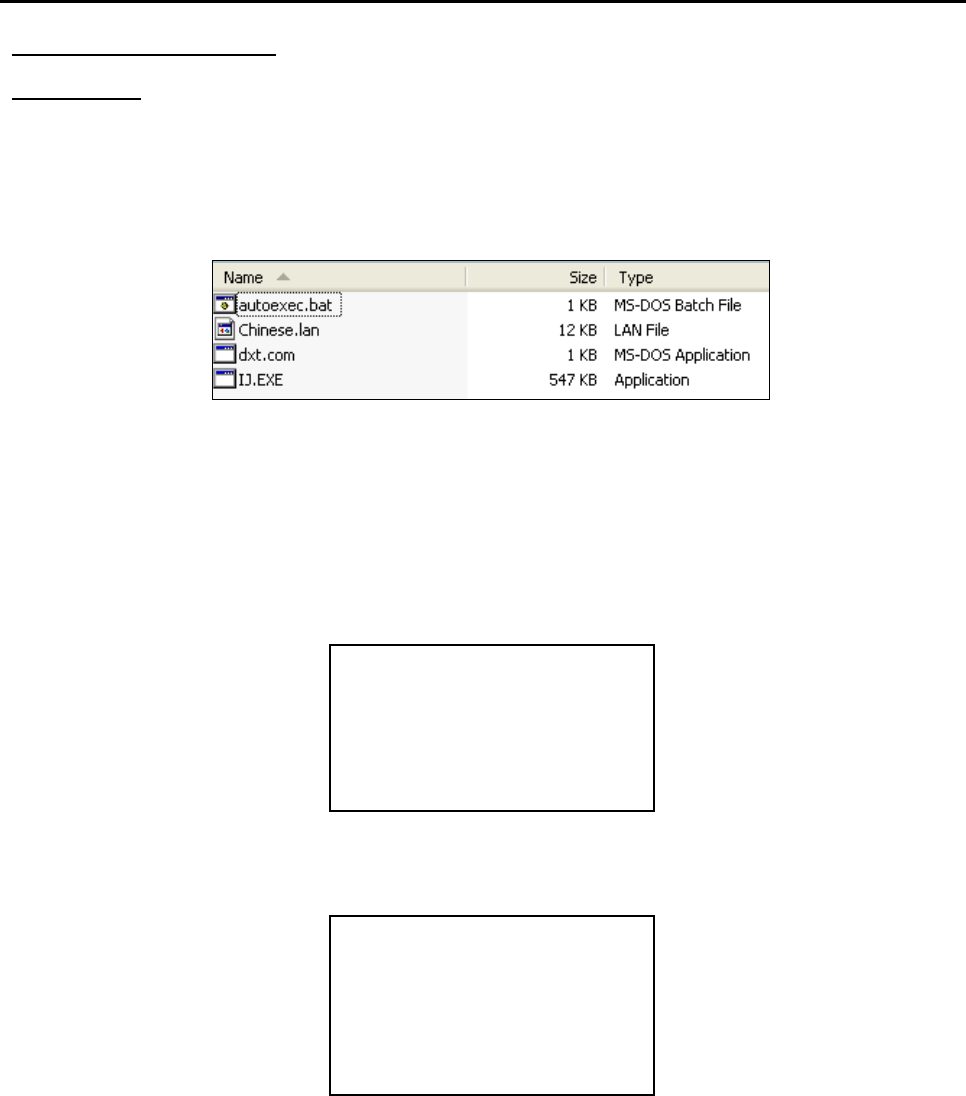
6) On the USB drive, create an “updata” folder and copy the software files. The
software folder should include the batch (.bat), MS-DOS (.com) and executable
(.exe) files.
*Language files (.lan) may or may not be included.
7) Turn the robot OFF and insert the USB drive into the port.
8) Turn the robot ON.
9) The robot will automatically locate the “updata” folder in the drive and run the batch
file to update the software. You should see the Machine Home screen after the
update.
10) Verify the software by pressing F3 (Menu 2) System Information.
11) Turn the robot OFF and remove the USB drive.
Note: The robot will keep updating the software upon system start up whenever it sees an
“updata” folder. Remove the USB drive, or change the filename in order to avoid
this.
[Machine Home]
-----------------
| Start/Home |
System Information
-------------------------
Software :
Work Area :