fx3r.pdf - 第142页
FX-3R Maintenance Guide 12-13 6) The “ Internet Protocol (TCP/IP) (Properties) ” dialog appears on the screen. Check the “ Use the following IP address ” radio button. Set the “ IP address, ” “ Subnet mask ” . If you…
FX-3R Maintenance Guide
12-12
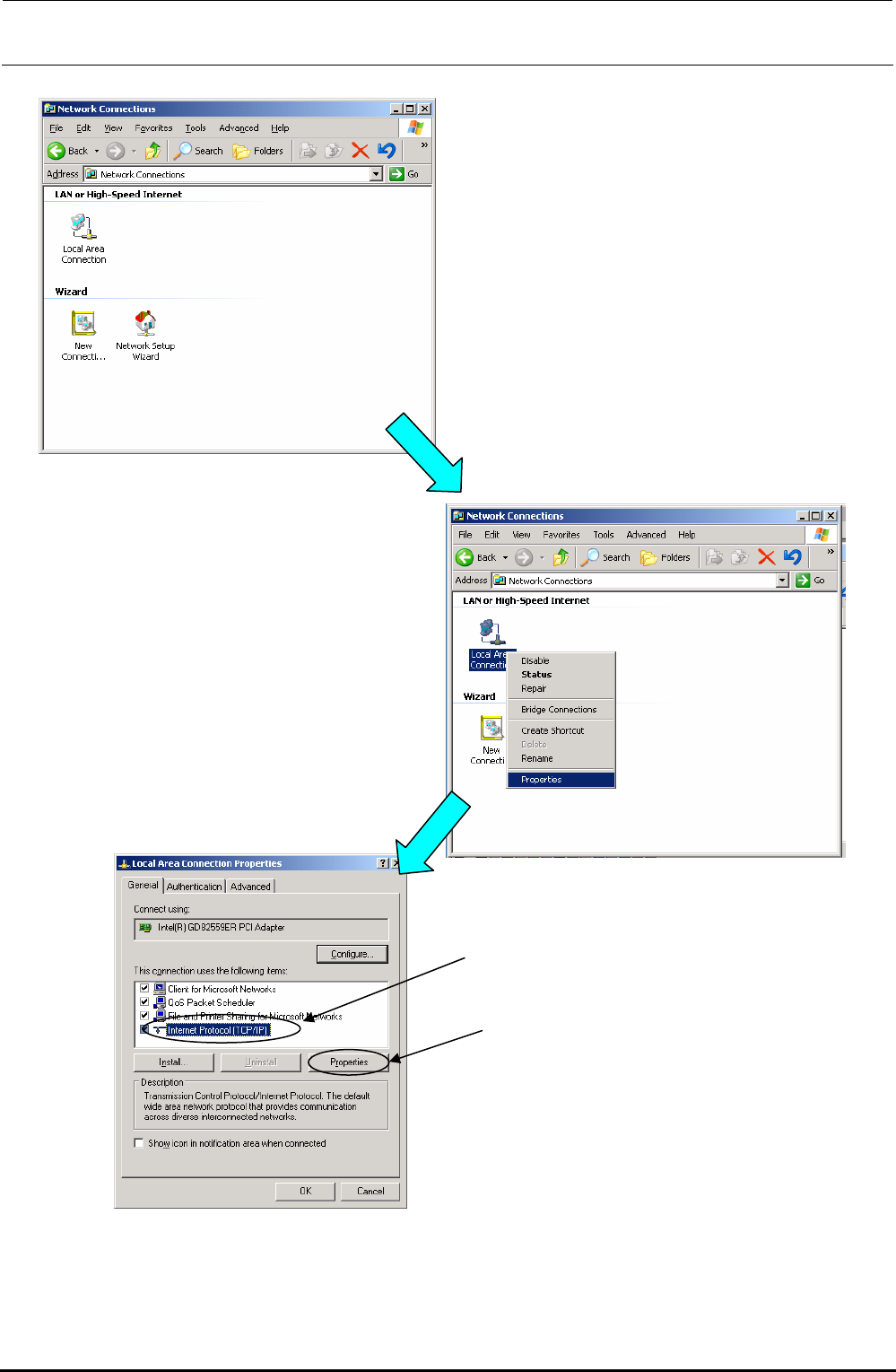
3) The “Network connection ” dialog box appears on the screen.
4) Select the [Local Area Connection] icon on the
dialog box stated in step 3), and then click the
[Properties] command with the right button to
select it.
Rev. 1.00
5) The “LOCAL Area Connection
(Properties)” dialog box appears on the
screen.
Select the [Internet Protocol (TCP/IP)]
on this screen, and the click the
[Properties] button.
FX-3R Maintenance Guide
12-13
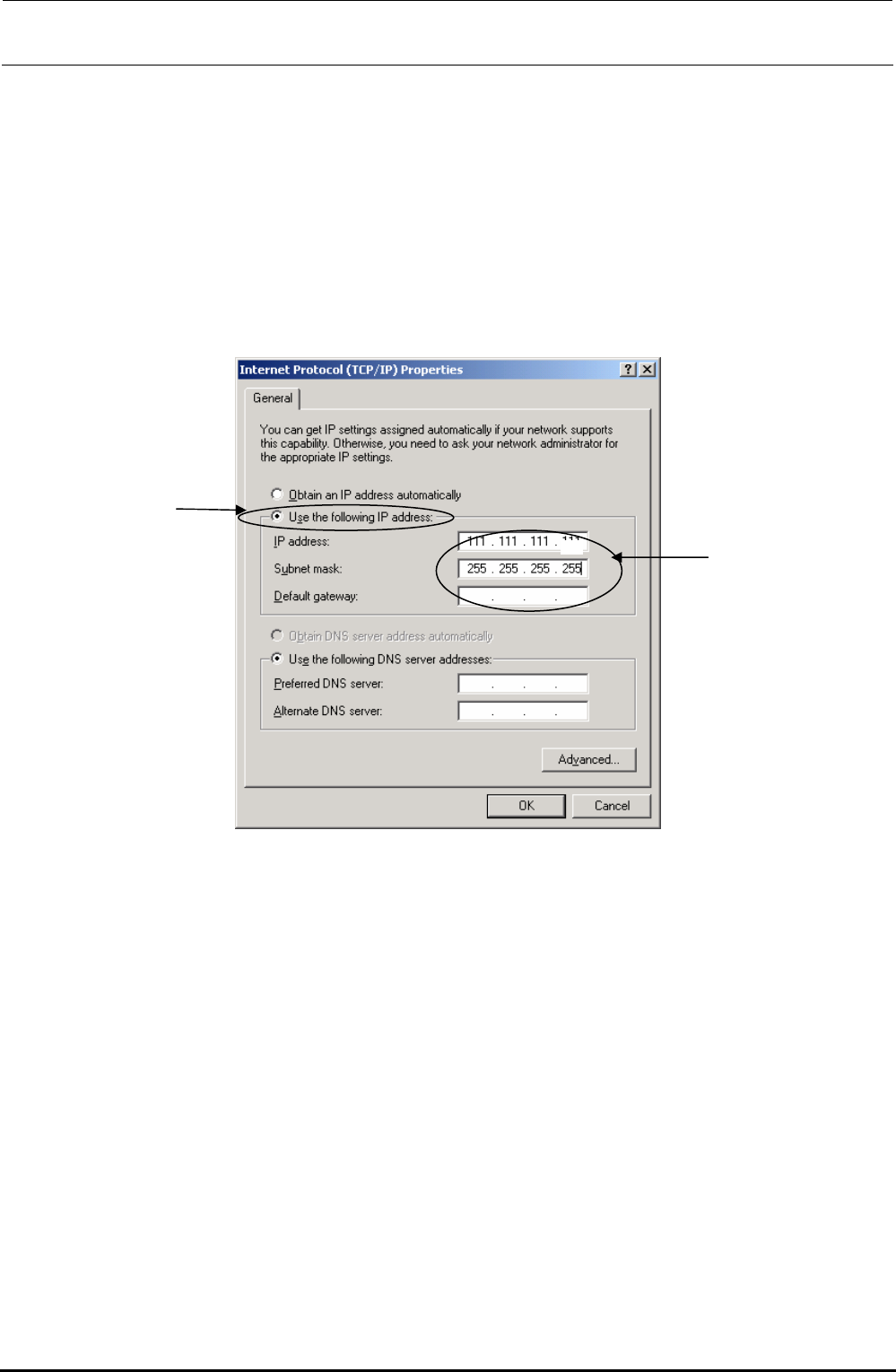
6) The “Internet Protocol (TCP/IP) (Properties)” dialog appears on the screen.
Check the “Use the following IP address” radio button.
Set the “IP address,” “Subnet mask”.
If your company determines the rules about IP address setup, you must follow the instructions
given by the network administrator of your company.
If no rules are specified, set an IP address, which has not been set in other FX-3 connected to
the HLC. In this description, set [ 111.111.111.111 ].
Additionally, input [ 255.255.255. 0 ] to [Subnet Mask].
If necessary, set the "Default gateway", "DNS", "WINS address", and other items following the
instructions given by the network administrator of your company.
0
After setting, select the [OK] button.
Rev. 1.00
FX-3R Maintenance Guide
12-14
12-2-3-2. Setting Up a Shared Folder
You may set up a shared folder for the network communication.
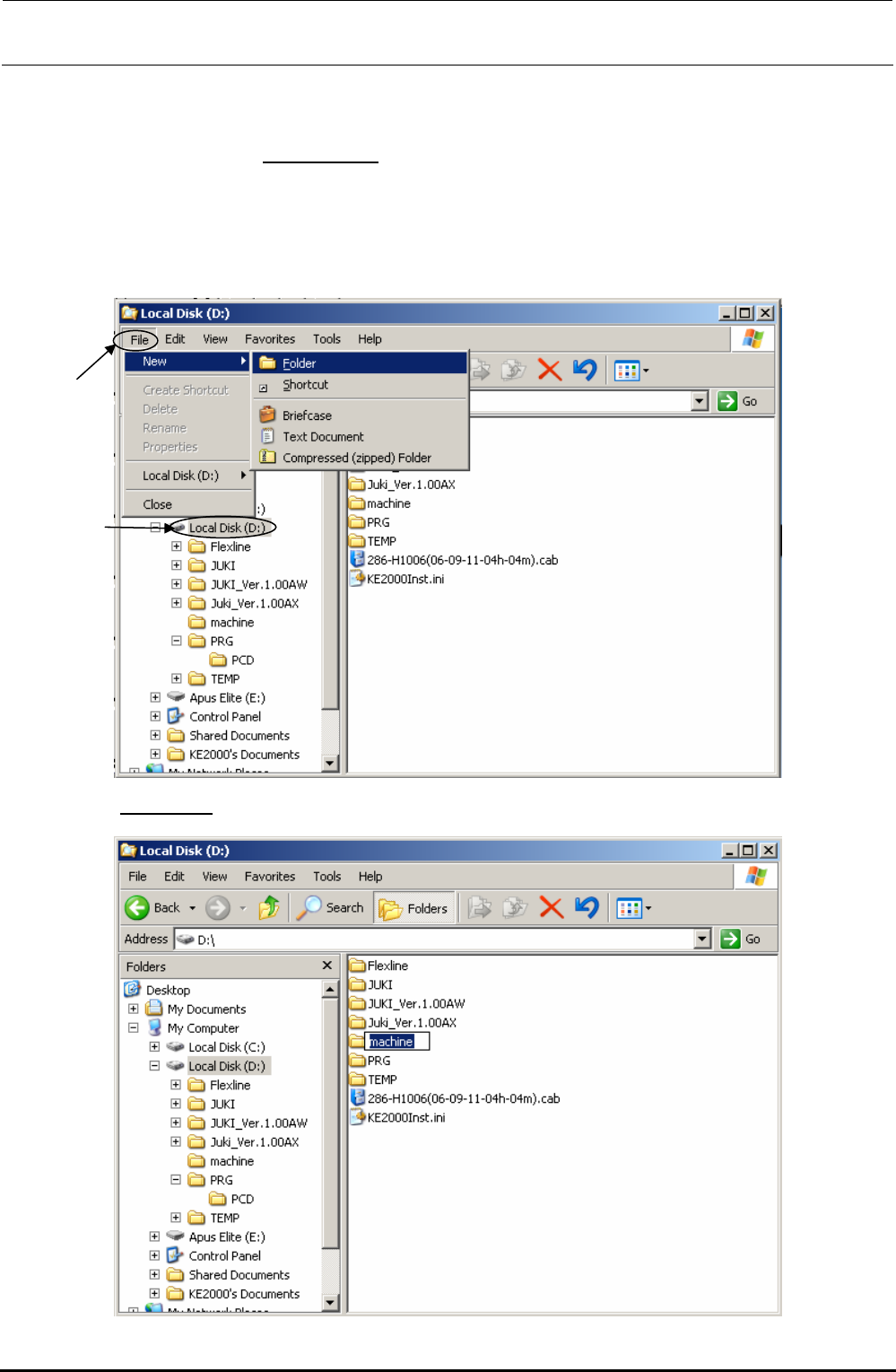
Create a folder named “D:¥
machine¥Prg” under the D drive and make this Prg folder shared.
1) Start up Explorer.
2) Select the [drive D], and select the commands from the menu bar; [File], [New] and
[Folder] commands.
3) Enter “machine” as the folder name.
Rev. 1.00