fx3r.pdf - 第157页
FX-3R Maintenance Guide 12-28 12-2-4-3. Updating the C-drive This system uses the C-drive write-protect function ca lled “EWF”. If the system is installed or if the setting, such as network setting is changed, it is nece…
FX-3R Maintenance Guide
12-27
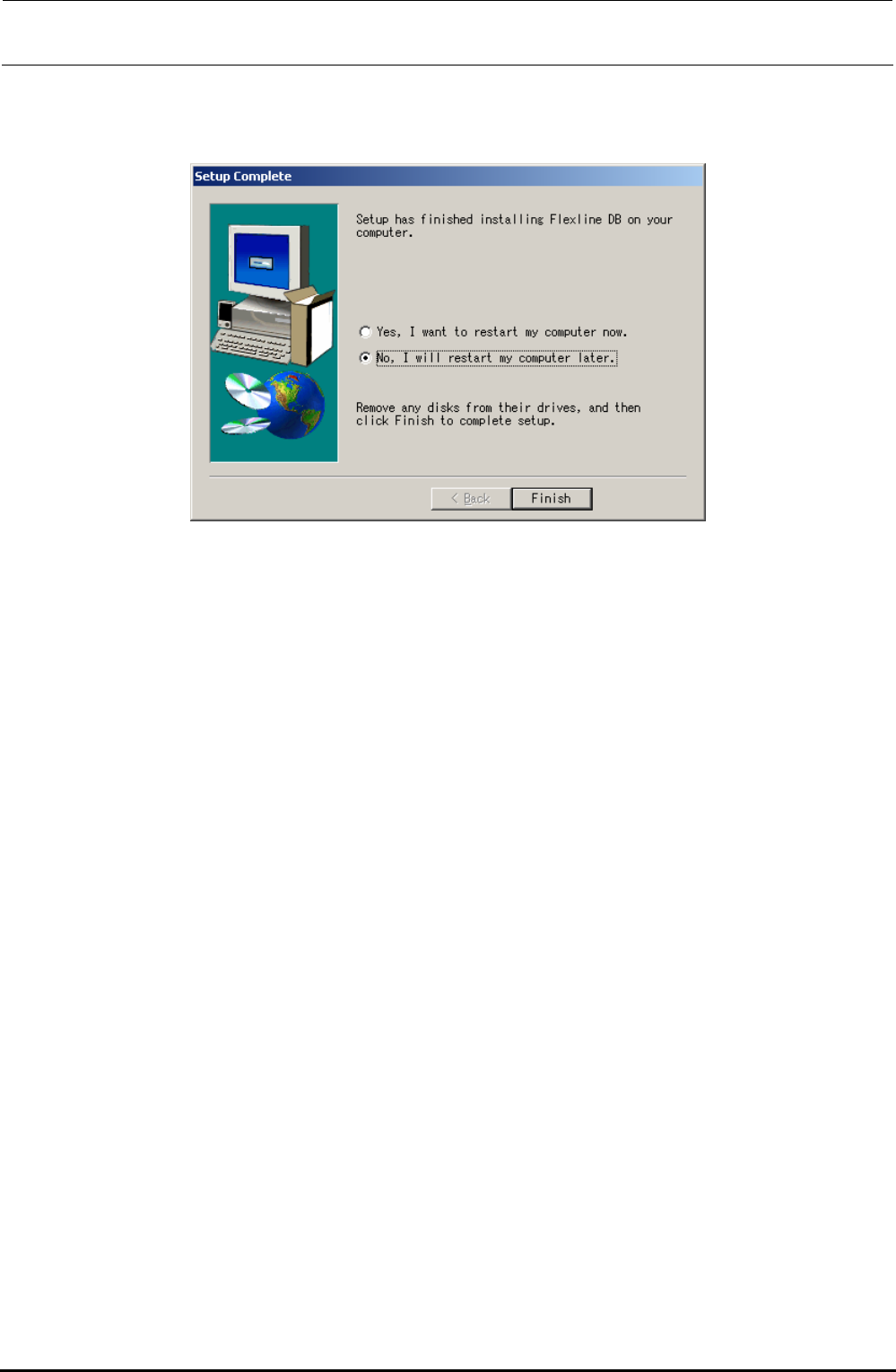
9) When the installation is completed, the “Setup Complete” screen will appear.
Check on [No, I will restart my computer later.] and click the [Finish] button.
(The system is restarted after the C-drive update operation has been completed.)
Rev. 1.00
FX-3R Maintenance Guide
12-28
12-2-4-3. Updating the C-drive
This system uses the C-drive write-protect function called “EWF”. If the system is installed or if the
setting, such as network setting is changed, it is necessary to update the C-drive.
1) Click the [Start] button of Windows and run Command Prompt from Programs in the Start
menu.
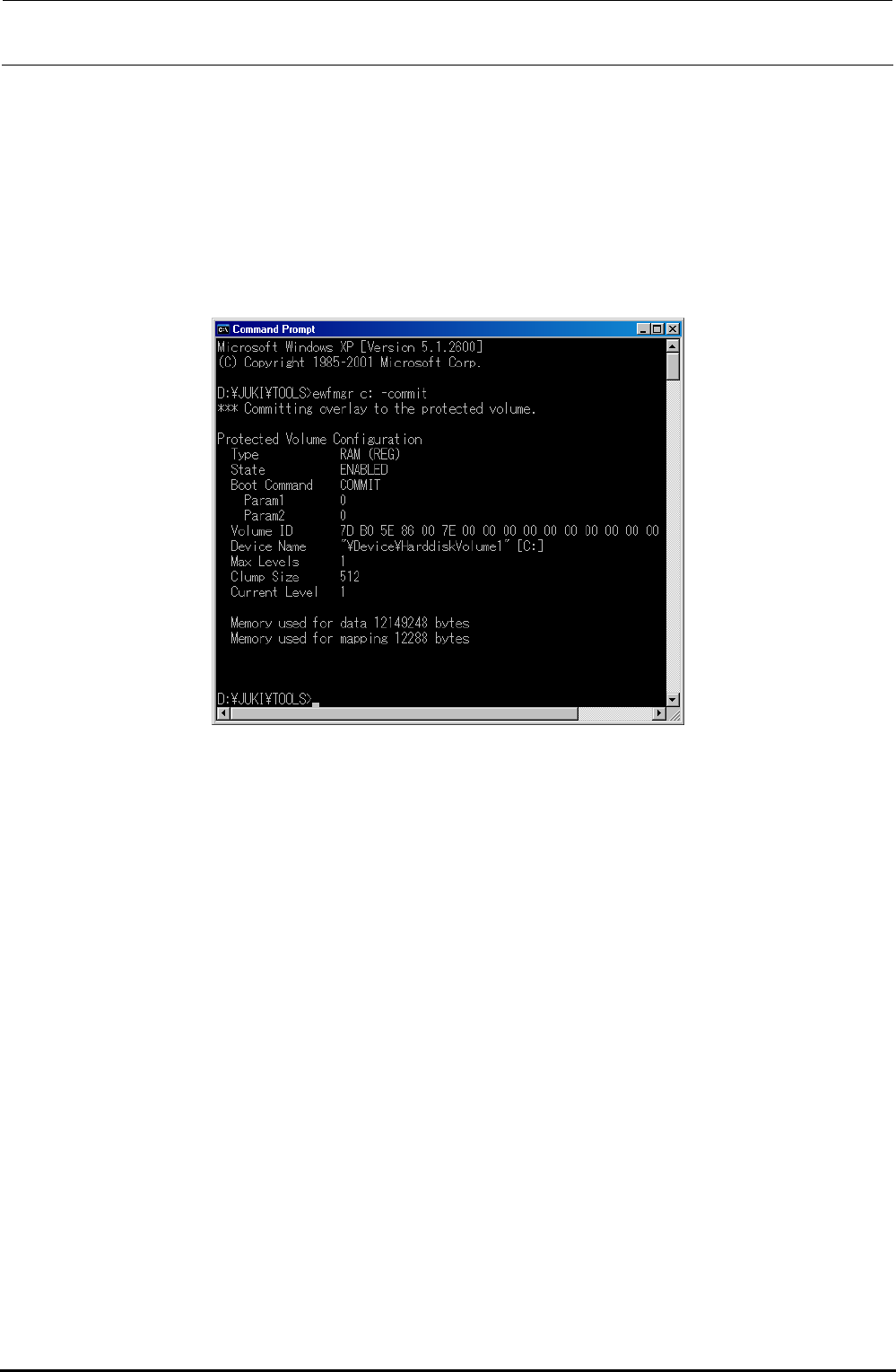
2) In the Console window (DOS screen), type “ewfmgr.exe c: -commit”.
The following screen will appear.
3) Select [Turn Off Computer] from the Start menu of Windows to restart the system.
The contents of the overlay are then overwritten into the C-drive.
∗ CAUTION
If the system is started up without updating of the C-drive, the installation information is cleared
from the C-drive due to C-drive protect function, causing the system not to be started up
correctly.
Rev. 1.00
FX-3R Maintenance Guide
12-29
12-2-4-4. Loading the Backup Data to the SSD (Restoring the backup data)
CAUTION
Always start the home position return of the machine after the backup
data has been restored. Failure to do so may cause system runaway.
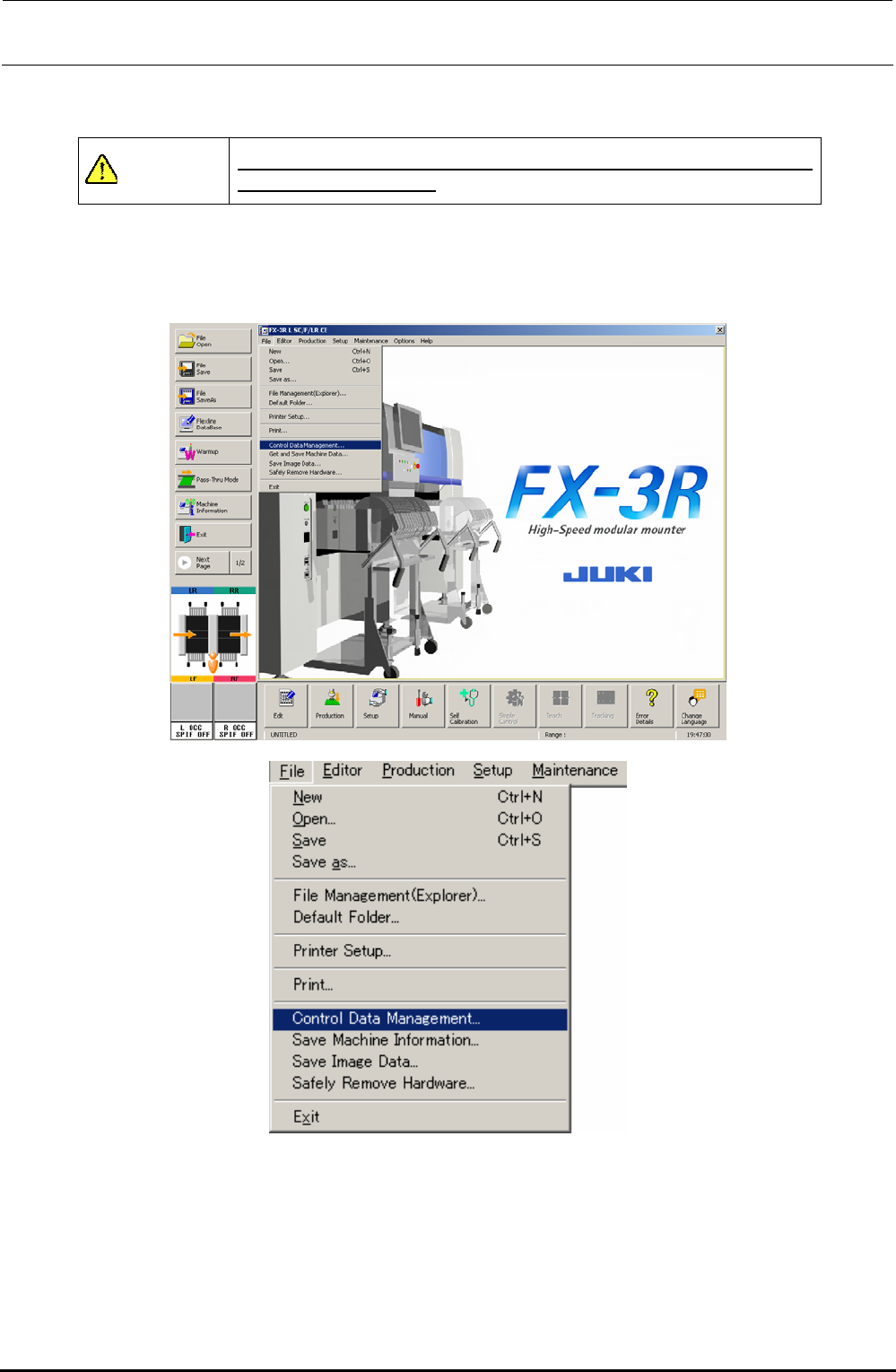
Select [File] and [Control Date Management...] to restore the control data in the SSD.
For the detailed procedure of restoration, see Section 13-3-3, “Restoring the control data from a
flash memory” in the “Instruction Manual.”
∗ After restoring the backup data, check the machine settings and adjust it if necessary.
∗ If there is no backup data for the MS parameters, obtain the MS parameters again.
Rev. 1.00