fx3r.pdf - 第149页
FX-3R Maintenance Guide 12-20 8) The password-creating screen appears. Be sure to enter the same password in both [Type a new Password] and [Type the new Password again to confirm] fields, and click the [Create passw…
FX-3R Maintenance Guide
12-19
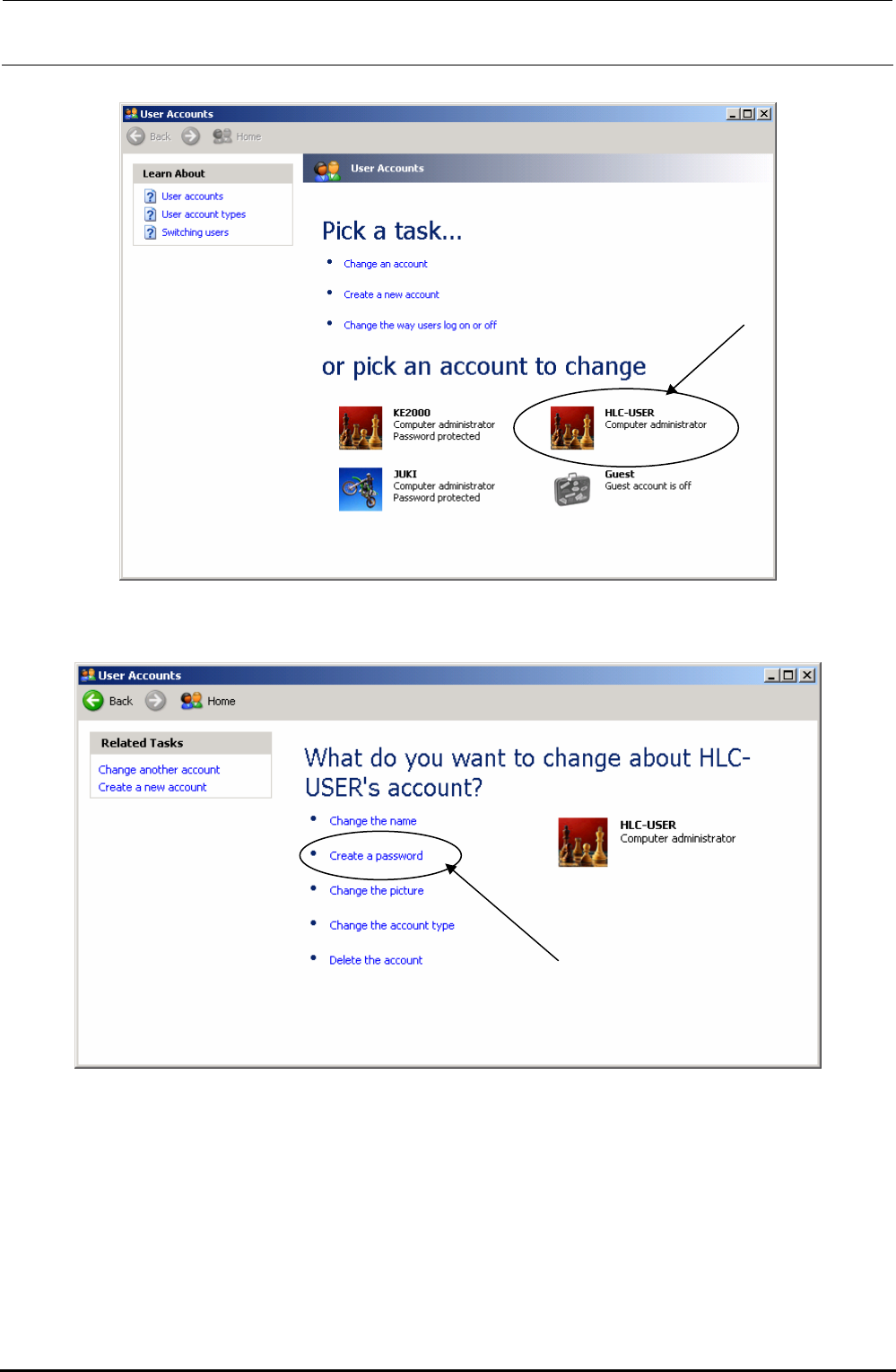
6) Select the user account you set.
7) The screen that allows you to change the account settings appears on the screen. Select the
item “Create a password.”
Rev. 1.00
FX-3R Maintenance Guide
12-20
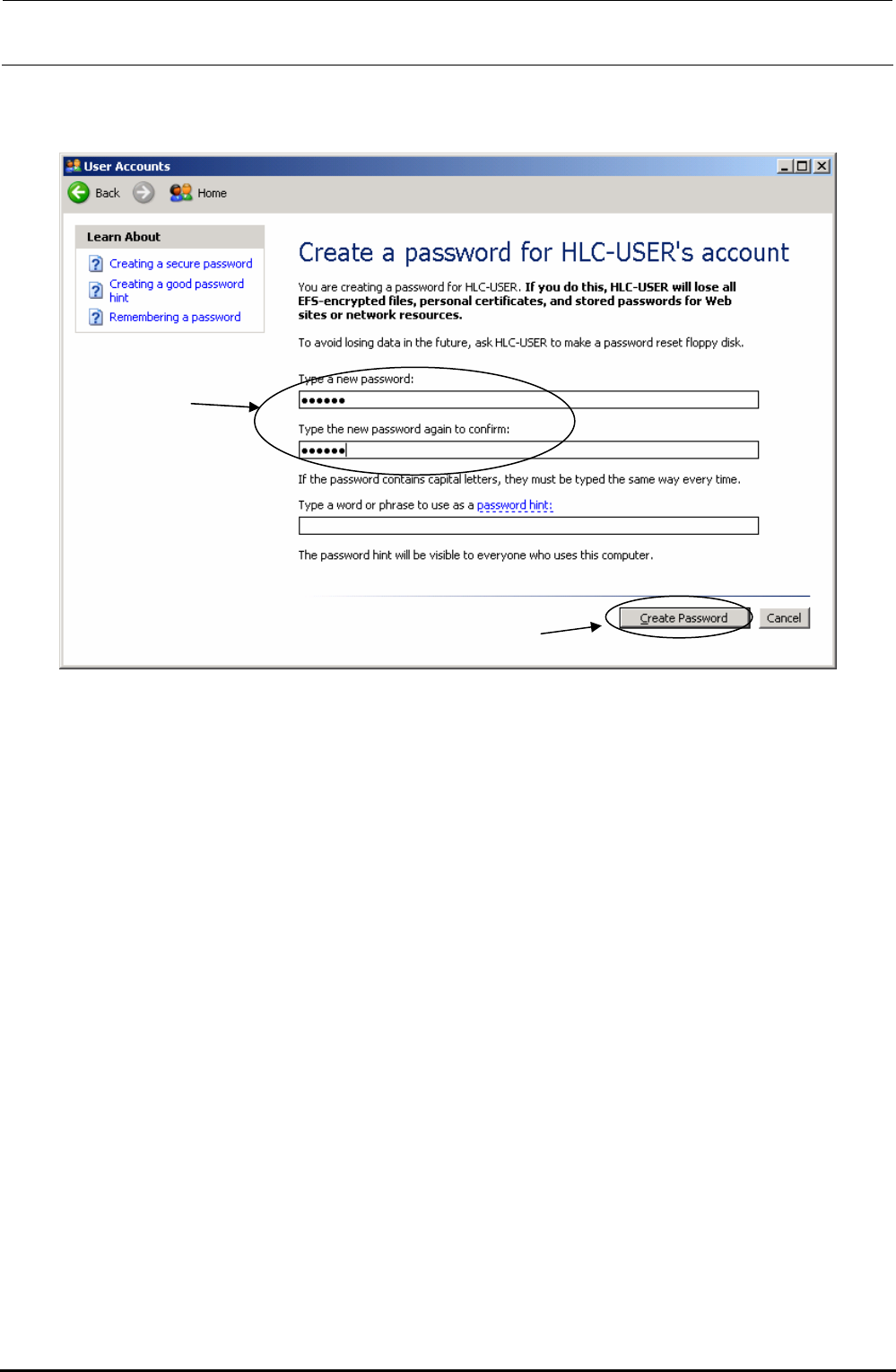
8) The password-creating screen appears. Be sure to enter the same password in both [Type
a new Password] and [Type the new Password again to confirm] fields, and click the [Create
password] button.
After you have finished all necessary settings, perform the update operation of the “C”-drive.
After that, restart the main unit.
Rev. 1.00
FX-3R Maintenance Guide
12-21
12-2-4. Installing the FX-3R System Programs and Flexline DB
The FX-3R system disks are composed of FX-3R main unit system disks and FlexlineDB system
disks.
You must always install the system program and FlexlineDB in that order.
12-2-4-1. Installing the FX-3R System Programs
1) Prepare the USB memory or other media containing the system program installation files.
2) Click the [Start] button of Windows and run Explorer from Programs in the Start menu.
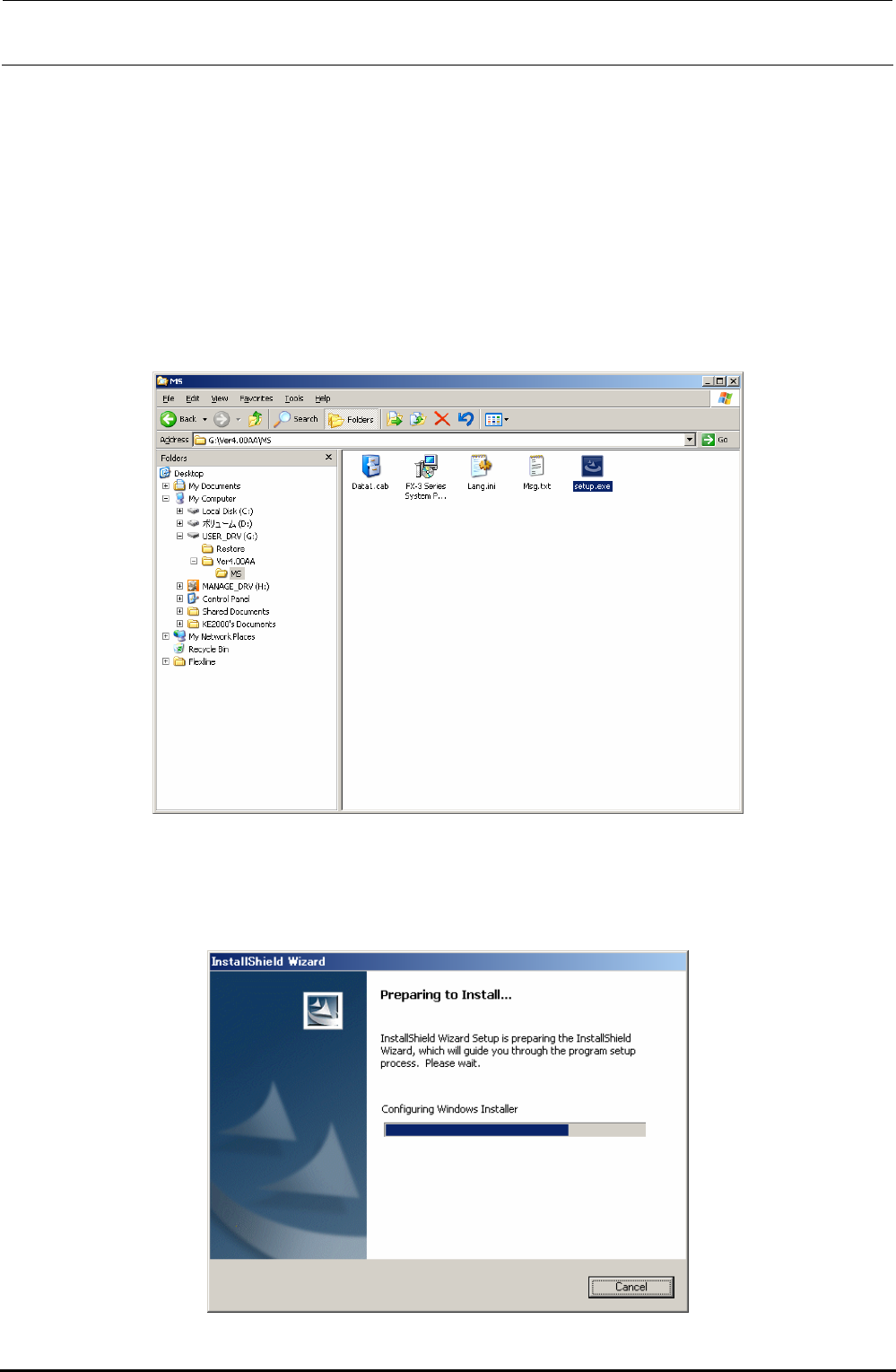
3) Select “Setup.exe” from the system program installation disk prepared in step 1).
In the Explorer window, double-click “Setup.exe” you have selected to start the installation.
4) When running “Setup.Exe”, the “Preparing to Install…” screen will appear.
This screen will disappear quickly and the operation automatically moves to step 5).
∗ CAUTION All the Installation screens are shown in English regardless of the language
specification of the OS.
Rev. 1.00