3OM-1208-011_w.pdf - 第150页
3-63 AIVEDT -ID 2.6 Saving a Pattern Program This session describes how to save a newly created or an edited pattern program. • Operation Procedure (1) Press the [Save] or the [Save As] icon on the toolbar . Saving activ…

3-62
AIVEDT-ID
[2] "Nozzle Conditions" Group Box
The condition of the nozzle used for the optimization can be specified.
[Stocker + Head] Button
When selected, this makes it possible to create the data that will
enable the production by using the head for the optimization and
only the nozzles in the nozzle stockers (housings).
The nozzle arrangement on the head is changed.
[Head] Button
When selected, this makes it possible to create the data that will
enable the production by using only the nozzles on the head for the
optimization.
[Pattern Program] Button
When selected, this makes it possible to create the data that will
enabl
e the production by using the nozzles specified in the placement
head/nozzle data in the pattern program data.
[3] [Make] Button
When selected, this executes the optimization.
[4] [End] Button
Pres
s this button to exit from the optimization session without executing
the optimization or after the optimization has failed.
•
Operation Procedure
(1) Open the pattern program to be optimized.
(2) Press the (
) button.
The "Make Placement/Handling Data" dialog box opens.
(3) Specify the order of the component placement and the condition of
the nozzle used for the optimization.
(4)
Press the [Make] button.
When the pattern program cannot be optimized, the contents are
displayed in the lower area of the "Make Placement/Handling Data"
dialog box. Check the contents and remove the cause. After that,
execute the optimization again.
(5) When the optimization is completed, a "Confirmation" window
opens.
Press the [Over
W
rite] or the [Save as...] button to save the results
of optimization.
0606-009
2.5 Optimization of Pattern Program
3-63
AIVEDT-ID
2.6 Saving a Pattern Program
This session describes how to save a newly created or an edited pattern
program.
•
Operation Procedure
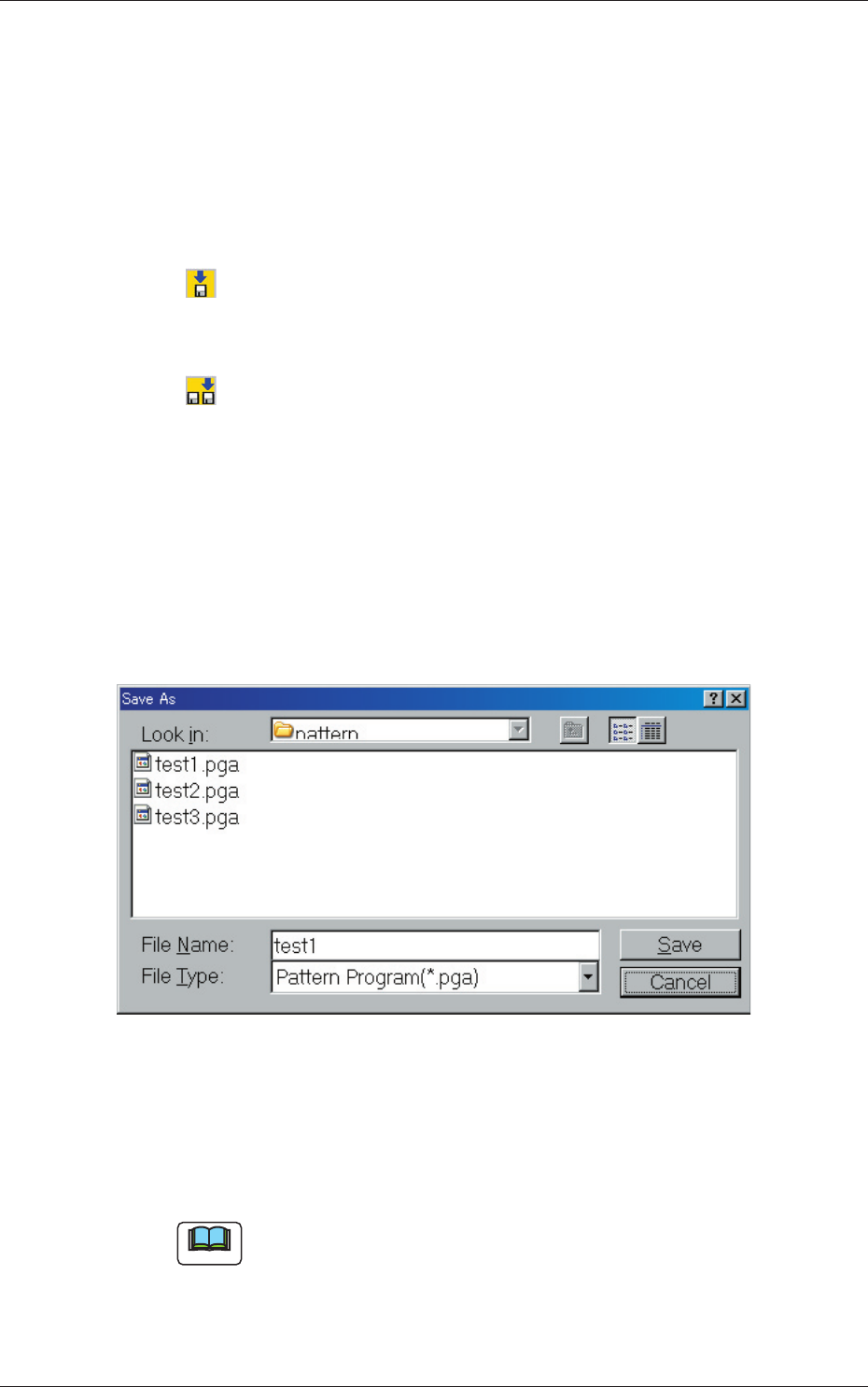
(1) Press the [Save] or the [Save As] icon on the toolbar.
Saving active file:
Select this to replace the original pattern program with the edited
one.
Saving a file with another name:
Select this to save a newly created pattern program or save the
edited pattern program with another name (as an another file).
(2) When the [Saving active file] icon is pressed, the active pattern
program is saved with the current name (model name), replacing the
original program with the active one.
(3) When the [Saving a file with another name] icon is pressed,
the following "Save As" dialog box opens.
Fig. 3C49 "Save As" Dialog Box
(4) Enter the pre-determined pattern program name in the "File Name:"
text box and press the [Save] button in the "Save As" dialog box.
The currently displayed pattern program is saved with the entered
file (model) name.
Note
An extension (.pga) is automatically assigned to the entered file name,
indicating that the file contains a pattern program.
0606-009
2.6 Saving a Pattern Program
3-64
AIVEDT-ID
0606-009
3. Example of Pattern Program Creation
3. Example of Pattern Program Creation
Described on the following pages are the examples of pattern programs to be
created.
Notice
The examples are based on "Front Right" (Placement Coordinate
Reference Point).
Create the pattern programs according to the placement coordinate
reference point of each system.
•
Single Pattern
(Global Recognition Enabled)
•
Repetitive Patterns
(Image Recognition Enabled)
•
Multi-Model Repetitive Patterns
•
Data for Polar Coordinate Conversion Function
•
Placement Data for Priority Sorting Function
Note
Marks in "Required Data"
: This means that you must refer to the description of the pattern
program data and create the data correctly.
×
: This means that you must refer to the description of the pattern
program data and set "Disable" for the pertinent functions.